Once you've set up online payments, you can turn online payments on or off for your invoices.
Turn online payments on or off by default
Your default online payment setting controls whether online payments are turned on or off for new invoices. It won’t change existing invoices.
Only the business owner or an Online Admin user can reactivate online invoice payments. Tell me more about user access.
Click the settings menu (⚙️) then choose Sales settings.
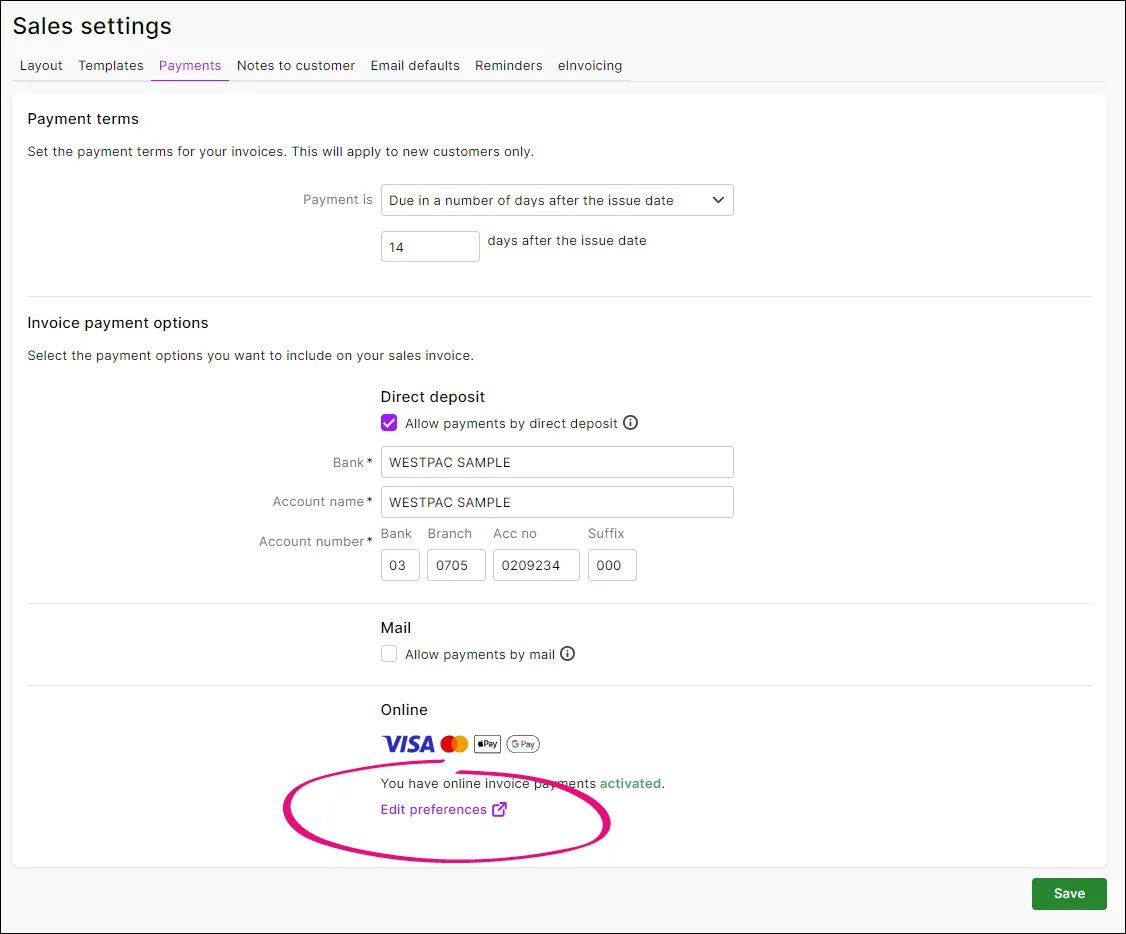
Click the Payments tab.
In the Invoice payment options > Online section, click Edit preferences:
If prompted, log in to the Merchant Portal.
On the Online payments page > Online invoice payments tab, select or deselect Enable online invoice payments.
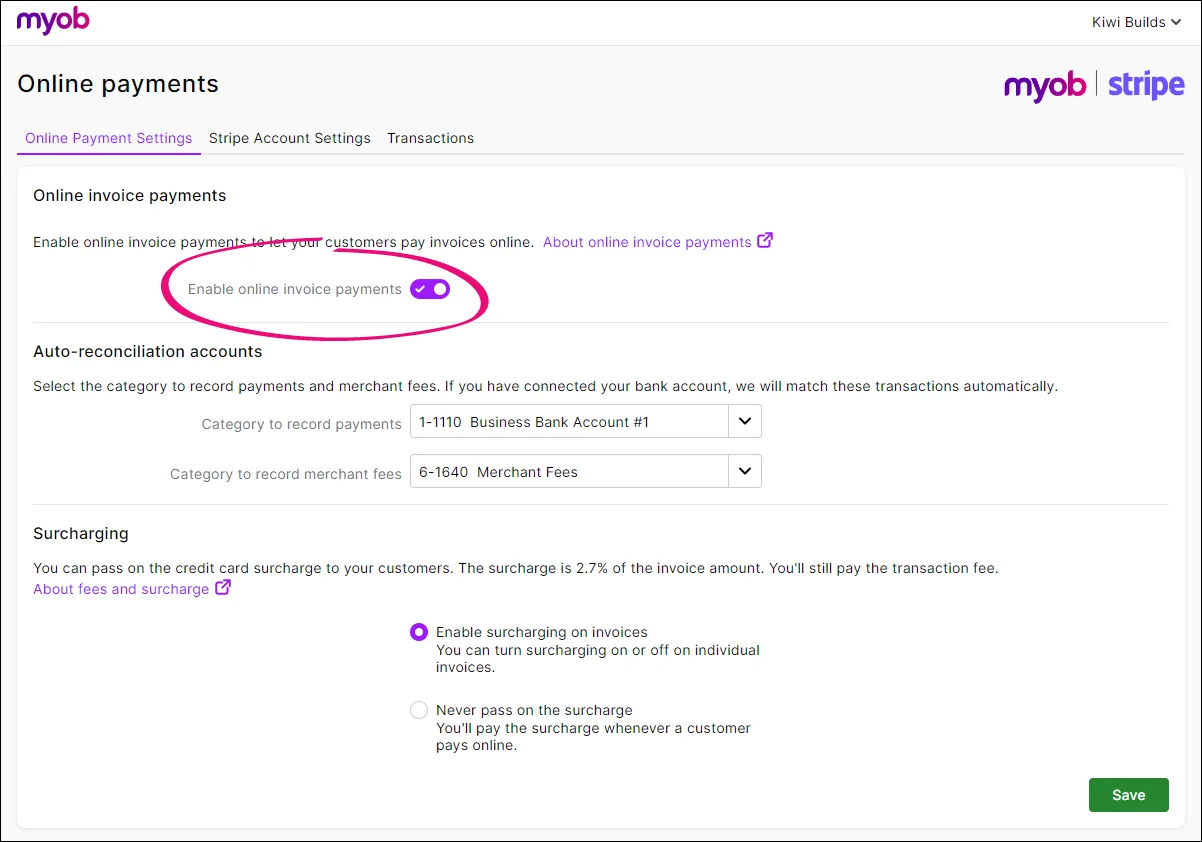
If you want to confirm the associated bank details are correct, see the Auto-reconciliation accounts section. For more info, see Editing your business bank details.
If you pass on credit card surcharges to your customers, select the Enable surcharging on invoices option.
When you're done, click Save.


Turn online payments on or off for a single invoice
You can choose whether you want to allow online payments on an individual invoice. This only affects that invoice and doesn't change your default payment options.
Create the invoice as you normally would or open an existing (unpaid) invoice.
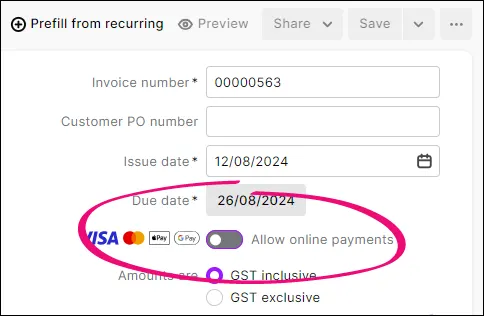
Select or deselect the Allow online payments option.
Click Save.
Complete the invoice as normal and send it to your customer.

If you change any online payments settings on an invoice you've already sent, you'll need to save your changes and re-send the invoice.
Turn online payments on or off for a recurring invoice template
The online payments settings in recurring invoices reflects the settings in the recurring invoice template. When you change the online payments options in a recurring invoice template, this will change the online payments settings in all invoices you create from the template from then on.
Go to the Banking menu > Recurring transactions.
For the Transaction type, choose Invoice.
Open the recurring invoice template you want to update.
In the Online payments section, click Edit.
You can then enable or disable online payments and decide whether or not you want to pass on the surcharge to the customer.
Online company files only
Once you've set up online payments, you can turn online payments on or off for your invoices.
Turn online payments on or off by default
The following steps will turn on or off online payments for newly created invoices – it won't affect online payments for existing invoices.
Only the Online owner or an Online administrator can change the default online payments settings. Tell me more online access levels.
Go to the Setup menu and choose Preferences.
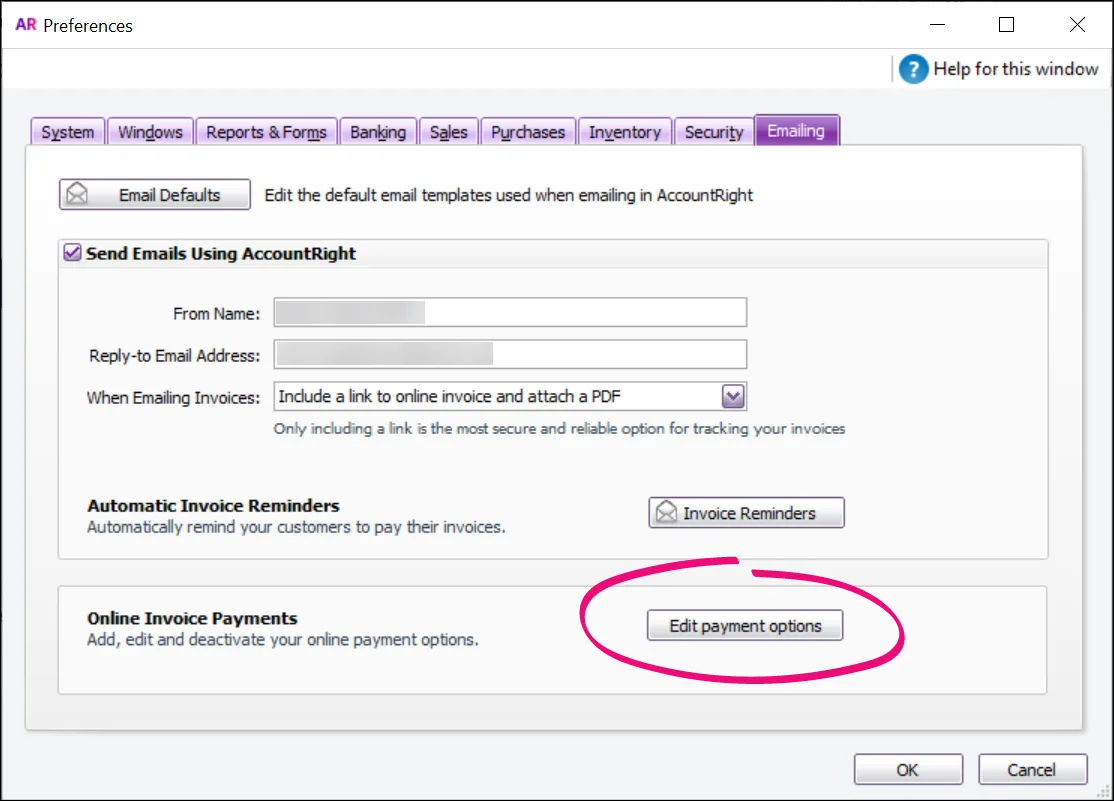
Click the Emailing tab.
Click Edit payment options.
If prompted, sign in to the Merchant Portal.
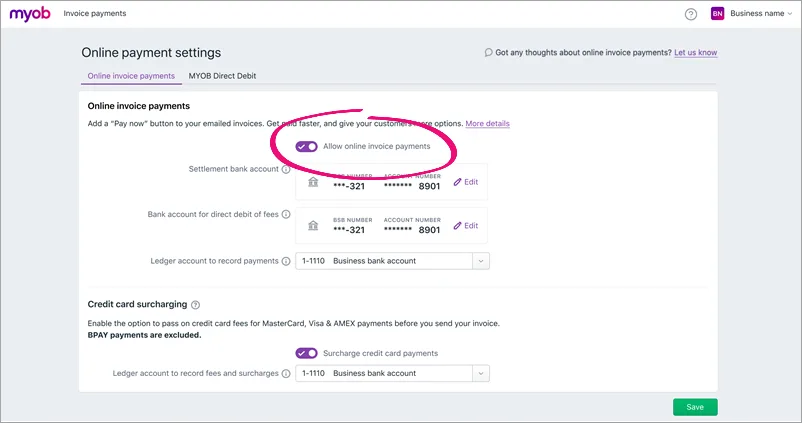
On the Online payment settings page > Online invoice payments tab, select or deselect the Allow online invoice payments option.
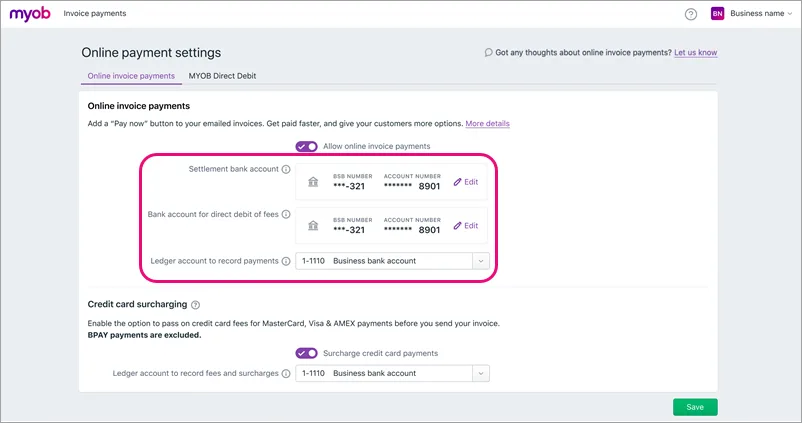
If you're turning online payments on, confirm the associated bank details are correct. For more info, see Editing your business bank details.
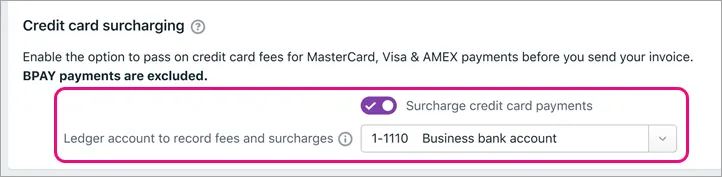
If you pass on credit card surcharges to your customers, select this option and choose the Ledger account to record fees and charges.
When you're done, click Save.


Turn online payments on or off for a single invoice
You can choose whether you want to allow online payments on an individual invoice. This only affects that invoice and doesn't change your default payment options.
Create the invoice as you normally would or open an existing (unpaid) invoice.
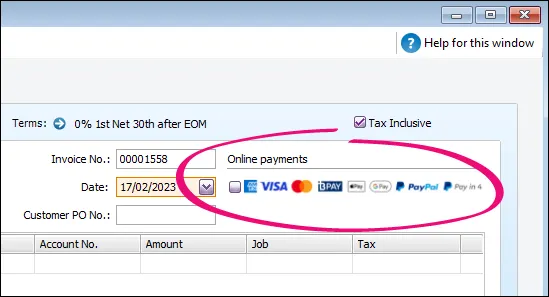
Select or deselect the Online payments option.
Click Save.
Complete the invoice as normal and send it to your customer.

If you change any online payments settings on an invoice you've already sent, you'll need to save your changes and re-send the invoice.
Turn online payments on or off for a recurring invoice template
The online payment settings in recurring invoices reflects the settings in the recurring invoice template. When you change the online payment options in a recurring invoice template, this will change the online payment settings in all invoices you create from the template from then on.
Go to the Lists menu > Recurring Transactions.
Open the recurring invoice template you want to update.
In the Online payments section, click Edit options.
You can then enable or disable online payments and decide whether or not you want to pass on the surcharge to the customer.
Click OK.
Click Save to save the updated template.