Working papers can simplify your reconciliation process, reduce manual errors, improve your client's data visibility, and optimise your workflow.
Workpapers available in Client Accounting
The workpapers include File Setup workpapers for entity details, Account workpapers linked to specific trial balance accounts, and Reconciliation workpapers that combine balances from multiple accounts. See the types of workpapers available in Client Accounting and how you can use them
Start using workpapers
Selecting workpapers and financial statements for entity types: New clients start with default workpapers and financial statements.
Income allocation workpaper: The income allocation workpaper distributes income for beneficiaries and partners, and is available for Trust and Partnership entities in workpapers and financial statements.
Entity information template: Stakeholder information is now managed in a new Stakeholder section within the Entity Information workpaper, providing a single central location.
Roll forward workpaper data from prior year: Copies prior year templates and data, updates the financial year, and rolls workpapers forward for the new period.
Adding a new workpaper
You can create a workflow using workpapers for balance sheets, income statement explanations, and annual accounts. Data from your workpapers will populate your financial reporting workflow.
In the Client overview window, select Add workflow > Workpapers.
Working paper status

Progress Bar at the top of your workflow page displays how many tasks you’ve completed. It shows a percentage and summarises tasks, checks, reconciliations, and accounts that still need work. Your goal is to reach 100% on the progress bar, which means all tasks in the workflow are done.
Templates are shown with icons: a red triangle, a yellow square, and a green circle. A red triangle means pending tasks. When you finish the necessary actions, the red triangle changes to a green circle, showing your progress.
Click the template name to open and edit the template.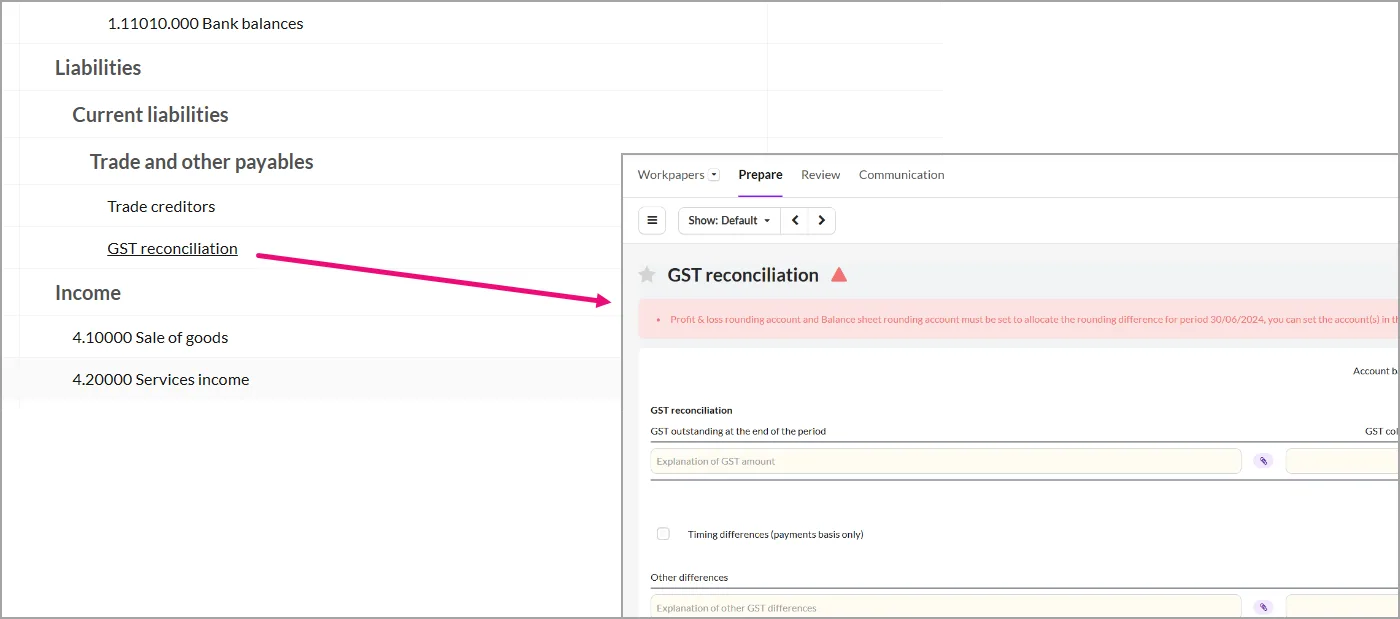
Active templates have a yellow star and light blue text. The yellow star indicates that the template requires reconciliation. If an account has a star, a red triangle or green dot will appear next to it. If a template isn't needed for a specific file, you can unstar it.
Deactivating a template removes it from the export, bringing you closer to 100% progress.

Learn how to complete a workpaper
Review a workflow: After you've prepared and completed a workflow, send it to someone in your practice for a review.
Lock and unlock periods: Locking a period to keep the financial data consistent and accurate
Configure rounding values: Choose where to allocate the rounding differences
Adding an adjustment: Adjustments are manual journals that you can add to balance the accounts
Attach documents: Upload a physical file or an external document link as a reference to your client's details
Fix an unbalanced file: Learn how to correct any discrepancy between ledger and client accounting