We’ve made it simpler and easier to manage Stakeholder information in Client Accounting.
We’re adding a new Stakeholder section to the Entity Information workpaper. A central location for all your stakeholder information.

How it works
Enter all Stakeholder names once in the new section of the Entity Information workpaper.
We’ll auto‑populate this information in the Income Allocation workpaper (Trusts and Partnerships only) and Stakeholder Notes for all entity types.
Consistent name across workpapers and financial reports.
Faster updates when information changes
What will happen to existing completed periods?
We’ll be updating the Entity information workpaper on 12 November 2025.
The Entity information workpaper is shared across all periods, so any update will affect all open and completed periods in your client file.
Before we update this workpaper, lock any completed periods and save your financial statements so the data remains intact.
Steps to take before we update the workpaper
To avoid losing data, make sure you:
Lock completed periods to prevent changes to workpapers and financial statements.
Save financial statements of completed periods (PDF) to keep a record of financial statements.
Steps to take after we update the template
After we update the workpaper, you’ll need to manually add the stakeholder's name in the new section of the Entity information workpaper.
We’ve made it easy for you to copy the stakeholders by showing the old fields. All you need to do is copy the name to the new field.
Go to the Entity information workpaper.
Depending on the entity type, the stakeholder section name will change as below:
Companies: Shareholder details
Trusts (Unit): Unitholder details
Trusts (Other): Beneficiary details
Partnerships: Partner details
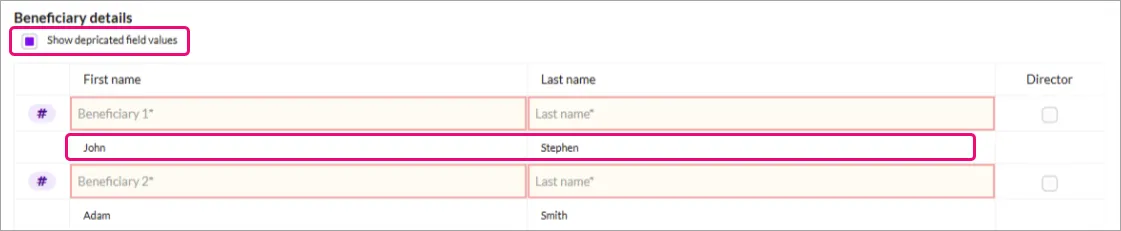
Tick the Show deprecated field values box. This will show the existing stakeholder names from Income allocations and Financial statements.
Copy the first name from the deprecated field to the new Stakeholder information field and select Save.

If you use the Stakeholder Notes workpaper, you'll need to move the shareholder name to the new table.
Selecting signatories from the new stakeholder fields
In the new section, you can tick if they are Director/Trustee/Beneficiary/Partner at the end of the record. The records that are ticked will appear in the drop-down list in the Director/Trustee/Partner details section, along with the existing names.
You can then select the signing authorities for declarations from the list.
