After you’ve prepared the workpaper, you can send it to someone in your firm to review it.
Changing the status to In-review and notifying the reviewer
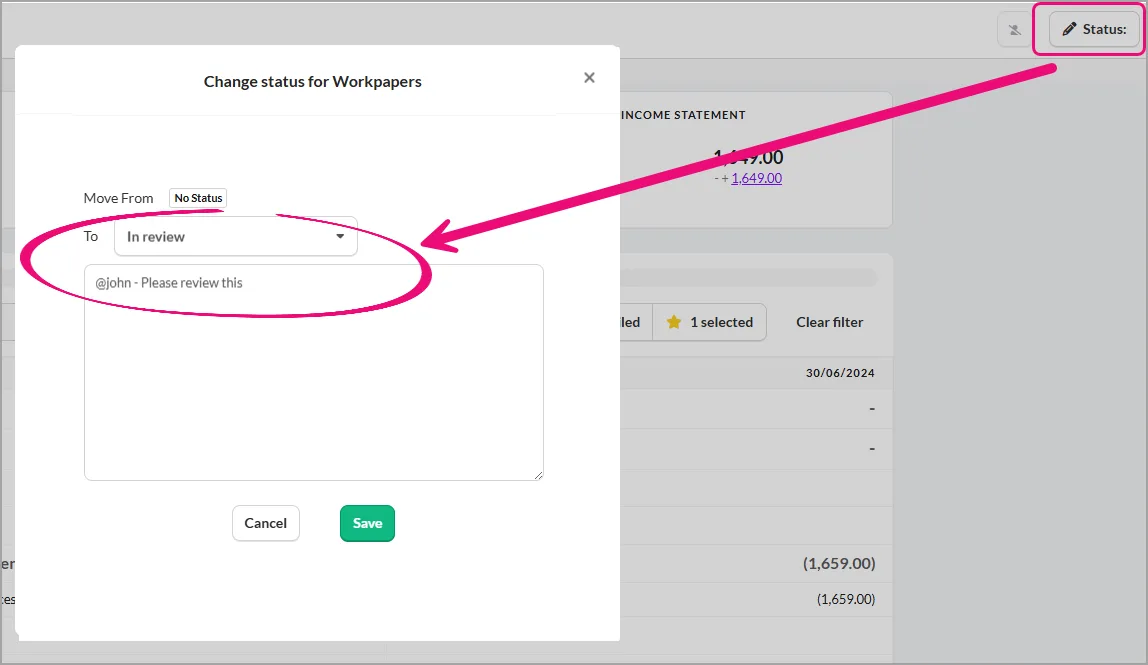
On the workflow overview page, select the Status icon.
In the Change status for Workpapers window, select In Review from the To drop-down
In the message field, you can use the @ symbol and add a review’s name and a message for them.
Click Save.

Accessing the message
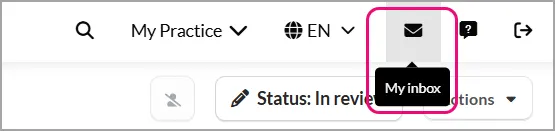
To access the message, select the envelope icon (My inbox) on the right side top corner.
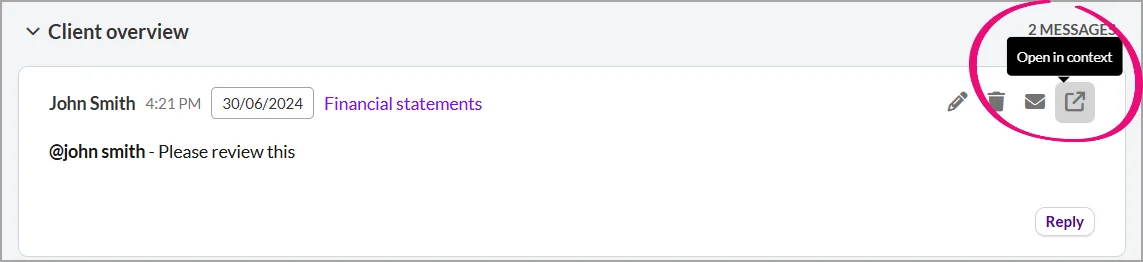
To see the workflow assigned to you for review, select the arrow (Open in context).


Reviewing the workflow
The review process is fairly simple, and you don’t need to leave the window.
On the Review screen, you can easily view a read-only version of all reconciliations in a workflow, team communications, and other helpful information, such as account adjustments.
Each template and reconciliation can be reviewed by up to 3 people. If the template has already been reviewed by another user, this will be reflected in the box.
Select Mark as reviewed for every workflow you’ve reviewed.

Workflow statuses
You can view the workflow preparation or review status directly in the workflow working screen without leaving the page.

Each status shows the number of prepared/reviewed templates out of the total number of starred templates or templates with communications. These are the same as what you'd see in the Prepare or Review tabs outside the workflow.
You can directly go to the Prepare or Review tab using the buttons in the top display.
