Only available if you use online payments
Payment schedules let your customers split invoice payments over time – using a deposit or instalments – saving you creating multiple invoices.
With payment schedules:
you don’t need to create multiple invoices for the same job or project
your customers have more flexible and appealing payment options, so they're more likely to pay you and give you more business.
You can set up a payment schedule for:
a single deposit with the balance due later
multiple instalments with due dates
The details of a payment schedule are clearly visible to you and the customer, making it easy to keep track of what’s due, what’s paid and what’s outstanding.
Add a payment schedule to an invoice
You can add a payment schedule to new or existing (open) invoices, providing you’ve enabled online payments for the invoice.
Create an invoice (Create menu > Invoice) or open an existing one (Sales menu > Invoices > open the invoice).
Make sure Online payments is turned on for the invoice.
Choose the Customer and add the goods or services to the invoice.
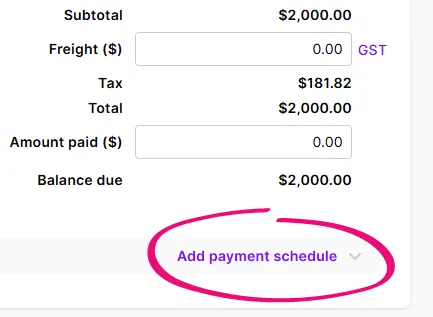
Click Add payment schedule (near the bottom). This option is enabled when there’s at least one invoice line with an amount.
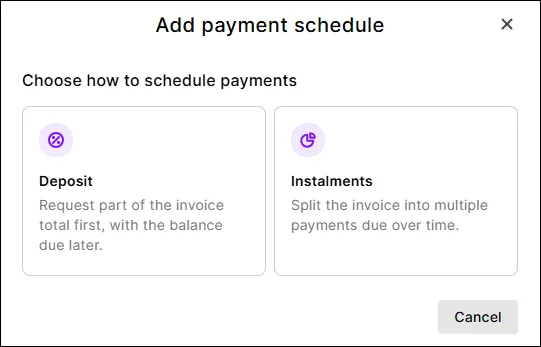
Choose either:
Deposit – to request a part of the invoice total first, with the balance due later.
Instalments – to split the invoice total into multiple payments due over time.


Set up a deposit
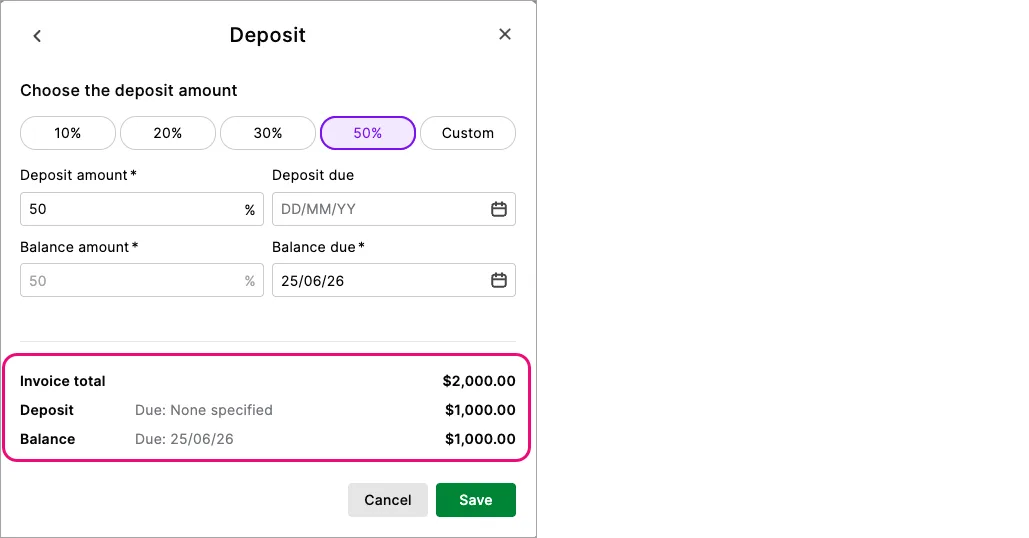
Choose the deposit amount (%).
Choose the Due date. You’ll see the remaining Balance and when it’s due.
If the invoice terms are Prepaid or Cash on delivery, the Balance due date isn’t prefilled and both payment dates are optional. For other payment terms the Balance due date is required and it's prefilled using the invoice due date (but you can change it if needed).
<updated pic required>
Click Save.

Set up instalments
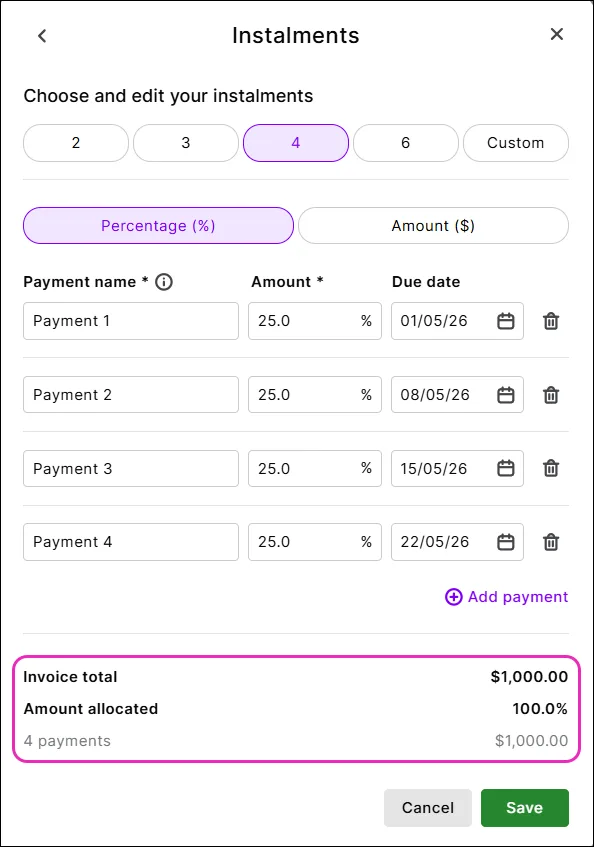
Choose the number of instalments.
Choose if the instalments are a Percentage or Amount (all instalments must be one or the other).
Enter each instalment Amount.
Choose the Due date for each instalment.
If the invoice terms are Prepaid or Cash on delivery, all instalment due dates are optional. For other payment terms, the last instalment due date is required and it's prefilled using the invoice due date (but you can change it if needed).
(Optional) Rename the instalments, for example Deposit, Stage 2, Final balance, etc.
(Optional) Add instalments (maximum 12) by clicking Add payment, or remove instalments using the delete icon.
When the Invoice total matches the Amount allocated, click Save.

The payment schedule details are shown on the invoice – click Edit to make any changes. The original invoice terms and due date no longer apply, so the Due date changes to Multiple dates. To revert to the invoice's original due date, delete the payment schedule.

Check the invoice details and save or share it – the payment schedule details show on the online invoice.
Payment schedules also show on PDF invoices
If you prefer to download an invoice as a PDF and email it to your customer – and you've set up online payments – they can still view and pay the invoice online.
When the customer opens the PDF, they'll see the payment schedule details.

Using AccountRight in a web browser?
In AccountRight desktop, there’s a setting that controls whether Payment Schedule details appear on invoice PDFs for AccountRight invoice templates (go to Setup > Preferences > Sales > Show Payment Schedule on Invoice PDF).
-
If this preference is turned on, the Payment Schedule details appear on a separate final page of invoice PDFs.
-
This setting only applies to AccountRight invoice templates
-
For browser-based invoice templates, payment schedule details always appear on invoice PDFs and are
not shown on a separate page.
Customers can pay one or all instalments
When a customer receives your invoice, they’ll see the payment schedule amounts and any specified due dates.
If no instalments are overdue, the customer can pay the next due instalment or the total remaining balance of the invoice.
If any instalments are overdue, the customer can pay the total overdue amount or the total remaining balance of the invoice.
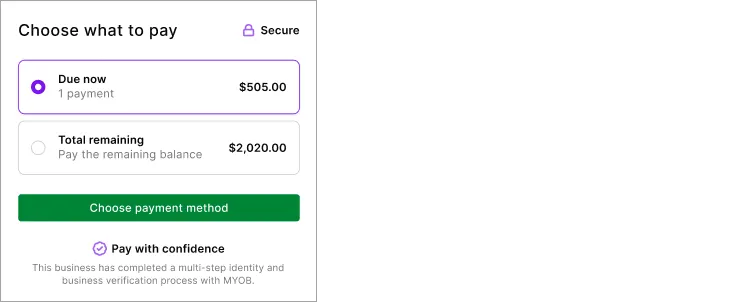

Customers make payments in the same way as other online payments.
After each successful payment:
the invoice balance and status in MYOB Business are updated automatically
the payment is automatically matched in MYOB Business, the same as other online payments
when the customer re-opens their online invoice they’ll see the updated Payment schedule with details of amounts paid what’s still due. The Payment history section shows all online payments and lets the customer re-print receipts.
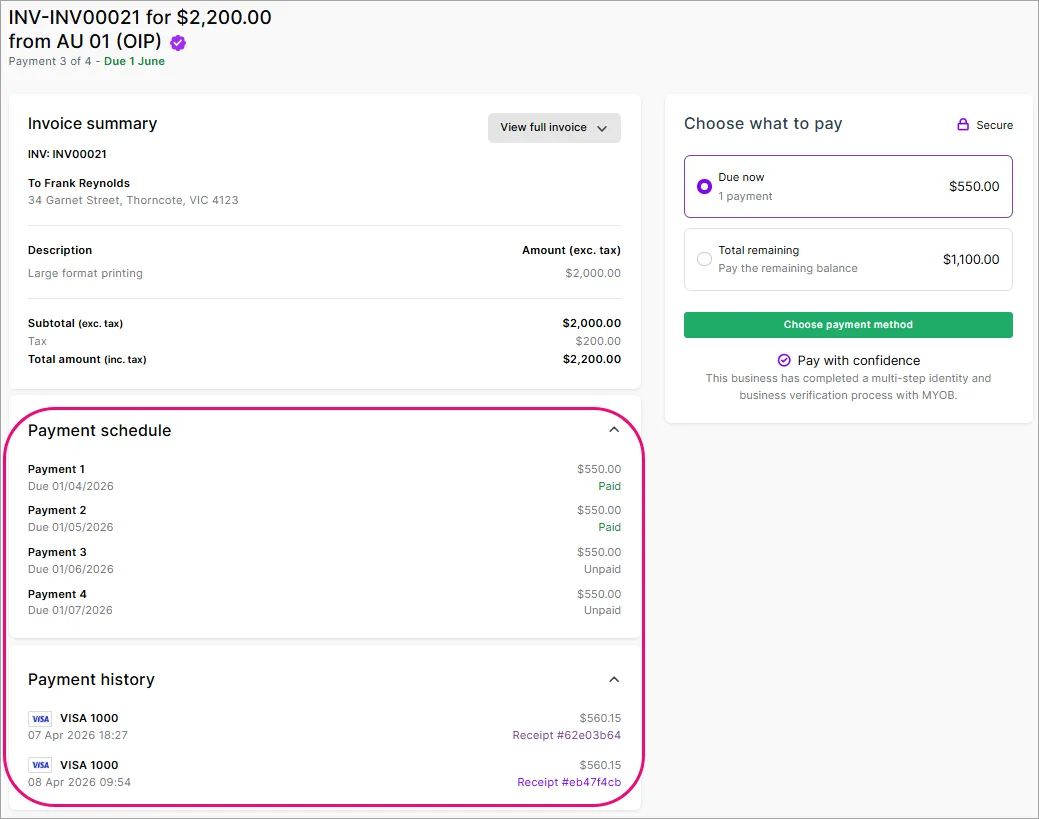

Change or delete a payment schedule
Open the invoice containing the schedule (Sales menu > Invoices > open the invoice).
Click Edit for the schedule.
Make your changes and click Save, or click Delete to remove the schedule.
If you’ve already sent the invoice, any changes to the invoice or its payment schedule will be visible to the customer when they re-open their online invoice. If you've sent the customer a downloaded PDF version of the invoice, you'll need to download the PDF again and re-send it for the updated details to be shown on the PDF.
Change an invoice containing a payment schedule
You can edit an invoice which contains a payment schedule, but some changes will affect the schedule.
If you:
change the invoice amount – you’ll need to edit the payment schedule so the instalments match the invoice amount.
change the invoice issue date or due date – if you’ve set due dates in the payment schedule, you’ll need to edit those due dates.
turn online payments off – the schedule is deleted and your customer can no longer pay online. You should let the customer know how to pay the remaining balance.
See what’s paid and what’s still due
Open an invoice and check the activity at the bottom to see when each instalment is paid.
The invoice Status will also change as payments are made:
Open – payment schedule created, no payments made yet
Partially paid – one or more instalments have been paid but there is still money owing
Paid – all instalments have been paid in full and the invoice is closed
Overdue – one or more instalments hasn’t been paid by its due date.
This makes it easy to see where things stand when viewing the Invoices page (Sales menu > Invoices). Partially paid invoices are included if you set the Status filter to All or Open.

Fees apply to each payment
Fees work the same as other online payments and will be applied to each transaction.
If a customer chooses to pay multiple instalments or the full balance in one transaction, the fees are applied to that single payment transaction.
More about online payment fees
Send smart invoice reminders for prompt payments
You can set up invoice reminders to send automatic emails to your customers to let them know about upcoming or overdue payments.
You can choose from different reminder message tones to make them more personal and effective. You also get insights into how quickly each customer pays you and see suggested actions on how to follow up overdue invoices.
If an invoice has a payment schedule with instalment due dates, the reminder email frequency is based on each instalment due date instead of the original invoice due date.
GST works the same as other invoice payments
From an accounting and GST perspective, instalments and deposits on invoices in MYOB are treated the same as any other invoice payment. How GST is handled on those payments depends on whether your business uses a cash or accrual accounting method.
For more details about how GST works in your business, talk to your accounting advisor.
Only available if you use online payments
Payment schedules let your customers split invoice payments over time – using a deposit or instalments – saving you creating multiple invoices.
With payment schedules:
you don’t need to create multiple invoices for the same job or project
your customers have more flexible and appealing payment options, so they're more likely to pay you and give you more business.
You can set up a payment schedule for:
a single deposit with the balance due later
multiple instalments with due dates
The details of a payment schedule are clearly visible to you and the customer, making it easy to keep track of what’s due, what’s paid and what’s outstanding.
Add a payment schedule to an invoice
You can add a payment schedule to new or existing (open) invoices, providing you’ve enabled online payments for the invoice.
Create an invoice (Sales command centre > Enter Sales) or open an existing one (Sales command centre > Sales Register > open the invoice).
Make sure online payments is turned on for the invoice.
Choose the Customer and add the goods or services to the invoice.
Click Add payment schedule (near the bottom). This option is enabled when there’s at least one invoice line with an amount.
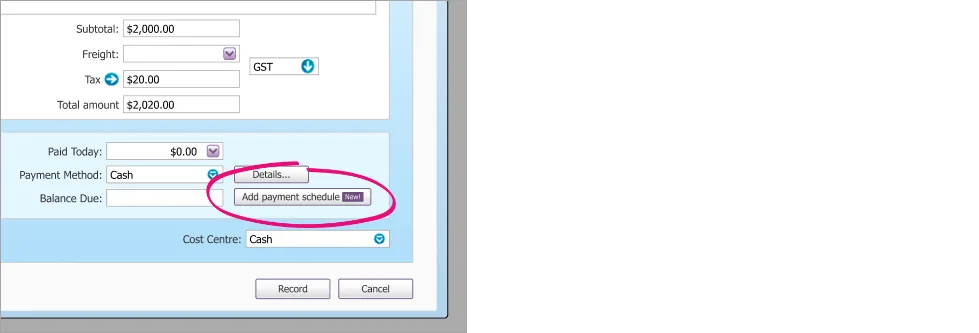
Choose either:
Deposit – to request a part of the invoice total first, with the balance due later.
Instalments – to split the invoice total into multiple payments due over time.
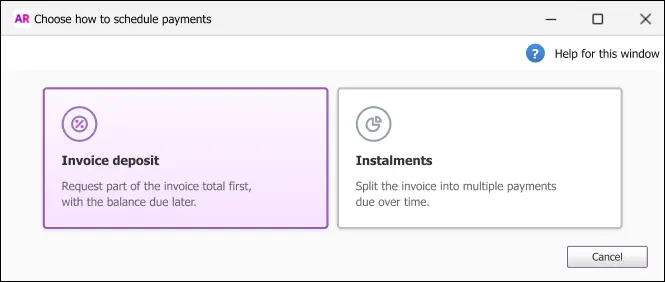
Set up a deposit
Choose the deposit amount (%).
Choose the Due date. You’ll see the remaining Balance and when it’s due.
If the invoice terms are Prepaid or Cash on delivery, the Balance due date isn’t prefilled and both payment dates are optional. For other payment terms the Balance due date is required and it's prefilled using the invoice due date (but you can change it if needed).
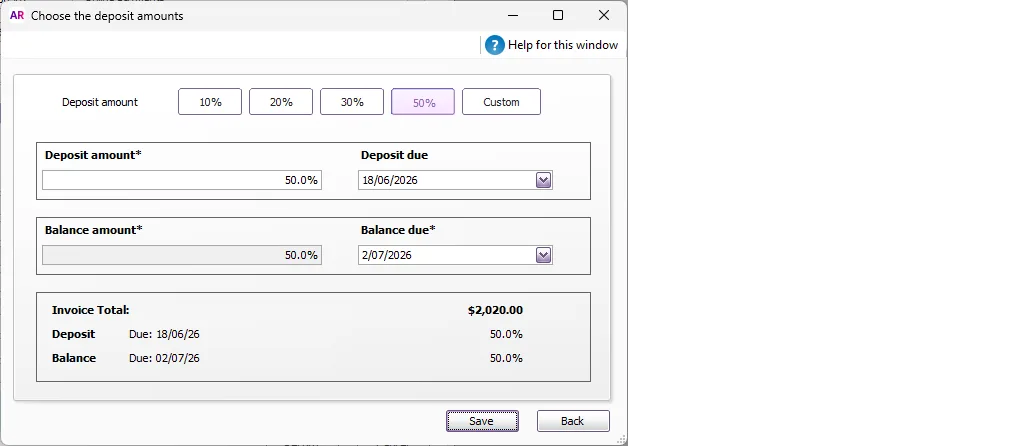
Click Save.
Set up instalments
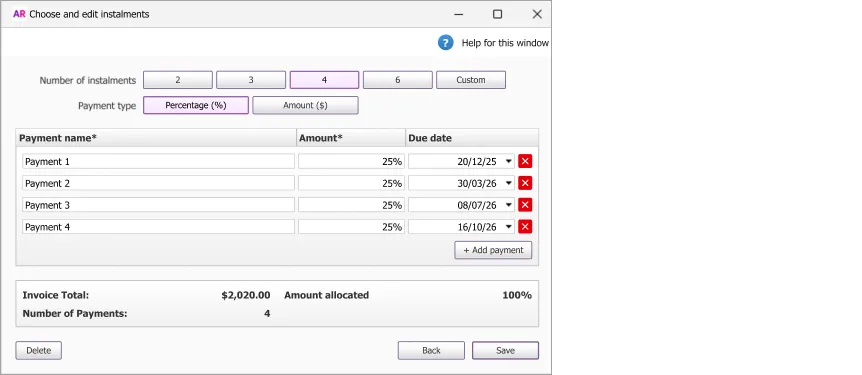
Choose the number of instalments.
Choose if the instalments are a Percentage or Amount (all instalments must be one or the other).
Enter each instalment Amount.
Choose the Due date for each instalment.
If the invoice terms are Prepaid or Cash on delivery, all instalment due dates are optional. For other payment terms, the last instalment due date is required and it's prefilled using the invoice due date (but you can change it if needed).
(Optional) Rename the instalments, for example Deposit, Stage 2, Final balance, etc.
(Optional) Add instalments (maximum 12) by clicking Add payment, or remove instalments using the delete icon.
When the Invoice total matches the Amount allocated, click Save.


The payment schedule details are shown on the invoice – click Edit payment schedule to make any changes. The original invoice terms no longer apply, so the Terms change to Multiple dates. To revert to the invoice's original due date, delete the payment schedule.

Check the invoice details and save or share it – the payment schedule details show on the customer's online invoice.
Include payment schedules on PDF invoices
If you prefer to download an invoice as a PDF from AccountRight and email it to your customer, they can still view payment schedule details on the PDF if:
you have enabled online payments for the invoice, and
you have selected the preference Show Payment Schedule on Invoice PDF (Setup > Preferences > Sales tab).
When the customer opens the PDF, the Payment Schedule details will appear on a separate (last) page of the PDF.

Using AccountRight in a web browser?
If you download PDFs of invoices in the browser, the Show Payment Schedule on Invoice PDF preference only applies to AccountRight invoice templates.
For browser-based invoice templates, payment schedule details always appear on invoice PDFs and are not shown on a separate page.
Customers can pay one or all instalments
When a customer receives your invoice, they’ll see the payment schedule amounts and any specified due dates.
If no instalments are overdue, the customer can pay the next due instalment or the total remaining balance of the invoice.
If any instalments are overdue, the customer can pay the total overdue amount or the total remaining balance of the invoice.
Customers make payments in the same way as other online payments.
After each successful payment:
the invoice balance and status in AccountRight are updated automatically
the payment is automatically matched in AccountRight, the same as other online payments
when the customer re-opens their online invoice they’ll see the updated Payment schedule with details of amounts paid what’s still due. The Payment history section shows all online payments and lets the customer re-print receipts.
Change or delete a payment schedule
Open the invoice containing the schedule (Sales command centre > Sales Register > open the invoice).
Click Edit payment schedule.
Make your changes and click Save, or click Delete to remove the schedule.
If you’ve already sent the invoice, any changes to the invoice or its payment schedule will be visible to the customer when they re-open their online invoice. If you've sent the customer a downloaded PDF version of the invoice, you'll need to download the PDF again and re-send it for the updated details to be shown on the PDF.
Change an invoice containing a payment schedule
You can edit an invoice which contains a payment schedule, but some changes will affect the schedule.
If you:
change the invoice amount – you’ll need to edit the payment schedule so the instalments match the invoice amount.
change the invoice issue date or due date – if you’ve set due dates in the payment schedule, you’ll need to edit those due dates.
turn online payments off – the schedule is deleted and your customer can no longer pay online. You should let the customer know how to pay the remaining balance.
See what’s paid and what’s still due
Open an invoice to see paid and unpaid instalments.

Partially paid invoices (those where one or more payments have been made but there's still a balance owing) will have an Open status when viewed in your Sales Register.
Fees apply to each payment
Fees work the same as other online payments and will be applied to each transaction.
If a customer chooses to pay multiple instalments or the full balance in one transaction, the fees are applied to that single payment transaction.
More about online payment fees
Send smart invoice reminders for prompt payments
You can set up invoice reminders to send automatic emails to your customers to let them know about upcoming or overdue payments.
You can choose from different reminder message tones to make them more personal and effective. You also get insights into how quickly each customer pays you and see suggested actions on how to follow up overdue invoices.
If an invoice has a payment schedule with instalment due dates, the reminder email frequency is based on each instalment due date instead of the original invoice due date.
GST works the same as other invoice payments
From an accounting and GST perspective, instalments and deposits on invoices in MYOB are treated the same as any other invoice payment. How GST is handled on those payments depends on whether your business uses a cash or accrual accounting method.
Deposits are treated differently on sales orders
A deposit on a sales order is treated differently to an invoice deposit because no goods or services have changed hands or invoice issued. More about deposits on sales orders.
For more details about how GST works in your business, talk to your accounting advisor.