From 17 June 2026, working offline will no longer be supported in AccountRight PC Edition.
This means:
-
Offline company files will only be accessible in AccountRight Server Edition. If you’re using AccountRight Server Edition to host an offline company file in a network, you’ll need to install Server Edition on all workstations that access the file.
-
Online company files will only be accessible from AccountRight PC Edition or a web browser.
-
If you use both offline and online company files, you can have both PC Edition and Server Edition installed on the same computer.
Once a company file has been created or uploaded, or you've accepted an AccountRight invitation, there are two ways to work on the file:
open the file in the latest AccountRight version on a PC, or
access the file in a web browser on any device, like a PC, Mac, tablet or smartphone.
You can decide which way works best for you – in a browser, in your AccountRight software, or both. The company file data is stored in the cloud, so you'll be working with the same data whether from the browser or your installed software.
Sign in once to easily switch between desktop and browser
When you sign in to an online company file, you can stay connected across desktop and browser without needing to keep signing in. We call this 'single sign-on'. As part of this feature, when you sign in to AccountRight desktop, you'll complete signing in to your company file in your default browser. This means you don't need to sign in again when you switch to the web browser version of AccountRight.
Opening an online company file in AccountRight
What you'll need:
-
accept your AccountRight invitation (if you've been invited to access an online file created by someone else)
-
install the latest AccountRight version on your PC
-
know your MYOB account details (email address and password)
-
be able to receive two-factor authentication (2FA) verification codes
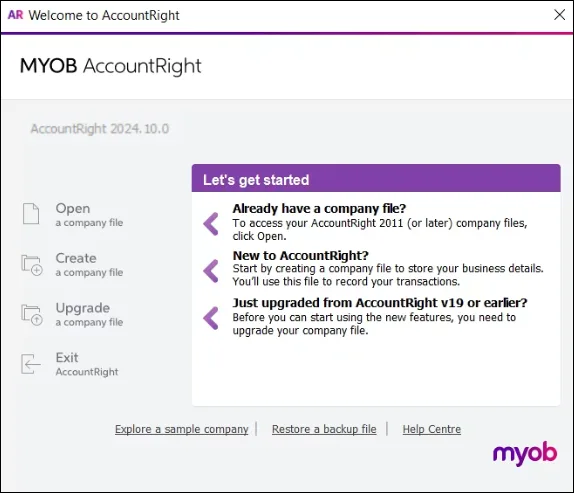
Start AccountRight to display the Welcome to AccountRight window.
-
If you've previously opened AccountRight, your most recently opened company files appear in the Welcome to AccountRight window. If the online file you want to open appears in the list, you can double-click it to open the file. If you haven’t already signed in to your MYOB account you'll be prompted to do so.
-
Click Open a company file to see your online files.

Select the file you want to open.
Click Sign in. If you haven’t signed into your MYOB account yet, you will need to enter your account's email address and password (the same details you use to sign into the My Account website).
Complete the sign-in in your default browser. When you sign in to an online company file, AccountRight will open the MYOB sign-in page in your default web browser. Enter your email and password as you normally would. Once signed in, click Open MYOB AccountRight. Your company file will open in AccountRight desktop.
You don't need to sign into AccountRight browser separately when you're already signed into the AccountRight desktop app (and vice versa). Once you’re signed in, you’ll stay connected across platforms without needing to re-enter your details (unless your software times out after inactivity).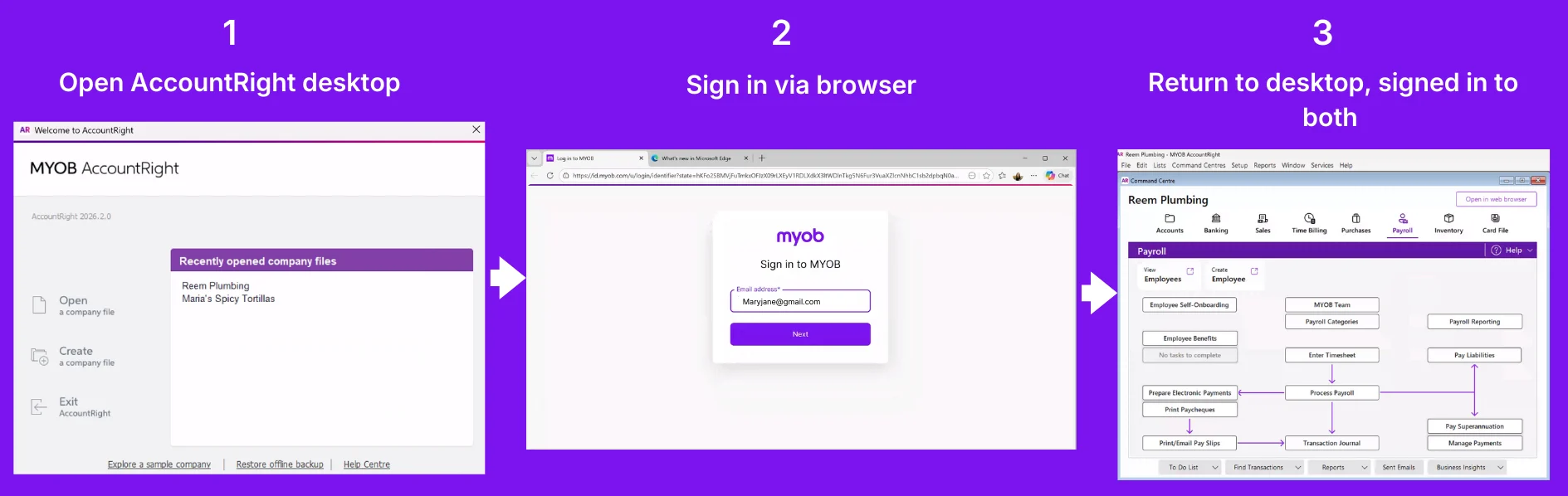
Simultaneous logins across multiple files are only supported when using the same user ID.
If a user (for example, an Online file user) needs to be able to have multiple online company files open at the same time, they'll need to have been invited to each of those files with the same MYOB login details (email address and password) for each file.
If prompted, enter your two-factor authentication code. This is part of two-factor authentication to protect your online data. All company files you own, or have been invited to access will be listed in the Library Browser window.


Online and offline files look different
From 17 June 2026, working offline will no longer be supported in AccountRight PC Edtion. If you work offline, we recommend you to put your company file online before 17 June. This ensures your data is protected with automatic online backups, and you get live bank feeds, multiuser access, and the latest updates.
When you open an online company file in AccountRight, you'll notice the command centres look a little different to offline company files. Everything still works the same, but the command centres in online files have a more modern look. There are also handy shortcuts at the top of each command centre to quickly action outstanding tasks and access popular reports and functions.
Offline company files, and backups restored locally or in a network, have a more traditional command centre without the handy shortcuts.

Opening an online company file in a web browser
What you'll need:
-
any device with a web browser and internet connection
-
accept your AccountRight invitation (if you've been invited to access an online file created by someone else)
-
know your MYOB account details (email address and password)
-
be able to receive two-factor authentication (2FA) verification codes
Already have AccountRight desktop open?
If you're signed in to AccountRight desktop, you don't need to sign back in if you want open your company file in a browser (unless your session has timed out due to inactivity).
Just click Open in web browser in any command centre in AccountRight desktop.

When you sign in to an online company file, you can stay connected across desktop and browser without needing to keep signing in.
If you aren't already signed in to AccountRight desktop, you can open AccountRight in a web browser directly from a web url:
Open a web browser.
Go to app.myob.com.
Sign in with your MYOB account details (email address and password).
If prompted, enter a two-factor authentication (2FA) verification code.
If you have access to more than one online company file, click the one you want to open.
You can now work on your file in the browser.

FAQs
How can I check who's signed in to my online file?
Go to the File menu and choose Back Up. When you click Back Up again, you'll be shown who is currently signed in to your file.

Click Close (unless you do want to back up your company file).
Why am I getting an error about my computer's system date or time being incorrect?
The first thing to check is that your using the latest version of AccountRight. See Getting the latest version.
If you're on the latest version and continue to receive this error see the instructions below.

Complete the following:
Close all programs, including AccountRight.
Right-click the clock in the bottom-right corner of your screen and choose Adjust date/time.
Make sure your computer is set to the correct Time zone and you've selected the option to Set the time automatically.
In the Additional settings section, click Sync now. Your computer's time will be synchronised with an online time server.
Click OK to close all open windows.
You should now be able to open AccountRight and successfully sign in to AccountRight Live.
If the above steps didn't work, talk to your IT specialist, as only they will be able to diagnose the specific cause in your system of the date or time error.