The latest version of AccountRight no longer supports working offline. This is because offline mode relies on older technology that no longer meets current performance standards.
From 17 June, AccountRight PC Edition only shows online files. If you can’t see your file, it’s probably still offline. Move it online to keep working.
What you need to move your file online
Before you start you need:
-
an activated offline company file – most files are activated when they’re created. If yours isn’t, activate it now
-
an AccountRight Plus or Premier subscription – help me choose a subscription.
-
a serial number in the file that matches your subscription – if your offline file is old or was set up by an advisor who used their serial number instead, you'll need to change the serial number.
-
file owner or online administrator access – only the file owner or an online administrator can upload the file. If you’re not sure who has these roles, contact us.
If any of these things are missing, you'll be prompted to fix them when you go through the upload process.
Choose the subscription that’s right for you
If you’re currently using AccountRight Plus or Premier, you’ll need a subscription for that product to move your file online. When you upload your file in AccountRight, you can fast track the subscription purchase with an exclusive offer – just click Subscribe now when prompted during the upload.
If you’re using AccountRight Standard or Basics, you can upgrade to Plus or Premier when you go through the file upload process. Or you can move to a browser based subscription, like MYOB Business Pro or Lite.
If your business needs have changed, compare your product and pricing options on our website.
Want to talk through your options? If you’re not sure where to go from here, we're happy to help. Call us on 1300 793 427 (Australia) or 0800 150 008 (New Zealand). Our team will discuss your product and pricing options to make the move online as smooth as possible.
Need more time to move online?
If you’re not ready to move your file online, AccountRight Server Edition is a temporary solution that may support working offline for the short-term. If you have some files online, you’ll still need AccountRight PC Edition to keep working with them. You can install both editions on the same computer.
There are a few things to be aware of when using Server Edition:
MYOB does not recommend this approach – Server Edition it is built on technology that no longer meets today’s performance standards.
In the near future, Server Edition will stop working and you’ll no longer be able to use it.
Server Edition will not receive minor bug fixes, security updates or any new features or enhancements.
There is no guarantee MYOB will be able to support this option in the future.
Keep working offline for now with Server Edition
You need Windows administrator permission to complete the installation.
Right-click this download link and choose Save link as or Save target as and save the installer file to your desktop.
Close all programs.
Double-click the downloaded installer file and follow the prompts to complete the installation.
After installing, double-click the new AccountRight Server Edition desktop shortcut to start AccountRight to work on an offline company file:

When you're ready to move online
If you uninstalled AccountRight PC Edition, you'll need to install it again. You can then move your offline file online as described below.
And finally, you can uninstall AccountRight Server Edition.
Move a file online
If you have everything you need to move online, here’s how to do it:
Start AccountRight to display the Welcome window.
Click Upload an offline file. If you don't see this button, restart AccountRight to install any pending updates, or
install the latest AccountRight version.
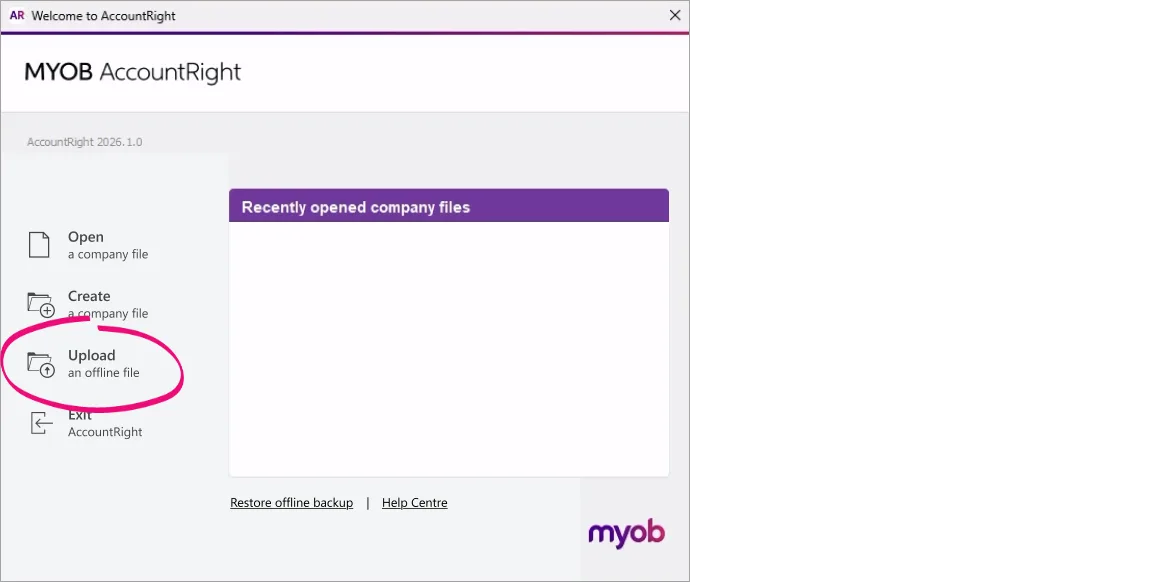
Click Browse and choose the .myox file to upload.
Company files are usually found in C:\Users\<user.name>\Documents\MYOB\My AccountRight Files
Can’t find your file? Click the Windows Start button and search for “.myox”.Click Upload and follow the prompts.
Once your file is uploaded, click Open my company file.



You can now work on your company file using AccountRight or a web browser. You can also invite anyone who needs to work on your file, including your accountant or bookkeeper.
FAQs
What if I work with both online and offline company files?
You can install both PC Edition and Server Edition on the same computer. This lets you work with online company files (in PC Edition) and offline company files (in Server Edition).
How do I restore an offline backup?
To restore an offline backup to view the backed up company file, you’ll need to do it in the previous AccountRight version. This is because the current AccountRight version cannot open offline company files.
You can also restore an offline backup to replace an existing online company file. This overwrites the online company file with the backed up version. You can do this by starting AccountRight and clicking Restore Offline Backup on the Welcome window.
For more details on these options, see Restoring an offline backup.
What’s the difference between AccountRight PC Edition and Server Edition?
AccountRight PC Edition is designed for online company files only and gives you the latest performance, security, backups and new features.
Server Edition only supports offline files and won’t receive regular updates. It’s a short-term solution if you’re not ready to move online.
How do I restart a cancelled or lapsed subscription?
To restart a cancelled or lapsed subscription, the primary contact for the subscription will need to contact us to do it.
Online company files can still be opened as read-only for 60 days from when the subscription was cancelled.
What if I’ve reached my maximum number of online company files?
An AccountRight Plus subscription includes one online company file, and Premier includes two.
If you need to purchase more online files, or want to swap one online file with another, contact us for help.