Once a company file has been created or uploaded, or you've accepted an AccountRight invitation, you can start working on it.
Server Edition users
Server Edition can no longer open online company files. If you previously opened an online company file using Server Edition, you'll need install AccountRight PC Edition to open it.
To install AccountRight PC Edition
Right-click Download and choose Save link as or Save target as to save the installation file to your computer (an AccountRight subscription is required or you've been invited to access an online file).
Double-click the downloaded file to start the installation.
Once AccountRight is installed, you'll see a shortcut icon for AccountRight on your desktop. You can then delete the installation file.
You can now start AccountRight and open a company file.
If you no longer need to use Server Edition to open offline or network files, you can uninstall it.
See 'Open an online company file', below for the steps to open your file.
Opening a company file
There are two ways to work on the file:
open the file in the latest AccountRight version on a PC, or
access the file in a web browser on any device, like a PC, Mac, tablet or smartphone.
You can decide which way works best for you – in a browser, in your AccountRight software, or both. The company file data is stored in the cloud, so you'll be working with the same data whether from the browser or your installed software.
What you'll need:
-
accept your AccountRight invitation (if you've been invited to access a file created by someone else)
-
install the latest AccountRight version on your PC
-
know your MYOB account details (email address and password)
-
be able to receive two-factor authentication (2FA) verification codes
Open a company file
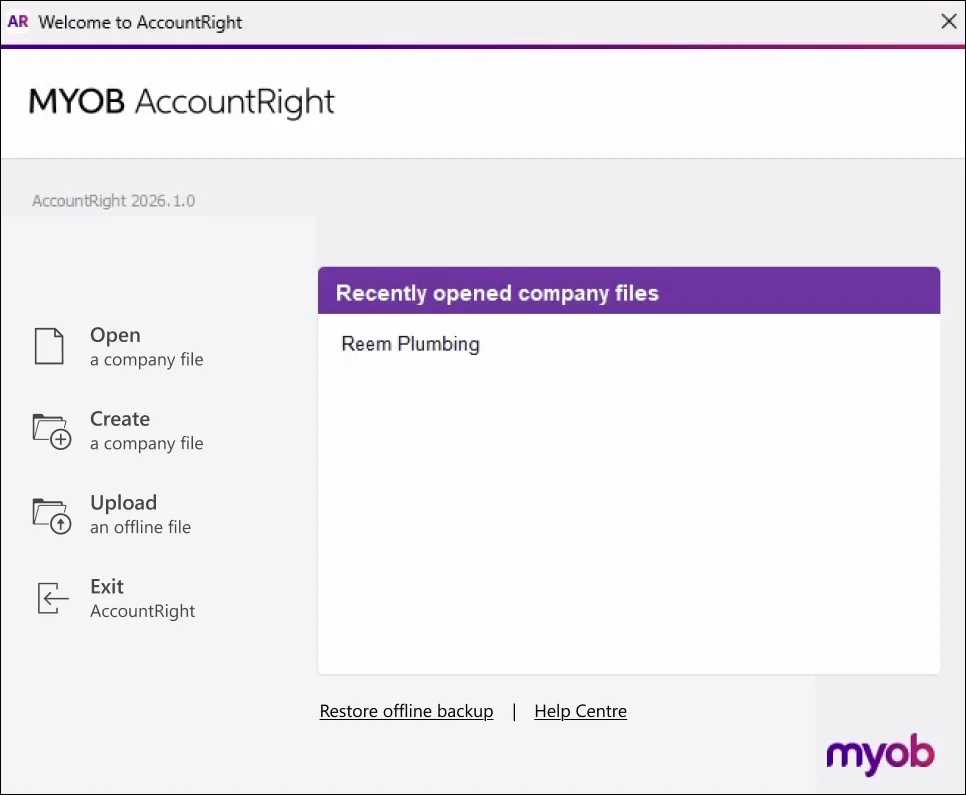
Start AccountRight. The Welcome window appears.
-
If you've previously opened AccountRight, your most recently opened company files appear in the Welcome to AccountRight window. If the online file you want to open appears in the list, you can double-click it to open the file. If you haven’t already signed in to your MYOB account you'll be prompted to do so.
-
Click Open a Company File. The Library Browser appears.
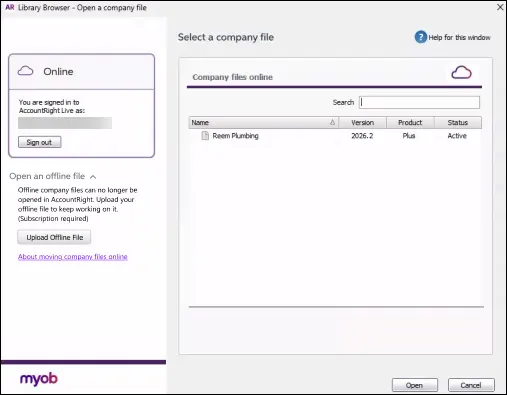
Select the file you want to open.
Click Sign in. If you haven’t signed into your MYOB account yet, you will need to enter your account's email address and password (the same details you use to sign into the My Account website).
Complete the sign-in in your default browser. When you sign in to an online company file, AccountRight will open the MYOB sign-in page in your default web browser. Enter your email and password as you normally would. Once signed in, click Open MYOB AccountRight. Your company file will open in AccountRight desktop.
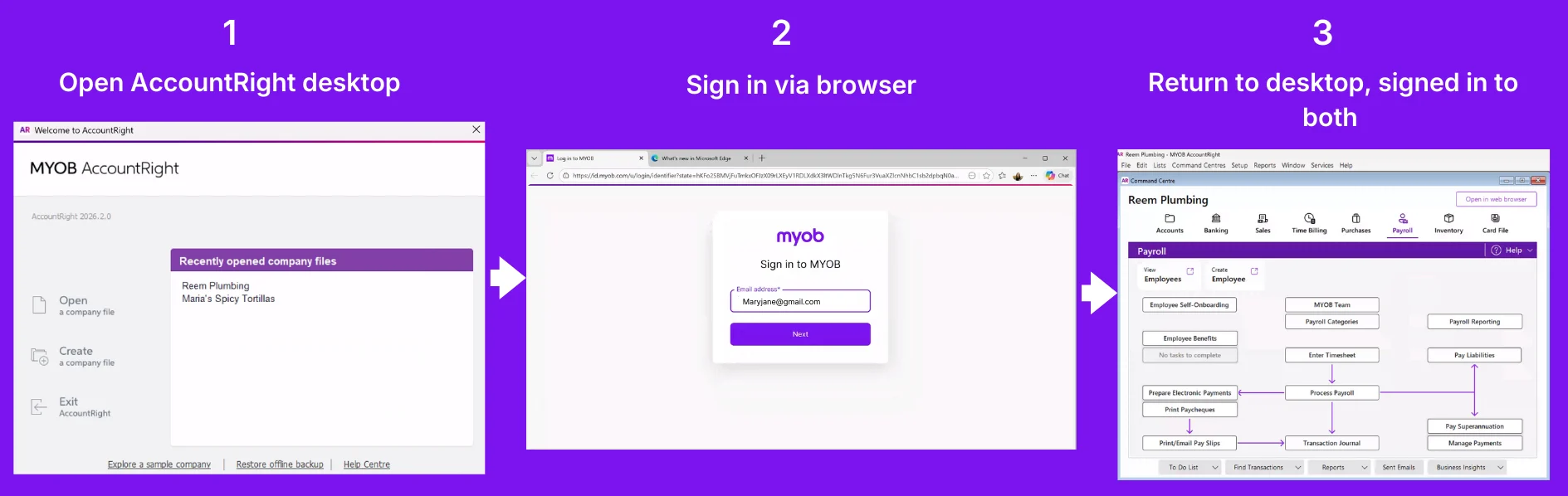
You don't need to sign into AccountRight browser separately when you're already signed into the AccountRight desktop app (and vice versa). Once you’re signed in, you’ll stay connected across platforms without needing to re-enter your details (unless your software times out after inactivity).
More about single sign-on
If you need to switch to AccountRight browser, you won’t need to sign in again. You can also open your files in a web browser at app.myob.comSimultaneous logins across multiple files are only supported when using the same user ID.
If a user (for example, an Online file user) needs to be able to have multiple company files open at the same time, they'll need to have been invited to each of those files with the same MYOB login details (email address and password) for each file.
If prompted, enter your two-factor authentication code. This is part of two-factor authentication to protect your online data. All company files you own, or have been invited to access will be listed in the Library Browser window.


Open a company file in a web browser
What you'll need:
-
any device with a web browser and internet connection
-
accept your AccountRight invitation (if you've been invited to access a file created by someone else)
-
know your MYOB account details (email address and password)
-
be able to receive two-factor authentication (2FA) verification codes
Already have AccountRight desktop open?
If you're signed in to AccountRight desktop, you don't need to sign back in if you want open your company file in a browser (unless your session has timed out due to inactivity).
Just click Open in web browser in any command centre in AccountRight desktop.

When you sign in to a company file, you can stay connected across desktop and browser without needing to keep signing in.
If you aren't already signed in to AccountRight desktop, you can open AccountRight in a web browser directly from a web url:
Open a web browser.
Go to app.myob.com.
Sign in with your MYOB account details (email address and password).
If prompted, enter a two-factor authentication (2FA) verification code.
If you have access to more than one online company file, click the one you want to open.
You can now work on your file in the browser.

FAQs
Why am I getting an error about my computer's system date or time being incorrect?
The first thing to check is that your using the latest version of AccountRight. See Getting the latest version.
If you're on the latest version and continue to receive this error see the instructions below.

Complete the following:
Close all programs, including AccountRight.
Right-click the clock in the bottom-right corner of your screen and choose Adjust date/time.
Make sure your computer is set to the correct Time zone and you've selected the option to Set the time automatically.
In the Additional settings section, click Sync now. Your computer's time will be synchronised with an online time server.
Click OK to close all open windows.
You should now be able to open AccountRight and successfully sign in.
If the above steps didn't work, talk to your IT specialist, as only they will be able to diagnose the specific cause in your system of the date or time error.