Offline files can only be opened in AccountRight v2026.4 or earlier. Before activating, you'll need to download AccountRight v2026.4. You'll then be able to open and activate your offline file.
You can only upload an offline company file once it's been activated, and you have an AccountRight Plus or Premier subscription. More about moving a file online
To activate an offline company file:
Close AccountRight.
Right-click this download link and choose Save link as or Save target as to save the AccountRight 2026.4 installation file to your Desktop.
Double-click the downloaded file on your Desktop and follow the prompts to install AccountRight. AccountRight v2026.4 will start automatically when the installation is complete.
Open your offline company file. If you see a prompt to restart AccountRight to install an update – ignore it.
If the Activation Assistant doesn't appear, go to the Help menu choose Activate your company file (or Confirm your company file if it has already been activated).
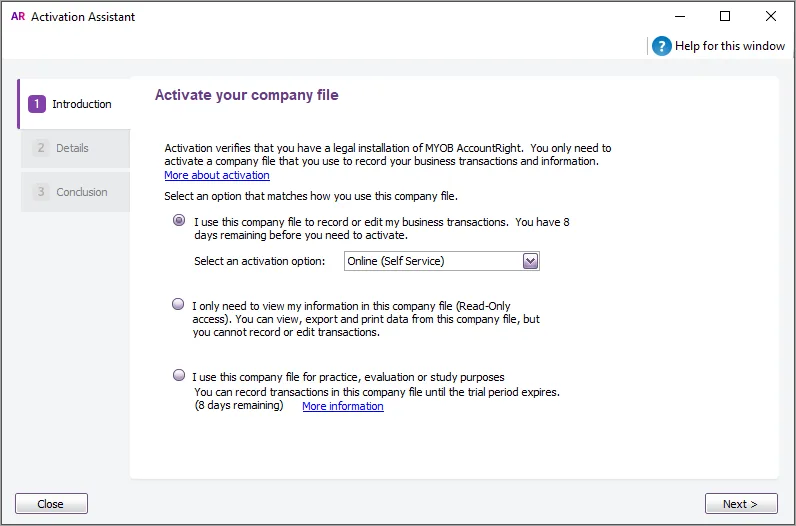
Select the option I use this company file to record or edit my business transactions.
Ensure you are connected to the internet.
For the activation option, choose Online (Self Service) then click Next.
If you have not previously entered your serial number, enter it now. This should be the serial number for your new AccountRight Plus or Premier subscription – check your subscription confirmation email for the serial number.
Click Activate (or Confirm).
Close the assistant.
Restart AccountRight and upload your company file.
