If your customers can pay you via PayPal, this article shows you how to set up MYOB to record these transactions.
PayPal transactions are much the same as other transactions which involve a merchant fee. In other words, the merchant (in this case PayPal) takes a percentage share of the transaction for providing the credit facilities. In our example, a $100 sale is received through PayPal, from which $2 is paid to PayPal, resulting in a net sale of $98. You will need to record both transactions in MYOB, in other words a customer receipt of $98 and a merchant charge of $2.
There are a few things to set up to handle these transactions, but once you're set up it's east to record your PayPal sales and keep track of the fees.
Task 1: Create a PayPal category
A PayPal category is required, against which you can record PayPal sales. This category will show you the balance owed to you by PayPal (or the balance you owe PayPal). It can be used like a normal category for making payments from or recording transfers to other categories. Unfortunately at this stage, the PayPal category can't be connected to a bank account.
Go to the Accounting menu and choose Chart of accounts.
Click Create category.
Leave Detail category selected.
For the Type, choose Bank.
For the Parent header, choose the header category under which this new category will sit. If you're unsure which to choose, check with your accounting advisor.
Enter a Code that suits your category list.
For the Name, enter "PayPal Bank" or similar.
Choose the applicable Tax code. If you're unsure which to choose, check with your accounting advisor.
Click Save.
Task 2: Create a PayPal clearing category
This category is required to temporarily hold the PayPal fees before being cleared to an expense category.
Go to the Accounting menu and choose Categories (Chart of accounts).
Click Create category.
Leave Detail category selected.
For the Type, choose Bank.
For the Parent header, choose the header category under which this new account will sit. If you're unsure which to choose, check with your accounting advisor.
Enter a Code that suits your category list.
For the Name, enter "PayPal Clearing" or similar.
Choose the applicable Tax code. If you're unsure which to choose, check with your accounting advisor.
Click Save.
Task 4: [Optional] Create a supplier record for the PayPal fees
When you record the PayPal fees using a record expense transaction, it's a good idea to allocate the transaction to a contact. Here's how to create a contact for PayPal.
Go to the Create menu and choose Contact.
For the Contact type, select Supplier.
For the Designation, select Company.
In the Company name field, enter "PayPal" or similar.
Enter a Contact ID—this is a unique alphanumeric code to identify this supplier, such as SUP0001.
Click Save.
Task 5: Record the sale
Record the sale for the customer as you normally would (need a refresher?).
Task 6: Receive the payment
When payment for the sale is received it comprises the net payment you will receive for the sale, plus the PayPal fees. In our example the total sale is $100 which comprises a net sale value of $98 plus a $2 PayPal fee. This is recorded using a customer payment for the full amount to the PayPal clearing category, and then you'll record the receive money transaction for $98 to the PayPal category from the clearing category.
To record the payment for the sale
Go to the Sales menu and choose Invoices.
Click the ellipsis (...) and choose Record invoice payment.
In the Customer field, choose the applicable customer. The list of invoices open against that customer appears.
In the Deposit into field, choose the PayPal Clearing category you created earlier.
Enter a Description for the payment.
In the Amount received column, enter the full amount the customer paid (including fees).
Click Save.
To record the receive money transaction
Go to the Banking menu and choose Receive money.
In the Bank account field, choose the PayPal Bank category you created earlier.
In the Contact field, choose the customer.
Enter a Description of transaction.
Select whether the amounts are Tax inclusive or Tax exclusive.
In the Category column, choose the PayPal Clearing category.
In the Amount field, enter the sale amount minus the PayPal fee.
Choose the applicable Tax code. If unsure, check with your accounting advisor or the ATO.
When you're done, click Record.

Task 7: Record the PayPal fees
You can now record the PayPal fees using a spend money transaction. This will clear the money from the PayPal Clearing category and allocate it to your PayPal Expense category.
Go to the Banking menu and choose Spend money.
In the Bank account field, choose your PayPal clearing category.
[Optional] In the Contact field, choose the PayPal contact you created earlier.
Enter a Description of transaction.
Choose whether the transaction amounts are Tax inclusive or Tax exclusive.
In the Category column, choose the PayPal merchant fee expense category.
In the Amount column, enter the PayPal fee.
Choose the applicable Tax code. If unsure, check with your accounting advisor or the ATO.
Click Record.

FAQs
Can I connect my PayPal category to a bank account?
Currently you can't connect your PayPal category to a bank account. But there are a few ways PayPal payments can be managed.
One way is to link your PayPal account to a bank or credit card account. If you have connected that bank or credit card account to an MYOB category, then all transactions, including the PayPal ones, will show in that bank feed.
For more information about PayPal payment methods, see the PayPal website.
If your customers have the option to pay you using PayPal, you'll need to set up AccountRight to receive those payments and account for PayPal's fees.
We'll take you through the basic setup and processing tasks, but if your requirements are more in-depth, you might need help from your accounting advisor.
1. Set up PayPal details
To record PayPal sales, there's a few things you need to set up:
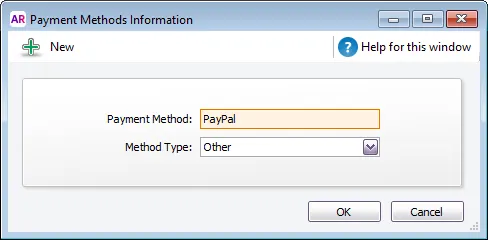
(Optional) Create a payment method for PayPal.
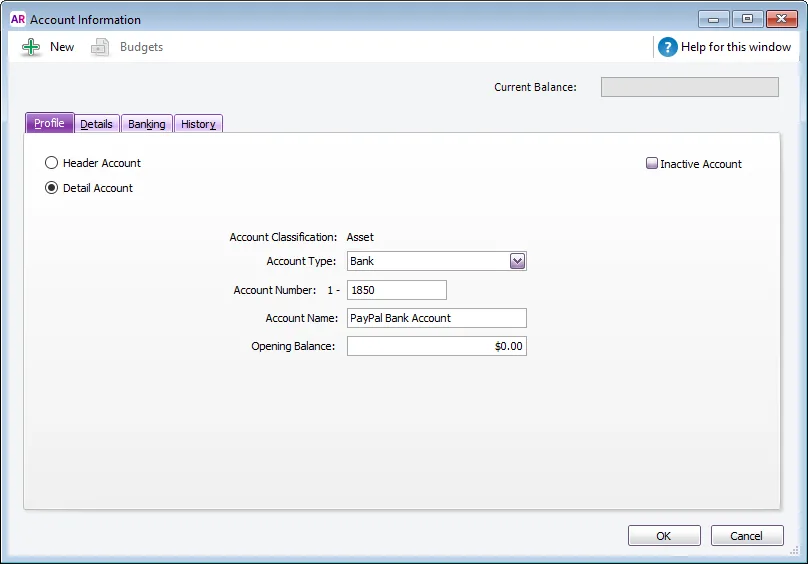
an asset account to record PayPal sales
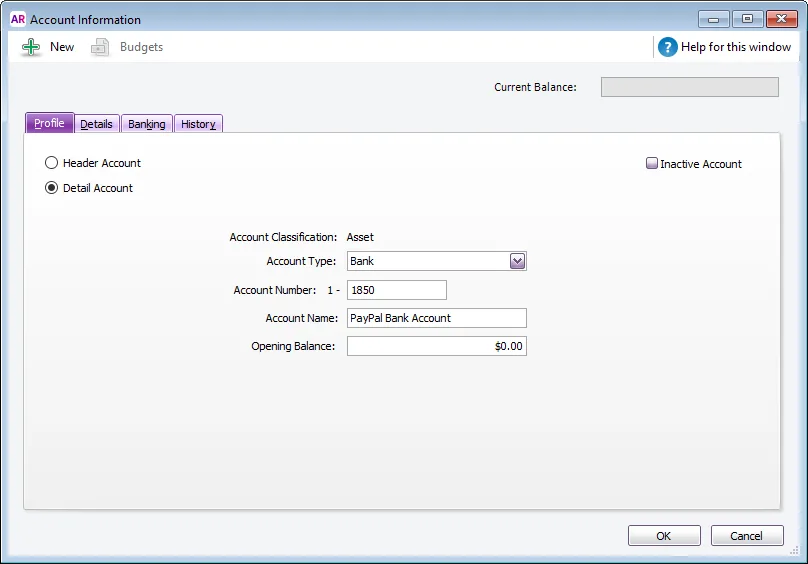
an asset account to record receipt of PayPal fees
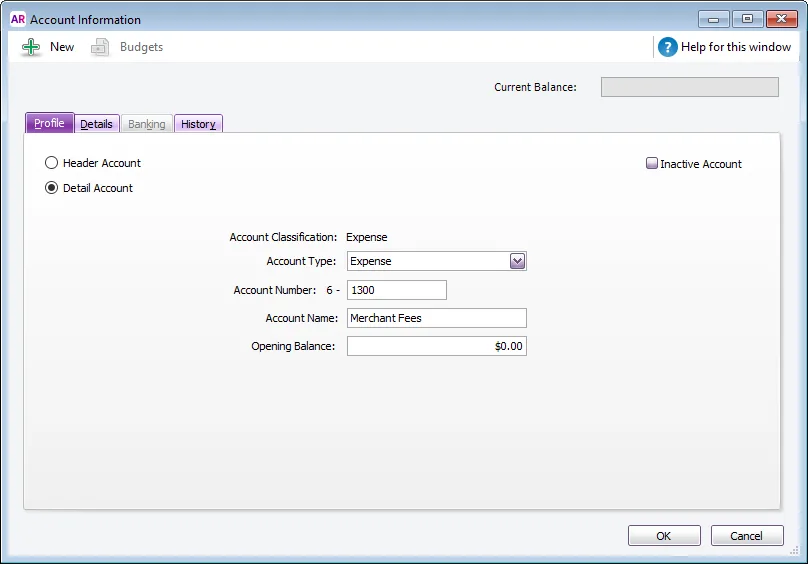
an expense account to record the payment of PayPal fees
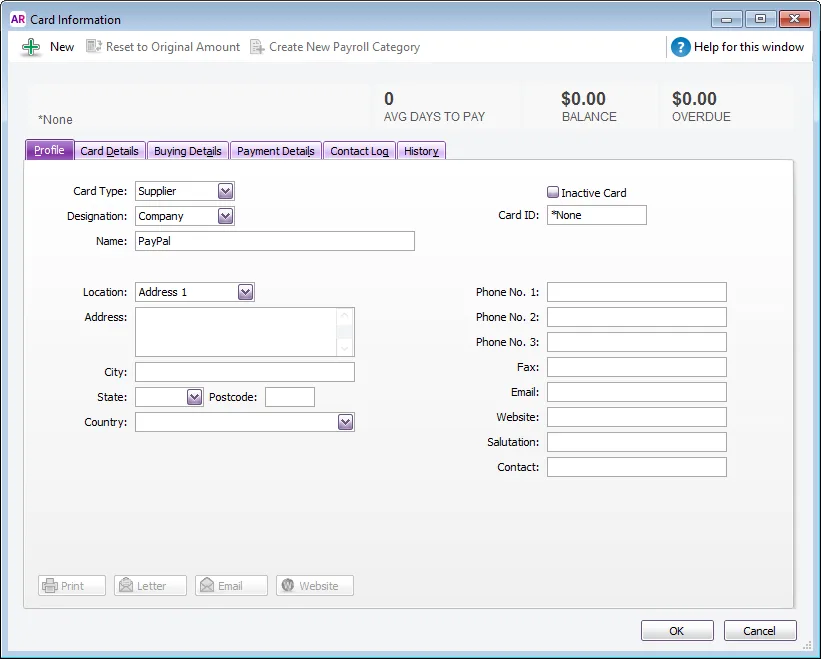
Create a supplier card to allocate the PayPal fees to.


2. Record the sale and payment
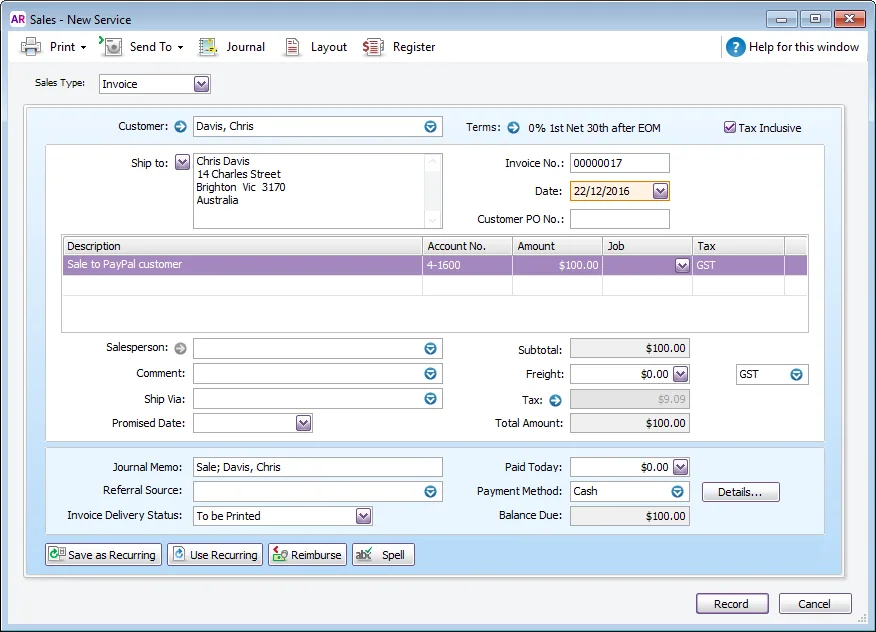
Let's say a customer has paid $100 for their purchase via PayPal. $2 from this sale is retained by PayPal as their merchant fee, resulting in a net sale of $98.
Record the sale for the total amount ($100).
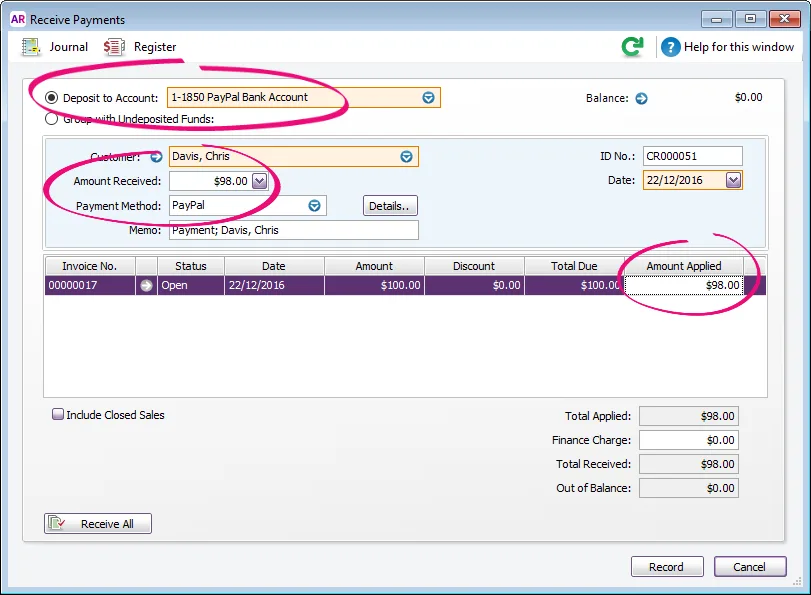
Record the payment for the net sale.
Select the PayPal Bank Account for the Deposit to Account.
Enter the Amount Received (the total sale minus the PayPal fees).
(Optional) Select PayPal as the Payment Method.
Apply this value to the open invoice.
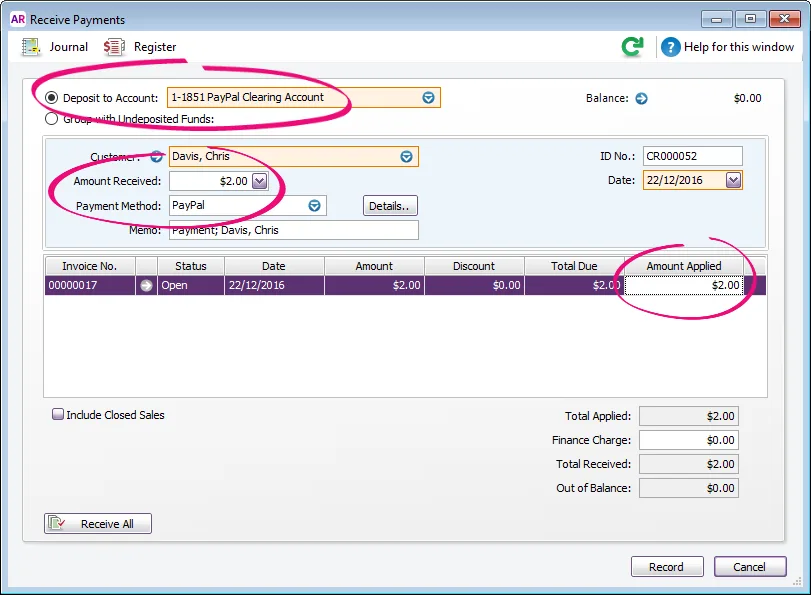
Record the payment for the PayPal fees.
Select the PayPal Clearing Account for the Deposit to Account.
Enter the Amount Received (the value of the PayPal fees).
(Optional) Select PayPal as the Payment Method.
Apply this value to the open invoice. This will close the invoice.


3. Account for the PayPal fee
This final task clears the PayPal fees from the PayPal Clearing Account to your Merchant Fees expense account.
To do this, enter a transaction in the Bank Register window.
In the Account field at the top, select the PayPal Clearing Account.
In the Type field, select Spend Money.
In the Card field, select the PayPal supplier card created earlier.
In the Amount field, enter the PayPal fee.
In the Account field, select the Merchant Fees account created earlier.
In the Tax/GST field, select the relevant code. If you're not sure which Tax/GST code to select, check with your accounting advisor.
