This information only applies to the AccountRight Server Edition.
From 17 June 2026, working offline will no longer be supported in AccountRight PC Edition. This means if you’re using AccountRight Server Edition to host an offline company file in a network, you’ll need to install Server Edition on all workstations that access the file. From 17 June, AccountRight PC Edition will no longer be able to access offline network files.
During the AccountRight Server Edition installation, a check is done to ensure the Arial and Tahoma fonts exist on your computer. AccountRight uses these fonts so if one of them is missing it can cause errors or display issues.
The AccountRight installation will provided information about which font is missing.
To reinstall missing fonts
If your computer only allows users with administrator privileges to install programs, log in as administrator.
Right-click the applicable link for the font to be reinstalled and choose to save the file to your Desktop: (Arial Font | Tahoma Font)
A ZIP file will be downloaded to your DesktopRight-click the downloaded ZIP file on your Desktop and choose Extract All. You'll be prompted to specify where you want to extract the files.
If you don't have the Extract All option when you right-click the file, you probably have a 3rd party file extractor installed on your computer, e.g. WinZip. If so, refer to that program's help documentation to learn how to extract the contents of a ZIP file.
If you don't have the Extract All option when you right-click the file, you probably have a 3rd party file extractor installed on your computer, e.g. WinZip. If so, refer to that program's help documentation to learn how to extract the contents of a ZIP file.
Click Browse and select the Desktop for the location to extract the contents of the ZIP file. This creates a folder called Arial Fonts or Tahoma Fonts on your Desktop.
Double-click the Arial Fonts or Tahoma Fonts folder. The contents of the folder will be displayed (these are the individual font files).
Go to the Home menu and choose Select all. In older Windows versions, go to the Organize menu and choose Select all.
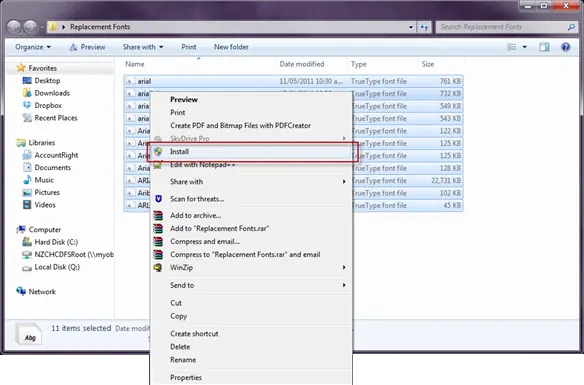
Right-click the selected font files and choose Install.
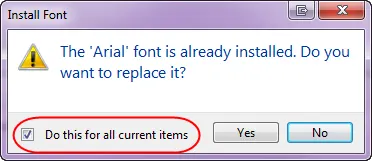
If a message is displayed about replacing an existing font, select the option Do this for all current items then click Yes.
Once all the fonts have installed, restart your computer.


After completing the above steps, you can delete the Arial Fonts or Tahoma Fonts folder and the downloaded ZIP file.
Still having trouble?
Contact us and we'll be happy to help.