You can manage your account and billing in My Account.
Sign in with your MYOB account, then select the account you want to manage. If you see multiple accounts, it might be because you use multiple payment methods. Learn more as a business or as an accountant or bookkeeper.
Depending on your level of account access, you can:
view and adjust your subscriptions
view or pay MYOB bills
update payment and account details
invite a billing contact to the account or update a contact
update personals details and communication preferences
adjust your security settings
submit support requests.
Some things you can only do outside of My Account:
-
Manage user access to your file. You can decide what files your staff can access and what functions they can perform in them (like enter sales and purchases or process pay runs) from your MYOB product:
MYOB Business | AccountRight -
Cancel your MYOB subscription. Thinking about cancelling? Find out how to cancel or see if there's anything else that might be a better fit for your business. Cancelling your MYOB subscription
Choose the account you want to manage
If you have multiple accounts, you can switch accounts from Account in the top right. Search by entering the account name or client ID in the Account field.
Learn more about why you may have multiple accounts as a business or as an accountant or bookkeeper.
View or update a subscription
Your MYOB plan determines what features you can use in MYOB and your monthly subscription cost. To change your plan, you'll need to be the primary contact (this is typically the person who set up the MYOB subscription) or the billing contact (someone who manages billing-related aspects of the account). Learn about account contacts
Using MYOB Business with payroll?
Find out how payroll limits and fees work.
Does your Accounting or bookkeeping practice use multiple payment methods?
If your practice has AccountRight files billed through separate accounts, these plan-change steps may not apply to those files. Before changing a plan, submit a support request in My Account so we can check the right process.
View or change your MYOB subscription plan
Go to My Account and make sure the correct account is selected on the top right.
Click Manage my product.
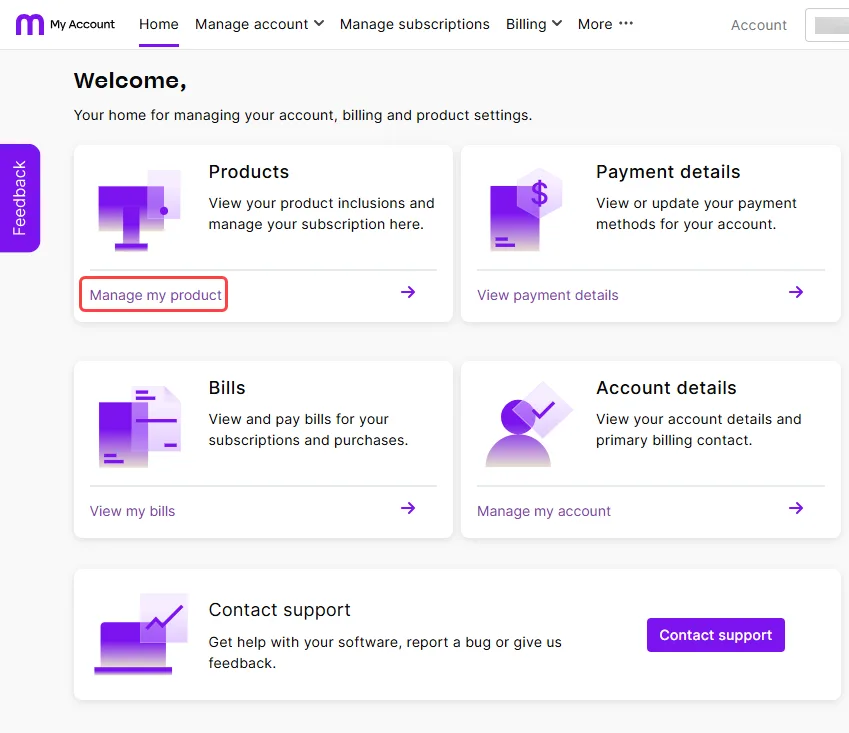
Find your product and click Manage subscription. You'll see the list of available plans, including your current subscription.
Choose a different plan that best suits your needs.

Your new plan is now active and ready for you.
-
Your new monthly payment will start from your next bill.
-
Can't find your subscription?
You may need to switch accounts on the top-right of the page. Each account only shows its own subscriptions. If the subscription belongs to another owner, they'll need to log to view it.
Accounting and bookkeeping practices – If your practice pays for your client's subscription, you’ll see these subscriptions here in addition to your practice software subscription. If your client pays for their own subscription, only your client can view that subscription in My Account. If your practice is paying for a client file subscription, you can submit a request to change the subscription payer. -
If your subscriptions look different, some products may have been grouped differently after your account moved to MYOB’s updated subscription system.
Instead of multiple base subscriptions, you may see one Practice Compliance – Client Workspace subscription with products such as Client Accounting grouped beneath it. My Account may not show every product separately.
A different subscription layout doesn’t necessarily mean your product access has changed. If you see more than one Practice Compliance – Client Workspace subscription, an expected product is missing, the displayed price looks incorrect or you need to change a practice subscription, submit a support request in My Account.
View your bill or update account details
The primary contact on your MYOB account (typically the person who set up the MYOB subscription) or the billing contact (someone who manages billing-related aspects of the account), can:
view your latest MYOB bill and download it as a PDF
update your subscription payment details (sometimes called the payment profile)
view and edit account details (like the business name and address)
manually reattempt to pay an invoice if there is a failed payment
You may notice some differences depending on whether you're on an updated experience. For example:
The contact listed on the payment profile may manage these details instead of the primary or billing contact.
The number of payment methods you can have at one time.
Which scheduled payment uses the new details.
Subscription payments are due monthly on the billing date shown on your bill and in My Account at Billing > Bills.
View MYOB subscription bills
Go to My Account and make sure the correct account is selected on the top right. You may first be prompted to sign in using your MYOB account email address and password.
Click View my bills.
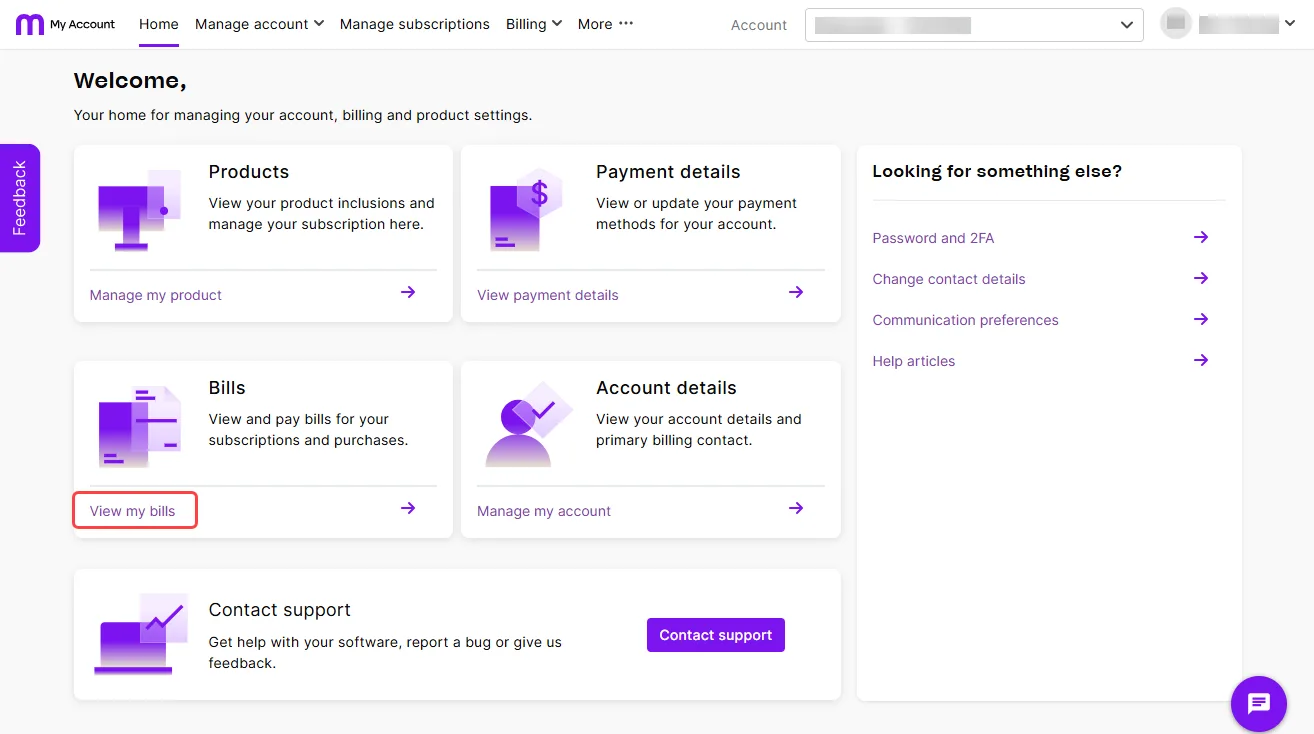
You can now view, download, and pay your MYOB invoices.

Update MYOB subscription payment details
The primary contact and billing contact can view and update payment details in My Account.
You'll need to update payment details if you have invoices in arrears and you see a message at the top of the Payment details page showing the amount of the outstanding payment and the amount of invoices affected.
You can only have one payment method saved in My Account at a time.
Update payment details in My Account
Go to My Account and make sure the correct account is selected on the top right. You may first be prompted to sign in using your MYOB account email address and password.
Click View payment details from the Home tab.
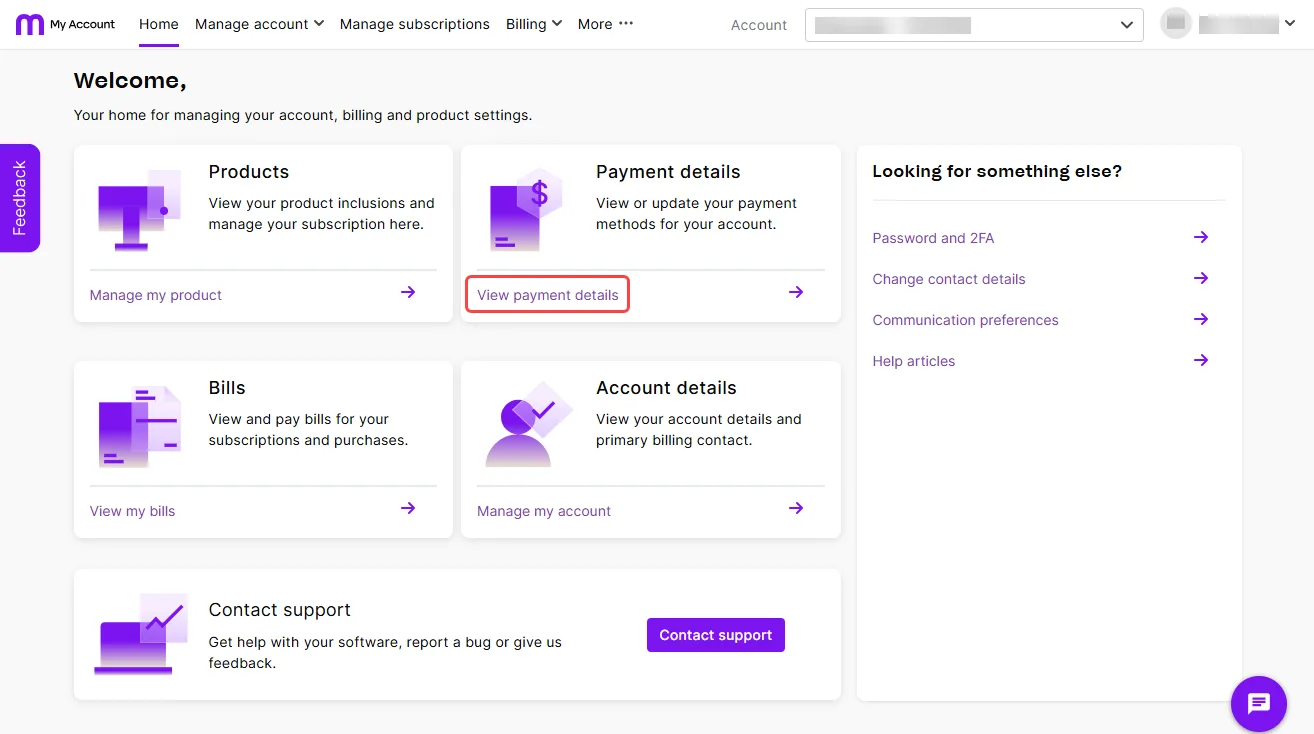
If you see a message about your account having multiple payment methods, you'll need to contact us.
Select the chat bubble at the bottom of any help page to chat with MOCA. If MOCA can’t help, you’ll be guided to other support options, including live chat. Alternatively, you can browse other ways to contact us.
Click Update payment details.
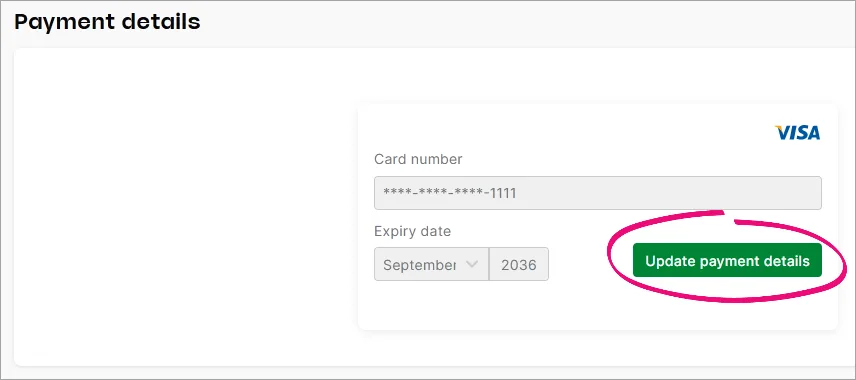
Choose the card or direct debit option, enter the payment details and click Save.
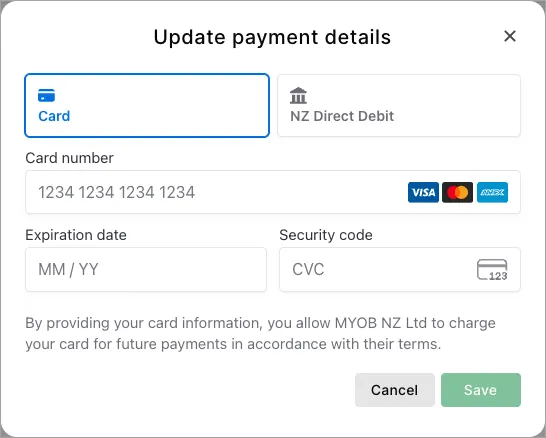
The new payment details will now be used for your MYOB subscription payments, starting from your next scheduled payment.
To clear the invoices in arrears now instead of waiting for the next scheduled payment, you can manually process the payment.


Need help changing payment details?
Contact our team and we'll be happy to help.
Click the chat bubble at the bottom of any help page and ask a question and speak with MOCA. If MOCA can't help, you'll be guided to our other support options, including live chat.
View and edit account details
Go to My Account and make sure the correct account is selected on the top right. You may first be prompted to sign in using your MYOB account email address and password.
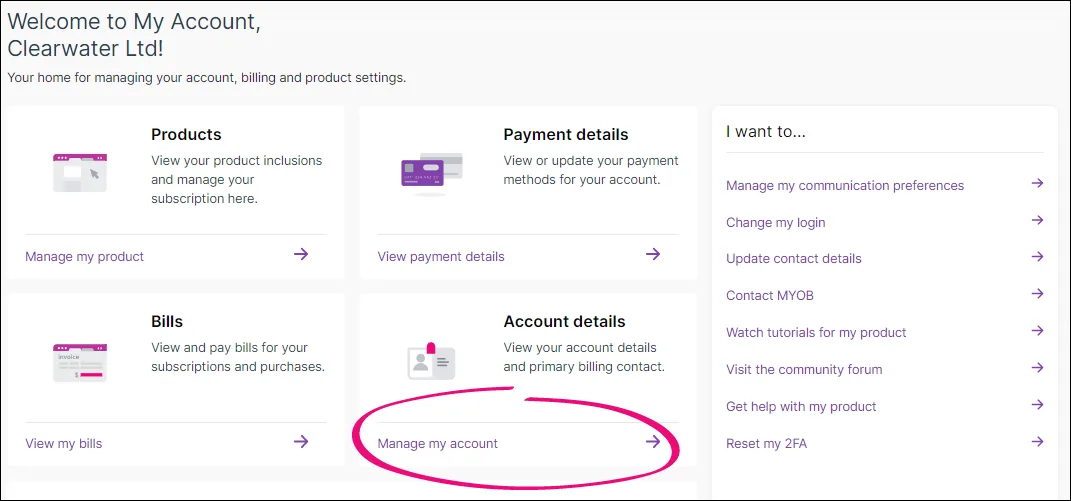
Click Manage my account.
On the Account details page, click Edit.
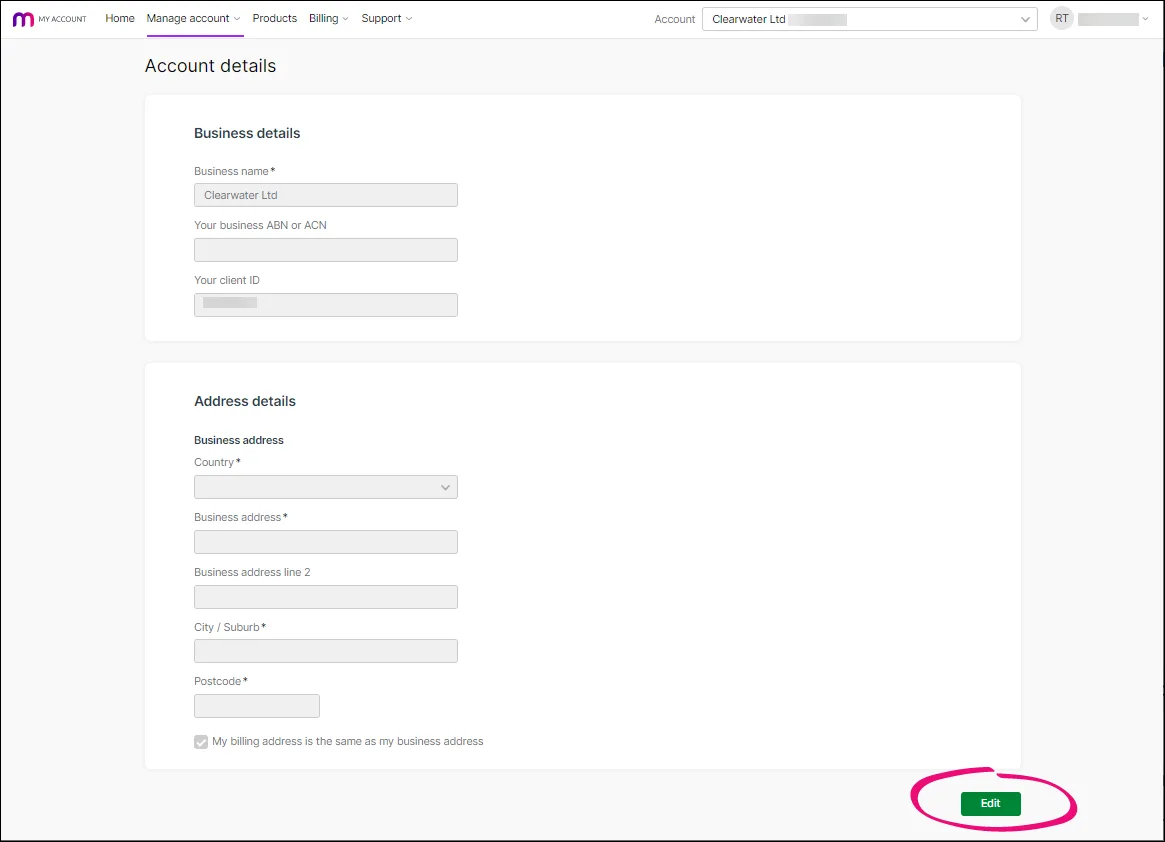
Make your changes.
If you don't have a separate billing address, click My billing address is the same as my business address.
Click Save.


Invite, edit and remove account contacts
Account contacts handle tasks relating to your business's relationship with MYOB. This allows you to delegate looking after MYOB billing and related matters to someone else. If you're the primary contact for the account, you can invite someone else in the business to be the billing contact, as well as update or remove other contacts.
Learn about managing account contacts
Update personal details and communication preferences
You can edit the personal information recorded in your MYOB account, such as your first name, last name, and phone number.
Changing your contact details in your account will not update the contact details in your MYOB file. To change contact details in your MYOB file, please see Business settings.
You can also set your communication preferences, including the type of communications you want to receive from MYOB and how you want to receive them.
View or change your personal contact details
If you are the primary contact on the account (typically the person who set up the MYOB subscription) and you need to change your name, you'll need to submit a support request.
Go to My Account and make sure the correct account is selected on the top right. You may first be prompted to sign in using your MYOB account email address and password.
On the Home tab, click Change contact details.
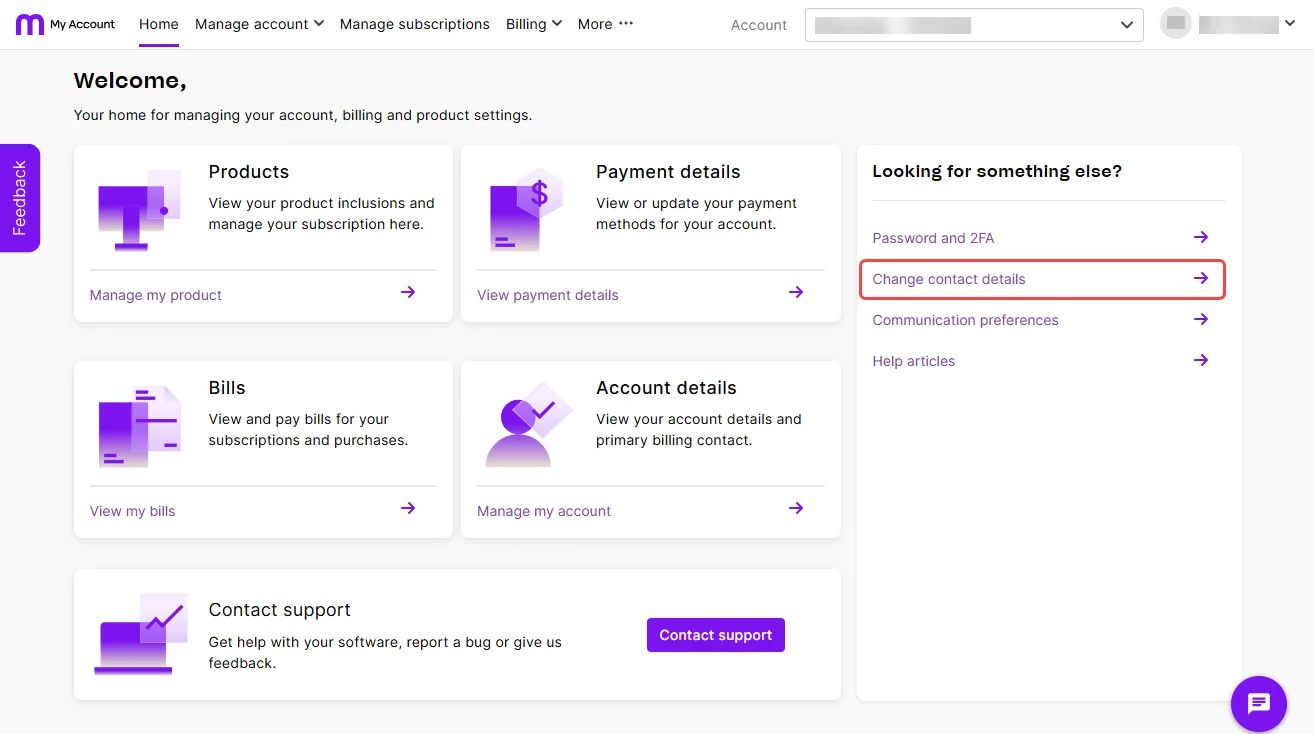
To change the displayed details, click the Edit button at the bottom.
Make your changes.
Click Save.

If you're unable to make changes to your contact details online, contact our team for support.
View or change MYOB communication preferences
Go to My Account and make sure the correct account is selected on the top right. You may first be prompted to sign in using your MYOB account email address and password.
Click Communication preferences in the Looking for something else? panel on the My Account Home page.
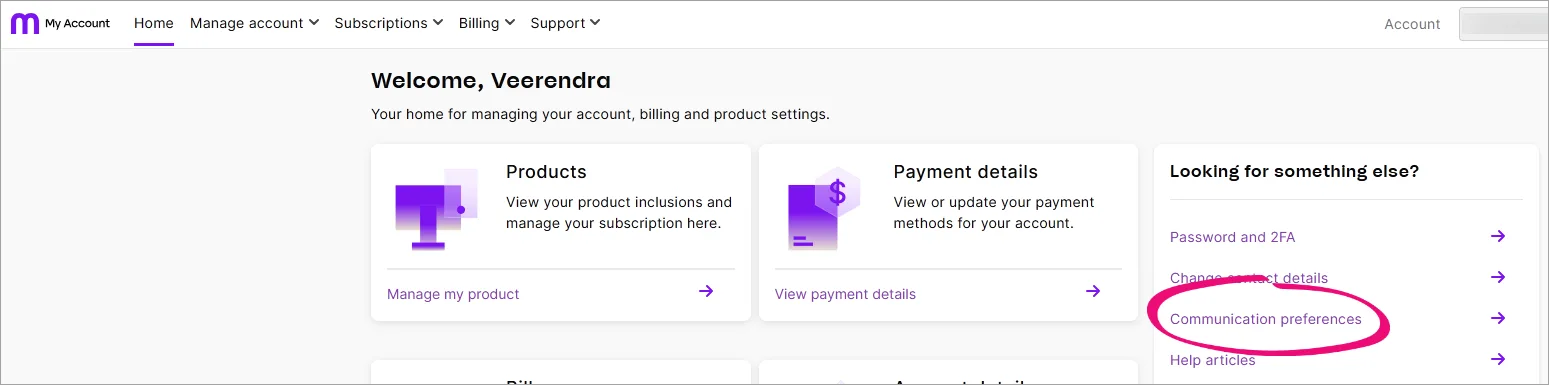
Click Edit.
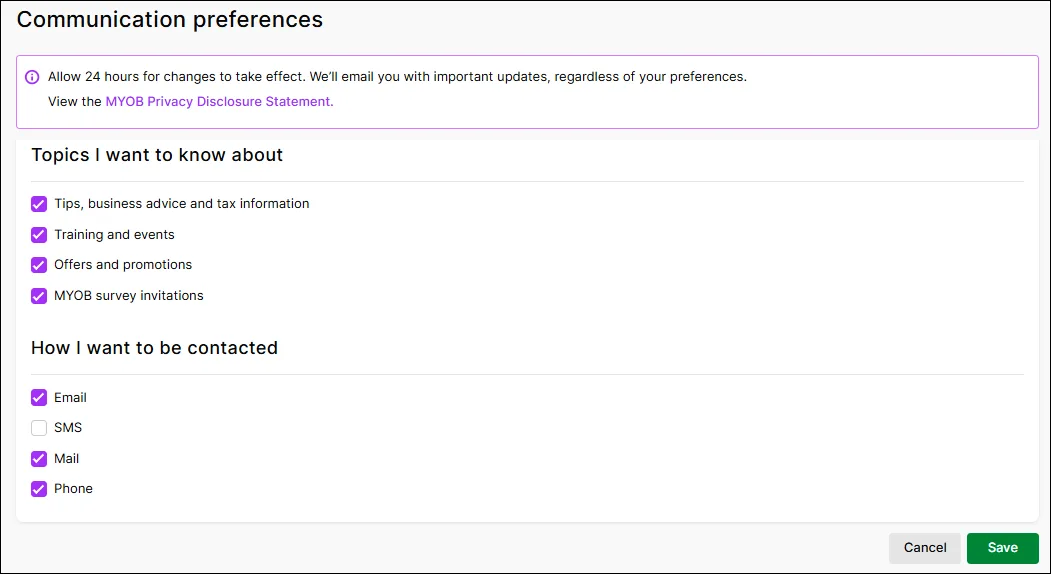
If you make any changes, click Save.


Contact us if you need help.
Manage your security
You can change your password and update or two-factor authentication (2FA) security settings in the security section of My Account.
Manage your security in My Account
Submit support requests
Get assistance from our support team without needing to call or use live chat by submitting a support request from My Account. Send a message detailing what we can help you with, and we'll respond via email. You can monitor the status of your request and view past requests in My Account.