From 17 June 2026, working offline will no longer be supported. If you work offline, we recommend you put your company file online before 17 June. This ensures your data is protected with automatic online backups, and you get live bank feeds, multiuser access, and the latest updates.
What you'll need to put your file online
You'll need:
an AccountRight subscription – with an AccountRight Premier subscription you can upload two company files, and with an AccountRight Plus subscription you can upload one. To buy additional online company files, or replace one online file with another, contact us for help.
an activated company file stored in My Library (if the file is in a network library, upload it from the computer where the company file is stored)
to be the company file owner (typically the person who set up the AccountRight subscription) or an online administrator (invited by the file owner to manage online access)
Uploading a company file
Start AccountRight to display the Welcome window.
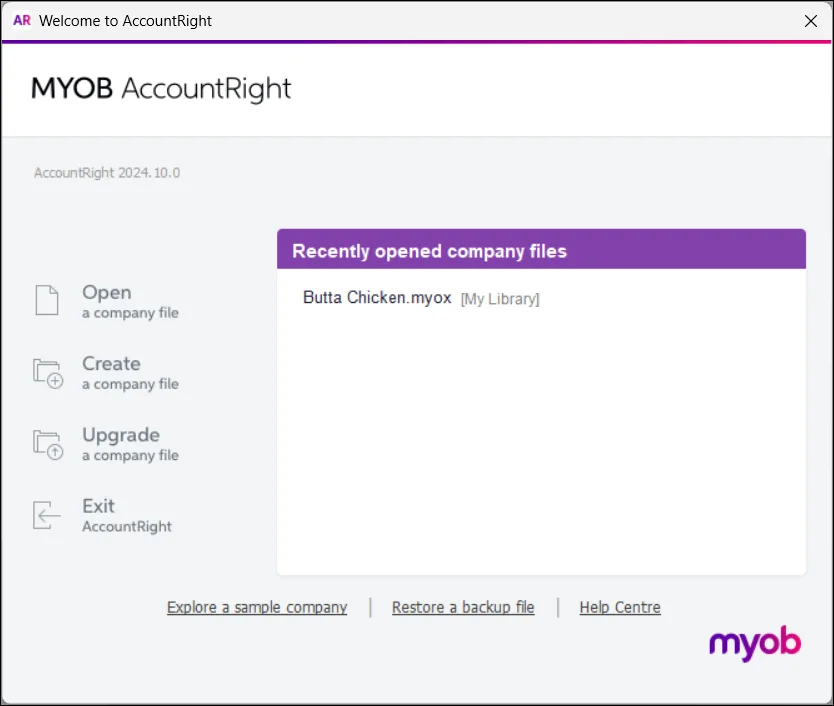
Click Open a company file to display the Library Browser.
Click My Library. Only company files in My Library can be uploaded.
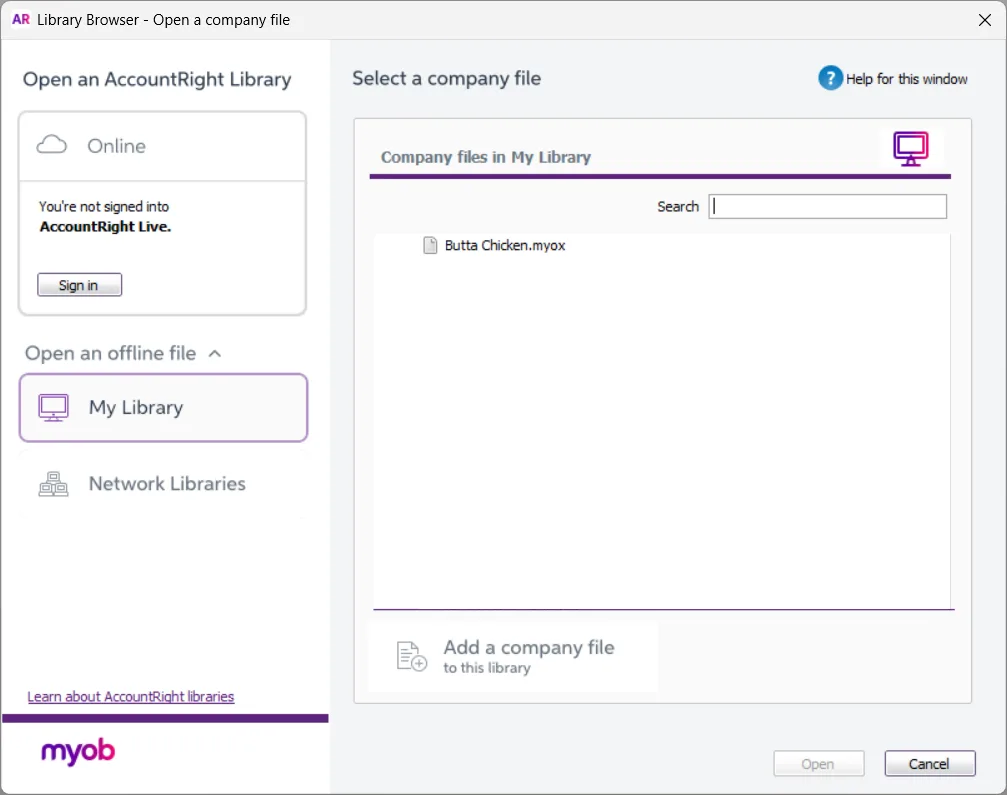
If the company file is in a Network Library, perform these steps on the computer which hosts the company file.
Select the company file that you want to upload and click Open.
If prompted, sign in to your company file.
Go to the File menu (or the status bar) and choose Go Online (Upload This File). A message appears, explaining that the file may take some time to upload, depending on its size and the speed of your internet connection.
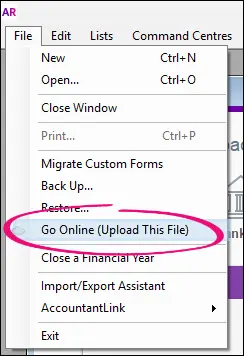
Not seeing the Go Online (Upload This File) option?
Check the Before uploading your file information above to make sure you're able to go online.
If prompted, sign in using your MYOB account email address and password.
Two-factor authentication
After signing in, you may be asked to set up two-factor authentication (2FA), or you may be asked for a verification code if 2FA is already turned on. See Two-factor authentication for more information on setting up and signing in with 2FA.
Click Upload now. When the file has finished uploading, a confirmation message appears.
Click Sign on to open the online company file. You can now give others access to your online company file.


Online files look and work smarter
When you first open an online company file, you'll notice the command centres look a little different to offline company files. Everything still works the same, but the command centres in online files have a more modern look. There are also handy shortcuts at the top of each command centre to quickly action outstanding tasks and access popular reports and functions.

Troubleshooting file uploads
"The serial number doesn't match your account" message | If you're getting this message when uploading a company file, it means the serial number in the company file you're uploading isn't linked to the email address you’ve logged in with. If the serial number shown in the message isn't yours, or it's an old serial number, click Change Serial Number in the error message to update it. More about changing your serial number. Only the online owner or online administrator can upload company files. The online owner is usually the person who purchased the AccountRight subscription. An online administrator is someone who has been invited by the owner to perform this role. If you're not sure who has these roles in your business, or you think you're the online owner or administrator, contact us and we'll help sort it out. |
You don't have an AccountRight subscription | If you’re currently using AccountRight Plus or Premier you’ll need a subscription for that product to move your file online. If you’re using a different MYOB product, like AccountRight Standard, you’ll need to either upgrade to Plus or Premier, or move to a browser based subscription, like MYOB Business Pro or Lite. Compare our product and pricing options on our website. |
Your company file isn't activated | Only activated company files can be uploaded. How to activate |
"Unable to upload" message | Due to variations in internet connections, the "unable to upload" message can sometimes display even when the company file has actually uploaded successfully. If you Cancel the message, you might find the file is online and can be accessed. |
If your subscription ends, you'll have 60 days access
Your online company file will be accessible as a read-only file for 60 days from the date your subscription ends. To renew a cancelled subscription, contact us and we'll be happy to help.