Activating a company file is a one-off task for new company files which ensures you're using a legitimate copy of our software. After activating a file, you may occasionally be prompted to confirm the activation.
A company file must also be activated to put that file online.
If a company file isn't activated or confirmed within 30 days of being prompted to do so, the file becomes read-only and you won't be able to enter new data. You'll only be able to view, print and export existing information.
Activate your file to keep working
Open the company file to be activated and sign on. The Activation Assistant appears. If it doesn't, go to the Help menu choose Activate your company file (or Confirm your company file if it has already been activated).
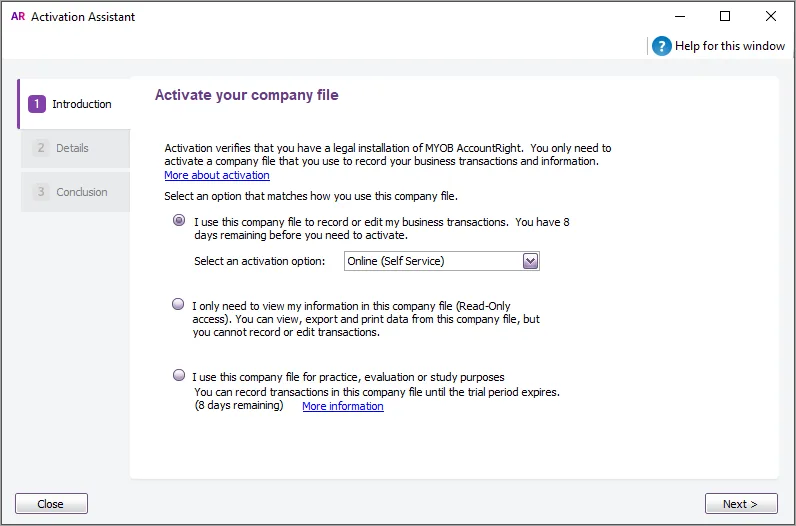
Select the option I use this company file to record or edit my business transactions.
Ensure you are connected to the internet.
For the activation or confirmation option, choose Online (Self Service) and then click Next. The Details window appears.
If you don't see the Online (Self Service) option, make sure you're using the latest AccountRight version.
If you have not previously entered your serial number, type it in the Serial Number field.
Click Activate (or Confirm.).
Close the assistant.

If you can't activate or confirm online
You can no longer activate or confirm by phone, so if your AccountRight version shows this option, update to the latest AccountRight version and try activating online.
If you still can't activate online, you can do it by:
asking MOCA on any help page, and if MOCA can't help, you'll be guided to our other support options, including live chat, or
submitting a support request via My Account (log in at myaccount.myob.com and click Contact support).
Our team will then provide you with a licence file. Once they do, repeat the steps above and choose Offline (Contact Support) as your activation option, click Next and follow the prompts to load the licence file.
FAQs
Can I activate by phone?
You can no longer activate by phone, so if your AccountRight version shows this option, update to the latest AccountRight version and try activating online.
If you still can't activate online, you can do it by:
asking MOCA on any help page, and if MOCA can't help, you'll be guided to our other support options, including live chat, or
submitting a support request via My Account (log in at myaccount.myob.com and click Contact support).
Our team will then provide you with a licence file. Once they do, repeat the steps above and choose Offline (Contact Support) as your activation option, click Next and follow the prompts to load the licence file.
How do I activate an older MYOB product, like AccountRight v19?
If you're using an older MYOB product, like AccountRight v19 or AccountEdge, there's a new way to activate and confirm your company files. For all the details see Activating and confirming older MYOB products.
Can't find your answer?
Contact product support
Ask MOCA, our virtual assistant | Click the chat bubble at the bottom of any help page and ask a question. If MOCA can't help, you'll be guided to our other support options, including live chat. |
|---|---|
Community forum | View topics and discuss your questions with other AccountRight users. Join the discussion |
Submit a support request | If you have access to My Account, log in at myaccount.myob.com and click Contact support. |
Contact us | Visit the Contact us page of the MYOB website for contact details. |
Priority Support
Jump the queue and get Priority Support from AccountRight specialists. Book a dedicated session with one of our team members and get unhurried, tailored support in a 30-minute call.
You need your MYOB client ID to jump the queue. You'll find your client ID in My Account (Manage account > Account details).
Priority Support is included with a current AccountRight subscription.