AccountRight Classic (v19 and earlier) is being decommissioned on 28 February 2026. MYOB will be turning off activation and confirmation for AccountRight Classic on this date. After this, if you're still using AccountRight Classic, you won't be able to make changes to your company file.
As of 10 December 2025, you're no longer able to upgrade yourself using the Upgrade a company file feature in AccountRight. Instead, you'll need our help to upgrade.
AccountRight Premier 2018.4 and later,
We've put together all you need to know about upgrading your multi-currency company file from AccountRight v19 (or earlier) to the new AccountRight. If you're after information about upgrading an AccountRight Premier company file which doesn't use multi-currency, see Upgrade to the new AccountRight.
Some things to note
-
Multi-currency files need to be upgraded online
-
There are some important things you should know before upgrading
-
Find out how multi-currency is different from AccountRight v19
-
Check that add-ons you use are compatible with the new AccountRight. Check the add-on centre (Australia | New Zealand) or contact the add-on provider
-
Foreign trade debtors, trade creditors, and exchange accounts will be merged with the equivalent local accounts
Some files can't be upgraded
If your company file has any of the following transactions, it can't be upgraded (yet):
Foreign transactions using the Professional, Time Billing or Miscellaneous layouts (only Item and Service layouts are currently supported).
Foreign currency accounts other than trade creditors, trade debtors, bank and credit card accounts
Foreign transactions with consolidated tax codes
Foreign transactions with the Luxury Car Tax code
If you haven't used multi-currency for a while but you have transactions like these from previous financial years, complete the pre-upgrade tasks below. This might remove those transactions to allow the upgrade. AccountRight v19 online help has information on how to find transactions.
Can't upgrade? Contact us and we'll work with you to get the file upgraded.
Learn about the new AccountRight
Before you upgrade, learn about the new features in the latest version.
Upgrade AccountRight
As of 10 December 2025, the in-product Upgrade a company file feature is no longer available. Instead, you'll need our help to upgrade.
To upgrade:
Request to move to a new MYOB product by setting up a new subscription.
Fill out a form to move, and our in-house experts will take care of everything using our conversion tools and keep you updated along the way.
For information on how to open your company file in the new AccountRight, see Open a company file.
Complete post-upgrade tasks
After your company file has been upgraded, there may be a few more things you need to do. Don’t stress though, you only need to do them once.
Combine supplier cards
If you deal with a supplier in more than one foreign currency, you would have created separate supplier cards for them. You now only need a single card for each supplier, so you can combine these cards .
Turn on Live Exchange Rates (optional)
Live exchange rates only works with online files and will update every 5 minutes and are provided by Open Exchange Rates. Turning on live exchange rates will replace any exchange rates you've already set in the Currency List.
Go to the Setup menu and choose Preferences. The Preferences window appears.
Select Turn on Live Exchange Rates [System-wide].
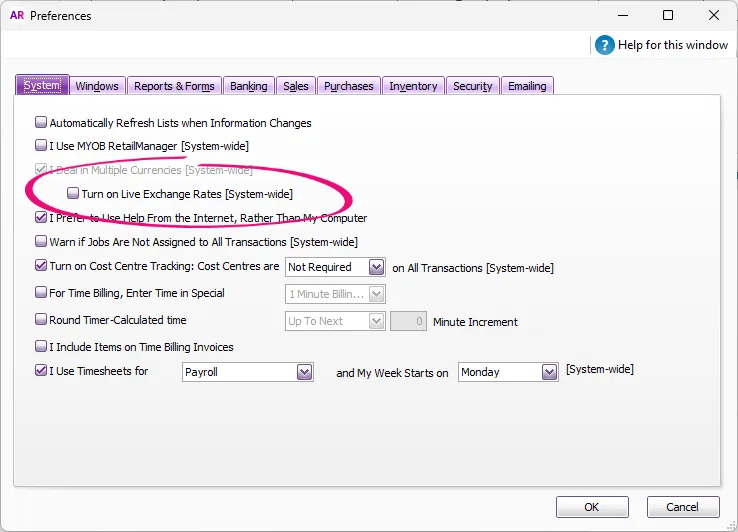
Click Got it on the confirmation message.

Set supplier credit limits
The credit limits in your supplier cards won't be upgraded. So after combining your supplier cards, you can set the credit limit for the supplier (the credit limit is in your local currency). Just go to Card File > Cards List > Supplier tab > open the supplier's card > Buying Details tab.

Additional upgrade tasks
Depending on the AccountRight features you use, there might be some other post-upgrade tasks you'll need to complete.