You can reverse an entire super payment (batch) transaction in MYOB only if the batch payment has one of these statuses:
Payment failed
Reversal required
Pending authorisation
Partially authorised
Check the payment status via Payroll > Super payments:

Individual super contributions cannot be reversed
When you reverse a super payment batch, the individual contributions in the batch payment are then listed again with your other unpaid super contributions.
If a super contribution has been returned from a super fund, see Returned super contributions.
Reversing a super payment reverses each contribution
Reversing a Pay Super transaction reverses each of the contributions within the transaction. It doesn't change any of your employees' pays and your actual bank account and employees' super funds will not be affected.
It just returns the contributions back to the Super payments screen with all the other unpaid contributions. If you've paid an employee the wrong super amount, find out how to adjust the employee's super in a pay run.
Also, if an employee's super fund details are wrong you'll need to update their fund details before paying their super.
To reverse a super payment
Go to the Payroll menu and choose Super payments.
If prompted, log in with your MYOB account details.
Click the payment to be reversed. The contributions within the payment will be listed.
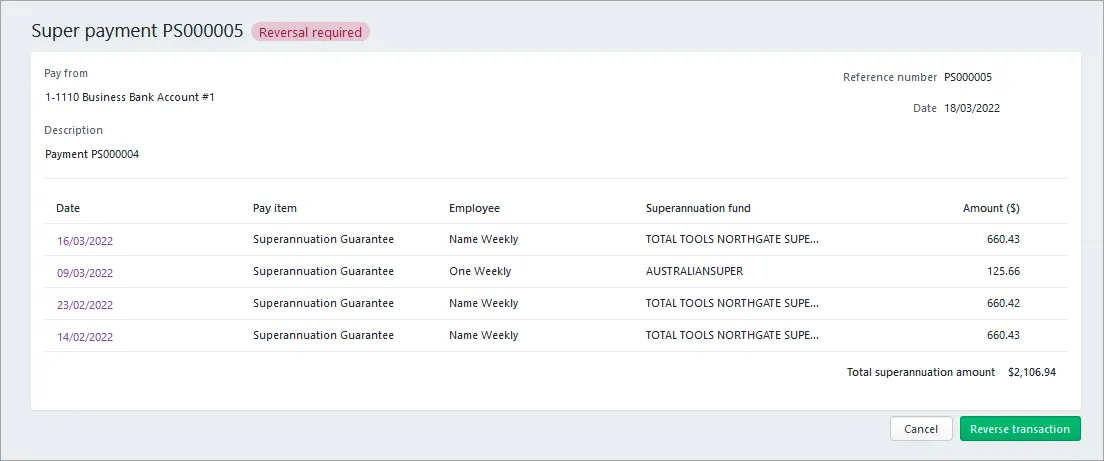
Confirm the details of the payment you're about to reverse.
Click Reverse transaction.
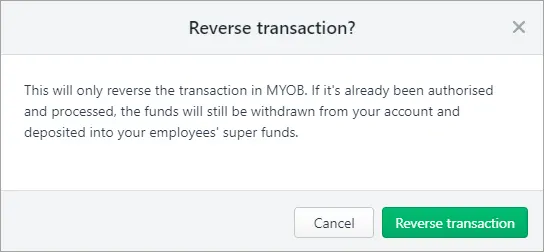
At the confirmation, click Reverse transaction.
The super payment will be shown with negative values for the contributions.
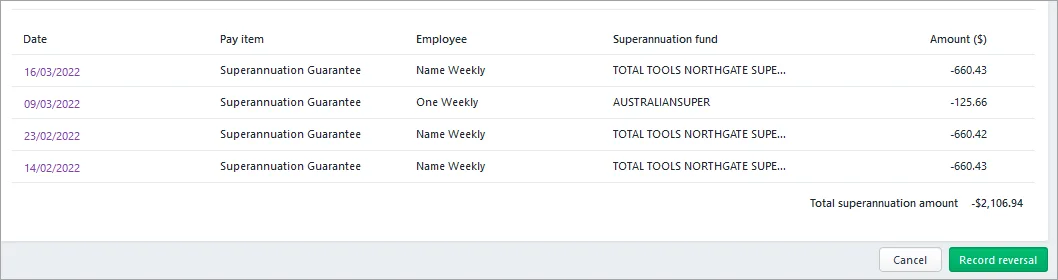
Click Record reversal. The payment is reversed and is now listed with the status Reversal Completed.

The entire Pay Super transaction is reversed. Each of the contributions within the transaction can now be reprocessed. See Make superannuation payments.


FAQs
How does this affect my bank feeds and reconciliation?
Reconciling your bank account might seem tricky after completing the above tasks, because the resulting transactions in your bank account won't appear to match the transactions in MYOB. However, the total credits and debits will balance.
You can simply match all the paid Pay Super transactions (not any unpaid or returned contributions) in your bank account to the super contributions in MYOB, then mark them as reconciled. Also mark as reconciled the Pay Super reversal transaction that you created following the steps above. The reconciled transactions will equal the total of the original Pay Super transaction.
You can reverse an entire super payment (batch) transaction in AccountRight only if the batch payment has one of these statuses:
Payment Failed
Reversal Required
Pending Authorisation
Partially Authorised
Check the status of super payments via Payroll > Manage Payments.

Individual super contributions cannot be reversed
When you reverse a super payment batch, the individual contributions in the batch payment are then listed again with your other unpaid super contributions.
If a super contribution has been returned from a super fund, see Returned super contributions.
Reversing a super payment reverses each contribution
Reversing a Pay Super transaction reverses each of the contributions within the transaction. It doesn't change any of your employees' pays and your actual bank account and employees' super funds will not be affected.
It just returns the contributions back to the Pay Superannuation window with all the other unpaid contributions. If you've paid an employee the wrong super amount, find out how to adjust the employee's super in a pay run.
Also, if an employee's super fund details are wrong you'll need to update their fund details before paying their super.
To reverse a super payment
Go to the Payroll command centre and click Manage Payments.
Click the zoom arrow to open the entire Pay Super transaction to be reversed.
Go to the Edit menu and choose Reverse Pay Superannuation.
Click OK to the confirmation message.
Set the Date to when the payment was returned to your bank account.
Click Record Reversal.
The entire Pay Super transaction is reversed. Each of the contributions within the transaction can now be reprocessed. See Make superannuation payments.
FAQs
How does this affect my bank feeds and reconciliation?
Reconciling your bank account might seem tricky after completing the above tasks, because the resulting transactions in your bank account won't appear to match the transactions in AccountRight. However, the total credits and debits will balance.
If you reconcile using bank feeds | You'll just need to hide the bank feed transactions for the returned/unpaid super contributions and reconcile the transactions the same way you would if using a bank statement (see below). |
If you reconcile using a bank statement | Match all the paid Pay Super transactions (not any unpaid or returned contributions) on your bank statement to the super contributions in AccountRight, then mark them as reconciled. Also mark as reconciled the Pay Super reversal and Pay Liabilities transactions that you created following the steps above. The reconciled transactions will equal the total of the original Pay Super transaction. |