Purchased leave, also called bought leave or additional annual leave, is a voluntary arrangement between and employee and employer where the employee sacrifices part of their salary for additional annual leave. This gives the employee more time off while spreading the cost over a longer period.
What are the rules?
Purchasing annual leave isn't an entitlement under the Fair Work Act 2009, so there are no specific rules around who can do it and how much leave can be purchased.
But it might be covered by an employee's award, workplace agreement or company policy – so check these first. It might also cover things like leave loading and how to treat purchased annual leave payments in your STP reporting.
If you're unsure about any aspects of purchasing annual leave, or our suggested setup below doesn't suit your needs, check with Fair Work, the ATO or your payroll advisor.
Leave must be purchased and used in the same year
If you offer purchased annual leave to your employees, it should be purchased and used in the same year. This is because you're reducing the employee's annual salary to "pay" for the leave. So when they've used the purchased leave and the new year starts, you need to revert the employee's annual salary to its original amount.
This is typically based on a Jan - Dec year, but if your business has an annual salary adjustment in a different month, for example July, you'll need to take this into account.
To simplify the administration, it's recommended to purchase leave in weeks, rather than days of hours.
Keep purchased leave separate from other leave
We recommend keeping purchased annual leave separate from an employee's regular annual leave in MYOB. This makes it easier to:
know how much annual leave has been purchased
pay the employee their purchased annual leave
show purchased annual leave on pay slips
know much purchased annual leave the employee has remaining.
Keep a record of the agreement
We recommend documenting the purchased leave agreement for you and the employee to sign. This makes it clear what's being purchased, the associated salary reduction and timeframes for using the leave.
You can store this document in MYOB to keep it safe and easily accessible.
1. Set up MYOB
Once you know how many weeks of annual leave is being purchased, you can easily set it up and reduce the employee's salary to pay for it.
To manage purchased annual leave in MYOB, you'll need to set up:
a wage pay item – you'll use this to pay the purchased annual leave when it's taken
a leave pay item – this will keep track of the purchased annual leave balance
To set up the wage pay item
Go to the Payroll menu and choose Pay items.
Click the Wages and salary tab.
Click Create wage pay item.
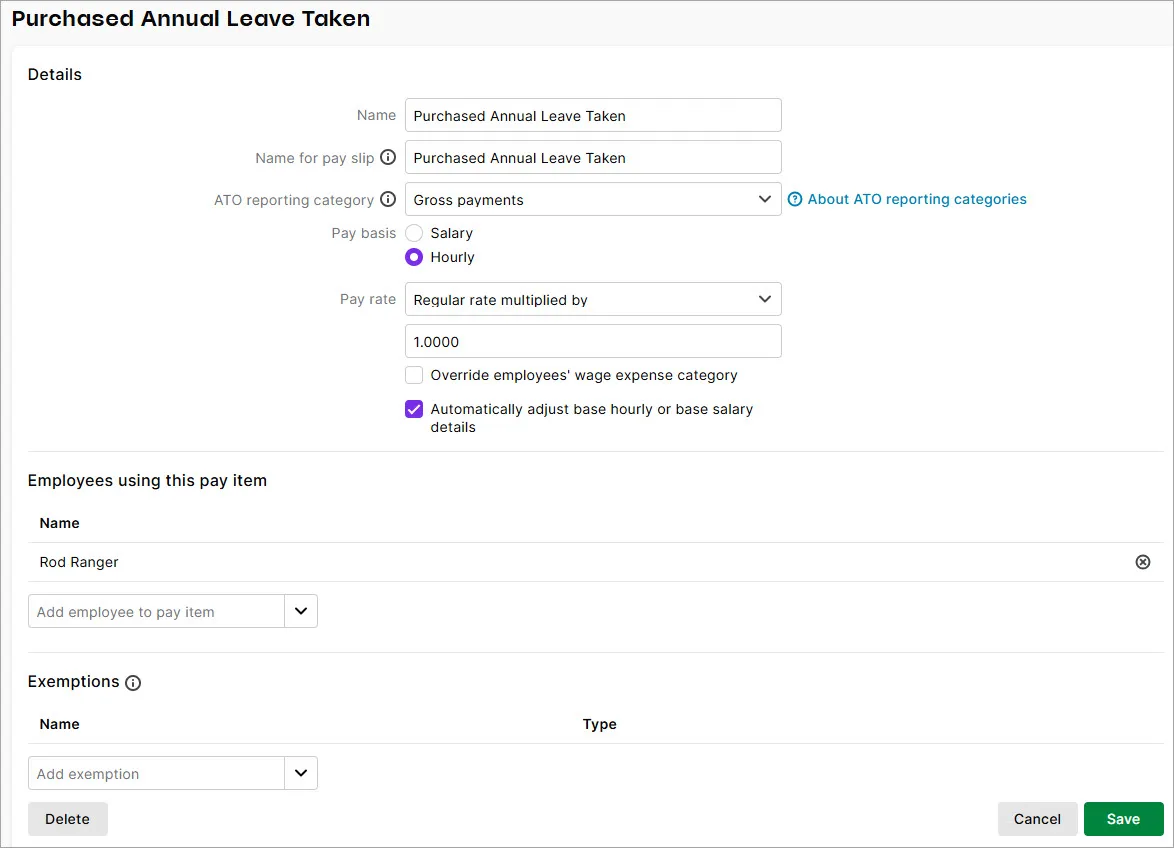
For the Name, enter Purchased Annual Leave Taken (or similar). You can leave the Name for pay slip as the same name, unless you want a different, more personalised name for this pay item to show on the employee's pay slip.
Choose the ATO reporting category. If you're unsure what to choose, check with your payroll advisor or the ATO. More about ATO reporting categories.
For the Pay basis, choose Hourly.
Set the Pay rate to Regular rate multiplied by and leave the value set to 1.0000.
Select the option Automatically adjust base hourly or base salary details. This ensures the employee's Base Hourly or Base Salary amount is adjusted so they're not overpaid when you pay them for purchased leave taken.
Under Employees using the pay item, choose the employee who is purchasing annual leave. You can assign additional employees here later if they also purchase annual leave.
Click Save when you're done. Here's our example wage pay item:

To set up the leave pay item
A leave pay item is needed to keep track of the purchased annual leave balance. If you have employees who purchase different quantities of annual leave, set up a separate leave pay item for each quantity. We'll set one up for the purchase of 2 weeks annual leave, but the same approach applies regardless of the quantity.
When an employee uses some of their purchased annual leave, this pay item ensures the balance is reduced.
Go to the Payroll menu and choose Pay items.
Click the Leave tab
Click Create leave pay item.
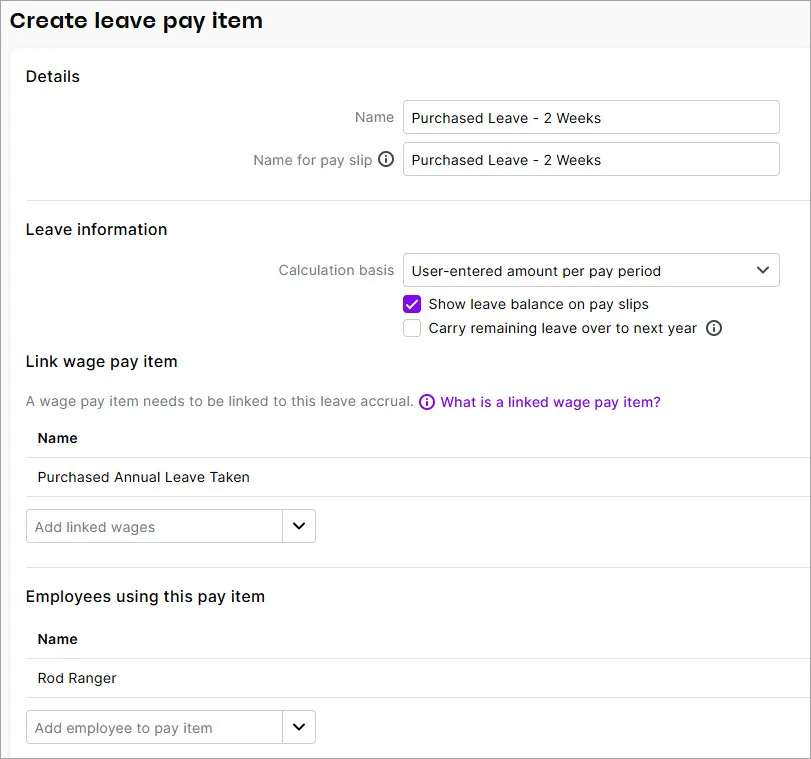
For the Name, enter Purchased Leave - 2 Weeks (for example). You can leave the Name for pay slip as the same name, unless you want a different, more personalised name for this pay item to show on the employee's pay slip.
For the Calculation basis, choose User-entered amount per pay period.
(Optional) If you want the balance of this leave to show on employee pay slips, select the option Show leave balance on pay slips.
Deselect the option Carry remaining leave over to next year. Purchased leave must be used in the same year it's purchased, so it shouldn't carry over to the next year.
Under Link wage pay item, select the Purchased Annual Leave Taken wage pay item you created above.
Under Employees using this pay item, choose the employee who is purchasing this quantity of annual leave. You can assign additional employees here later if they also purchase this quantity of annual leave.
Click Save when you're done. Here's our example:

2. Reduce the employee's salary
You now need to reduce the employee's salary to "pay" for the annual leave they're purchasing.
To help calculate the employee's new salary, you need to work out the dollar value of the leave being purchased. If they're purchasing one or more weeks of leave, work out a weekly value. If they're purchasing one or more days, work out a daily value.
Take a look at this example to work out a weekly value:
Employee's current annual salary = $80,000
$80,0000 / 52 weeks = $1538.46
This means if this employee is purchasing 2 weeks of annual leave:
$1538.46 x 2 = $3076.92
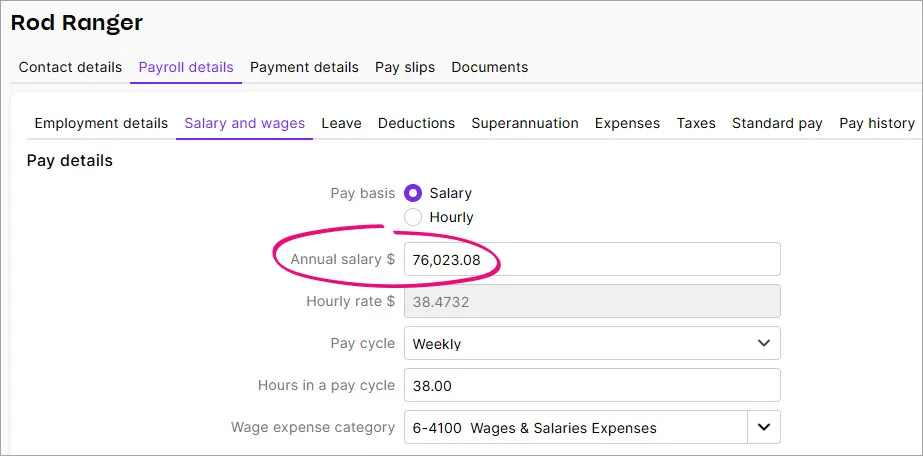
New salary is $80,000 - $3076.92 = $76,023.08
To reduce the employee's annual salary
Go to the Payroll menu and choose Employees.
Click the employee who's purchasing annual leave.
Click the Payroll details tab > Salary and wages tab.
Enter the employee's new Annual salary. If they're paid an Hourly rate, temporarily switch the Pay basis to Salary, enter the Annual salary, then switch the Pay basis back to Hourly.
Click Save when you're done. Here's our example:

3. Add the opening leave balance
Before the employee can use any of their purchased annual leave, you need to enter the opening leave balance (in hours). For example, if they work 38 hours per week and they've purchased 2 weeks of annual leave, you'll enter 76 hours as the opening leave balance.
Do this in the employee's first pay run after setting up their purchased annual leave.
Start the pay run as normal (Create > Pay run) and enter the pay dates.
Click to open the employee's pay.
In the Leave accrual section, enter the opening leave balance (in hours) against the Purchased Leave pay item.
(Optional) Add Pay slip message to let the employee know what you've done.
In this example we're adding 2 weeks of purchased annual leave for an employee: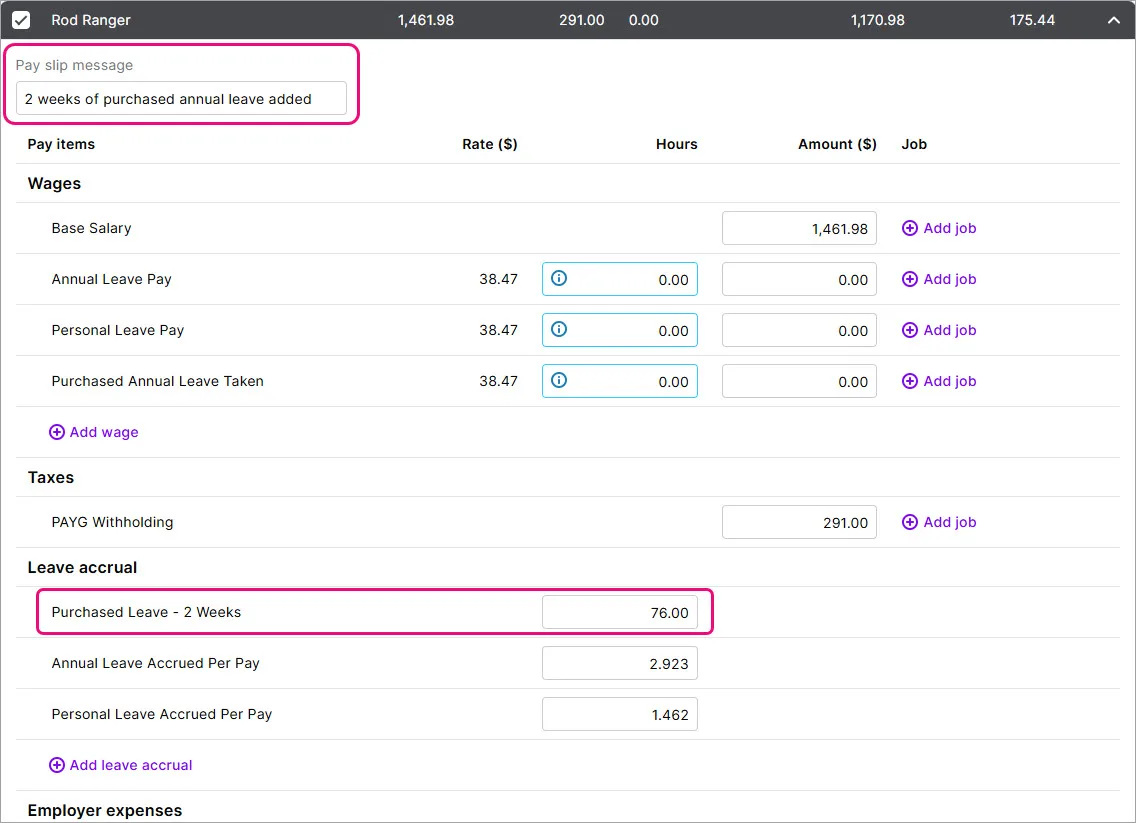
Finish the pay as normal.

4. Pay the leave when it's taken
To record the hours of purchased leave an employee takes, simply enter the hours against the Purchased Annual Leave Taken wage pay item on their pay.
Here's an example where the employee's pay includes 1 full day (7.6 hours) of purchased annual leave:

Checking the leave balance
There are a few ways you can check how much purchased annual leave an employee has remaining:
run the Leave balance report (Reporting menu > Reports > Payroll tab > Leave balance)
check the Leave tab in an employee's record (Payroll menu > Employees > click the employee > Payroll details tab > Leave tab)
hover over the info icon for the Purchased Annual Leave Taken pay item when you're paying the employee

Revert the employee's salary
The employee paid for (and used) their purchased annual leave in the same year, so at the start of the following year, you need to change their salary back to its original value. If this coincides with an annual salary review, take this into account when you're adjusting the employee's salary.
Go to the Payroll menu and choose Employees.
Click the employee.
Click the Payroll details tab > Salary and wages tab.
Adjust the employee's Annual salary. If they're paid an Hourly rate, temporarily switch the Pay basis to Salary, enter the Annual salary, then switch the Pay basis back to Hourly.
Click Save when you're done.
Purchased leave, also called bought leave or additional annual leave, is a voluntary arrangement between and employee and employer where the employee sacrifices part of their salary for additional annual leave. This gives the employee more time off while spreading the cost over a longer period.
What are the rules?
Purchasing annual leave isn't an entitlement under the Fair Work Act 2009, so there are no specific rules around who can do it and how much leave can be purchased.
But it might be covered by an employee's award, workplace agreement or company policy – so check these first. It might also cover things like leave loading and how to treat purchased annual leave payments in your STP reporting.
If you're unsure about any aspects of purchasing annual leave, or our suggested setup below doesn't suit your needs, check with Fair Work, the ATO or your payroll advisor.
Leave must be purchased and used in the same year
If you offer purchased annual leave to your employees, it should be purchased and used in the same year. This is because you're reducing the employee's annual salary to "pay" for the leave. So when they've used the purchased leave and the new year starts, you need to revert the employee's annual salary to its original amount.
This is typically based on a Jan - Dec year, but if your business has an annual salary adjustment in a different month, for example July, you'll need to take this into account.
To simplify the administration, it's recommended to purchase leave in weeks, rather than days of hours.
Keep purchased leave separate from other leave
We recommend keeping purchased annual leave separate from an employee's regular annual leave in AccountRight. This makes it easier to:
know how much annual leave has been purchased
pay the employee their purchased annual leave
show purchased annual leave on pay slips
know much purchased annual leave the employee has remaining.
Keep a record of the agreement
We recommend documenting the purchased leave agreement for you and the employee to sign. This makes it clear what's being purchased, the associated salary reduction and timeframes for using the leave.
You can store this document in the employee's card to keep it safe and easily accessible.
1. Set up AccountRight
Once you know how many weeks of annual leave is being purchased, you can easily set it up and reduce the employee's salary to pay for it.
To manage purchased annual leave in AccountRight, you'll need to set up:
a wage category – you'll use this to pay the purchased annual leave when it's taken
an entitlement category – this will keep track of the purchased annual leave balance
To set up the wage category
Go to the Payroll command centre and click Payroll Categories.
On the Wages tab, click New.
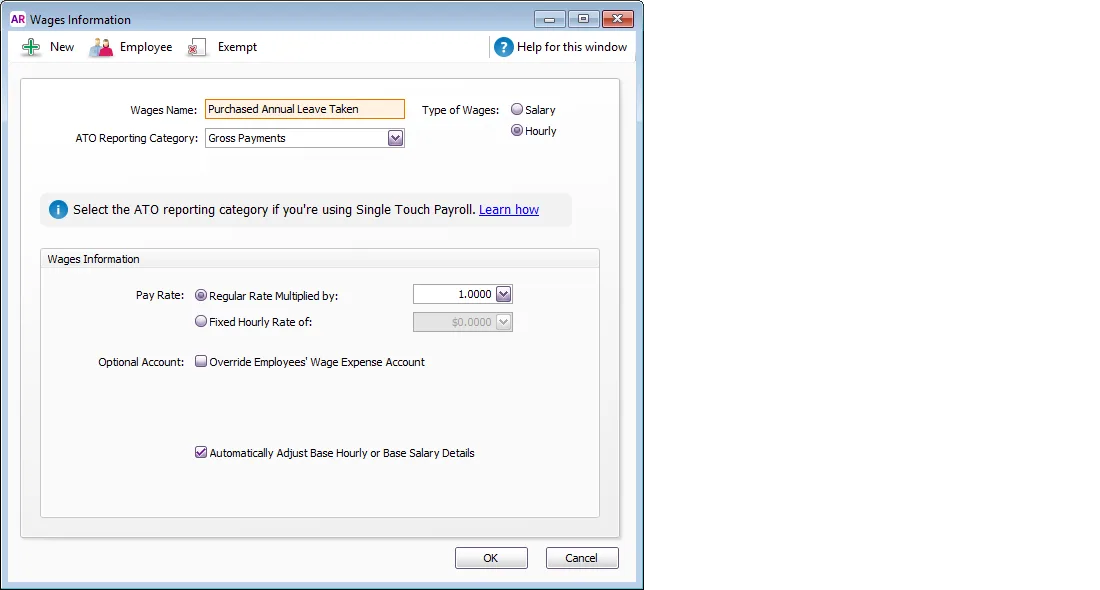
For the Wages Name, enter Purchased Annual Leave Taken (or similar).
Choose the ATO reporting category. If you're unsure what to choose, check with your payroll advisor or the ATO. More about ATO reporting categories.
For the Type of Wages, choose Hourly.
Set the Pay Rate choose Regular Rate Multiplied by and leave the value set to 1.0000.
Select the option Automatically adjust base hourly or base salary details. This ensures the employee's Base Hourly or Base Salary amount is adjusted so they're not overpaid when you pay them for purchased leave taken.
Click Employee and choose the employee who is purchasing annual leave, then click OK. You can assign additional employees like this later if they also purchase annual leave.
Click OK when you're done. Here's our example wage category:

To set up the entitlement category
An entitlement category is needed to keep track of the purchased annual leave balance. If you have employees who purchase different quantities of annual leave, set up a separate entitlement category for each quantity. We'll set one up for the purchase of 2 weeks annual leave, but the same approach applies regardless of the quantity.
When an employee uses some of their purchased annual leave, this category ensures the balance is reduced.
Go to the Payroll command centre and click Payroll Categories.
Click the Entitlements tab, then click New.
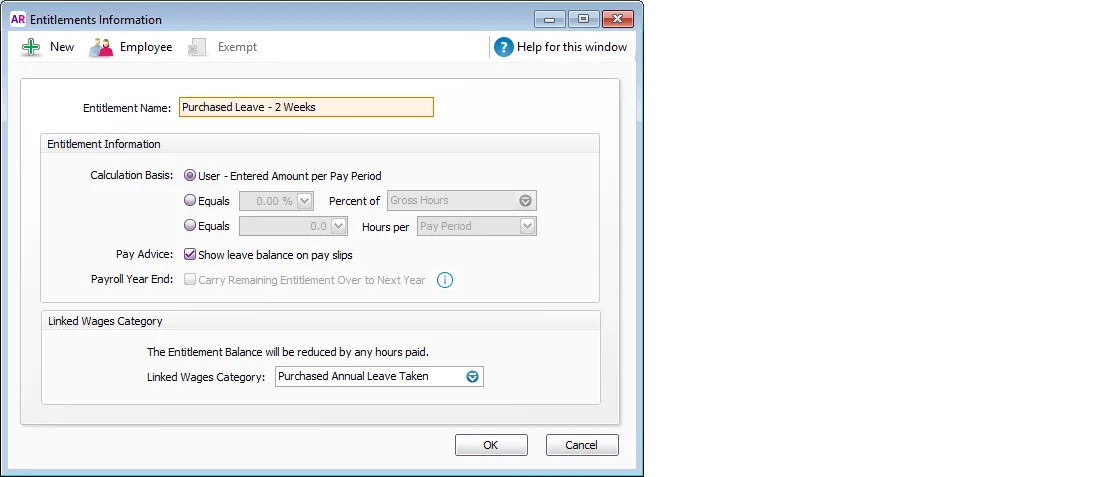
For the Entitlement Name, enter Purchased Leave - 2 Weeks (for example).
For the Calculation Basis, choose User - Entered Amount per Pay Period.
(Optional) If you want the balance of this leave to show on employee pay slips, select the option Show leave balance on pay slips.
Deselect the option Carry Remaining Entitlement Over to Next Year. Purchased leave must be used in the same year it's purchased, so it shouldn't carry over to the next year.
For the Linked Wages Category, choose the Purchased Annual Leave Taken wage category you created above.
Click Employee and choose the employee who is purchasing this quantity of annual leave, then click OK. You can assign additional employees like this later if they also purchase this much annual leave.
Click OK when you're done. Here's our example:

2. Reduce the employee's salary
You now need to reduce the employee's salary to "pay" for the annual leave they're purchasing.
To help calculate the employee's new salary, you need to work out the dollar value of the leave being purchased. If they're purchasing one or more weeks of leave, work out a weekly value. If they're purchasing one or more days, work out a daily value.
Take a look at this example to work out a weekly value:
Employee's current annual salary = $80,000
$80,0000 / 52 weeks = $1538.46
This means if this employee is purchasing 2 weeks of annual leave:
$1538.46 x 2 = $3076.92
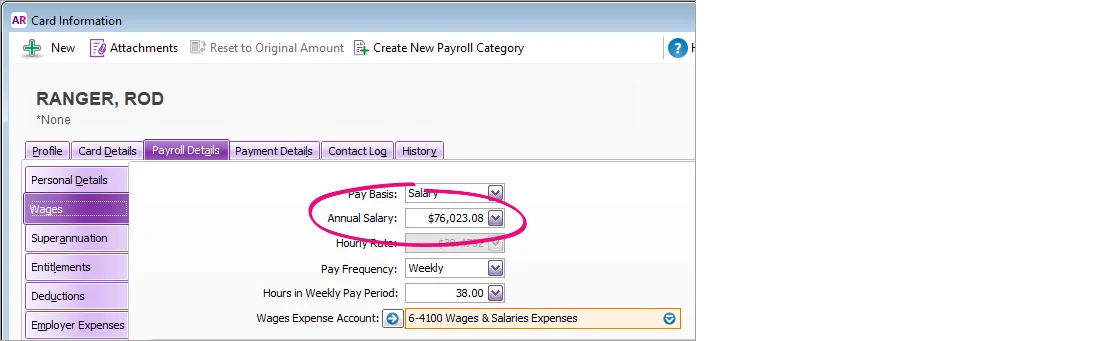
New salary is $80,000 - $3076.92 = $76,023.08
To reduce the employee's annual salary
Go to the Card File command centre and click Cards List.
Click the Employee tab, then click to open the employee's card.
Click the Payroll Details tab > Wages tab.
Enter the employee's new Annual Salary. If they're paid an Hourly rate, temporarily switch the Pay Basis to Salary, enter the Annual Salary, then switch the Pay Basis back to Hourly.
Click OK when you're done. Here's our example:

3. Add the opening leave balance
Before the employee can use any of their purchased annual leave, you need to enter the opening leave balance (in hours). For example, if they work 38 hours per week and they've purchased 2 weeks of annual leave, you'll enter 76 hours as the opening leave balance.
Do this in the employee's first pay run after setting up their purchased annual leave.
Start the pay run as normal (Payroll > Process Payroll) and enter the pay dates.
Click to open the employee's pay.
In the Entitlements section, enter the opening leave balance (in hours) against the Purchased Leave entitlement category.
(Optional) Add Memo to let the employee know what you've done.
In this example we're adding 2 weeks of purchased annual leave for an employee: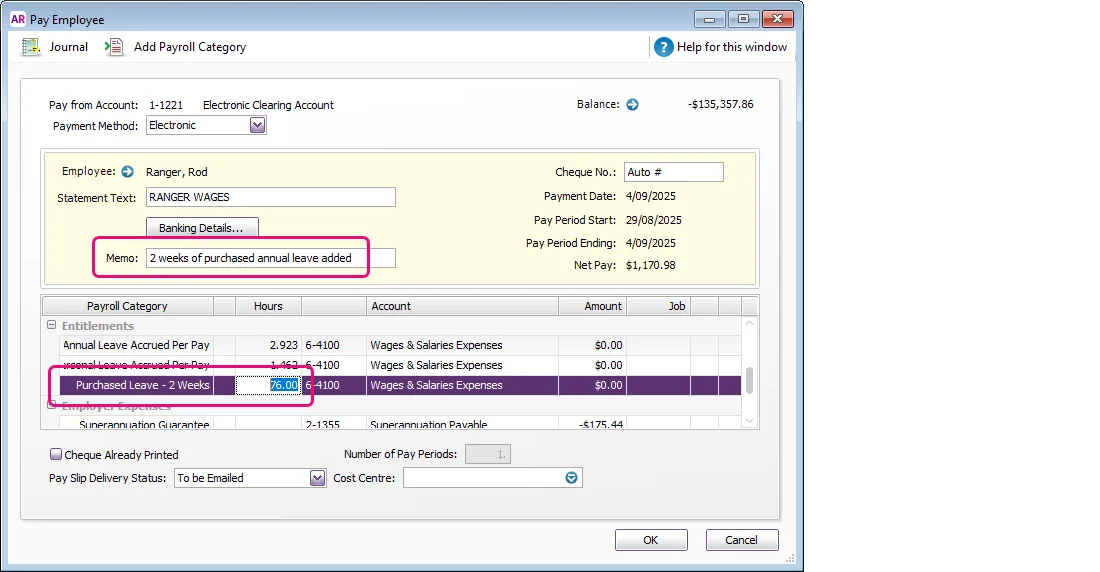
Finish the pay as normal.

4. Pay the leave when it's taken
To record the hours of purchased leave an employee takes, simply enter the hours against the Purchased Annual Leave Taken wage pay item on their pay.
Here's an example where the employee's pay includes 1 full day (7.6 hours) of purchased annual leave:

Checking the leave balance
There are a few ways you can check how much purchased annual leave an employee has remaining:
run the Entitlements Balance report (Reports menu > Index to Reports > Payroll tab > Entitlements Balance)
check the Entitlements tab in an employee's card (Card File > Cards List > Employees tab > open the employee's card > Payroll Details tab > Entitlements tab)
Revert the employee's salary
The employee paid for (and used) their purchased annual leave in the same year, so at the start of the following year, you need to change their salary back to its original value. If this coincides with an annual salary review, take this into account when you're adjusting the employee's salary.
Go to the Card File command centre and click Cards List.
Click the Employee tab, then click to open the employee's card.
Click the Payroll Details tab > Wages tab.
Adjust the employee's Annual Salary. If they're paid an Hourly rate, temporarily switch the Pay Basis to Salary, enter the Annual Salary, then switch the Pay Basis back to Hourly.
Click OK when you're done.