If you've had a bank account or credit card connected to MYOB for a while, it's likely using a 'classic' bank feed. Open Banking is a newer way to connect your accounts to MYOB.
If your classic bank feed is working well, there's no need to switch. But if you're experiencing reliability issues with your bank feed, switching to Open Banking may help.
Switching involves a few manual steps, including cancelling your classic bank feed, setting up the new Open Banking connection and reconciling your categories.
Key things to know
Not all banks and account types support Open Banking yet.
You can’t link an Open Banking account to the same category used for the classic bank feed. A new category is created and linked automatically.
You'll need to reconcile the old category and transfer its closing balance to the new one so your books stay accurate.
There may be a short gap in transaction data between cancelling the classic feed and setting up Open Banking. You'll need to manually enter or import any missing transactions.
Check that your account is supported
Go to Banking > Banking hub, click Connect bank or credit card and search for your bank. If Open Banking is available, you'll see a message on the Add bank accounts page indicating that MYOB will use Open Banking to connect the account. If you don't see this message, your bank or account type isn't supported yet. You'll need to stay with your 'classic' bank feed for now.

What you'll need
In MYOB Business
An ABN recorded in your MYOB Business settings (settings menu (⚙️) > Business settings). This helps confirm your business and ensures secure, authorised data sharing.
A user access type of Owner, Online admin or Advisor in your MYOB Business file (with Administrator roles and permissions).
From your bank
Access to your bank’s online banking or their banking app.
A valid mobile number or other contact detail registered with your bank for identity checks.
Open Banking or data sharing turned on for the account, if your bank requires it. You can check and enable this in your online banking settings.
Permission to share data for the account. Some joint or business accounts may need extra approval or a nominated representative in your online banking. Check this through your online banking.
Step 1 – Cancel your classic bank feed
From the Banking menu choose Banking hub.
Find the bank account that’s currently using a classic bank feed.
Click the three dots (…) on that account and choose Cancel bankfeed application.
Read the confirmation message, then click Cancel bank feed to confirm.
The bank feed status changes to Cancelled. This stops new data coming into your MYOB file using that connection, but does not delete any existing MYOB transactions.
Step 2 – Set up a new Open Banking connection
In the Banking hub, click Connect bank or credit card.
Choose the same bank that the classic feed used.
Follow the prompts to review and accept the Open Banking consent information.
When prompted, sign in to your bank's online banking or app.
Select the same bank account you used for the classic feed (check the account name and last few digits).
Confirm the accounts you want to share with MYOB, then complete the consent.
After you approve consent at the bank, you’re returned to MYOB to finish setting up the bank feed and you'll see the new connection listed.
Step 3 – Reconcile the old category
When you connect a bank account using Open Banking, a category from your chart of accounts, different from the one linked to the old bank feed, will be created and automatically linked to the new connection. Bank transactions from the new feed go into this new category, not the one used by your classic bank feed.
This means you need to reconcile the old category so there are no unmatched transactions.
From the Banking menu choose Bank transactions.
Choose the category used for the classic bank feed.
Make sure all bank transactions are matched or categorised. Need a refresher?
Click Reconcile.
Select the unreconciled transactions. The Out of balance should be zero. Need help fixing an out of balance?
Click Reconcile.
Step 4 – Transfer the closing balance
Once the old category is reconciled, transfer the remaining balance to the new Open Banking category. This brings the old category to zero and gives the new one the correct opening balance, so you can continue reconciling as usual.
Go to Banking > Transfer money.
Set the classic bank feeds category as the Bank account from.
Set the Open Banking category as the Bank account to. The Current balance of the classic bank feed category is the amount you need to transfer.
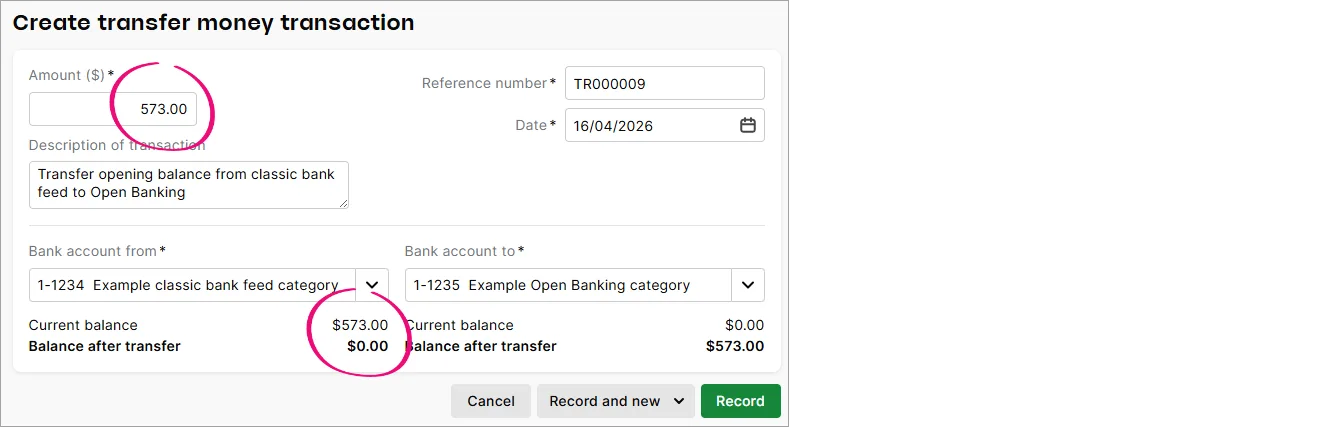
Enter the transfer Amount.
Enter a Description of the transfer to help identify it later.
Click Record.

Once you've made the move
Duplicate accounts: You will see two categories listed in your chart of accounts – the original one that was assigned to the classic bank feed and the new category assigned to the Open Banking connection.
New transaction data: Transactions for your new Open Banking connection will appear from the date the Open Banking connection is set up.
Possible missing data: If there are any transactions missing from the time between setting up the new Open Banking connection and cancelling your classic bank feed, you can manually enter them or import them.
If you've had a bank account or credit card connected to MYOB for a while, it's likely using a 'classic' bank feed. Open Banking is a newer way to connect your accounts to MYOB.
If your classic bank feed is working well, there's no need to switch. But if you're experiencing reliability issues with your bank feed, switching to Open Banking may help.
Switching involves a few manual steps, including cancelling your classic bank feed, setting up the new Open Banking connection and reconciling your categories.
Key things to know
Not all banks and account types support Open Banking yet.
You can’t link an Open Banking account to the same category used for the classic bank feed. A new category is created and linked automatically.
You'll need to reconcile the old category and transfer its closing balance to the new one so your books stay accurate.
There may be a short gap in transaction data between cancelling the classic feed and setting up Open Banking. You'll need to manually enter or import any missing transactions.
Open the web browser version of AccountRight
You can only switch to Open Banking in the browser version of AccountRight. In your AccountRight desktop, click Open in web browser in any command centre, or go to app.myob.com and sign in.
Check that your account is supported
In the web browser version of AccountRight, go to Banking > Banking hub, click Connect bank or credit card and search for your bank. If Open Banking is available, you'll see a message on the Add bank accounts page indicating that MYOB will use Open Banking to connect the account. If you don't see this message, your bank or account type isn't supported yet. You'll need to stay with your 'classic' bank feed for now.
What you'll need
In MYOB
An ABN recorded in your settings (settings menu (⚙️) > Business settings). This helps confirm your business and ensures secure, authorised data sharing.
A user access type of Owner, Online admin or Advisor in your MYOB file (with Administrator roles and permissions).
From your bank
Access to your bank’s online banking or their banking app.
A valid mobile number or other contact detail registered with your bank for identity checks.
Open Banking or data sharing turned on for the account, if your bank requires it. You can check and enable this in your online banking settings.
Permission to share data for the account. Some joint or business accounts may need extra approval or a nominated representative in your online banking. Check this through your online banking.
Step 1 – Cancel your classic bank feed
From the Banking menu choose Banking hub.
Find the bank account that’s currently using a classic bank feed.
Click the three dots (…) on that account and choose Cancel bankfeed application.
Read the confirmation message, then click Cancel bank feed to confirm.
The bank feed status changes to Cancelled. This stops new data coming into your MYOB file using that connection, but does not delete any existing MYOB transactions.
Step 2 – Set up a new Open Banking connection
In the Banking hub, click Connect bank or credit card.
Choose the same bank that the classic feed used.
Follow the prompts to review and accept the Open Banking consent information.
When prompted, sign in to your bank's online banking or app.
Select the same bank account you used for the classic feed (check the account name and last few digits).
Confirm the accounts you want to share with MYOB, then complete the consent.
After you approve consent at the bank, you’re returned to MYOB to finish setting up the bank feed and you'll see the new connection listed.
Step 3 – Reconcile the old category
When you connect a bank account using Open Banking, a category from your chart of accounts, different from the one linked to the old bank feed, will be created and automatically linked to the new connection. Bank transactions from the new feed go into this new category, not the one used by your classic bank feed.
This means you need to reconcile the old category so there are no unmatched transactions.
From the Banking menu choose Bank transactions.
Choose the category used for the classic bank feed.
Make sure all bank transactions are matched or categorised. Need a refresher?
Click Reconcile.
Select the unreconciled transactions. The Out of balance should be zero. Need help fixing an out of balance?
Click Reconcile.
Step 4 – Transfer the closing balance
Once the old category is reconciled, transfer the remaining balance to the new Open Banking category. This brings the old category to zero and gives the new one the correct opening balance, so you can continue reconciling as usual.
Go to Banking > Transfer money.
Set the classic bank feeds category as the Bank account from.
Set the Open Banking category as the Bank account to. The Current balance of the classic bank feed category is the amount you need to transfer.
Enter the transfer Amount.
Enter a Description of the transfer to help identify it later.
Click Record.
Once you've made the move
Duplicate accounts: You will see two categories listed in your chart of accounts – the original one that was assigned to the classic bank feed and the new category assigned to the Open Banking connection.
New transaction data: Transactions for your new Open Banking connection will appear from the date the Open Banking connection is set up.
Possible missing data: If there are any transactions missing from the time between setting up the new Open Banking connection and cancelling your classic bank feed, you can manually enter them or import them.