Your dashboard is the first page you see when you sign in to MYOB Practice Management. It gives you a summary of your work, shortcuts into the applications you use most, and a menu bar that stays with you across the software.
What you see depends on your employee security settings and the user roles you belong to. Depending on your setting and role, your dashboard may not include everything described below.
Before you start
Allow pop-ups in your browser. Practice Management uses them, and parts of the software won't work properly if they're blocked.
What's on the dashboard

Menu bar includes navigation shortcuts and is available on every main page
Your practice name and logo, which you add in your profile
Your details and the current system period
Widgets (also known as dashlets) show key information and links to your tasks and features. You can select what appears here.
Charts opens a dashboard that shows graphs and indicators. You can personalise what appears.
Dashboard Options for customising your layout
Shortcut links to Client Services, Support, Contact, More Information and Support Center
Your widgets
Widgets are the panels that make up your dashboard. Each one summarises information or links you through to a feature.
Modules: Shortcuts to the parts of Practice Management you have access to: BI, Processing, Contacts, Jobs, CRM, Reports, Timesheets and CDM. You can reach the same modules through the menu.
Employee Details: Your office, service line, category and manager, along with your chargeable and non-chargeable hours for the period and year to date and your average rate value. If you have access to them, it also links to the Chargeability & Expense report and the Time by Period report.
Jobs Due This Week: Jobs due in the next seven days, showing the client, type, start and end dates, assignee and status. Colour coding separates jobs not yet started from those in progress, and you can switch between Assigned to me and Owned by me. There's a link through to the jobs dashboard.
Note that your user role needs the GEvents security token for this widget to appear.Users Online: All employees currently signed in, with their service line, extension, mobile number and email address.
Favourite Reports: Shortcuts to the reports you've marked as favourites. You add favourites from the Reports page.
The menu bar
The menu bar is available from every main page, and remembers your last selection. Which shortcuts you see depends on your security rights.

Hover over the applications button on the left to open the menu, then select the application you want. Select anywhere outside the menu to close it without opening anything.

The shortcuts alongside it cover the dashboard, reports, Business Intelligence, timesheets, support tickets, online help, the quick time capture tool and your alerts.
The settings menu is only visible to administrators.
Alerts
An alert is a notification that something has happened in Practice Management that you need to know about. You'll get an alert when a bill is posted and approved, a timesheet is rejected, period and provisional global calculations run, or something goes wrong with processing.
The bell in the menu bar turns yellow when you have a new alert. Select it to read your alerts and clear the ones you've dealt with.
Customise your dashboard
You can hide widgets you don't use, bring back ones you've hidden, and arrange them the way you want. Your changes apply to your own dashboard only and don't affect anyone else.
Hide or show widget content
Select Minimize to collapse a widget so only its heading shows, or Restore to open it again.
Select Close to remove a widget completely. The widgets below it move up to fill the space.
Add a widget
Select Catalog from Dashboard Options in the bottom right of the dashboard.
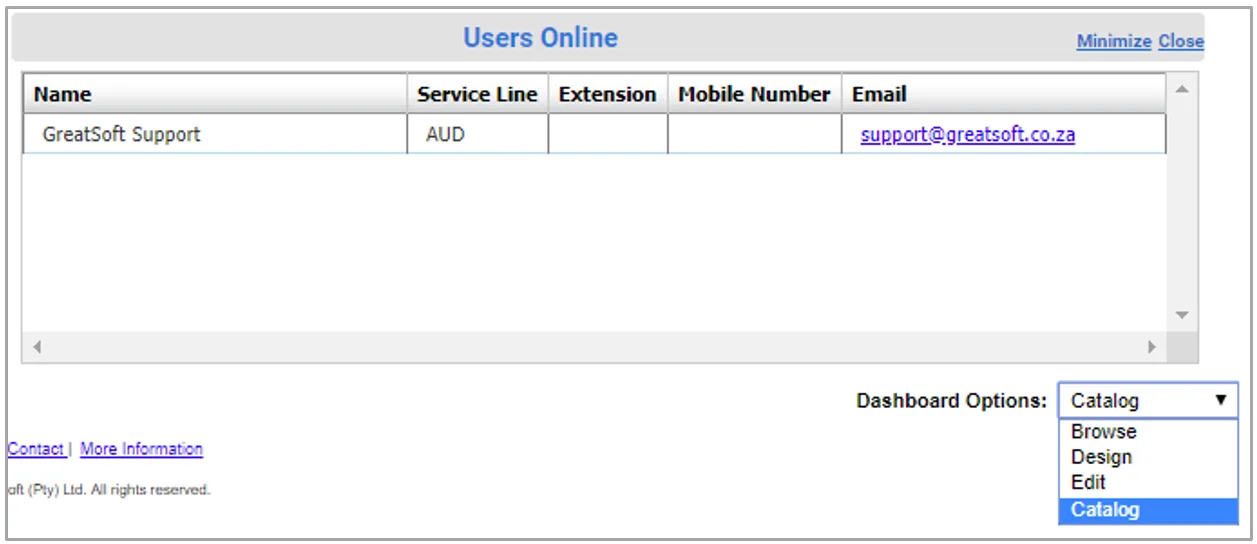
In the Catalog Zone at the top of the page, select the widget you want.
Choose Dashlets A for the left column or Dashlets B for the right, then select Add. These zones are still labelled Dashlets in the Catalog Zone.
Close the Catalog Zone.
Set Dashboard Options back to Browse.

Change the order of widgets
Each widget you add goes to the top of its column, so the last one you add appears first.
To put your widgets in a specific order, close them all, then add them back in reverse: the one you want at the bottom first, and the one you want at the top last.
Undo your changes
Select Reset Home Page on the CRM Profile page, in the Settings section. This returns your dashboard to its default layout.
What the common icons do
The following icons appear across many pages, not just the dashboard. On a main page an icon applies to the page or to the rows you've selected. On a single row it applies to that record.
Common icons
Refresh
After you’ve custom set the filters and criteria on an Enquiry page, click Refreshto search for and return matching records in a summary grid.

Reset
In Enquiry pages, Reset clears all custom set filters and criteria to default search filters and criteria.
After editing a row, click Reset to discard any unsaved changes.

New
On a main page, create a new blank record. For example, a new processing batch.

New
On an individual record in a summary grid, create a new blank record. For example, adding a new entry to an existing processing batch.

Edit
Open an existing, saved individual record in a summary grid for viewing and editing if allowed.

Save
On an application main page, commits a record to the database. The main page will usually open after saving.

Save
Commits new and edited records to the database. For example, individual line items in grids, or individual entries in processing batches, or individual timesheet and disbursement entries.

Submit
Present selected line items or batchs in the summary grid for approval. For example, on the main Timesheets and Processing pages.
Also submits a currently open timesheet or processing batch for approval from within the open batch.

Submit
Present for approval individual timesheet or processing batch within a summary grid.

Preview
Generate a preview report of a selected line items in the summary grid on a main page.

Preview
Generate a preview report of an individual record in the summary grid.

Delete
Remove selected line items from the summary grid on the main page, or delete a currently open record.

Delete
Remove a line item from a summary grid .

Close
Close an open record on a main page and usually return to the main page. After editing a row, clicking Close will discard any unsaved changes.

Close
Windows alternative for closing an open form, page or popup. After editing a row, clicking Close will discard any unsaved changes.
