A backup is a copy of your company file from a specific point in time that you can restore later.
How you back up and restore your company file depends on which version of AccountRight you use.
AccountRight PC Edition
Your company file is stored online. MYOB backs it up for you automatically on a regular basis. You can also create extra online backups whenever you want. If you restore an online backup, it will replace your current online company file.
Note that online backups cannot be downloaded or copied to a USB drive.
Online backups let you roll back to a point in time
Each week, MYOB automatically backs up online company files that have had changes in the previous 7 days. It means you can relax knowing we're saving regular point-in-time versions of your online company file that you can roll back to if needed.
You can also manually create online backups whenever you like and name them appropriately. These will be accessible along with the automatically created ones.

Online backups are stored securely in the cloud for 6 months, on the same servers we use to store online company files. If anything goes wrong in your company file, like an import that didn't go to plan, you can roll back your company file to the point-in-time the online backup was created.
Note that online backups cannot be downloaded or copied to a USB drive.

More about creating online backups
Restoring a backed up company file
Restoring is how you open a backed up copy of your company file (File menu > Restore).
When you restore an online backup, your current online company file will be replaced with the backed up version. This can't be undone. More about restoring online backups
FAQs
Can I create or restore offline backups if I use AccountRight online?
AccountRight PC Edition only
If your company file is online, you're using the latest version of AccountRight PC Edition. This version can't create or open offline files or backups.
You can still open an offline backup created in an older version, but you'll need to install AccountRight v2026.4 to do it. This is the last version that works with offline files.
To open an offline backup in AccountRight v2026.4
Close AccountRight.
Right-click this download link and choose Save link as or Save target as to save the AccountRight 2026.4 installation file to your Desktop.
Double-click the downloaded file on your Desktop and follow the prompts to install AccountRight. AccountRight v2026.4 will start automatically when the installation is complete.
On the Welcome screen, click Restore Offline Backup.
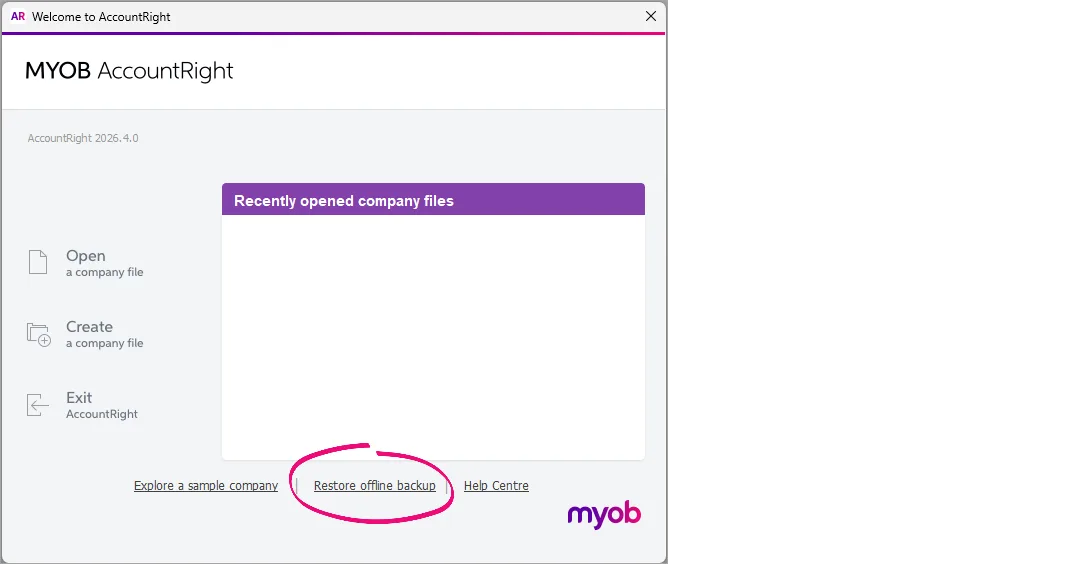
Click Browse to select the offline backup file to open.
Choose to restore the backup in a library on my computer.
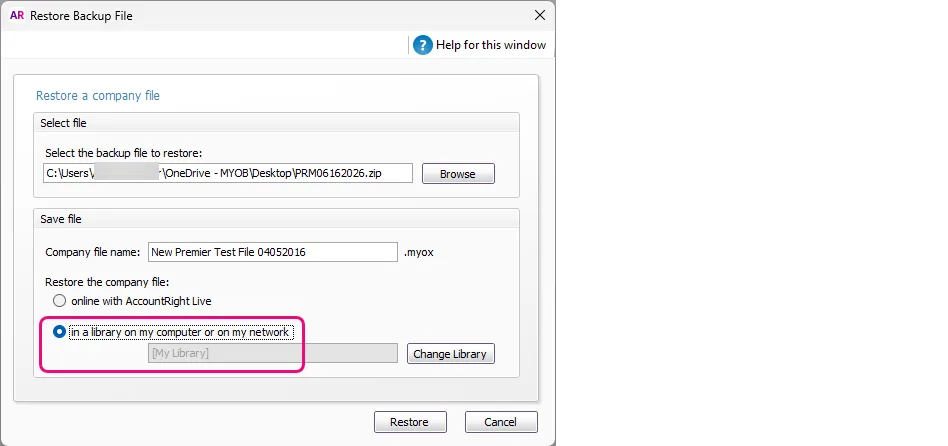
If the backup is password protected, enter the password.
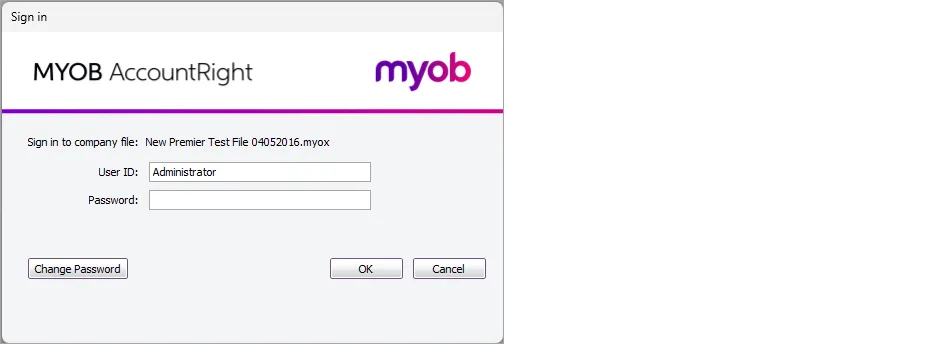
Sign in to the restored offline company file.


Important:
Don't make any changes when viewing the offline backup – this isn't your current (working) company file.
When you close and re-open AccountRight, it will open the latest AccountRight version. If you need to re-open an offline backup, you'll need to repeat the steps above to download v2026.4 again.
Why is my file stuck in "Backup in progress"?
If your company file is stuck with a status of Backing up or you persistently see this message, you'll need our help.

Click the chat bubble at the bottom of this page and ask MOCA, our virtual assistant, for help. Or, submit a support request via My Account and our team will get you back up and running.
AccountRight Server Edition
Your company file is stored offline. This means you can only create offline backups, which you need to save in a secure place. If you restore an offline backup, you can open that saved copy and see your company file exactly as it was when the backup was created.
Offline backups are point-in-time copies of your file
Use offline backups to retain historical versions of your file that you can refer to later or roll back to if something goes wrong.
Creating offline backups is a manual process, so it's up to you how often you do it. You might take an offline backup at key times, like EOFY, to create a handy snapshot of your data that you can retain or refer to later.
You can take an offline backup at any time and save the backup file on your computer, an external drive or another secure location.
You can password protect an offline backup, which means the password will be required to restore the backup.

You might also take an offline backup before making significant changes, like importing data, so you have a rollback option if things don't go to plan.
Offline backups can only be restored to an AccountRight library on your computer or in a network so you can view a copy of your company file as at the backup date.
More about creating offline backups
Tips for backing up offline
Back up regularly | It's up to you how often you backup your company file and the type of backup you create. To help remind you to backup, you can turn on the AccountRight preference to prompt for a backup each time to close your company file (Setup menu > Preferences > Security tab, and select both these preferences: Enable Offline Backups and Restore Prompt for Data Backup when Closing |
Use appropriate storage media | Different storage media offer different advantages. For example, a portable, but offsite storage might be more secure. Except for daily rotational backups, we recommend you do not re-use media. Also, due to the varying read/write speeds for external storage devices, if you want to store backups on a USB device, we recommend saving your backup to your computer then copying it to the USB device. |
Store backups in a different location to your company file | Don’t store backups on the same hard disk as your current company file. A single disaster could wipe out all your records. |
Don’t overwrite previous backups | If your current file is corrupt and you don’t realise it, and then you overwrite your previous backup file, you’ll no longer have a useable backup. |
Store backups off site | Store backups in a secure place, such as another physical location or online. |
Restoring a backed up company file
Restoring is how you open a backed up copy of your company file (File menu > Restore).
When you restore an offline backup, a copy of your company file will be restored in an AccountRight library on your computer or in a network location. This lets you view a copy of your company file as at the backup date. This doesn't affect your current working company file.
Which edition am I using?
If your AccountRight icon looks like this, you're working online with PC Edition. If your icon includes "SE" you're using Server Edition.
