From 17 June 2026:
-
AccountRight PC Edition no longer supports offline company files. Online files continue to work in PC Edition or a web browser.
-
AccountRight Server Edition is the only way to access offline company files. If you're hosting a file on a network, you need Server Edition installed on every workstation that accesses it.
-
Server Edition is built on older technology that's no longer being maintained. It won't receive bug fixes, security updates or new features, and may stop working entirely. We recommend moving your files online as soon as practical.
-
If you use both offline and online files, you can have both PC Edition and Server Edition installed on the same computer.
If people in your office need to access AccountRight from multiple computers, we recommend putting your company file online.
Otherwise, you can install AccountRight Server Edition on each computer in your local network. Company files can then be stored on the server and accessed from each workstation in the network.
First, check the system requirements then follow the guidelines below for our recommended setup.
Set up the server
The server is where you’ll store the AccountRight company files you want to share with others on your local network. This can be a dedicated computer that just sits in the corner of your office, or a PC that’s used throughout the day.
You can't store or share your company file from a NAS drive.
When nominating a computer as your server:
Your server should have hardware capable of handling lots of simultaneous updates by users on your network. If you’re already running hard disk-intensive processes on the PC, you’re better off choosing a different computer as your server.
The computer you set as the server needs to be on (not in sleep mode or hibernated) whenever someone in your office wants to access the files on it.
Important security information
AccountRight Server Edition will set up Windows Services, Windows Firewall rules and Windows shares that enable PCs on your local network to access company files stored on the server. However, remote access to company files is not supported, and for your security you should not edit the firewall rules that are set up for you by AccountRight. If you require remote access, you should store your company file online, or use a secure VPN service to access your network files.
Third-party apps are also unable to connect to company files remotely. If you have issues with a third-party app, please contact the app provider.
For information about the supported network and security configuration for AccountRight Server Edition and third-party apps, see the AccountRight Server Edition technical notes.
Install AccountRight Server Edition on the server
AccountRight Server Edition installs networking components that enable other AccountRight computers to connect to it.
Download the latest Server Edition. Once you've saved the installer to the server, double-click it to install AccountRight. You will need administrator permission on the server to complete the installation.
Need the AccountRight MSI installer? Grab it from myob.com/downloads. Also see the AccountRight MSI installation instructions.
Add company files to the AccountRight library
The company files you want to share with others on your network need to be stored in the AccountRight 'library'. This is simply a predefined location on the server for storing company files. Learn more about AccountRight libraries.
By default this folder location is found on the server at c:\Public\Documents\MYOB\My AccountRight Files. This location is also referred to as “My Library” in some AccountRight windows.
You can change this location after installing AccountRight – look for the Set Library Location option in the Windows Start menu > MYOB folder.
When creating an AccountRight file on the server, you’ll be prompted to save it in the “My Library” location. Select this option to ensure other computers on your network can access the files.
Set up the workstations
A workstation is a computer in your local network that accesses AccountRight company files stored on the server.
Install AccountRight Server Edition on each workstation
You need the AccountRight Server Edition on each workstation so you can access the AccountRight company files stored on your server.
Download the latest AccountRight Server Edition. Once you've saved the installer to your computer, double-click it to install AccountRight. You will need administrator permission on the workstation to complete the installation.
Access the company files stored on the server
Once you’ve installed AccountRight Server Edition on each workstation, you can access the company files stored on the network server by adding a network library.
Start AccountRight on the workstation and click Open in the Welcome window.
Click Network Libraries, and then Add a network library.
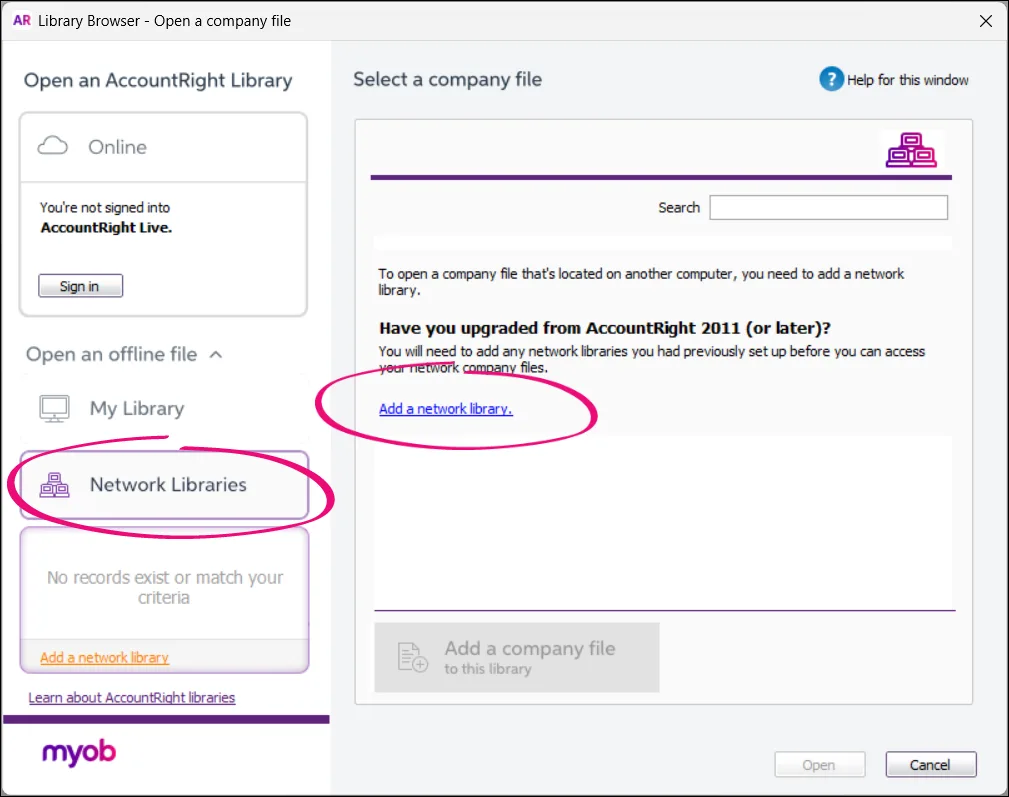
Enter the AccountRight server’s name or IP address, and give the library a nickname (this is handy if you have several servers). If you don’t know the server’s name, go to the Windows control panel on the server and select the System option.

Once the network library is set up, you can see and open all company files that are on the server.
Learn more about AccountRight libraries and opening company files.