An offline backup is a copy of your company file as it was at the time the backup was created. They are backups you have manually created and saved on a computer, in a network or on an external storage device.
Depending on what you want to do, there are 2 ways to restore an offline backup:
open the backed up copy of your company file to view historical information (only available in AccountRight Server Edition or AccountRight PC Edition 2026.4 or earlier). You'll do this by restoring the offline backup in an AccountRight library – either on your computer or a local network location
overwrite an online company file with the backed up company file (AccountRight PC Edition only). You'll lose any work done in the online file since the backup was created and you can't undo it. Warning: this permanently replaces the online company file.
Restoring an offline backup in an AccountRight library
AccountRight Server Edition or AccountRight PC Edition v2026.4 or earlier only
If your company file is online with the latest AccountRight PC Edition, see the FAQs for a workaround to open offline backups.
Go to the File menu and choosing Restore.
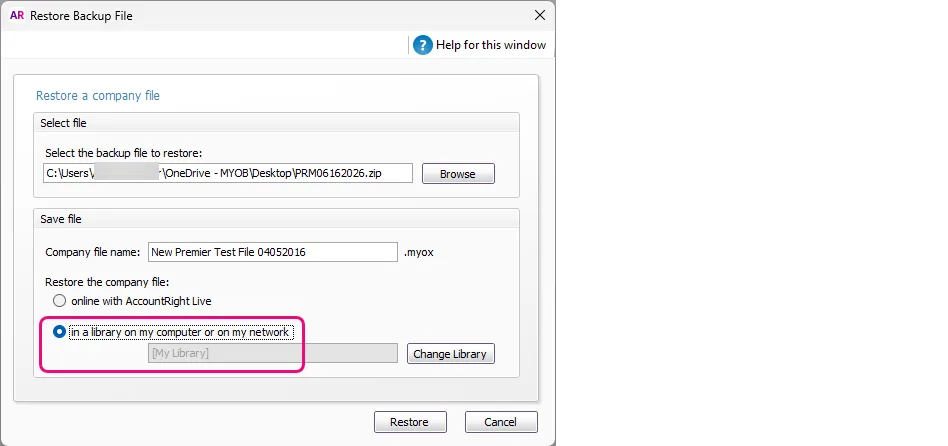
Click Browse and choose the backup file you want to restore.
Can't find your backup file?
If you've looked in all the obvious places (including external drives), try a Windows search on your computer. If you didn't change the file name when you made the back up, it will use the default AccountRight backup file name format. This name is a combination of MYOB and the date the back up was made. For example, if the back up was made on 31 December 2024, it will have the default name MYOB12312024.zip. That is, MYOBmm/dd/yyyy.zip.
If you don't know the date, try searching the files on your computer for all .zip files or .zip files that include MYOB (such as MYOB AND .zip). For details about searching for files on your PC, see this Microsoft help article.
If a password was entered when the backup was created, enter this password in the window that appears, and click OK.
Select the option to restore the company file in an AccountRight library – either locally on your network workstation or in a network location on the server. To change the AccountRight library or library folder that the file will be restored to, click Change Library and select the location for the restored company file.
Rename the restored company file’s name if required. A restored company file can't have the same name as an existing company file in the library.
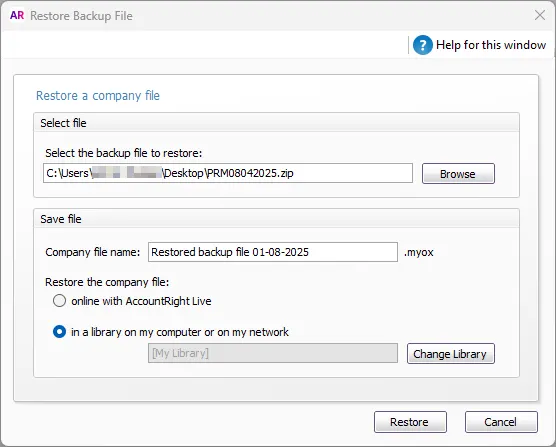
Click Restore.
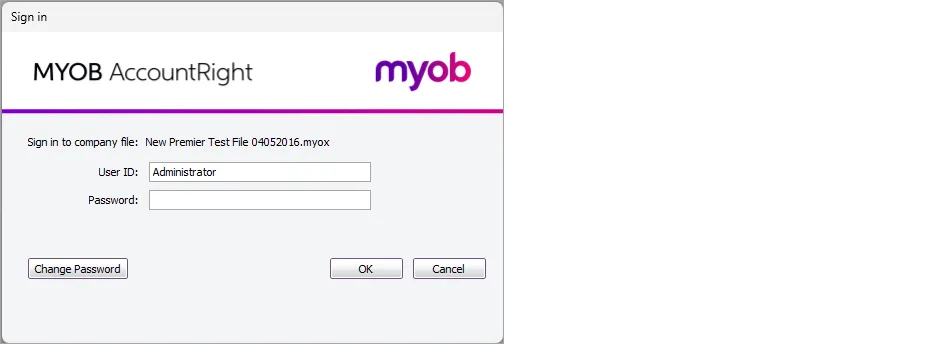
Sign in to the restored company file.
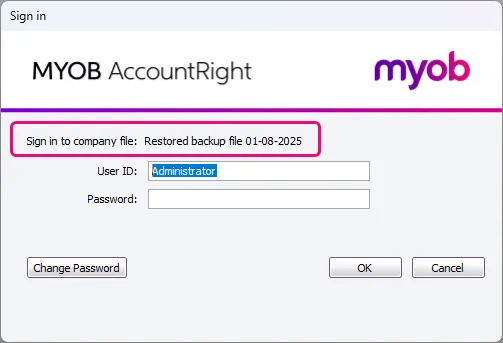


Don't change anything in your restored file
Any changes you make in your restored company file won't be reflected in your working company file. Remember, the restored company file is just a copy.
Restoring an offline backup to overwrite an online company file
AccountRight PC Edition only
If you restore an offline backup online, it will replace your online working company file. Any changes you’ve made to the online company file since the backup file was created will be overwritten.
Check for changed transactions
Before replacing an online company file, you can check what changes have been made to it by running the Journal Security Audit report in the online file. This report shows what changes have been made in a selected period, for example, since the offline backup was created. More about checking for unauthorised transactions.
Online administrator access is required to do this task.
To replace your online company file with an offline backup
Start AccountRight.
On the Welcome window, click Restore offline backup.
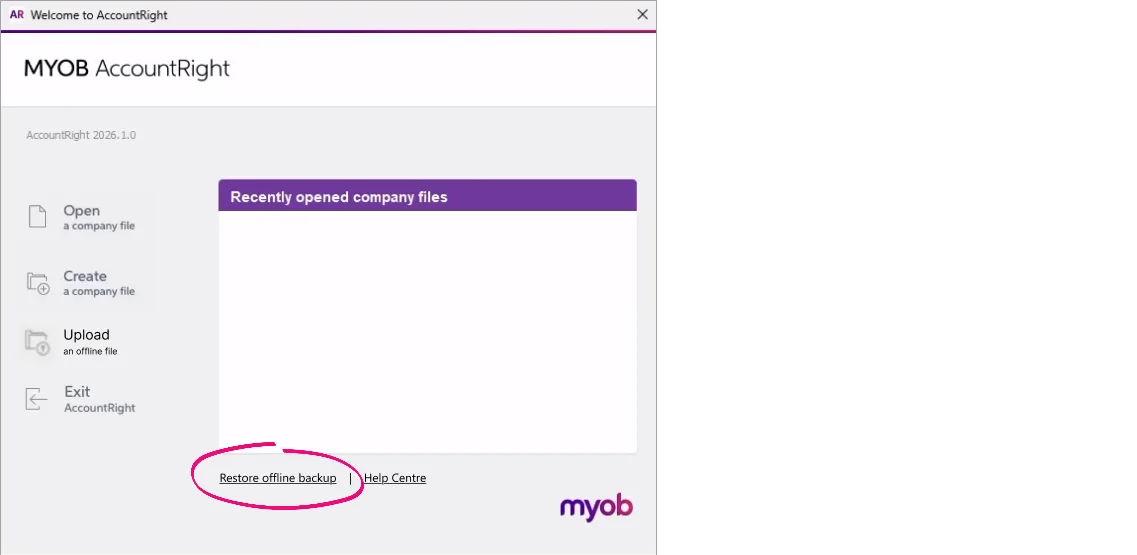
Click Browse and choose the offline backup file you want to restore. You'll see the name of the company file within the backup – this must match the online company file you intend to replace.
If a password was entered when the backup was created, enter this password in the window that appears, and click OK.
The next step cannot be undone
Any changes made to the online company file since the backup was created will be overwritten.
Click Restore and read the displayed warning about replacing your online file, then click Yes.
Sign in using your MYOB account details to complete the restore.

Once complete, you can open the restored online company file.
FAQs
Can I create or restore offline backups if I use AccountRight online?
AccountRight PC Edition only
If your company file is online, you're using the latest version of AccountRight PC Edition. This version can't create or open offline files or backups.
You can still open an offline backup created in an older version, but you'll need to install AccountRight v2026.4 to do it. This is the last version that works with offline files.
To open an offline backup in AccountRight v2026.4
Close AccountRight.
Right-click this download link and choose Save link as or Save target as to save the AccountRight 2026.4 installation file to your Desktop.
Double-click the downloaded file on your Desktop and follow the prompts to install AccountRight. AccountRight v2026.4 will start automatically when the installation is complete.
On the Welcome screen, click Restore Offline Backup.
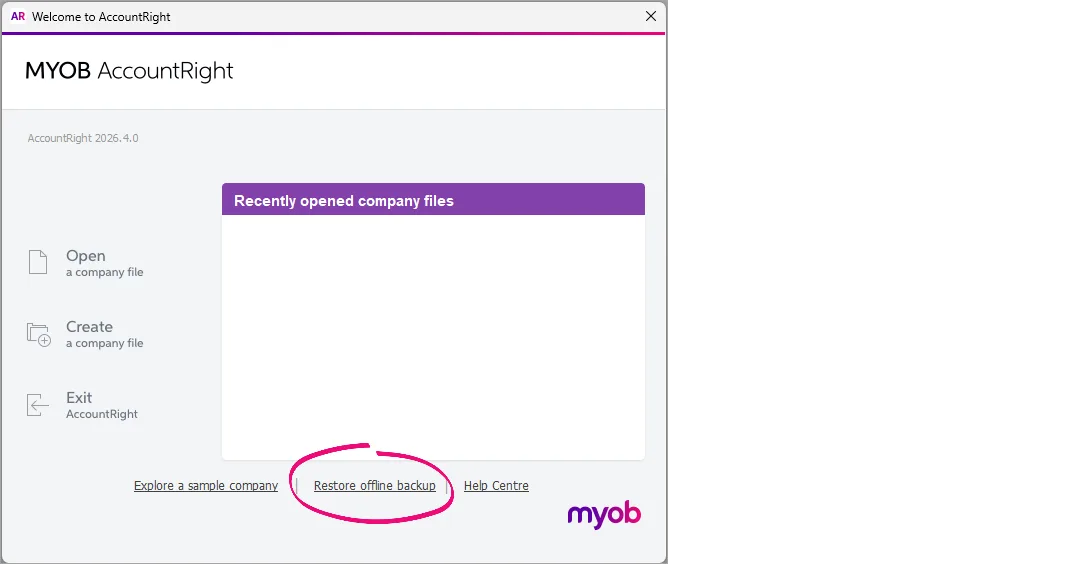
Click Browse to select the offline backup file to open.
Choose to restore the backup in a library on my computer.
If the backup is password protected, enter the password.
Sign in to the restored offline company file.


Important:
Don't make any changes when viewing the offline backup – this isn't your current (working) company file.
When you close and re-open AccountRight, it will open the latest AccountRight version. If you need to re-open an offline backup, you'll need to repeat the steps above to download v2026.4 again.