AccountRight Server Edition only
From 17 June 2026:
-
AccountRight PC Edition no longer supports offline company files. Online files continue to work in PC Edition or a web browser.
-
AccountRight Server Edition is the only way to access offline company files. If you're hosting a file on a network, you need Server Edition installed on every workstation that accesses it.
-
Server Edition is built on older technology that's no longer being maintained. It won't receive bug fixes, security updates or new features, and may stop working entirely. We recommend moving your files online as soon as practical.
-
If you use both offline and online files, you can have both PC Edition and Server Edition installed on the same computer.
You can create as many user accounts as you need to enable others to access your company file. You can also restrict the areas and information each user can access.
You must be the company file administrator, or a user assigned the Administrator role, to create other users. If you don't sign on as an administrator, the User Access option won't appear in the Setup menu. If you're signed on as an Administrator but still can't see the User Access option, contact us for help.
Adding a user to an offline file
Open the company file.
Go to the Setup menu and choose User Access.
Click New User.
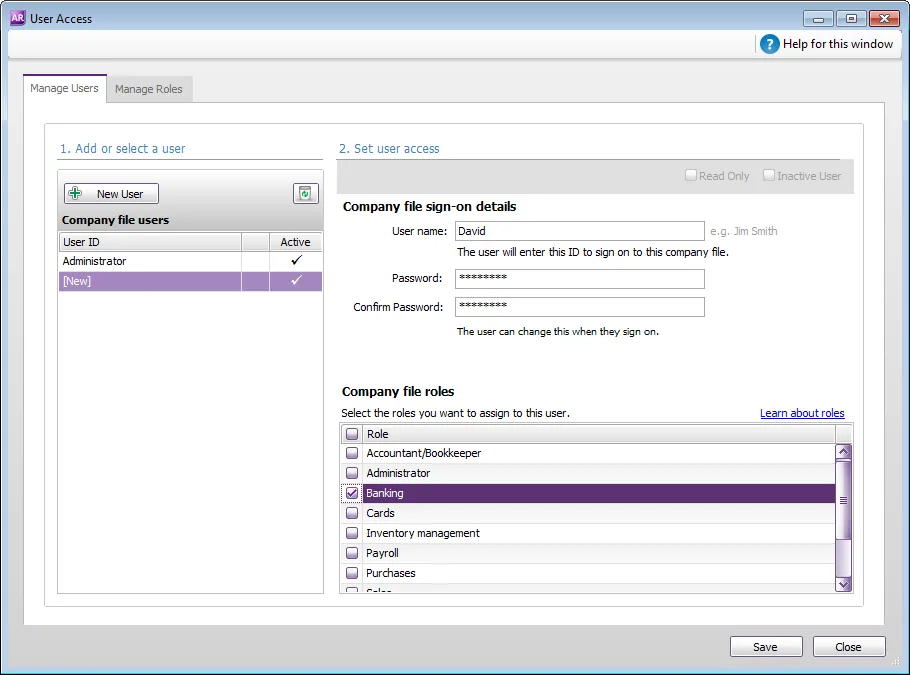
Set up company file sign-on details
Type the user’s name in the User name field. This will become the user's User ID they'll need to enter when opening your company file.
Type the password they'll need to enter each time they open the file, in the Password and Confirm Password fields. The user will be able to change this password when the sign in to your company file.
User passwords can’t be recovered
If a user forgets their password, an administrator can set a new password for them. See Change a user's company file access.
If your file only has one administrator account, and you’ve forgotten its password, you'll need to send the file to MYOB to have the password reset. Contact MYOB for information on how to send your file, and the cost to reset the password.
Select user roles
In the Company file roles list, select the roles you want to assign to this user account. For example, if you want to give the user access to all sales features, select the Sales role.
Click Save.

You can now give the user their user name and password. They'll need this to open your company file.