Whenever a window or report loads in AccountRight, some of the displayed information is saved in the background. This is called caching and it helps speed things up.
But sometimes the cached information becomes corrupt or it conflicts with other background data. This can cause crashes, display issues or it can make AccountRight sluggish or unresponsive.
Deleting the cached information
AccountRight's cached information is stored in a folder on your computer. Here's how to find and delete the cached files.
Close AccountRight.
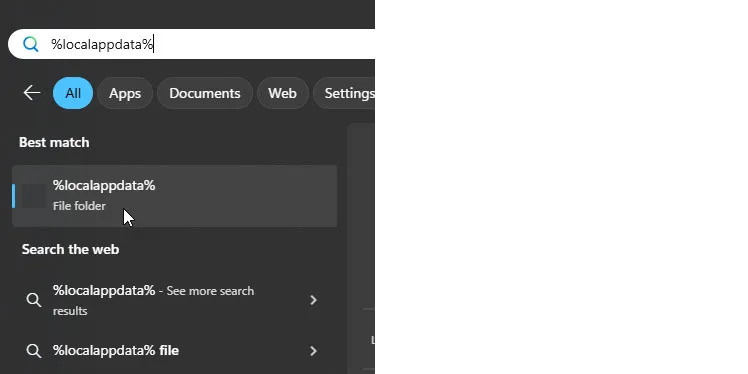
Click your Windows Start button and type (or paste this): %localappdata%
Click the first result to open the AppData/Local folder.
Open the MYOB folder.
Open the AccountRight folder.
Open the Current folder. In older AccountRight versions that don't have this folder, open the folder for your AccountRight version, like 2019.2.
Open the Cache folder.
Select all files in this folder and click the Delete icon. To quickly select all files, click one file then simultaneously press the Ctrl and A keys on your keyboard.
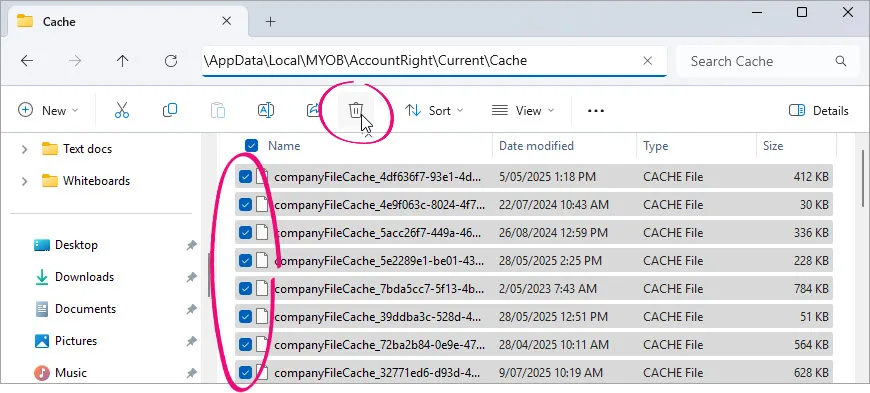


That's it – the cache is cleared and you can re-open AccountRight.
Deleting browser cache
If you use AccountRight in a web browser, you can perform a similar cache clearing process for your browser.
With your web browser open, simultaneously press the Ctrl + Shift + Delete keys. Select the option Cached images and files, deselect the other options, then click Clear or Delete (depending on your browser).