MYOB comes with a default list of categories which you can customise to suit your business—often with the help of an accounting advisor. They might also help you import categories. If you need information on linked accounts, see Managing linked categories.
Watch this video to see how to add and edit categories:
Let's step you through how to add, edit, delete and deactivate categories.
To add a category
Go to the Accounting menu and choose (Categories Chart of accounts).
Click Create category..
Select whether you're creating a Detail category or Header category. What is this?
Choose the Category type. What is this? For Bank category types, you'll also need to choose an option from the Bank account type field.
Choose the applicable Parent header. This determines where the category will sit in your categories list.
If you're accessing an AccountRight file in a web browser, you won't be able to choose the Parent header category. When you enter the Category code, the applicable parent header will be chosen for you based on your categories list. If you want to choose a different parent header, you'll need to create the category in your AccountRight desktop software.
If you're accessing an AccountRight file in a web browser, you won't be able to choose the Parent header account. When you enter the Account number, the applicable parent header will be chosen for you based on your accounts list. If you want to choose a different parent header, you'll need to create the account in your AccountRight desktop software.
Enter a unique 4-digit Category code after the dash. The prefix (the number before the dash) is based on the Category type and can't be changed.
Enter the Category name.
(Optional) Enter Notes about this category, such as a description of the category and its purpose.
(Header categories only) If you want to show a subtotal on reports for the categories under this header, select the option Show a subtotal for this section on reports.
If you're creating a header category, click Save. Otherwise continue with the following steps.
For new detail categories only(Optional) Enter the category's Opening balance.
Choose the Tax code that you'll use most often with transactions posted to this category. You can choose a different tax code when entering transactions.
If you're creating an asset, liability or equity category (other than the Bank type), choose the Classification for statements of cash flow.
Classifying the categories allows you to generate a statement of cash flows. This report shows how your cash position has changed over time, profit earned and where your cash was spent.
Classifying the categories allows you to generate a statement of cash flows. This report shows how your cash position has changed over time, profit earned and where your cash was spent.
-
Financing:
Balance sheet items that are to do with borrowing money or the repayment on borrowings. For example, hire purchase, leases, and bank loans. In some cases, this may also include directors' or shareholders' loans. -
Investing:
Balance sheet items that are used for the acquisition of fixed assets, plant and equipment, and investments. The sale of these assets or the redemption of investments into cash is also an investing activity. -
Operating:
All other balance sheet items where it is effectively a timing issue that creates the transaction, for example, accruals and prepayments. Accumulated depreciation is classified as operating so that it offsets the depreciation expense in the profit and loss report.
If you’re unsure about which classification to use, consult your accountant or an MYOB Certified Consultant/Approved Partner.
-
(Bank or Credit card category types only) If you'll make electronic payments from this category:
enter the bank account details, and
select the option I create ABA files for this account. For more details see Paying employees into their bank accounts.
When you're done, click Save.
To edit a category
You can edit some category information in detail categories, for example, the Name, Code, the Opening balance, Tax code and banking details. For information on opening balances, see Entering opening balances.
You can't edit the Type if you have transactions posted to the category. You also can't edit the Type or Code of top level header categories.
If a category's information can't be changed, the field will be locked or you'll see a warning message when trying to save your changes.
Changing the order of categories
You can edit the Code of detail categories to change the order they appear in. Each category is identified by a unique five-digit code. The first digit (the prefix) indicates the category’s classification (for example, categories starting with 1 are asset categories). The remaining four digits determine its location within the classification. The lower the number, the higher up in the list it appears. For example, category 1-1100 appears above 1-1200.
You can also move categories up or do wn category levels.
To edit categories
Go to the Accounting menu and choose Categories (Chart of accounts).
Click Edit categories.
Make your changes.
Click Save.
To move categories up or down
Go to the Accounting menu and choose Categories (Chart of accounts).
Click the applicable tab for the category you want to move, e.g. Assets, Liabilities, Equity, etc.
Select the category to move.
Move the category. You'll only be able to move a category up or down if it's possible to do so.
If you're accessing an AccountRight file in a web browser, use the buttons above your categories list to move the category up or down a level.
If you're using MYOB Business, click the Move to dropdown button and choose where to move the category.
Click Save.
To bulk update account tax codes
You can change the tax code of categories one at a time (see To edit categories above). But if you need to change a few categories to use the same tax code, you can do it in one go.
Go to the Accounting menu and choose Categories (Chart of accounts).
Select the categories whose tax codes you want to update.
Click Edit tax code.
Choose the Tax code to apply to the selected categories.
Click Edit. The tax code is applied to the selected categories.
To delete categories
Have a category you don't need? You'll be able to delete a category if it:
has never been used in a transaction
has no journal entries
has a zero balance
is not a linked category
is not linked to a pay item
is not linked to a tax/GST code (see Tax codes (Australia) or GST codes (New Zealand))
Instead of deleting an category you can deactivate it (see below).
To delete categories
Go to the Accounting menu and choose Categories (Chart of accounts).
Select one or more categories to be deleted. The Delete categories button appears.
Click Delete categories.
Click Delete to the confirmation message. If the category can't be deleted, a message will appear explaining why.
To deactivate a category
When you make categories inactive, they’re removed from some selection lists so they can't be used in transactions. They also won't display in some reports, unless the report has the option to Show inactive categories.
Inactive categories retain details you may need some day. This is in contrast to deleted categories, which are removed along with all their details. For more information see "To delete a category" above.
You can reactivate the category at any time by repeating these steps and deselecting the Inactive category option.
Go to the Accounting menu and choose Categories (Chart of accounts).
Click the name of the category to be deactivated.
Select the option Inactive category.
Click Save.
To reactivate an account
Go to the Accounting menu and choose Chart of accounts. The Accounts page appears.
Select the option Show inactive.
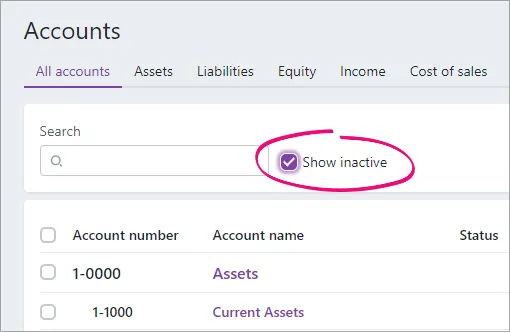
Click the name of the account to be reactivated.
Deselect the option Inactive account.
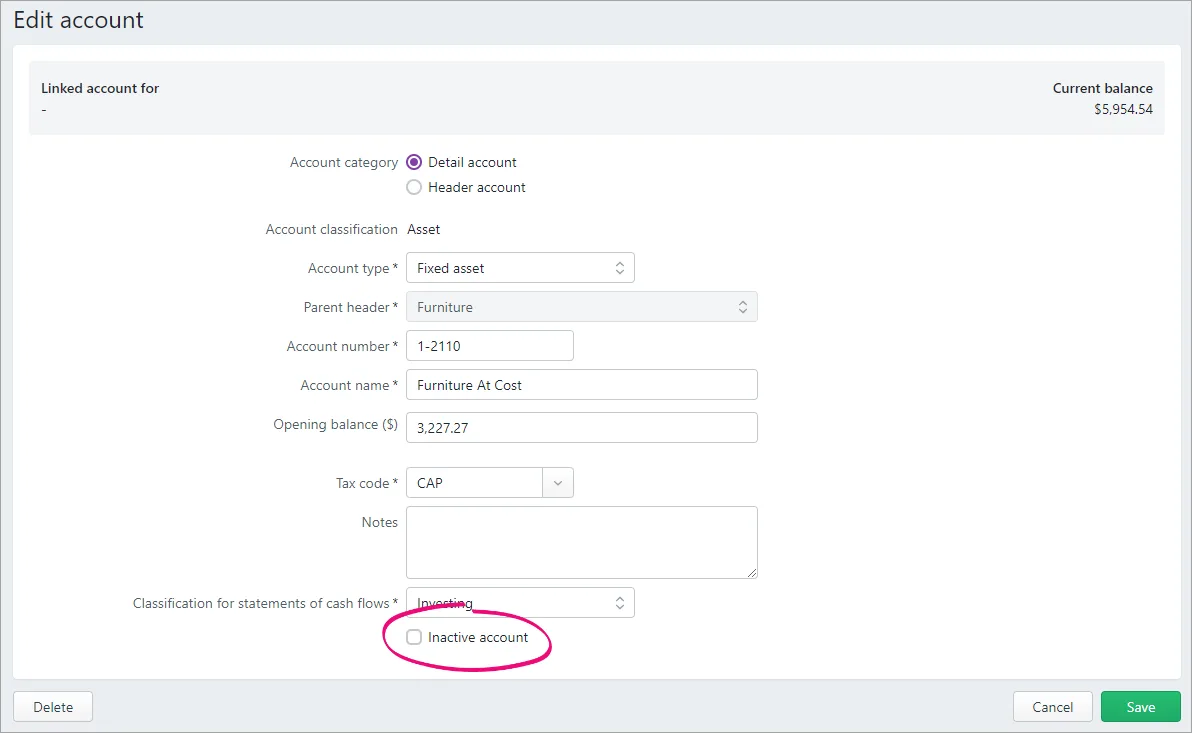
Click Save.


FAQs
Why can't I choose a Parent header when creating an account?
If you're accessing an AccountRight file in a web browser, you won't be able to choose the Parent header account when creating an account. When you enter the Account number for the new account, the applicable parent header will be chosen for you based on your accounts list.
If you want to choose a different parent header, you'll need to create the account in your AccountRight desktop software.
AccountRight comes with a default list of detail and header accounts based on the industry type you chose when creating your company file. But if you need to create new accounts, here's how. Need to delete an account? See Deleting an account.

To create an account
Go to the Accounts command centre and click Accounts List. The Accounts List window appears.
Click the tab for the account classification you want to create, such as Asset, Liability, etc. See Set up accounts for more information on account classifications.
Click New. The Account Information window appears.
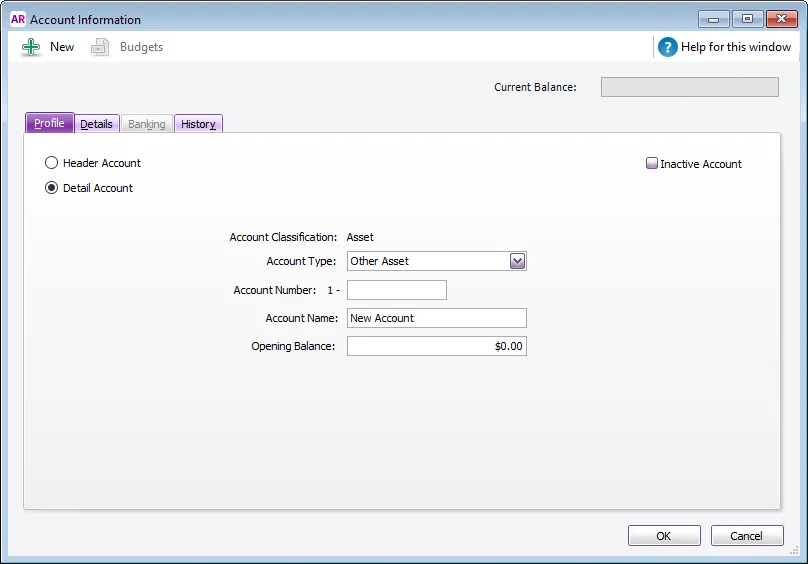
If you want to create a header account, select the Header Account option or if you want to create a detail account, select Detail.
Select the account type from the Account Type list. The types available vary depending on the on the Account Classification. Note that only Bank and Credit Card account types will be selectable in the Pay from Account field when recording transactions.
Enter a four-digit number for the account in the Account Number field. The number must be unique within each account classification.
Press Tab and type a name for the account.
Click the Details tab.
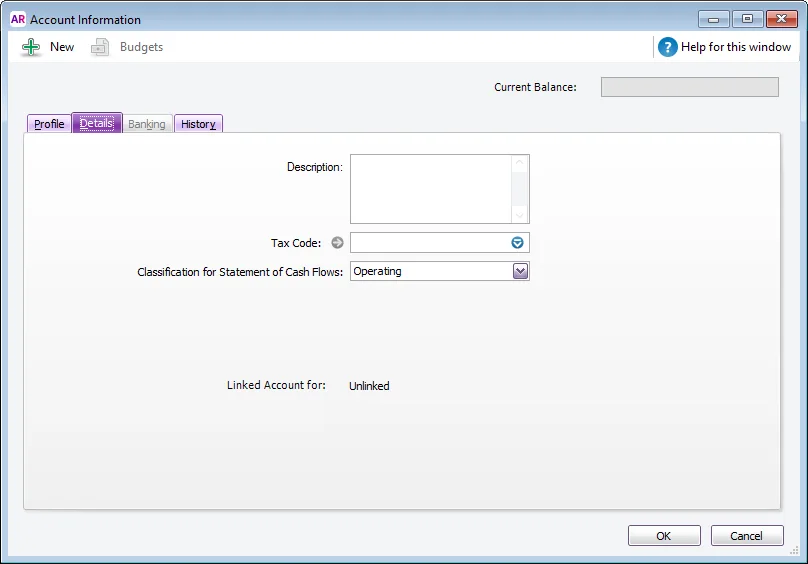
If you want, type a brief description of the account in the Description field.
(Header accounts only) If applicable, select the option When Reporting, Generate a Subtotal for This Section. Selecting this option will include a subtotal line for this header in the Balance Sheet and Profit and Loss reports.
In the Tax Code (Australia) or GST Code (New Zealand) field, enter the tax code that you use most often with transactions that will be posted to this account.
If you're creating an asset, liability or equity account (other than an asset with the account type of Bank), select an option from the Classification for Statement of Cash Flows list.
Classifying the accounts allows you to generate a statement of cash flows. This report shows how your cash position has changed over time, profit earned and where your cash was spent.
Classifying the accounts allows you to generate a statement of cash flows. This report shows how your cash position has changed over time, profit earned and where your cash was spent.
Classification
Example
Financing
Balance sheet items that are to do with borrowing money or the repayment on borrowings. For example, hire purchase, leases, and bank loans. In some cases, this may also include directors' or shareholders' loans.
Investing
Balance sheet items that are used for the acquisition of fixed assets, plant and equipment, and investments. The sale of these assets or the redemption of investments into cash is also an
investing
activity.
Operating
All other balance sheet items where it is effectively a timing issue that creates the transaction, for example, accruals and prepayments. Accumulated depreciation is classified as
operating
so that it offsets the depreciation expense in the profit and loss report.
If you’re unsure about which classification to use, consult your accountant or an MYOB Certified Consultant/Approved Partner.
If you’re unsure about which classification to use, consult your accountant or an MYOB Certified Consultant/Approved Partner.
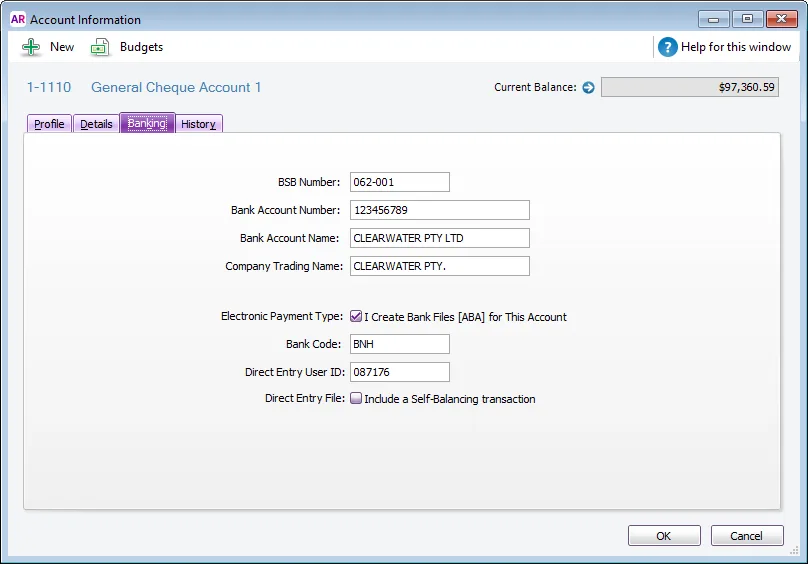
If you're creating a bank or credit card account, and you want to keep a record of your bank account details, or make electronic payments, click the Banking tab and enter your account details. For more info see Enter your account details.
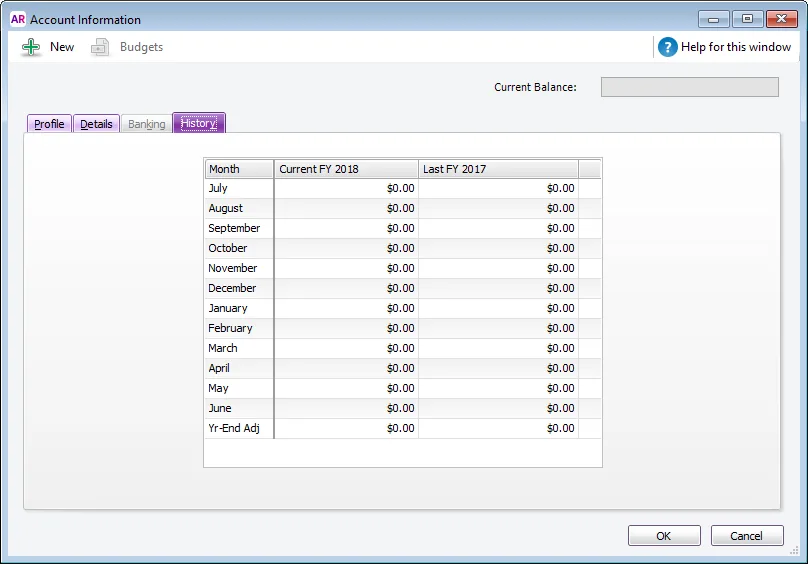
[Detail accounts only] If it's your first financial year using AccountRight, click the History tab.
In this tab you can enter historical balances for:the months prior to you starting to use AccountRight: Enter the closing monthly balances in the Current FY column. That way you can compare the monthly account balances for this year and last year.
Note that the closing balance for the month prior to your conversion month must be entered in the Account Opening Balances window, so you won't be able to enter it here. For example, if your conversion month is September, the August closing balance must be entered in the Account Opening Balances window.the last financial year: Enter the closing monthly balances in the Last FY column.
Click OK when you have finished. The account now appears in your accounts list.


To group detail accounts with a header account
You group accounts by indenting the accounts located below a header account.
Go to the Accounts command centre and click Accounts List. The Accounts List window appears.
Select the detail account you want to group.
Click the Down button at the bottom of the window to group the account with the header located above it.
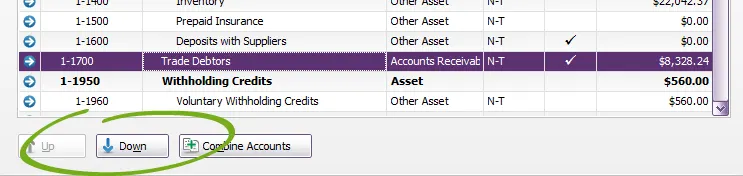
In the example above, the 1-1700 Trade Debtors account will move to the right, in line with the other accounts above it, as shown below.


FAQs
How do I change an account name?
Go to the Accounts command centre and click Accounts List. The Accounts List window appears.
Click the zoom arrow next to the account to be edited.
Change the Account Name.
Click OK.