AccountRight Plus and Premier only
Make sure you've set up Pay Super
This topic explains how to ensure new employees are included in your super payments, and assumes you've set up Pay Super.
When a new employee starts, you'll send them a request to self-onboard. This allows them to send their personal, banking, tax and super details (fund and membership number) straight into your AccountRight company file. This also means the super fund they choose will be set up automatically in AccountRight – so you don't need to do it.
When you record a pay, any superannuation contributions are automatically tracked and ready to be included in your next Pay Super payment.
Before paying your new employee, it's a good idea to check they're ready to go.
Check that a manually set up employee is ready for Pay Super
-
If the employee uses a super fund that's new to your business, set up the super fund (see below).
-
Add an employee card and include the employee's payroll details and superannuation information.
-
Check that you've entered all the mandatory information required for Pay Super (see below).
Setting up a super fund for Pay Super
If you set up an employee manually and they nominate a super fund you haven't used before, you'll need to set up the fund for Pay Super payments.
Go to the Lists menu and choose Superannuation Funds. The Superannuation Fund List window appears.
Select a fund you want to pay using Pay Super and click Edit. The Superannuation Fund Information window appears.Select the Pay directly from AccountRight option.
If the fund doesn't have a Registered Name selected, select one from the list.
If you're setting up a self-managed fund (SMSF), the registered name will be filled in for you when you enter the ABN of the fund.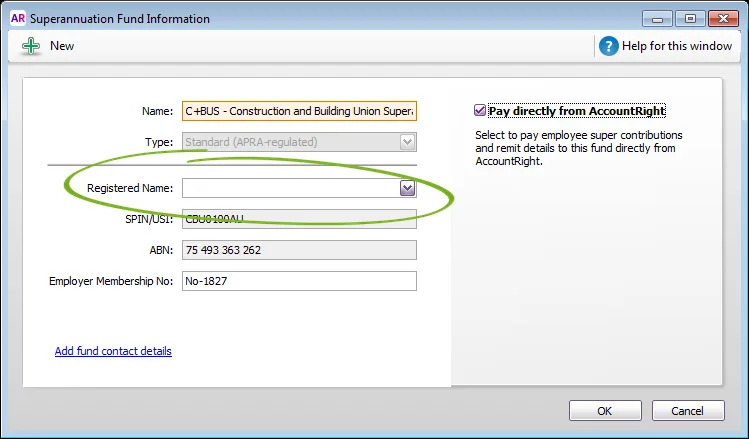
Can't find the fund?
It might be listed more than once or under a slightly different name than. Try entering and searching for the fund's SPIN/USI. You can also check our list of super funds to make sure the fund can be paid using Pay Super. Still can't find the fund? Contact us.
If the super fund has provided you with an employer membership number, enter it in the Employer Membership No field. This is the unique identification number provided by the fund after registering employees with them. Check our list of super funds to see which ones require an Employer Membership Number.
Repeat these steps for each super fund that you'll pay using Pay Super.

Checking an employee's details for Pay Super
Whether the employee has self-onboarded or you've added all their details yourself, it's a good idea to check they're set up correctly so their super payments are processed successfully.
Go to the Card File command centre and click Cards List. The Cards List window appears.
Click the Employee tab.
Select an employee from the list and click Edit. The Card Information window appears.
In the Profile tab, select Individual from the Designation drop-down list. Make sure the following fields are also complete:
Last Name
First Name
Address (including City, State, Postcode and Country). Make sure the State and Country are selected from the drop down lists and not typed in.
at least one Phone Number.
In the Payroll Details tab, make sure the following fields are complete:
In the Personal Details section: Date of Birth and Gender.
In the Superannuation section: Superannuation Fund and Employee Membership Number. Note that this fund needs to have the Pay directly from AccountRight option selected. If the employee doesn't have a membership number, contact their nominated super fund who will advise what to enter here.
In the Taxes section: Tax File Number.