Most full-time and part-time employees are entitled to at least 4 weeks of paid annual leave per year, based on their ordinary hours of work. For unpaid leave see Leave without pay.
To clarify the annual leave your employees are entitled to, visit the Fair Work website or check the National Employment Standards.
MYOB comes with default pay items to take care of paying and accruing annual leave (what's a pay item?) for both salaried and hourly-paid employees – all you need to do is assign them to your employees.
How annual leave works in MYOB Business
There are two parts to annual leave:
paying leave – when an employee takes leave, they'll be paid during that leave and their leave balance will be reduced
accruing leave – an employee will accrue leave throughout the year
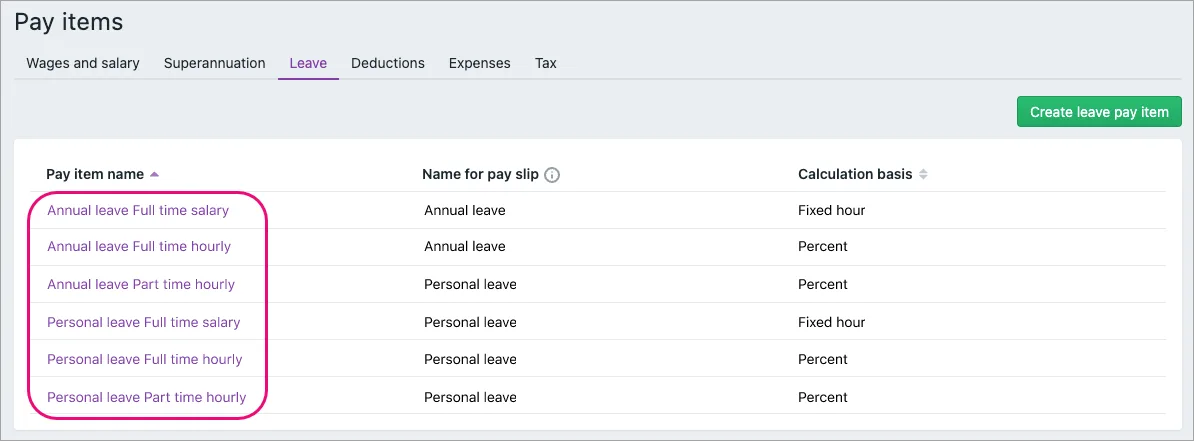
To cater for this, MYOB has some default annual leave pay items:
a wages and salary pay item – to pay for leave when it's taken and to reduce the employee's leave balance
3 leave pay items – to calculate and maintain the accrued leave for different types of employees
Here they are in your list of pay items (Payroll menu > Pay items):

You'll need to assign the Annual Leave Pay wage pay item to all employees who are entitled to annual leave. You'll also need to assign the applicable leave pay item, based on their working arrangements.
After you've assigned the annual leave pay items to your employees, they'll be available to use in your employees' pays when they take annual leave.
When an employee takes annual leave
Just add the leave hours against the Annual Leave Pay pay item. Here's an example where Alan's pay includes 7.6 hours of paid annual leave. You can also see he's accruing 2.92 hours of annual leave this pay period:

Need to fix some leave?
See Managing your employees’ leave. What about unpaid leave? See Leave without pay.
Assigning annual leave to your employees
From the Payroll menu, choose Pay items.
Click the Wages and salary tab.
Click to open the Annual Leave Pay pay item.
If it hasn't already been chosen, choose the applicable ATO reporting category. If unsure, check with your accounting advisor or the ATO. Learn more about assigning ATO reporting categories for Single Touch Payroll reporting.
Under Employees using this pay item, choose the employees who are entitled to annual leave.
When you're done, click Save.
Click the Leave tab.
Click to open the annual or personal leave pay item you want to assign. Choose the one that matches the employees you're assigning it to (full time, part time, salaried or hourly).
Under Employees using this pay item, choose the employees who are entitled to annual leave.
Linking wage pay items and adding exemptions
MYOB's default leave pay items are set up to suit most businesses. But if you've created additional wage pay items, you might need to choose additional linked wage pay items or add additional exemptions. To learn more see Linking a wage pay item and adding leave exemptions.
Click Save.

Entering annual leave balances from before you started using MYOB
If an employee has accrued annual leave before you've paid them in MYOB (perhaps you were using a different payroll system), this is known as their opening leave balance.
Here's how to enter that leave balance into the employee's record:
Go to the Payroll menu and choose Employees.
Click the employee's name.
Click the Payroll details tab.
Click the Leave tab.
Enter the employee's annual leave balance (in hours) in the Balance adjustment field.
When you're done, click Save.

What now?
Once you're set up, you can include annual leave in your employees' pays. Find out about Paying leave.
FAQs
How do I get leave balances to reset at the start of the payroll year?
If unused leave doesn't carry over into the new payroll year, you can get that leave balance to reset.
Go to the Payroll menu > Pay items > Leave tab > click to open the leave pay item > deselect the option Carry remaining leave over to next year.
How do I adjust an employee's leave balance?
You can adjust an employee's leave balance by recording a zero dollar pay with a leave adjustment value. The employee won't be paid anything, but their leave balance will be corrected. You can also add a note to the pay so the resulting pay slip will clearly show the adjustment you've made. It also provides a record and audit trail of what happened and how you fixed it.
For all the details, see Managing your employees’ leave.
Most full-time and part-time employees are entitled to at least 4 weeks of paid annual leave per year, based on their ordinary hours of work. For unpaid leave see Leave without pay.
To clarify the annual leave your employees are entitled to, visit the Fair Work website or check the National Employment Standards.
AccountRight comes with default payroll categories to take care of paying and accruing annual leave (what are payroll categories?) for both salaried and hourly-paid employees – all you need to do is assign them to your employees.
How annual leave works in AccountRight
There are two parts to annual leave:
paying leave – when an employee takes leave, they'll be paid during that leave and their leave balance will be reduced
accruing leave – an employee will accrue leave throughout the year
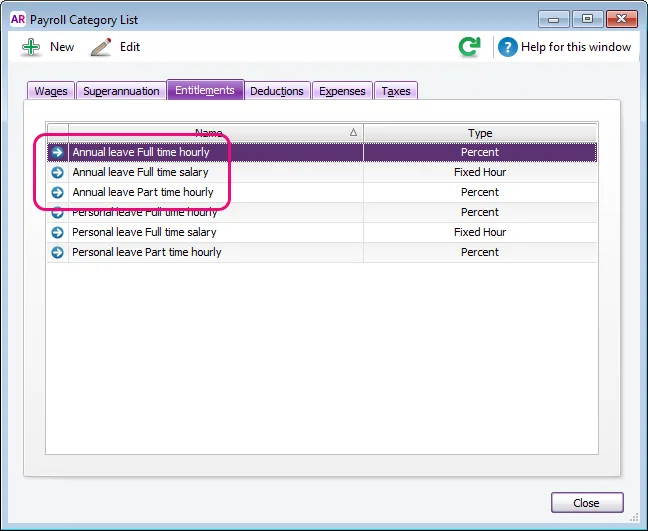
To cater for this, AccountRight has some default annual leave payroll categories:
a wages payroll category – to pay for leave when it's taken and to reduce the employee's leave balance
3 entitlement payroll categories – to calculate and maintain the accrued leave for different types of employees
Here they are in your list of payroll categories (Payroll command centre > Payroll Categories):

You'll need to assign the Annual Leave Pay wage payroll category to all employees who are entitled to annual leave. You'll also need to assign the applicable leave payroll category, based on their working arrangements.
After you've assigned the annual leave payroll categories to your employees, they'll be available to use in your employees' pays when they take annual leave.
When an employee takes annual leave
Just add the leave hours against the Annual Leave Pay payroll category. Here's an example where Peter's pay includes 7.6 hours of paid annual leave. You can also see he's accruing 2.92 hours of annual leave this pay period:

Need to fix some leave?
See Managing your employees’ leave. What about unpaid leave? See Leave without pay.
Assigning annual leave to your employees
From the Payroll command centre, click Payroll Categories.
Click the Wages tab.
Click to open the Annual Leave Pay payroll category.
If it hasn't already been chosen, choose the applicable ATO reporting category. If unsure, check with your accounting advisor or the ATO. Learn more about assigning ATO reporting categories for Single Touch Payroll reporting.
Click Employee and select the employees who are entitled to annual leave, then click OK.
Now click OK to save the payroll category.
Click the Entitlements tab.
Click to open the annual leave payroll category you want to assign. Choose the one that matches the employees you're assigning it to (full time, part time, salaried or hourly).
Click Employee and select the employees who are entitled to annual leave, then click OK.
Linking wage payroll categories and adding exemptions
AccountRight's default leave payroll categories are set up to suit most businesses. But if you've created additional wage payroll categories, you might need to choose additional linked wage payroll categories or add additional exemptions. To learn more see Linking a wage pay item and adding leave exemptions.
Click OK to save the entitlement category.

Entering annual leave balances from before you started using AccountRight
If an employee has accrued annual leave before you've paid them in AccountRight (perhaps you were using a different payroll system), this is known as their opening leave balance.
Here's how to enter that leave balance into the employee's card:
Go to the Card File command centre and click Cards List.
Click the Employee tab.
Click to open the employee's card.
Click the Payroll Details tab.
Click the Entitlements tab.
Enter the employee's annual leave balance (in hours) in the Balance adjustment field.
When you're done, click Save.

What now?
Once you're set up, you can include annual leave in your employees' pays. Learn more about processing your payroll.
FAQs
How do I adjust an employee's leave balance?
You can adjust an employee's leave balance by recording a zero dollar pay with a leave adjustment value. The employee won't be paid anything, but their leave balance will be corrected. You can also add a note to the pay so the resulting pay slip will clearly show the adjustment you've made. It also provides a record and audit trail of what happened and how you fixed it.
For all the details, see Managing your employees’ leave.