You'll be prompted to generate pay slips when you do a pay run, but you can reprint or resend them at any time.
If you need to change default pay slip email details, like the reply-to address, subject line or message, you need to change these in Payroll settings (click the settings menu (⚙️) > Payroll settings > Pay slip email defaults tab).
To reprint or resend pay slips
You can access pay slips for a single employee, or the pay slips from any pay run.
Access the pay slips for an employee
Go to the Payroll menu and choose Employees.
Click the employee.
Click the Pay slips tab.
Use the Payment from and Payment to fields to find pay slips that fall within a specific date range.
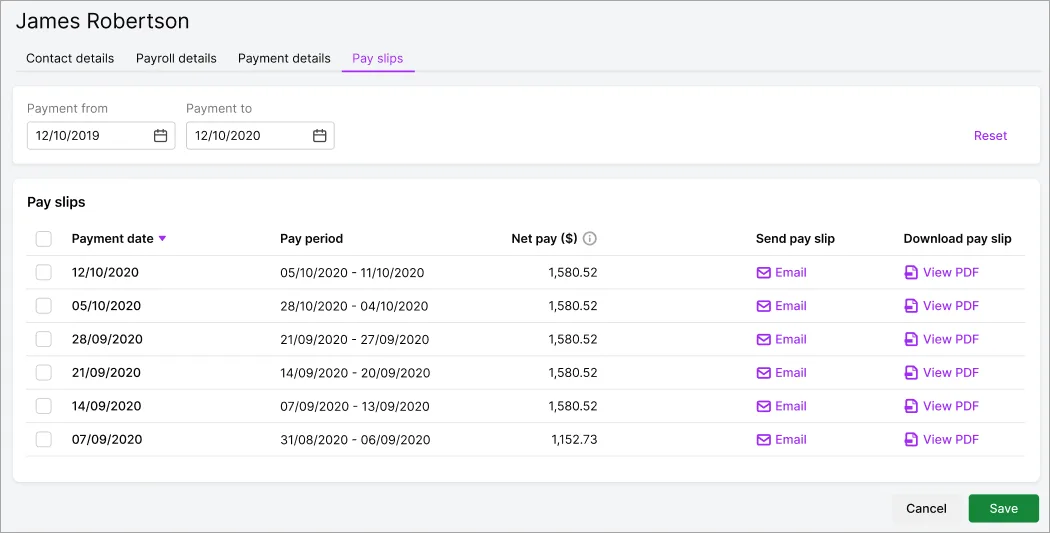

To view, save or print a pay slip | Click View PDF to display the pay slip in a new browser tab. From here you can print or download (save) the pay slip. |
To email a pay slip | Click Email for that pay slip. |
To email multiple pay slips | Select the pay slips you want to email, then click the Email button that appears. At the confirmation message, click Email pay slips to send each pay slip in a separate email. Then click Done. |
Access the pay slips from any pay run
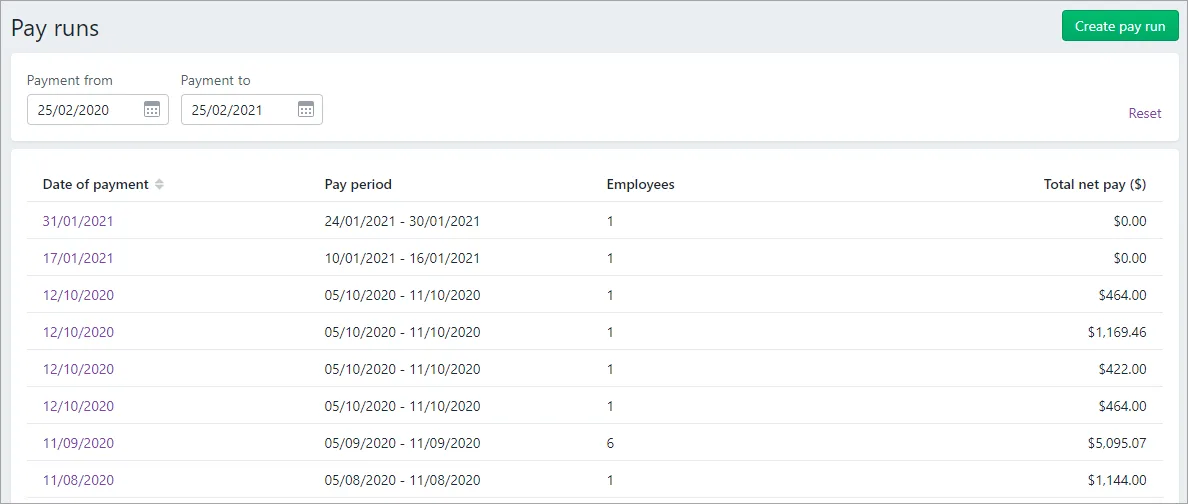
Go to the Payroll menu and choose Pay runs. Your past pay runs are listed, sorted by payment date. The number of employees paid in the pay run is also shown.
Can't find a pay run?
Change the date range using the Payment from and Payment to fields.
Click a pay run's Date of payment to see its details.
Employee pays are listed on either the Email pay slips or Print pay slips tab based on the Default pay slip delivery you specified when you added the employee.
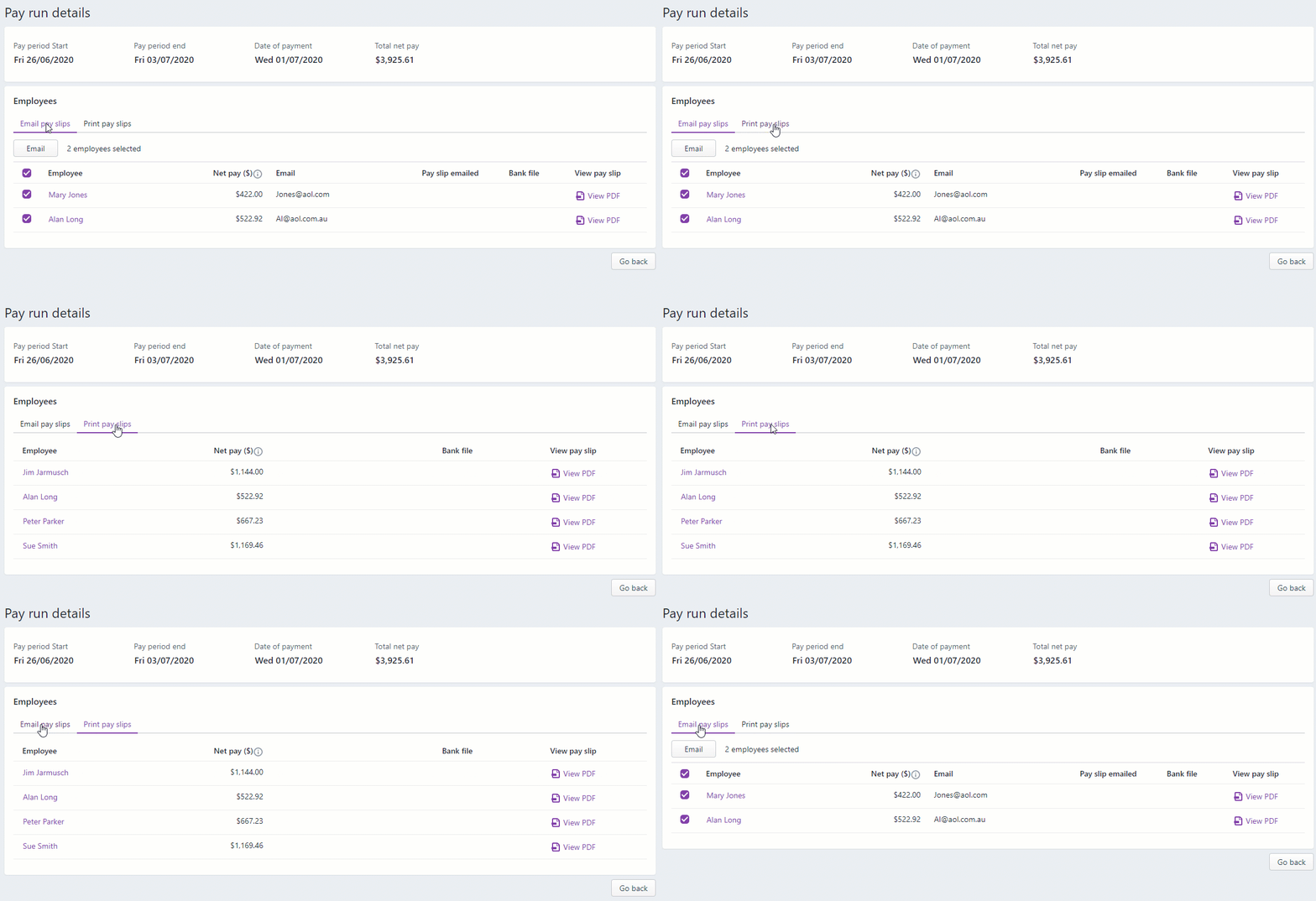

To view, save or print a pay slip | Click View PDF to display the pay slip in a new browser tab. From here you can print or download (save) the pay slip. |
To email a pay slip | On the Email pay slips tab, select the employee then click Email. |
AccountRight Plus and Premier only
You can print or email pay slips at the end of a pay run, or any time afterwards.
If you want to change the appearance of a pay slip before resending it, see Personalising pay slips.
If you're doing your payroll, click Print or Email Pay Slips at the last step of the pay run, Or, go to the Payroll command centre and click Print/Email Pay Slips.
Click the To Be Printed or To Be Emailed tab (depending on what you want to do).
If you're re-printing or re-sending pay slips:
Click Advanced Filters.
Deselect the option Unprinted or Unsent Pay Slips Only.
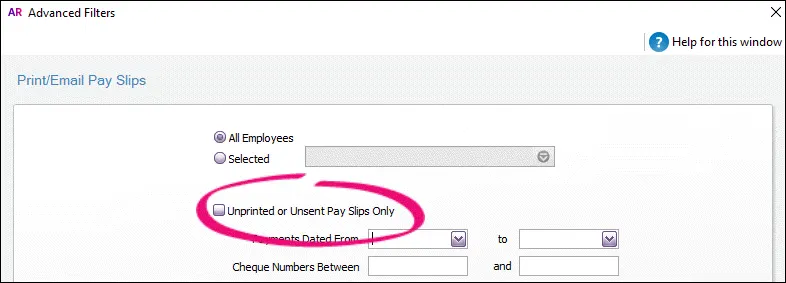
Click OK.
Select the employees you're printing or emailing pay slips for.
If you're printing pay slips:
Type the number of copies you want to print in the Print field.
Select the pay slips you want to print.
Click Print. The pay slips will be sent to your printer.
If you're emailing pay slips:
Select the pay slips you want to email.
If you want to change a recipient’s email address, subject or message (for example to indicate that the pay slip has been re-sent), click to highlight the pay slip and update the email details at the top of the window.
To change the default subject or message to use when emailing pay slips, click the Email Defaults button in the To Be Emailed tab. Learn more about default email settings.
(Optional) To email a pay slip to multiple email addresses, enter the addresses in the Email Address field, separated by semi-colons (;).
Click Send Email. The pay slips will be emailed as PDF attachments. If you send emails using AccountRight's built-in email feature, you'll be able to track if the email's been delivered.
