MYOB AccountRight desktop only. If you're using MYOB in a browser, see Edit and Delete users.
After an employee leaves your company, or if you've given someone short-term access to your online company file, you need to remove their access.
You can remove their company file access, which will prevent them from signing in to the file. But you may also want to remove online access to a file (or files).
Only the Administrator role can remove user access
You must be an AccountRight company file user assigned the Administrator role to change user access.

Roles are assigned to control what windows and functions users can access in AccountRight. If you don't have the Administrator role, the Setup > User Access option won’t appear in the menu.
Learn about users, roles and permissions
To remove a user’s access
Go to the Setup menu and choose User Access. The User Access window appears.
In the user list, select the user whose access you want to remove.
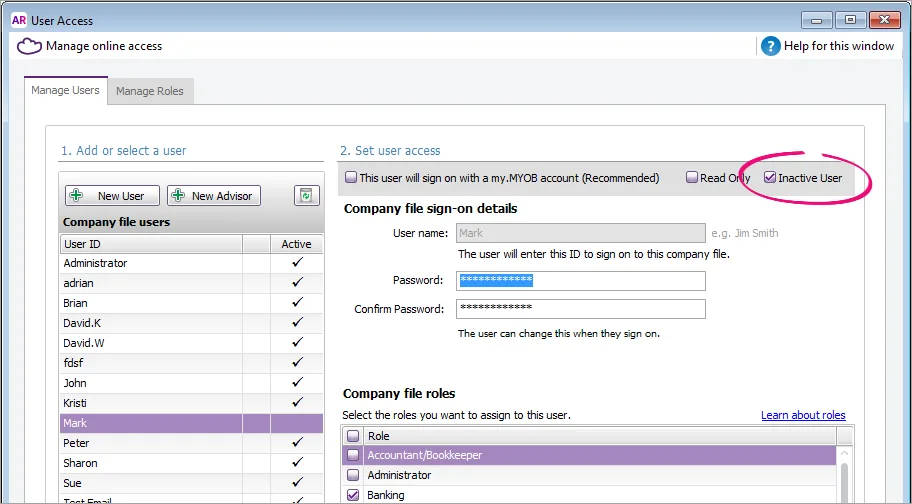
Right-click the User ID and choose Mark as Inactive. If you can't select this option, see the note below about Removing administrator access.
Removing administrator access
Only an administrator with the Owner user type can cancel administrator access (see Set a user's online access level for more information about the Owner's access level).
To remove access from a user who has been assigned the Administrator role, you'll need to deselect the Administrator role and select any other role, e.g. Banking, then click Save. You'll now be able to select the Inactive User option.
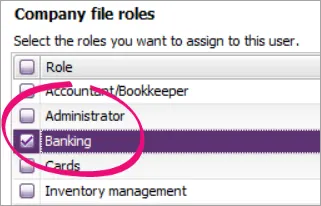
Click Save.
If you're prompted to change this user’s online access, select the appropriate option. For more information, see Set a user's online access level.
Note that inactivating a user prevents them from signing on to a company file. So even if they still have active online access, they won't be able to sign on to edit this company file.If you chose to change their online access to the file at step 5, the Users page in the web browser version of AccountRight opens.
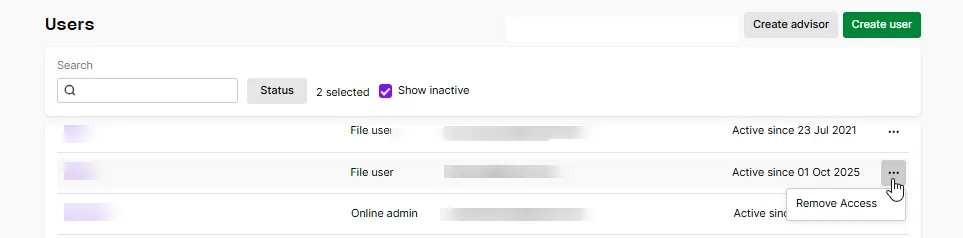
Find the user in the list. You may need to select the Show inactive option
In the Actions column, click the ellipsis (...) and choose Remove access. The user is removed from the list.
An email will be sent to this user, advising them their access has been removed.


Changing the Owner user
For security reasons, only the existing Owner user can transfer their Owner access to another user. When the Owner user is changed, the new owner user gains full administrative rights over the file and the original owner is automatically changed to an online admin user type.
Learn about changing the Owner user
FAQs
How do I delete a user?
Users can be deleted if they:
have not recorded any transactions in the company file, and
are not assigned the Administrator role.
To delete a user:
Go to the Setup menu and choose User Access.
Click the user to be deleted then click the recycle bin icon.
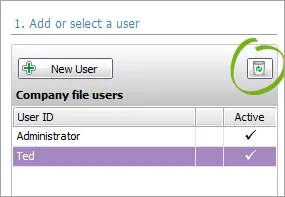
Click Yes to confirm.

Note that the company file's original Administrator user cannot be deleted.
Getting a message about "Cannot delete a user in the Administrator role"?

This means the user you're trying to delete has been assigned the Administrator role. To delete the user, deselect the Administrator role against this user and select any other role. Save your changes then delete the user.