When you invite a user to work with your online file, you can keep track of their status in the web browser version of AccountRight at app.myob.com. This is also where you can cancel or resend invitations.
Check a user's status
Sign in at app.myob.com. If you have access to more than one business, choose the one you want to open.
Click the settings menu (⚙️) and choose Users and permissions to display a list of all users. The Status column shows at what stage a user is in the invitation process (like when they were invited or if their invitation has been cancelled or expired) and whether they're an active or inactive user (that is, whether they can access the MYOB file).
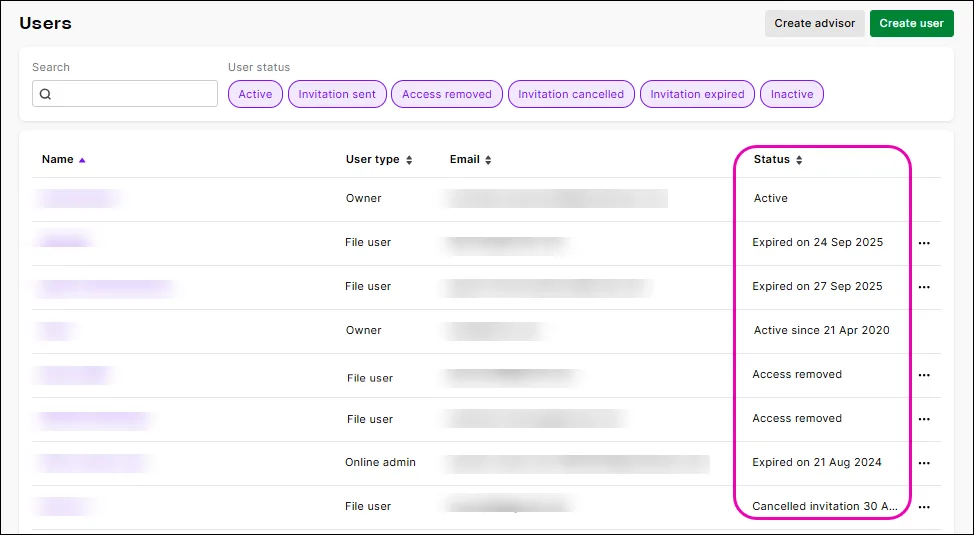
Click the pills across the top to filter the Status column.

This status... | Means... | Typical action... |
|---|---|---|
Active | The user accepted the invitation. | Nothing – unless you want to change or delete the user |
Invitation sent | The user has been invited but hasn’t accepted yet. They can’t access the file until accepting the invitation. | Resend the invitation. Invitations expire after 10 days – after this, the user will have a Status of Invitation expired. |
Access removed | The user's access has been revoked. | Nothing – unless you want to reinstate their access. You'll need resend the invitation. |
Invitation cancelled | The invitation was cancelled (by you or another user who has access to do so) and can’t be accepted. | Resend the invitation if you still want the user to access your file. |
Invitation expired | Invitations expire after 10 days if they're not accepted. | Resend the invitation if you still want the user to access your file. |
Inactive | The person is still listed in your file, but their access has been turned off. | You can reactivate an inactive user if they need access back. |
View a user's transactions
To check what changes have been made to your company file by a user, run the Journal Security Audit report. Checking for unauthorised transactions.
FAQs
How can I check who's signed in to my online file?
Go to the File menu and choose Back Up. When you click Back Up again, you'll be shown who is currently signed in to your file.

Click Close (unless you really want to back up your company file).