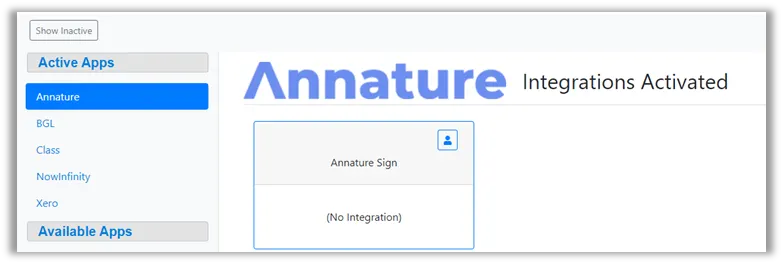
The integrations area has been enhanced to allow firms a self-service approach to activating integrations.
Active and Available Integrations are now listed on the left-hand side of the page.
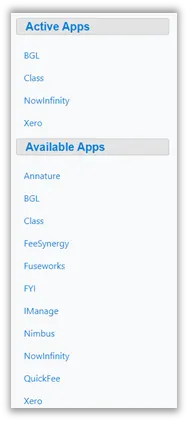
A user now can activate an integration without a GreatSoft consultant. When clicking on integration under the Available Apps, an activate button will appear on the Integration card.
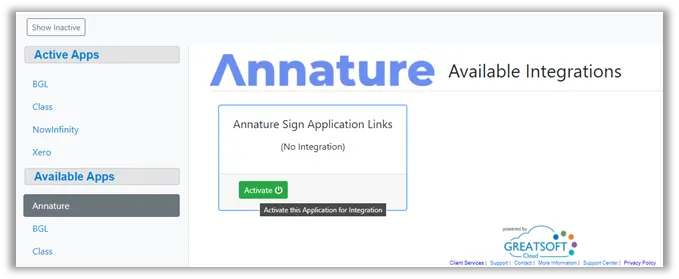
Clicking the Activate button will allow you to create a new App Profile. (Depending on the Integration type, you will be presented with different options to configure the integration.) Any Active Integrations for the Integration you are trying to activate will appear on the left side.
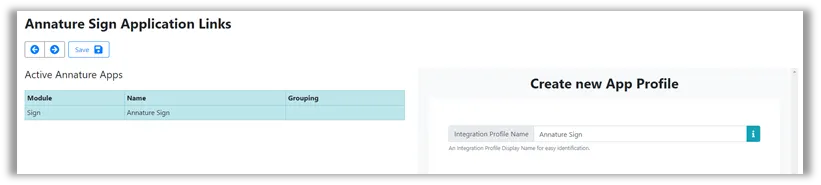
The Integration Profile Name is the name that will be shown on the Integration Card in the Integrations area. Once you have completed the configuration option, click the Save button on the top left of the screen to activate this integration.
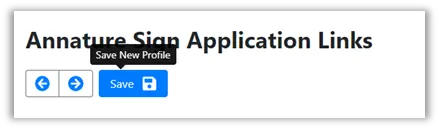
Once saved, you will be redirected to Profile configuration for the Integration profile. (Depending on the integration this screen may show different options.)
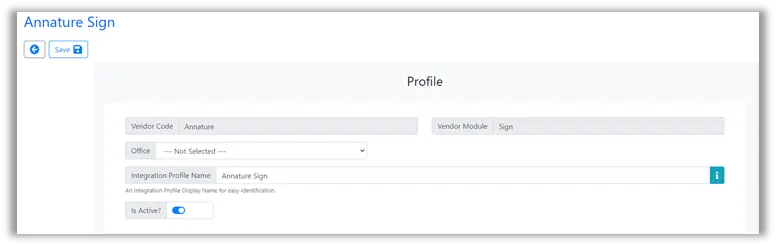
Once the configuration is complete, the integration profile will be shown under the Active Apps area.