When you finalise an employee, you're telling the ATO that your payroll reporting is complete for the payroll year and that the employee can now complete their tax return.
To change an employee's pay after finalising, you need to indicate this to the ATO by undoing the finalisation. Once you've made your changes, and updated the ATO about it, you can finalise again.
You might do this to:
fix a pay from a finalised payroll year
prevent an employee completing their tax return while you investigate an issue
update pay items or ATO reporting categories.
Step 1: Remove the employee's finalisation
Before you can change an employee's pay, you'll need to undo their finalisation. This lets the ATO know your payroll year information isn't complete. It also prevents the employee from pre-filling and completing their tax return.
Go to the Payroll menu and choose Single Touch Payroll reporting.
Click the EOFY finalisation tab.
Choose the applicable Payroll year.
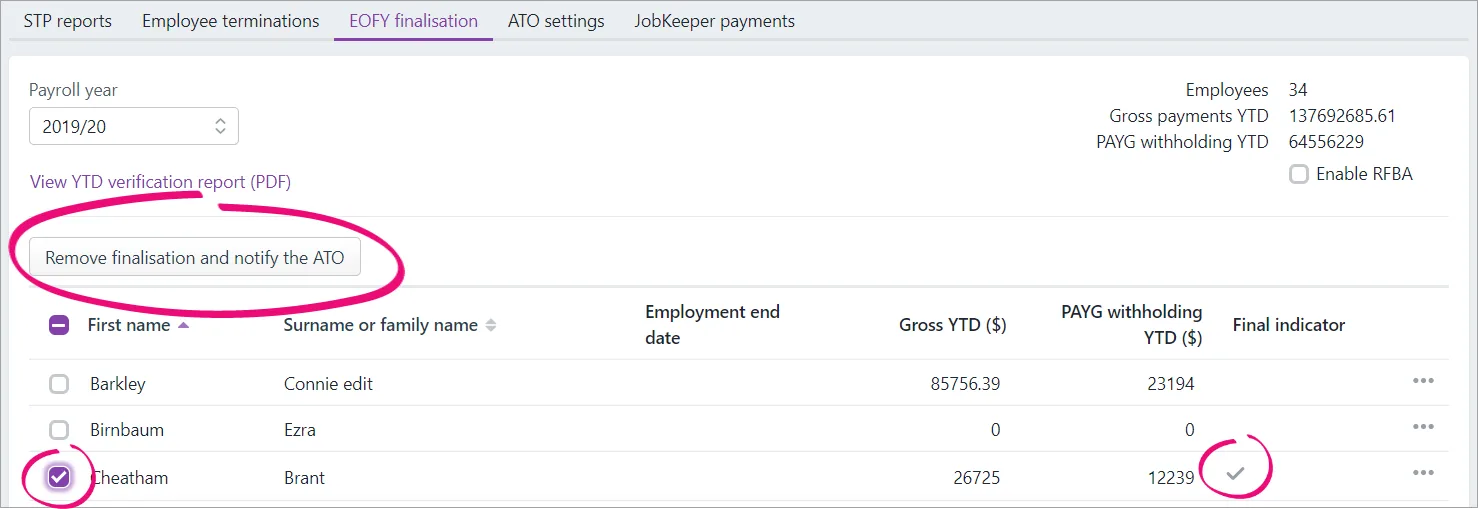
Select the finalised employee. Finalised employees have a tick in the Final indicator column.
Click Remove finalisation and notify the ATO. This button only appears after you've selected a finalised employee.
When prompted to send your payroll information to the ATO, enter your details and click Send.

Step 2: Enter an adjustment pay and update the ATO
There's a lot that you may need to change depending on your scenario, such as pay amounts, pay items, superannuation or leave accruals. We can't cover all scenarios, but here are the basic steps for deleting or reversing an incorrect pay and recording it again.
Whether you can delete or reverse a pay is based on its status in the STP Payroll Reporting Centre. This ensures pays which have been accepted by the ATO can't be deleted. Instead, you'll only have the option to reverse the pay then report that reversal to the ATO. More about STP report statuses.
If the status is... | You can only... |
|---|---|
Rejected or Not Sent | delete the pay |
Sent, Accepted or Accepted with errors | reverse the pay |
To delete or reverse the pay
Go to the Payroll menu and click Pay runs.
Click the Date of payment to display the details.
Click the name of the Employee whose pay you want to delete. Based on the status of the pay run in the Payroll Reporting Centre, you'll have the option to either delete or reverse the pay. See above for more details.
If deleting the pay:
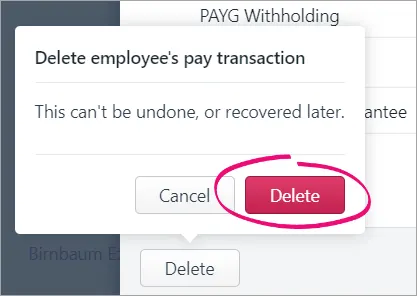
Click Delete.
At the confirmation message, click Delete.
If reversing the pay:
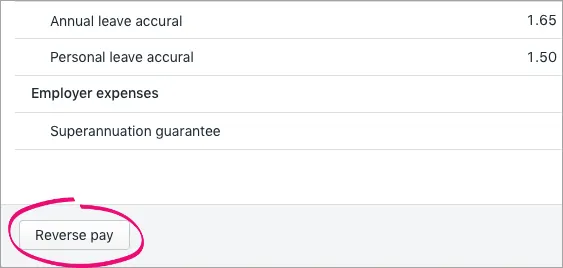
Click Reverse pay.
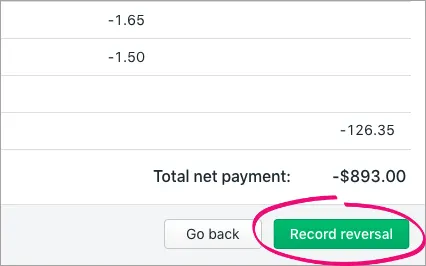
The details of the pay reversal are shown (a negative pay).
Click Record reversal.
When prompted to send your payroll information to the ATO, enter your details and click Send to submit the reversal to the ATO. The employee's year-to-date payroll amounts are updated accordingly.


To record the updated pay
You now need to record the updated pay (correcting whatever was wrong in the pay you've just deleted or reversed) and report it to the ATO. This lets the ATO know about the updated details.
Step 3: Re-finalise the employee
When you're done with the above steps, you need to finalise your employee again.
Go to the Payroll menu and choose Single Touch Payroll reporting.
Click the EOFY finalisation tab and choose the Payroll year you're finalising.
If you need to report fringe benefits for an employee (what is this?):
Select the option Enable RFBA.
For each applicable employee, enter values for both:
RFBA ($)
Section 57A $
The combined value of these must be above the thresholds set by the ATO.
Select each employee you want to finalise, then click Finalise and notify the ATO.
When prompted to send your payroll information to the ATO, enter your details and click Send.
The employee is now finalised again.
AccountRight Plus and Premier only
When you finalise an employee, you're telling the ATO that your payroll reporting is complete for the payroll year and that the employee can now complete their tax return.
To change an employee's pay after finalising, you need to indicate this to the ATO by undoing the finalisation. Once you've made your changes – and updated the ATO about them – you can finalise again.
You might do this to:
fix a pay from a finalised payroll year
prevent an employee completing their tax return while you investigate an issue
update payroll or ATO reporting categories.
Step 1: Remove the employee's finalisation
Go to the Payroll command centre and click Payroll Reporting.
Click Payroll Reporting Centre.
If prompted, sign in using MYOB account details (email address and password).
Click the EOFY finalisation tab.
Choose the Payroll year.
Select the employee whose finalsation you want to undo.
Click Remove finalisation and notify the ATO.
When prompted to send your payroll information to the ATO, enter your details and click Send. The Final indicator tick is removed for the employee. If it's still there, click a different tab then return to the EOFY finalisation tab.
When you're ready, you can finalise the employee again.
Step 2: Enter an adjustment pay and update the ATO
There's a lot that you may need to change depending on your scenario, such as pay amounts, payroll categories, superannuation and leave accruals. We can't cover all these specific situations, but for details see Changing a recorded pay or Fixing a payroll overpayment or underpayment.
If you need to reverse an employee's pay, you'll be prompted to report that reversal to the ATO. But if the change you make doesn't affect the amounts you've paid an employee, you can send an update event to the ATO. This is a way of ensuring the ATO has the latest year to dat payroll information for the employee.
To send an update event
Go to the Payroll command centre > Payroll Reporting > Payroll Reporting Centre.
If prompted, sign in using your MYOB account details (email address and password).
Click the STP reports tab.
Choose the applicable Payroll year.
Click Send update event.
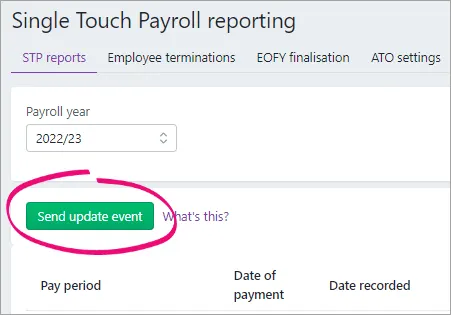
When prompted, enter your details and click Send. The latest year to date payroll amounts for all employees you've paid in the chosen payroll year are sent to the ATO.

This update event will be listed with your other STP reports where you can check its status.
Step 3: Re-finalise the employee
When you're done with the above steps, you need to finalise your employee again.
Go to the Payroll command centre and click Payroll Reporting.
Click Payroll Reporting Centre.
If prompted, sign in using your MYOB account details (email address and password)
Click the EOFY finalisation tab and choose the Payroll year you're finalising.
If you need to report fringe benefits for an employee (what is this?):
Select the option Enable RFBA.
For each applicable employee, enter values for both:
RFBA ($)
Section 57A $
The combined value of these must be above the thresholds set by the ATO.
Select each employee you want to finalise, then click Finalise and notify the ATO.
When prompted to send your payroll information to the ATO, enter your details and click Send.
The employee is now finalised again.