A rostered day off (RDO) is a day in a roster period that an employee doesn't have to work. If you have employees who are entitled to regular RDOs, you can set up MYOB to keep track of RDO hours accrued and paid.
How often your RDOs are taken or how they're calculated will be specific to your business. So use the information below as a guide only.
To learn more about RDOs for your industry, visit the FairWork website.
Setting up for RDOs
You'll need to create:
a wage pay item — you'll use this to pay your employees when they take an RDO
an entitlement pay item — this is used to keep track of RDO hours accrued. If you have both salaried and hourly based employees you'll need to create one entitlement pay item for each.
OK, let's dive right in:
1. Create an RDO wage pay item
This pay item is used when paying out RDO amounts to an employee.
Go to the Payroll menu and choose Pay items.
On the Wages and salary tab, click Create wage pay item.
For the Name, enter "RDO Paid".
Choose the applicable ATO reporting category. Typically this will be the same ATO reporting category you've chosen for your Base Hourly or Base Salary wage pay items. If unsure, check with your accounting advisor or the ATO.
For the Pay basis, select Hourly.
For the Pay rate choose Regular rate multiplied by 1.0000.
Select the option Automatically adjust base hourly or base salary details.
Under Allocated employees, choose the employees who are entitled to RDOs.
When you're done, click Save.
Here's our example pay item:

2. Create an RDO entitlement pay item
We'll cover the steps for both salaried and hourly based employees. If you have both types of employees and they're entitled to RDOs, create both pay items.
Steps for salaried employees
Go to the Payroll menu and choose Pay items.
Click the Leave tab.
Click Create leave pay item.
For the Name, enter "RDO Accrual - Salary".
For the Calculation Basis , choose Equals hours per pay period .
For the Per field, choose Pay period.
Enter the applicable Hours. Use this formula to help work this out:
Hours in a pay period = (HWD / FQW) x WPPWhere:
HWD = Hours in a working day
FQW = Frequency of RDO (weeks)
WPP = Weeks in pay periodExample: Employees work 40 hours per week but are paid for 38 and get a paid RDO every 4 weeks:
HWD = 7.6 (38 hours / 5 days)
FQW = 4 (1 RDO every 4 weeks)
WPP = 1
Hours in a pay period = (7.6 / 4) x 1 = 1.9 hoursUnder Link wage pay item , choose the RDO Paid pay item created earlier.
Under Allocated employees, choose the salaried employees who are entitled to RDOs.
When you're done, click Save.
Here's our example pay item: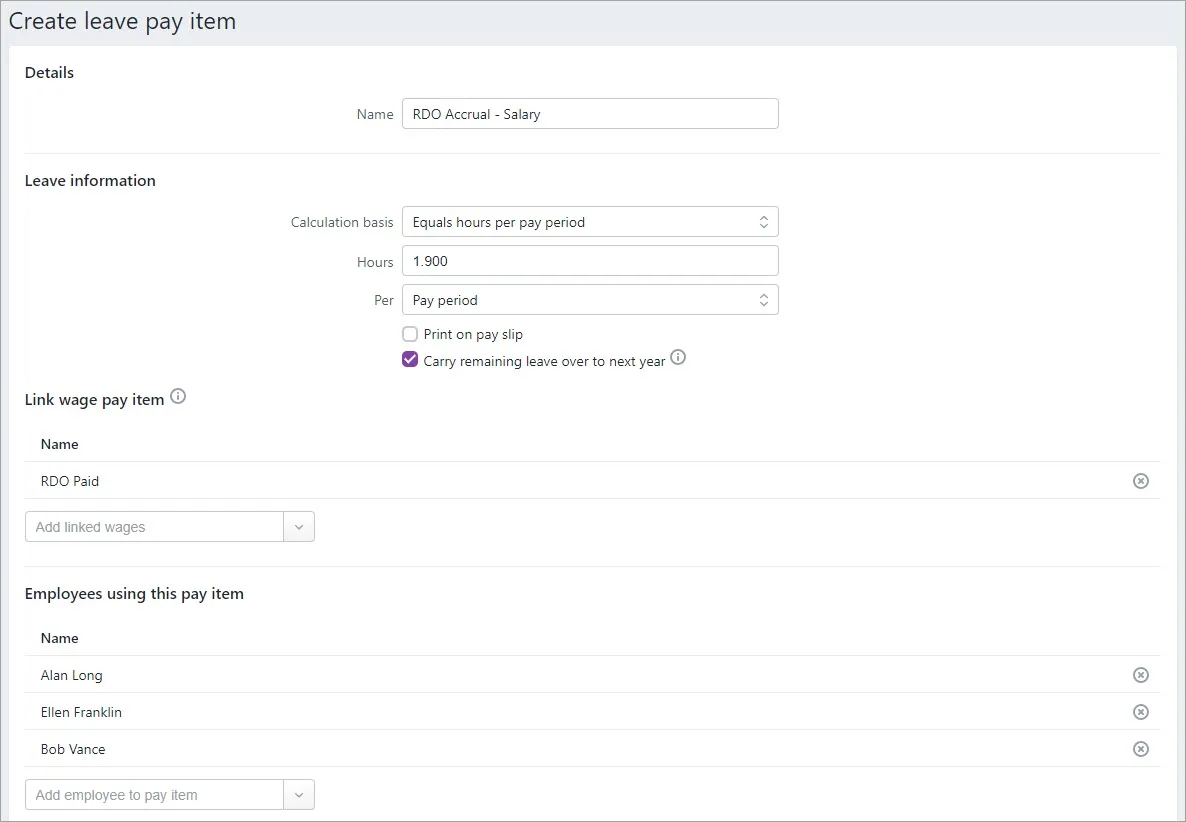

Steps for hourly based employees
Go to the Payroll menu and choose Pay items.
Click the Leave tab.
Click Create new leave pay item.
For the Name, enter "RDO Accrual - Hourly".
For the Calculation Basis , choose Equals a percentage of wages .
For the Percent of, choose Gross hours.
For the Percentage, enter the percentage applicable to your hourly based employees.
Use the following formula to determine the percentage of wages.
PW = HWD / [(HWW x FQW) - HWD]
Where:
HWD = Hours in a working day
HWW = Number of hours in a working week
FQW = Frequency of RDO (weeks)
Example: Employees work 40 hours per week but are paid for 38 and get a paid RDO every 4 weeks:
HWD = 7.6 (38 hours / 5 days)
HWW = 38
FQW = 4 (1 RDO every 4 weeks)
Percentage of gross hours = 7.6 / [(38 x 4) - 7.6] = 5.2632%(Optional) If you don't want the balance of this leave to show on employee pay slips, deselect the option Show leave balance on pay slips.
Select the option Carry remaining leave over to next year.
Under Link wage pay item , choose the RDO Paid pay item created earlier.
Under Allocated employees, choose the hourly-based employees who are entitled to RDOs.
Under Exemptions, choose all pay items that should be excluded from the accrual calculation, for example overtime.
When you're done, click Save.
Here's our example pay item: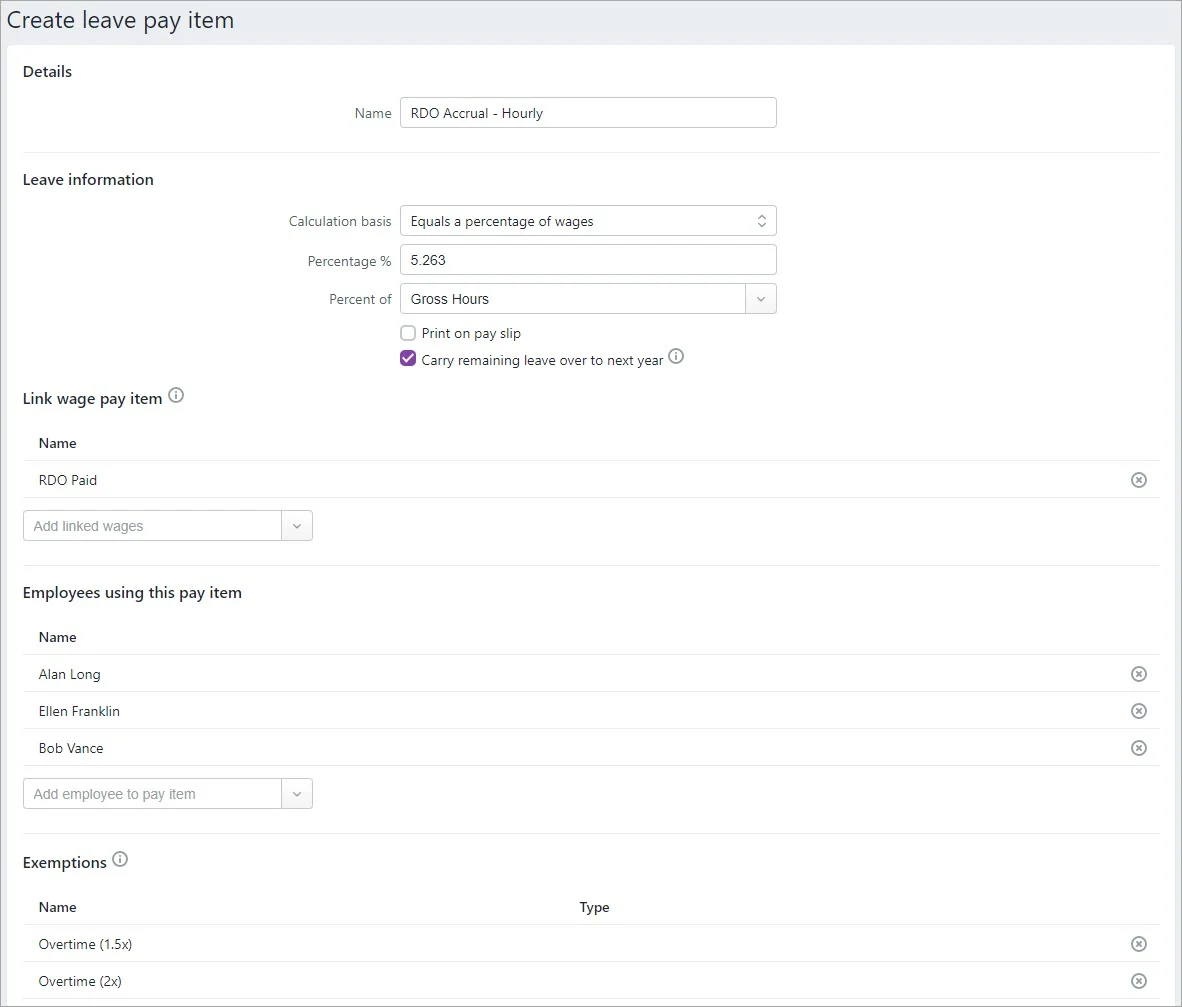

3. Paying and accruing RDOs
When you enter a pay for an employee and no RDO is taken, enter the pay as normal.
RDO entitlements for selected employees will accrue automatically. When you enter the hours taken against the RDO Paid wage pay item, the Base Hourly/Base Salary amounts will reduce accordingly.
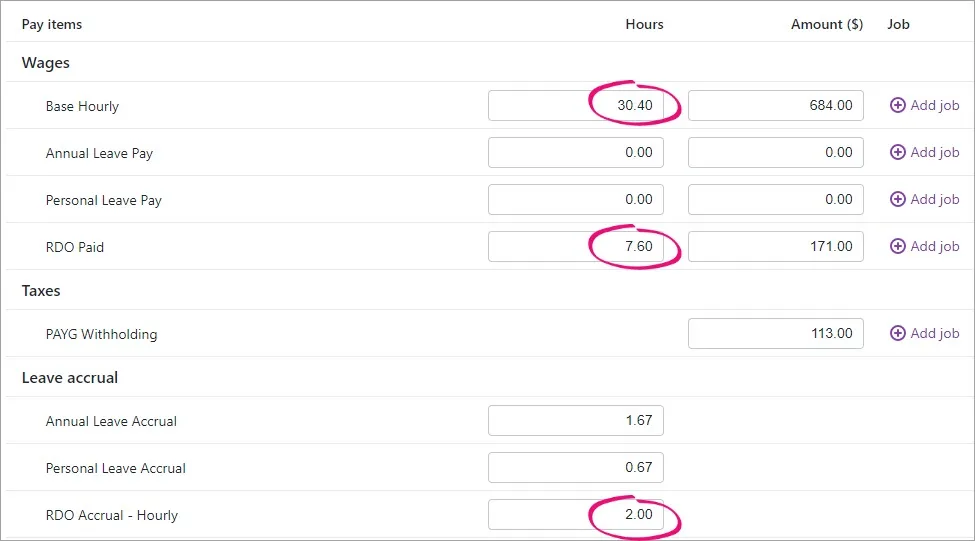
In our example below, an RDO of 7.6 hours is taken.
7.6 hours has been entered against RDO Paid.
This has automatically reduced the Base Hourly from 38 hours to 30.4 hours.
The net pay remains the same as a regular pay period.
2 hours has accrued against the RDO Accrual pay item (38 hours paid x 5.263% = 2 hours accrued).

AccountRight Plus and Premier only
If you have employees who are entitled to regular rostered days off (RDO), use this information as a guide to setting it up in AccountRight. How often your RDOs are taken or how they're calculated will be specific to your business. So use the information below as a guide only.
To learn more about RDOs for your industry, visit the FairWork website.
Setting up for RDOs
You'll need to create a wage to pay RDOs, and an entitlement categories to track RDO accrual.
1. Create an RDO wage category
This category is used when paying out RDO amounts to an employee.
Go to the Payroll command centre and click Payroll Categories.
Click the Wages tab and then click New.
Name the new category RDO Paid.
Set the Type of Wages to Hourly.
If you report payroll information to the ATO through Single Touch Payroll, select the applicable ATO Reporting Category. Typically this will be the same ATO Reporting Category you've selected for your Base Hourly or Base Salary wage categories. Learn more about assigning ATO reporting categories for Single Touch Payroll reporting.
For the Pay Rate select the Regular Rate Multiplied by 1.0000 option.
Select the Automatically Adjust Base Hourly or Base Salary Details option.
The Wages Information window should look like the following example: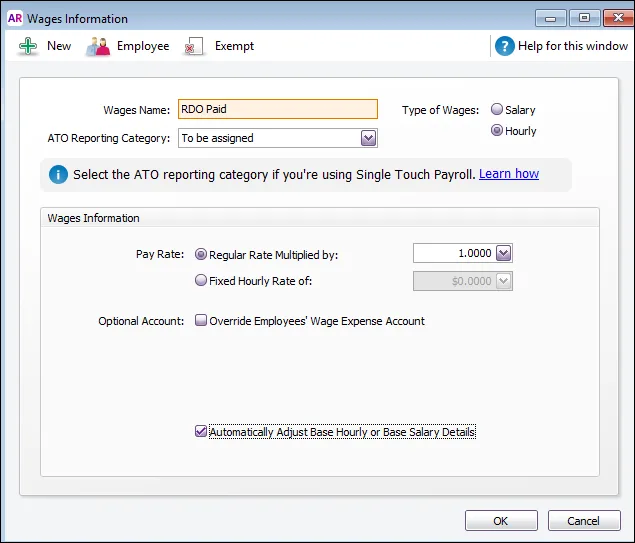
Click Employee and select the employees who are entitled to RDOs then click OK.
Click OK.

2. Create an RDO entitlement category for employees paid hourly
In the Payroll Categories List window, click the Entitlements tab and then click New.
Name the new category RDO Accrual - Hourly.
Set the Calculation Basis to Equals [x] Percent of [Gross Hours].
Use the following formula to determine the percentage of gross hours.
Percentage of gross hours = HWD / [(HWW x FQW) - HWD]
Where:
HWD = Hours worked in a day
HWW = Number of hours in a working week
FQW = Frequency of RDO (in weeks)Example: Employees work 40 hours per week but are paid for 38 and get a paid RDO every 4 weeks:
HWD = 7.6 (38 hours a week / 5 days
HWW = 38
FQW = 4 (1 RDO every 4 weeks)
Percentage of gross hours = 7.6 / [(38 x 4) - 7.6] = 5.2632%Set the Linked Wages Category to RDO Paid.
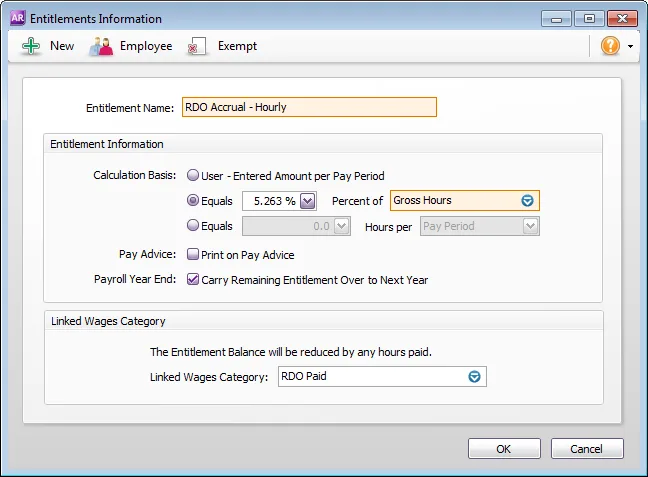
(Optional) If you want the RDO accrual to show on pay slips, select the option Print on Pay Advice.
Click Exempt and select the RDO Paid wage category, and all other pay categories that should be excluded from the accrual calculation, for example overtime, then click OK.
Click Employee and select the hourly-based employees who are entitled to RDOs, then click OK.
Click OK.

3. Create an RDO entitlement category for salary employees
In the Payroll Categories List window, click the Entitlements tab and then click New.
Name the new category RDO Accrual - Salary.
Set the Calculation Basis to Equals [x] Hours per [Pay Period].
Use the following formula to determine the hours per pay period:
Hours per pay period = (HWD / FQW) x WPP
Where:
HWD = Hours in a working day
FQW = Frequency of RDO (in weeks)
WPP = Weeks in a pay period
Example: Employees work 40 hours per week but are paid for 38 and get a paid RDO every 4 weeks:
HWD = 7.6 (38 hours / 5 days)
FQW = 4 (1 RDO every 4 weeks)
WPP = 1
Hours per pay period = (7.6 / 4) x 1 = 1.9 hoursSet the Linked Wages Category to RDO Paid.
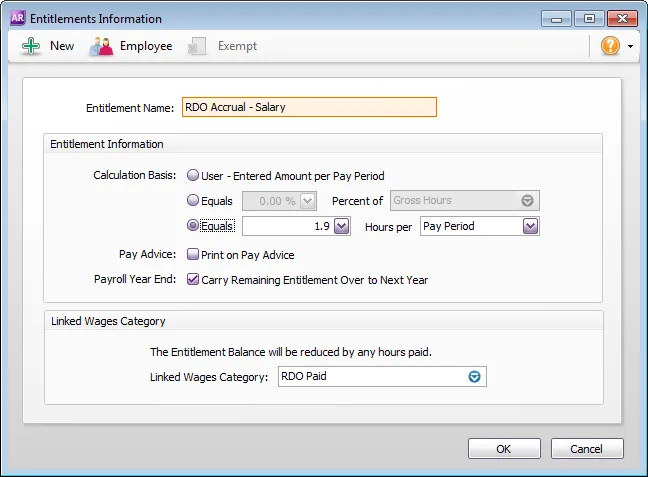
(Optional) If you want the RDO accrual to show on pay slips, select the option Print on Pay Advice.
Click Employee and select the salary-based employees who are entitled to RDOs, then click OK.
Click OK.

4. Process a pay with RDO amounts
When you enter a paycheque for an employee and no RDO is taken, enter the paycheque as normal.
RDO entitlements for selected employees will accrue automatically. When you enter the hours taken against the RDO Paid wage category, the Base Hours/Base Salary amounts will reduce accordingly.
In our example shown below, one RDO of 7.6 hours is taken. 30.4 hours are paid as Base Hourly and 7.6 hours as RDO. The net pay remains the same as a regular pay period.
Also, 2 hours per week in RDO Accrual entitlements has accrued (38 x 5.263%= 2 hours).
