If you have the role of administrator, you can enter a lock date to prevent changes being saved to new or existing transactions (except quotes and orders) prior to this date. You might do this after completing your month-end tasks.
Let's take you through it:
To enter a lock date
Click the settings menu (⚙️) and choose Business settings.
In the Lock date section:
Select the option Prevent changes prior to the lock date.
Enter or choose the Lock date. In our example, a lock will be placed on all transactions (except quotes and orders) dated before 1 July 2020.

Click Save.

If you need to create, edit or delete a transaction prior to the lock date, you'll need to remove the lock by deselecting the option Prevent changes prior to the lock date.
FAQs
Why am I getting the error about "lock date" or "lock period"?
When you enter a transaction, you might get one of these errors:
You may not record transactions before the lock date
The Payment Date falls within the lock period. You can't record pays dated in the lock period.
If you're an administrator, you can change the lock date. Otherwise, you'll need to record the transaction with a date later than the lock date.
After you've completed your month-end tasks, you should lock that period using the Lock Periods feature. This will prevent anyone from inadvertently making an entry in a period in which you don’t want new entries.
To lock a period
Go to the Setup menu and choose Preferences.
Click the Security tab.
Select the Lock Periods: Disallow Entries Prior to option, and choose the relevant date.
This selection places a lock on all transactions (except quotes and orders) prior to the date selected.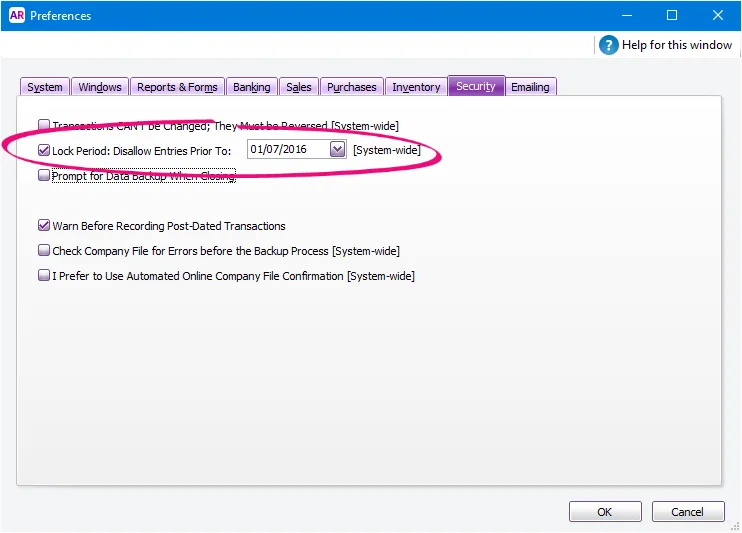
Click OK.

Need to make a change in a locked period? If you need to make an entry in a locked period at a later time—for example, you locked 31st of May, and now want to make an entry in April— you can unlock that date in the Preferences window by deselecting the preference. Note that your user role needs to be have the permission to change preferences.
Also see Transacting in closed financial years.