Using MYOB Acumatica?
You can only use a passkey if you sign in with MYOB ID. Learn more in the MYOB Acumatica knowledge base.
Passkeys are a phishing-resistant way to sign in to all MYOB software and services (including Solo by MYOB) without entering your email address and password. Passkeys work with a quick check on a device you trust. They keep signing in simple while helping protect your account from stolen credentials, lockouts and fraud. Passkeys are a software industry-standard authentication method.
Having a passkey means less typing, less remembering and less hassle when you sign in.
Already familiar with passkeys? Learn how to set one up in My Account
Passkeys keep your account safe
A passkey lets you sign in quickly on a trusted device without typing your password and entering a 2FA code. It also helps protect your MYOB account from stolen passwords and fake sign-in pages.
How passkeys work
A passkey replaces your password when you sign in. It's a secure sign-in key saved to your device or password manager. It only works between your device (or password manager) and MYOB, proving it’s really you without sending a password or showing you a code you could read or share . Your passkey stays on your device and never leaves it, so there’s nothing useful for scammers to steal from emails or fake websites.
To sign in with a passkey:
1. Choose the Sign in with passkey option.
2. Confirm it’s you on a trusted device – for example with fingerprint or facial recognition (like Face ID or Touch ID), or your device PIN. The way you do this depends on your device and its security settings.Someone would need both your device and your unlock method to get in. Knowing your email address or password isn’t enough. Passkeys are also designed to stop phishing: they only work on legitimate MYOB sign-in pages and can’t be reused on fake websites.
Note:
A passkey is optional and doesn’t remove your existing password. You can still sign in with your email and password if you need to.
A passkey is an alternative to signing in with a password. You don’t necessarily need to complete a 2FA check after signing in using a passkey (2FA still needs to be set up and you may still be prompted to enter a 2FA code in some situations, like when you change your security settings). We strongly recommend using a passkey to sign in. We also recommend setting up app 2FA as your primary 2FA method with SMS 2FA only as a backup.
Multiple passkeys give you more options
Adding more than one passkey gives you more ways to sign in securely. For example, you might set up a passkey on your phone, your work computer and a hardware key.
You can have up to 5 passkeys for your MYOB account.
Having multiple passkeys is a good idea because:
you’ll have a backup if one device isn’t available (for example, if you leave your phone at home, but have another passkey on your office computer).
it gives you the flexibility to sign in across different platforms and devices (for example, if you have an iPhone, but your work laptop uses Windows)
you can sign in with another passkey if you replace or lose a device.
For strong security and easier account recovery, set up multiple passkeys, app 2FA as an alternative, and SMS 2FA as a backup.
What you need to use a passkey
These are the things you'll need to set up and use passkeys:
Passkey requirements
An existing MYOB ID with 2FA set up (for example an authenticator app or SMS). Once you’ve set up a passkey, you can sign in with it as an alternative to password sign-in.
A passkey‑compatible browser and device on an operating system that supports passkeys:
iOS/iPadOS: Version 17 or later for passkeys in Microsoft Authenticator.
Android: Android 9 or later, with Android 14 or later recommended for enhanced features. Requires Credential Manager and Play Services.
Windows: Windows 11 (22H2) or later is recommended for better passkey integration and synchronisation.
Browsers: Latest version of Chrome, Safari, Edge, or Firefox that support WebAuthn are required.
Hardware Keys: FIDO2-compliant hardware security keys (for example, YubiKey) are supported.
You must be using a supported operating system, browser or device to use a passkey
If you're not, you won't see the option to sign in with a passkey. You can still sign in with your email and password.
If you want to save the passkey in a password manager, like 1Password, you’ll need to have enabled it to sign in with passkeys.
Adding a passkey
We may have asked you to set up a passkey when you signed in, but you can always add one later from My Account.
To add a passkey, open a supported web browser and go to the Account security page in My Account (myaccount.myob.com/account/security).
Once you've added a passkey, you can choose it as a sign-in option when you sign in with your MYOB ID.

You must add a passkey in My Account before clicking Sign in with passkey, or you’ll see an error.
Add a passkey
Go to the Account security page in My Account (myaccount.myob.com/account/security).
If prompted, enter a 2FA code using your existing 2FA method or a recovery code.
In the Sign in section > Passkey, click Add.
If prompted, complete a 2FA check, then click Continue.
Click Add passkey.
Choose where to save your passkey (for example, your device, browser or password manager), then follow the prompts to add the passkey.
When the confirmation message appears, close the passkey page to return to Account security. The new passkey is listed in the Sign in > Passkey section. You’ll also receive an email confirming you’ve set up a passkey.
Add additional passkeys
Once you’ve added a passkey, you can add more. You can have a total of 5 passkeys.
Go to the Account security page in My Account (myaccount.myob.com/account/security).
Sign in, and, if prompted, verify your account with a 2FA code or a recovery code.
In the Sign in section > Passkey, click Manage.
If prompted, complete a 2FA check, then click Continue.
In the message that appears, click Add passkey.
Choose where to save your passkey (for example, your device, browser or password manager), then follow the prompts to add the passkey.
When the confirmation message appears, close the passkey page to return to Account security. The new passkey is listed in the Sign in > Passkey section. You’ll also receive an email confirming you’ve set up a passkey.Repeat from step for any other passkeys you want to add.
If you reach the limit of 5 passkeys, you’ll be prompted to remove one before you can add another. See ‘Remove a passkey’, below, for the steps.
Sign in using a passkey
Once you’ve added a passkey to your MYOB ID, you can use it to sign in on supported devices.
On the MYOB sign-in page, click Sign in with passkey.
If you don’t have a passkey set up on this device, or you've removed it, you’ll see an error. To sign in, enter your MYOB email address, click Sign in with password and enter your password.
On the Choose a passkey page, click your passkey.
Follow the steps in your device or browser to sign in with a passkey. For example, if you’re signing in with your phone, you may need to scan a QR code and, depending on your phone’s security settings, identify yourself via facial recognition, fingerprint or PIN.
If prompted, complete a 2FA check. The MYOB product or service you were signing in to will open.
Remove a passkey
Go to the Account security page in My Account (myaccount.myob.com/account/security).
If prompted, enter a 2FA code using your existing 2FA method or a recovery code.
In the Sign in section:
(If you have only one passkey) Click Remove next to the passkey
(If you have multiple passkeys) Click Manage, then click Remove next to the passkey you want to remove.
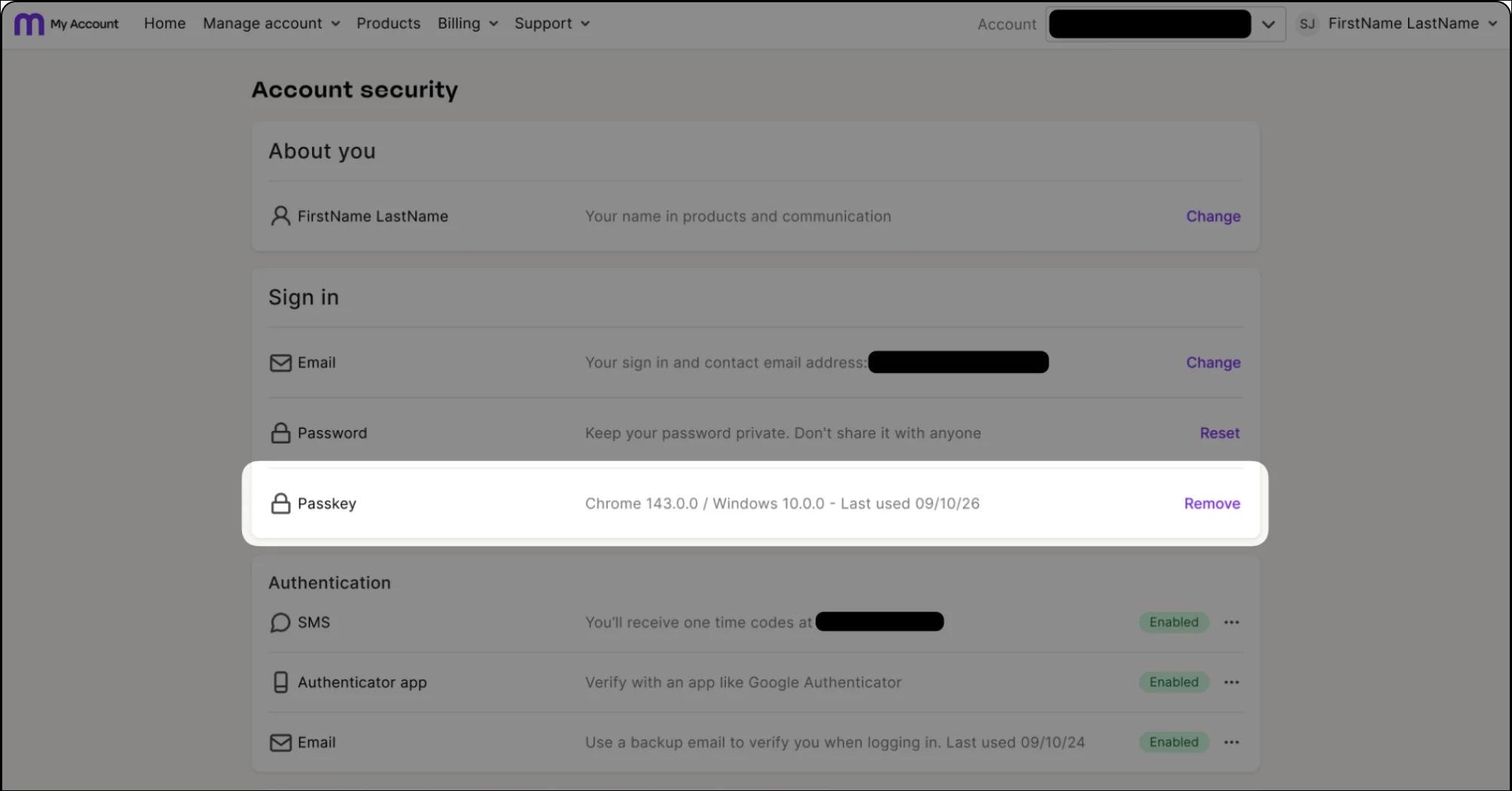
In the message that appears, click Remove passkey.
If prompted, enter a 2FA code using your existing 2FA method or a recovery code. The Account security page is updated with your passkey removal (if you no longer have any passkeys, the Manage button changes to Add passkey). You'll also be sent an email confirming that the passkey has been removed.

Remove the passkey from your device
Removing a passkey in My Account doesn’t remove the password or passkey from the device or password manager where you created it. You should remove them from your devices to avoid sign-in hassles caused by inactive passkeys.
How to avoid losing access
For the best protection against being locked out of your MYOB account, set up multiple passkeys:
on different devices, like your laptop and phone
in a password manager
in iCloud Keychain or Google Password Manager
That way, you can still sign in to your account if you lose access to a device. Setting up multiple 2FA methods, like app 2FA for your primary 2FA method with SMS 2FA as a backup, can you give you additional sign-in options.