The ATO agent settings page is where you schedule, request and download agent reports from the ATO's practitioner lodgment service (PLS).
The following ATO reports are available to schedule and download:
Activity statement lodgment report (ASLRPT)
Income tax client report (ITCRPT)
-
You’ll need to be a Practice Administrator to access ATO agent settings.
-
If you subscribe to ATO reports, you'll receive the daily activity statement download from the ATO.
-
The ATO only allows one activity statement download each day, so other software, except MYOB AE/AO, won’t be able to download the same ATO data.
-
Check the client details in Practice Compliance are correct so the correct client can be linked
-
ABN
-
TFN
-
WPN
-
Branch code
-
Activity statement lodgement report (ASLRPT)
The ASLRPT shows all your outstanding activity statement obligations.
Key points
This is a scheduled report. When you've scheduled the daily report for an agent, it will automatically create daily activity statement obligations for your agents, using data from the ATO.
You can also continue manually creating an activity statement.
The ASLRPT will remove activity statements that are not outstanding with the ATO (i.e., not in the ATO tax agent portal) if the activity statements have not been started.
If the activity statements are not outstanding with the ATO, but have an In progress status, you need to delete them manually.
The ASLRPT runs daily at 2:00 am for every agent and can't be changed.
See how to auto-create activity statements.
Income tax client report (ITCRPT)
The ITCRPT lists the clients that you'll be completing tax returns for. This report will show your client's tax return's due date.
Key points
You can schedule ITCRPT for Individual, Company, Partnership and Trust tax returns.
When you select Income Tax, we will immediately retrieve the report for you. The report will update the Due dates in your client's income tax returns in the compliance list.
We will retrieve and update the data if any, at the same time every week.
This report will retrieve the lodgement due dates from 2024 tax year onwards.
The ITCRPT runs weekly at 10:00 pm and can't be changed.
Selecting the ATO reports
Have you updated the activity statement periods that only need to lodge in the client settings?
Before you begin, you need to be a Practice Administrator to be able to access the ATO agent settings page.
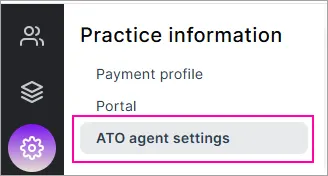
Click Settings on the left navigation bar.
Click ATO agent settings.
At the agent you want to receive the ATO reports for, tick either Activity statement, Income tax or both.
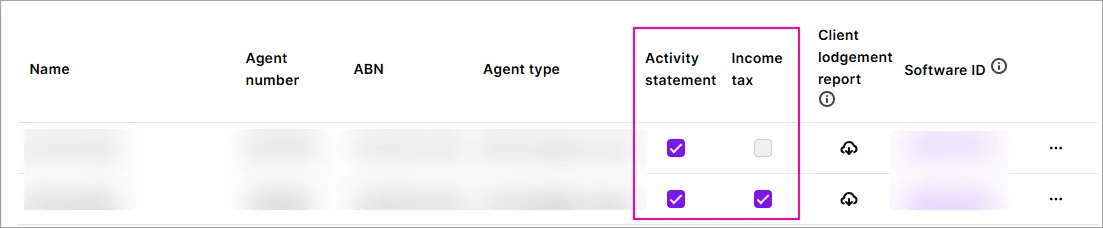
For the Activity statement report, you'll receive the activity statements a Not started status .
For the Income Tax Client Report, the due dates will be displayed in the compliance list.


If this activity statement is lodged via another software, it will be removed from the report the next day
Downloading the Client Lodgment report
The Client Lodgment report shows the ATO source of truth for clients and lodgement details linked to an agent, including clients who aren’t linked or may not exist in MYOB Practice.
The Client lodgement report has the Activity statement report and Income tax report, depending on what you've subscribed for that agent.
Key points
You’ll need to be a Practice Administrator to access ATO agent settings.
The report may include sensitive client data, including TFNs, addresses and income information. Keep the file secure and only share it with people who need access.
Don’t change, tick or untick subscriptions to customise the Excel file. This can affect your auto-create and due date workflows. Filter the excel file instead.
If you’ve newly subscribed to a report, the download will be empty. You’ll receive the report the next day.
Downloading the file
To download the client lodgment report, click the download icon. An excel file will be downloaded to your computer.
Reading the Excel file
The Excel file can include:
MYOB Client: Check the Yes or No indicator to identify if ATO records that don’t match MYOB client records.
If a record doesn’t match, check the client details in the ATO online services portal and correct in AE/AO or MYOB Practice.Client details and contact information.
Client matching status.
BAS and income tax information.
Lodgement status and due dates.
Historical tax-return information.
BAS eligibility, liabilities, payment reference numbers and account balances.
The Registered Agent Number (RAN) and report-generation date show which agent the report relates to and when the report was created.
ATO records are updated overnight, so any changes will appear in the next downloaded Client Lodgment report. If the information looks out of date, check the report-generation date to make sure you’re viewing the latest report.
We recommend using the filters in the Excel file to view either activity statements or income tax returns.
Some fields only apply to activity statements. For example, the ATO only provides ABN, WPN, email and postal address details for activity statements, so these fields may be blank for income tax returns.