After you’ve entered the tax return details, validate the return, send it for review and approve it so it’s ready for client review.
Approving a tax return is the same as completing the tax return in MYOB AE/AO.
1. Validate the tax return
MYOB in-house validation
We’ve added the ATO’s validation rules to Tax in MYOB Practice Compliance for all return types.
You can validate a tax return while you’re preparing it, then fix any errors before lodgment to help reduce the chance of an ATO rejection. If you’ve used MYOB AE/AO, it’s similar to pressing F3.
Our in-house validation is quicker than ATO validation and can be run even when ATO systems are unavailable or busy. No data is sent to the ATO when you validate a tax return.
The ATO performs additional validation upon lodgment, such as validating the date of birth, which could still result in a rejection. These checks are in addition to the validation rules the ATO provided to us.
Validate the return
On the top right of the Tax return page, click Validate. The data is checked internally against the ATO rules. No data is sent to the ATO.

To validate, the status of the tax return needs to be In review or In progress.
If you see an error or warning message at the top of the page, use the information in the message to fix the issue. To fix errors, see Validation errors in Practice Tax (AU).
If there are multiple errors or warnings, use Show all, Previous and Next to see the other errors and warnings.

Where validation errors appear
We show validation errors in different ways to help you fix them quickly and avoid ATO rejections.
Errors that display on top of the tax return: This will list all the validation errors in the tax return. Click the expand error icon () to view the schedule name and field with the error.

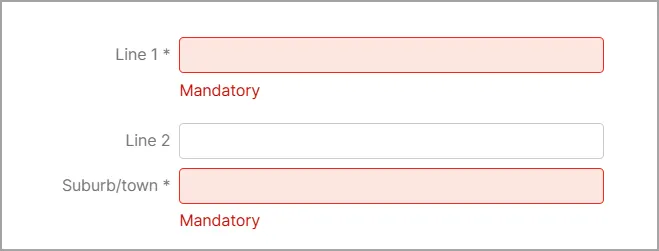
Errors that display in-field, below the field: As you complete certain fields, we'll check for any errors and show a red message below the field so you can fix it straight away.
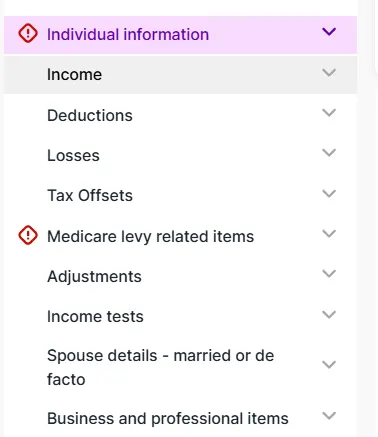
Error/warning indicator on the tax return navigation bar: The tax return navigation bar will show an indicator highlighting any validation errors linked to items.


2. Send the return for review
To help with reviews, you can add comments to a tax return.
On the top right of a Tax return, click Send for review. The status changes to In Review.
Selecting Send for review doesn’t notify anyone. Ask someone in your practice to review the return.
3. Approve the tax return
When you approve a tax return, it's locked and you can't make any more changes.
Review the data in the Tax return.
If changes are needed:
Select Send for rework. The status changes to In Progress.
Ask the appropriate person in your practice to make the changes.
Review the changes.
To approve the data, click Approve all. The status changes to Ready for client review.
If you approve a return that has validation errors or hasn't been validated, you'll see a message to warn you, with an option to continue or go back and validate.
