Insights is a feature that displays key financial metrics and ratios across all the clients. Insights show key business performance at a glance, without opening each reconciliation or financial statement.
Use Insights to create queries and filters that search for files matching specific criteria, filter and retrieve data, and send automatic notifications.
Insights results depend on the client files the person has access to.
Different people may see different results based on Multi-file Access or Specific File Access.
Insights queries don’t show results for an empty period where no ledger has been created
There are 2 sections to Insights:
Insights: Where you can create and run data queries
Triggers: Where you can automate Notes or To-dos on saved queries
-
The Insights module can only be used on client files that the user running the search has access to. Since the module is automatically linked to the user, different users may see different results based on their file access (Multi-file Access or Specific File Access).
-
Insights queries do not display results for an empty period when no ledger has been created.
-
Filters can be used in isolation or joined with other filters to create multi-layered insights.
-
You can copy an existing query by clicking on the 'save a New Query' and assigning a different visibility.
Insights has a new look
Insights has been redesigned to make it faster to get to your data and easier to work with once you’re there. All existing Insights options are still available, but some have moved to more logical places
Period selection, filters and triggers now appear in a toolbar above the table, giving you more room to work with your results. You can also pin queries, sort and filter your query list, and use the query picker to jump straight to the query you need.
Matches the new UI
The updated layout now matches the new navigation experience, so moving between Insights and other parts of Client Accounting feels more consistent.
More space to move around
Period selection, filters and triggers have moved from the left sidebar to a toolbar above the table. This gives the data table more room with less scrolling and searching and easier to review results.
A new query overview page
Organise your queries in a way that works for your practice. You can pin the queries you use most, and sort or filter the list by visibility, publisher, name or date added to find what you need faster.
Apply filter changes in one go
Filtering is faster in Insights. Your query no longer reloads each time you add a filter. Add all the filters you need, then select Apply to run the query once.
Quicker access to All clients
Use the All clients shortcuts in the navigation to get to client data faster. You can also use the query picker to open a query directly, without going through the query overview page first.
Use pre-configured insights
In Client Accounting, we have pre-configured insights to help you with the workflows. You can use these insights to get an overview of data across all your clients.

Name | Type | Formula / Reconciliation |
|---|---|---|
Current Ratio | Formula | Current Assets ÷ Current Liabilities
|
Revenue Growth (%) | Reconciliation | (TY Revenue – LY Revenue) ÷ LY Revenue Alternative formula (TY Revenue ÷ LY Revenue) - 1 Reconciliation - Field - |
Net Profit Margin | Formula | Net Profit ÷ Revenue
|
Debt-to-Equity | Formula | Total Liabilities ÷ Equity
|
Asset Turnover | Formula | Revenue ÷ Total Assets
|
Debtor Days | Formula | (Accounts receivable ÷ Revenue) × 365
|
Filters and queries
Filters help you narrow query results by specific criteria. You can edit the pre-configured insights and save them as different queries with modified filters. Use one filter, or combine filters to create more detailed insights.
In the redesigned Insights, you can add all the filters you need, then select Apply to run the query once. This helps avoid the query reloading after every filter change.
You can copy an existing query by clicking on the 'save a New Query' and assigning a different visibility.
Filters can be edited to show a report of customers with specific values (eg, Current Ratio < 1) by changing the Comparison field and choosing <, >, =, etc.
Creating a new filter
Open any existing query.
Select the filter you would like to change. Locate the metric you want to change.
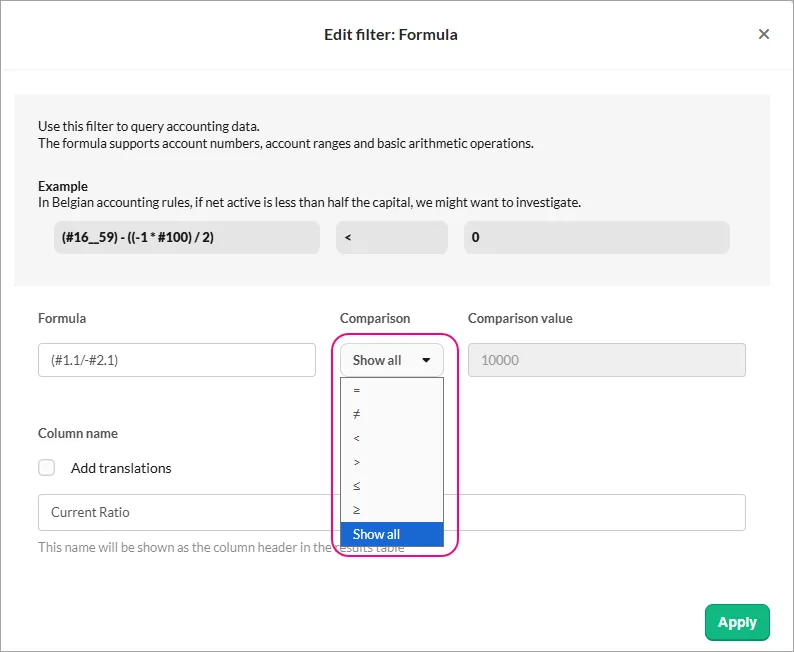
In the Comparison field, choose the operator you need (such as <, >, =etc.)
Enter the value you want to compare against.
We recommend saving it as a new query
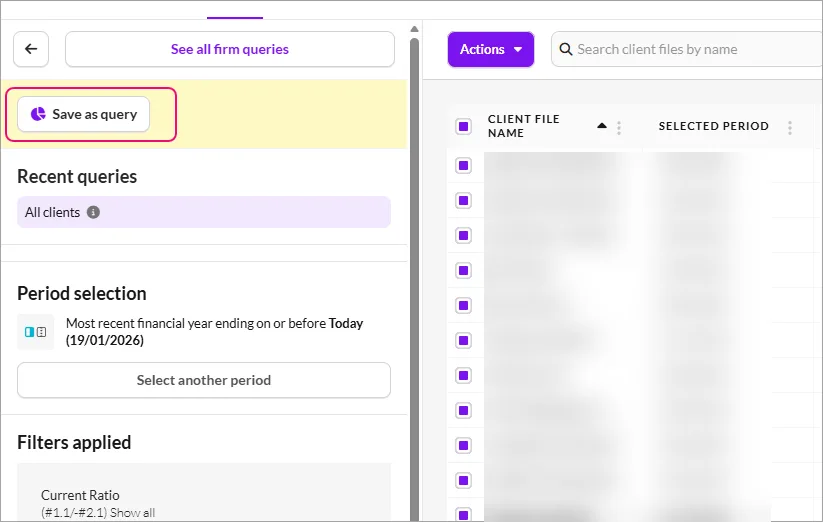
Save or run the query to see the updated list of customers.


Updating a query for all your clients
If you create a query as an admin, it is Private, Admin, or Firm-wide. Queries created by a general user are always Private.
Private Queries
Visible only to the user who created them.
General users can only create Private queries.
Admin Queries
Visible to all users with Admin rights within your firm.
Can only be created and managed by Admin users.
Firm Queries
Visible to all users in the firm.
Perfect for queries that benefit everyone, such as compliance checks or workflow reviews.
Only admins can create or change the visibility to the Firm.
Editing queries
Admin users can:
Edit their own Private queries.
Edit non-Partner Admin queries.
Edit non-Partner Firm queries.
However, they cannot downgrade the visibility of a query from Firm or Admin to Private.
This ensures firm-wide or admin-level queries remain available to all users who rely on them.
To update the filter for all clients, select the Visible icon and change to Firm and Update Query.

Perform bulk actions from query results
Under the Action menu, you can perform bulk actions. What you see under the Actions menu depends on the type of user logged in.
Archive a workflow
This option is available only for admins. Use this to archive workflows for multiple client files.
Download as Excel
This option is visible to all users. Use this to download query results into excel and save it to your computer.
Locking period
This option is available only for admins. Use this to lock periods for multiple client files.
Send a message
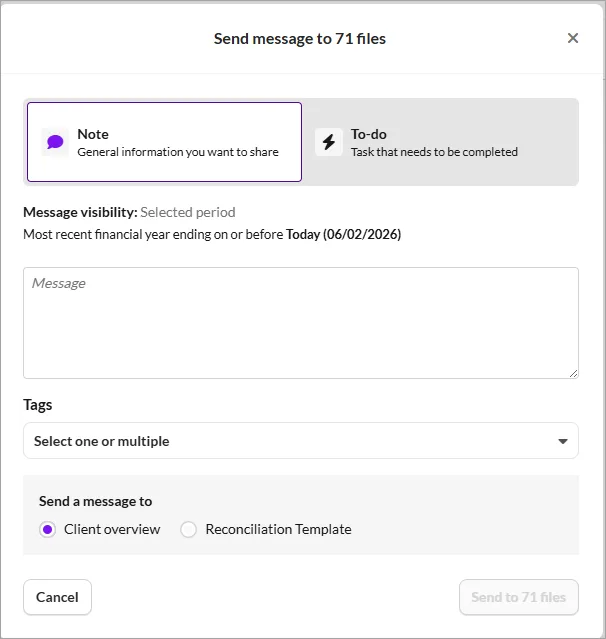
This option is available for all users. Use this option to send a message to multiple files at the same time.
When you send a message, make sure you’ve selected the correct period.
Select Note or To-do to be placed in Client overview or Reconciliation Templates.

Create triggers from saved queries
A trigger is an automated action that creates a note or to-do in client files that match your query’s criteria. Only Admin users can create or manage triggers.
You can attach a trigger to a saved query.
For example, you could automatically notify users when a workflow reaches 100% completion, or when a director’s loan exceeds $10,000.
Create a trigger
In the Insights tab, select the query you want to use.
Click Add a trigger.
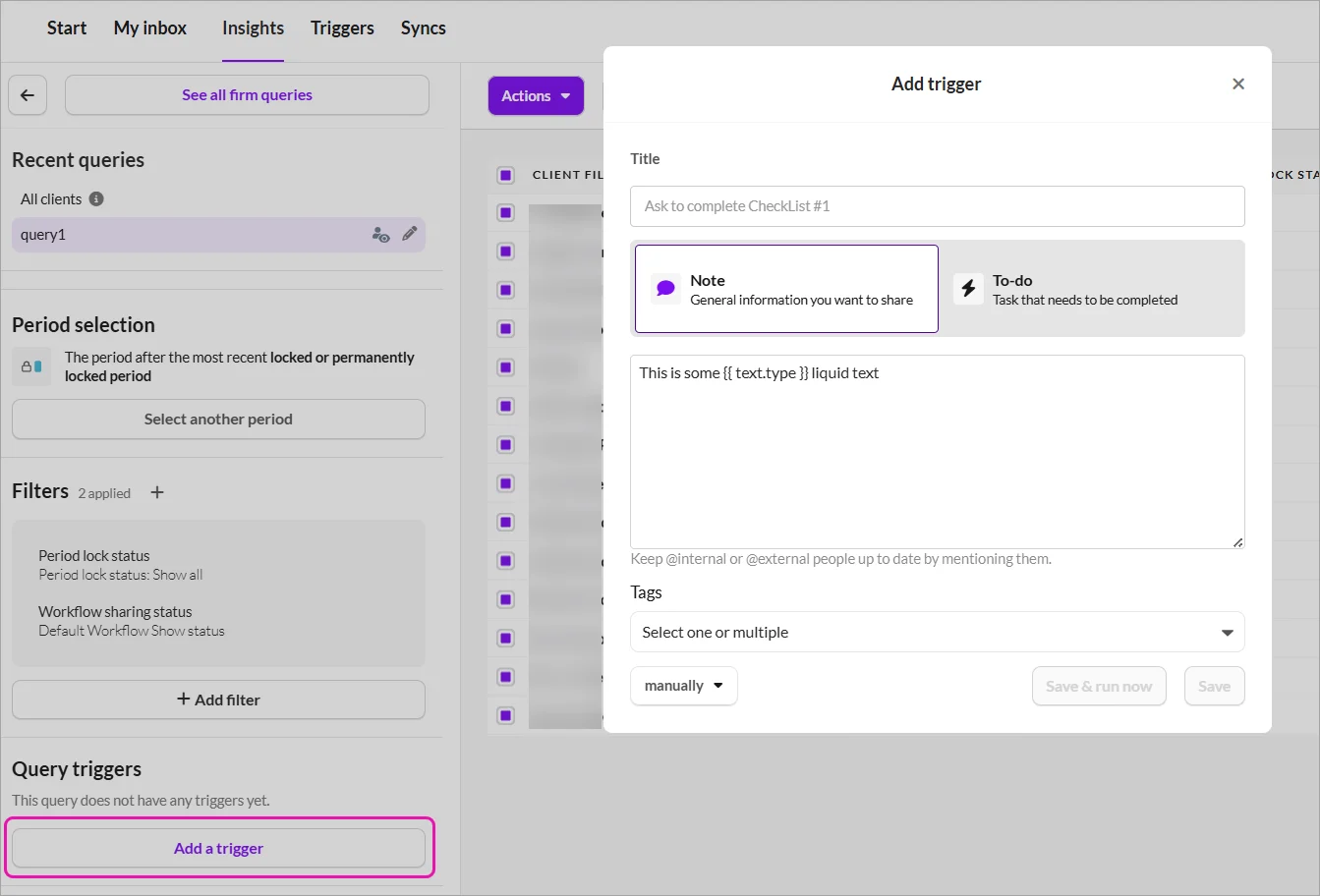
Choose whether to create a Note or a To-do.
Enter the default text that will be displayed on the file for that period after the trigger is executed.
Select the frequency:
Manual: You decide when to run it. Insights generates notes or To-dos only when you manually initiate this trigger.

Daily: The trigger runs it every day and creates notes or to-dos when new files meet the conditions.
When a trigger runs, the generated notes or To-dos appear:
In the Communication panel and the Communication tab of each relevant file
In the period where the query’s filters are met
If you’re mentioned in the note, you’ll also receive a notification

