Streamline your asset workflow by importing data into the Fixed assets workpaper in Client Accounting.
It saves time by automatically importing values, reducing errors, and ensuring everything is reported accurately in the financial reports.
Where your asset data comes from
We use the asset data from the asset register in Practice Compliance.
To import the values into Client Accounting:
-
You must have an MYOB Business or AccountRight ledger linked to your client in Practice Compliance
-
You may also use an AE/AO ledger and access the assets in Practice Compliance.
-
Map the ledger accounts codes to the correct fixed asset codes in Client Accounting so the correct balances are imported into the workpaper.
Data imported into the Fixed Assets workpaper
The following values are imported into the Fixed Assets workpaper:
Asset cost
Accumulated depreciation
If both Accounting and Taxation are set up, Accounting values are imported by default. If only Taxation is set up, Taxation values are imported.
Map the account codes
The asset data comes from the asset register in Practice Compliance, which is populated using the linked MYOB Business or AccountRight ledger or AE/AO ledger.
Map the ledger accounts to correct fixed asset account codes, so the correct balances will import into the fixed asset workpaper.
Linking a MYOB Business or AccountRight file
Make sure you've followed the steps below before importing the values.
Complete the account mapping in Client Accounting
The account codes that you've mapped from the MYOB Business ledger to Client Accounting should align with the cost account code from your MYOB Business ledger. You may need to combine asset types if it doesn't exist in Client Accouting.Create an asset register
After you've linked to your client in Practice Compliance, the first step is to create an asset class so you can add an asset to the register.
(An asset class is what is known as a control group in AE/AO)When creating the asset class, select the MYOB Business cost account code that you've used in Client Accounting for that asset type.
For example, if in MYOB Business your Buildings Cost code is 740, then in Client Accounting this would be mapped to 1.21031 Building Cost. Then in Assets, the Assets class for Buildings must link to the MYOB Business account code 740.
Learn how to manage assets in Practice Compliance.
Switching from an AE/AO ledger to Client Accounting
Make sure you've followed the steps below before importing the values.
Complete the workpaper periods in AE/AO
Make sure you've completed and printed all your work in the desktop client accounting.Unlink and re-link the right ledger
In Practice Compliance, go to the client and unlink the AE/AO ledger and link to the MYOB Business or AccountRight fileUpdate your asset classes in your Asset register
In your Asset register, edit the asset classes to update the link account code to use the MYOB Business cost account code that you've used to map to the cost account code in Client Accounting.
Importing the asset values
In Client Accounting, go to the client and open the Fixed Assets workpaper
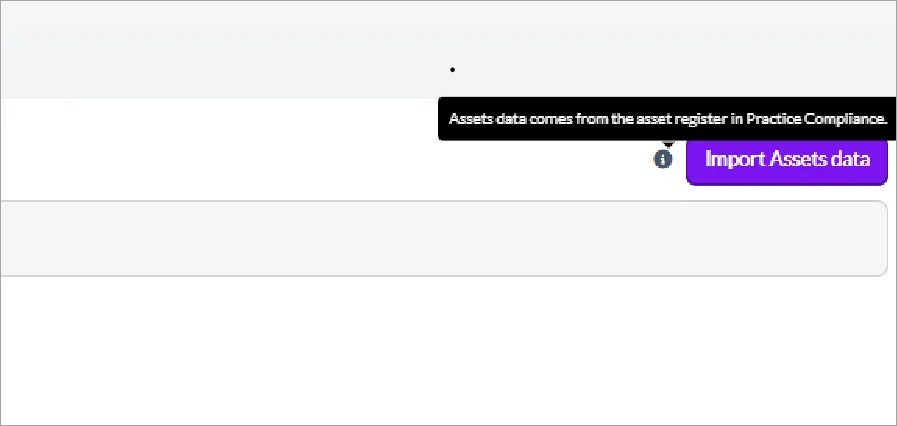
Click the Import Assets data button in the top right corner.
Once the values are imported successfully, you’ll see the confirmation window.
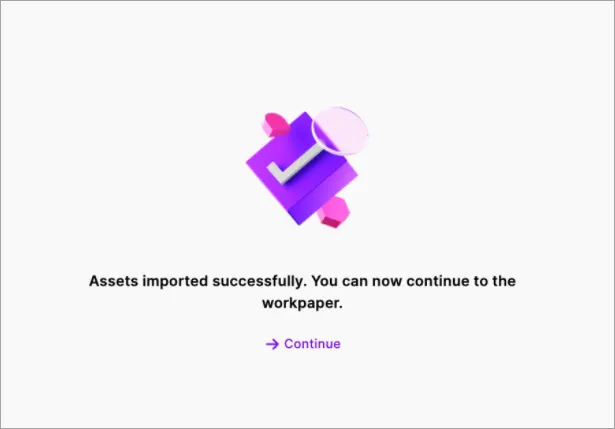
You can now check the values in the workpaper and make any adjustments if required to reconcile the amounts.
If you make any changes to the assets, make sure to click the Import Assets data again to get the updated value.


Posting journals
Run a Journal summary report in Assets and add a journal accoordinly either in Client Accounting or in MYOB Business.
Troubleshooting errors
Error message | Solution |
|---|---|
Unable to import assets, The client file is not linked to MYOB | To fix the error, link a MYOB Business or AccountRight file to the client in Practice Compliance. |
No assets found in the Asset register. Add Assets in Practice compliance and try again | You’re not using Asset register in MYOB Practice Compliance or No asset data for specific period Add Assets to the assets register and try import again. |
Unable to sync assets in Client Accounting due to balance date mismatch | Make sure the start and end dates in the linked ledgers match the dates in the Fixed assets workpaper. |
No asset register found for the client. Check client details are in MYOB Practice Compliance and try again. | This error occurs if you've created this client in Client Accounting and they don't exist in Practice Compliance. |
Unable to import assets. Resolve the errors below and try again | Follow the steps in the error window for the solution. To fix the error, make sure you've mapped the Cost account and Accumulated Depreciation codes in Client Accounting. |
General error | This could be a network issue. Try again after some time, or if you still have this issue, contact support. |
Learn how to manage assets
You can use the assets register to manage your assets. In the Assets register, you can add a new asset, import assets from AE/AO, and integrate them into tax returns.