Within each entity, you can use the Documents tab to upload files for reference.
There are 2 types of documents
Attaching a document - A physical document that is attached to the client and is uploaded into Client Accounting.
External document link - A link to a document that you can access but not uploaded in Client Accounting.
Attaching documents
Documents can be
Permanent: These documents apply to all years for that entity. You can view these documents from all active periods.
Period-specific: They are linked to specific periods and must be attached to a reconciliation within a workflow.

Uploading a permanent document
A permanent document can only be attached from the Documents tab. Not from within the workflow.
To attach a permanent document, go to the Documents tab > Permanent documents.
Drag and drop the file or browse the folders on your computer.
Uploading a period-specific document
Period-specific documents are uploaded from a reconciliation workflow. For example, you can attach a document within the Trade debtor analysis reconciliation.
To attach a period-specific document, go to the workflow and open the reconciliation.
Use any of the paper-clip icons to attach a file.
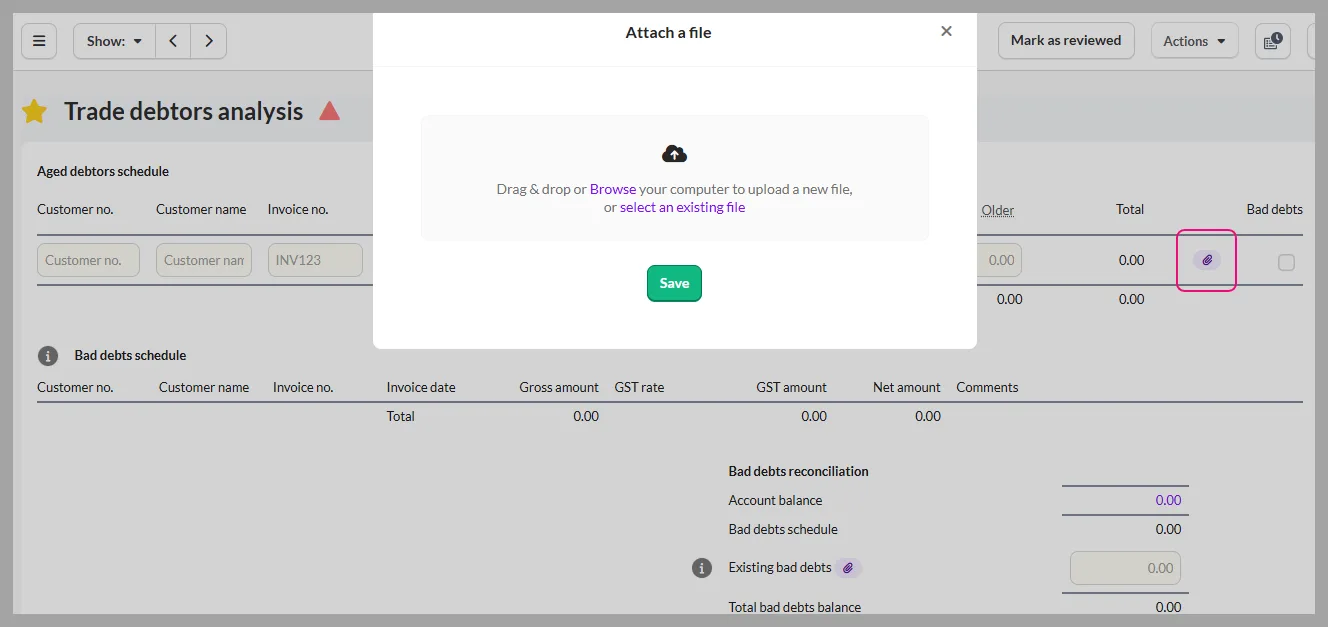

You can attach a document to more than one reconciliation in a workflow.
Deleting documents
Permanent documents can be deleted only from the Documents tab.
Period-specific documents can be deleted from workflow reconciliation or the period-specific tab in the Documents tab.
External document link
Connect to an external document using the External document link feature to reference to a document without having to upload them.
How does the external document link work?
When you link an external document
The latest version always opens from the external system
Documents aren’t uploaded in Client Accounting.
You’ll need the right permission to access to the external document. Otherwise, nothing will open when you select the link. You’ll need to request access from the person who shared it.
Remember that external link documents are not included when you export the reports.
Add a document link to a workpaper
Open the workpaper.
Select the Attachments (paperclip icon)
Choose link an external document.
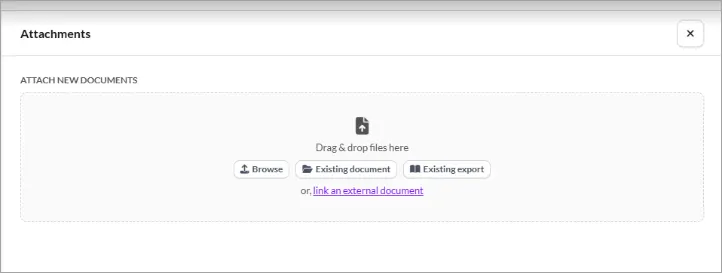
Paste the document URL.
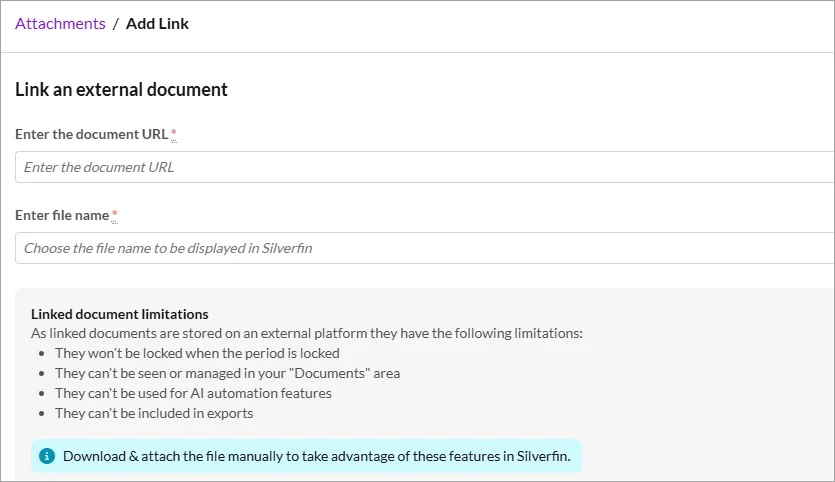
Enter a display name.
Select Add link.
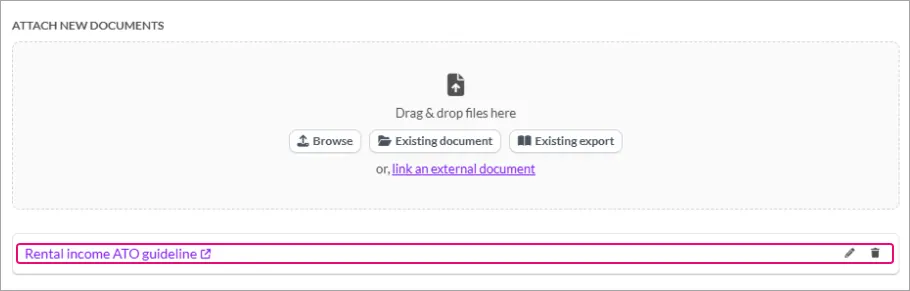


When to use attachments and document links
If you want to... | Use |
|---|---|
Reference a file stored elsewhere | Document link |
Lock documents with the period | Uploaded attachment |
Include files in exports | Uploaded attachment |
Use automation features | Uploaded attachment |
Always see the latest external version | Document link |