Rental property workpapers help your practice manage rental property work in one place.
Use them to prepare, reconcile and review income, expenses and profitability for one or more rental properties, without relying on spreadsheets.
You can:
configure multiple rental properties
reconcile income and expenses at the property level
generate trading statements
review a portfolio summary
include rental reporting in the new Rental Income Statement
Set up rental property reporting
Start by setting up the Rental property configuration workpaper. This is where you add the rental property details and choose the accounts to include.
Once it’s set up, you can create a Rental property statement directly, or add a Rental property workpaper to support the balances before they flow into the reports.

Add the Rental property configuration workpaper
Use the Rental property configuration workpaper to set up rental properties and assign account codes.
It appears automatically when there’s an amount in the rental income code.
If you don't have the an amount in the rental income, you can turn on the rental property reporting manually.
To turn it on:
Go to the Workflow settings.
Select Yes at This entity requires rental property reporting.
This option is automatically set to Yes if there is rental income.
Add account codes to the Rental property configuration workpaper
The rental property configuration workpaper shows accounts at entity level which is summary of the trial balance.
You'll need to add account codes for each rental property item.
Add the property name. This name will be used in the financial statements.
Select # to choose the account code for the relevant income and expense accounts.
Select Save when you're done.
Repeat the same if you have multiple properties.
Create the rental property workpaper
The rental property workpaper is an account template you can use to substantiate and reconcile account balances for a rental property.
Go the Edit menu and add the Rental property workpaper manually.
When you open the rental property workpaper, the address details from the Rental property configuration workpaper flow through automatically.
Create the rental property workpaper only if you want to support and reconcile the balances in more detail.
Choose how you want to enter the client’s rental property details:
Annual: Enter income and expenses from the annual statement.
Monthly: Enter income and expenses for each month.
You can also:
attach supporting documents using the paper-clip icon
add notes at the bottom of the screen
Allocate per tax breakdown
Select Allocate per tax breakdown if you want to include the breakdown for Depreciation and Rates and taxes category.
These account balance categories are matched with the tax return labels so you can reconcile them when entering the amounts in the tax return.
Depreciation has 2 categories:
Capital allowance (depreciation on plant)
Capital works deduction (special building write-off)
Rates and taxes has 3 categories:
Council rates
Land tax
Water charges
Note that in the Financial statements, we will only show the Depreciation and Rates and taxes and not the account categories that make up that amount.
Rental property financial statements
Client Accounting includes financial statement outputs for rental properties, so you can review rental income, expenses and profitability before exporting reports.
Rental property statement
A rental property statement is created for each rental property. It shows the income and expenses for that property. Each rental property prints on a separate page.
Go to Review to check how the information will appear in the financial statements.
Rental property summary
The rental property summary is available when there is more than one rental property.
It shows all rental properties in one view, including the net profit or loss for each property. This is useful when reviewing multiple properties or comparing amounts across years.
Income statement for rental properties
Income statement with rental is a rental-specific income statement. It shows the rental income and expenses grouped by property and shows the net profit/(loss) from the rental statements as a single line item.
To display the net profit/(loss) for each property within the income statement, un-star the Rental property summary statement.
Unstarring the income statement
Because there are two income statement options, un-star the statement you don’t want to include before exporting reports. This helps make sure only one income statement appears in the exported report.
Update workflow templates for rental property reporting
To access the latest rental property workpaper and financial statement updates, practice administrators need to update the workflows at practice level.
Select MYOB from the navigation menu.
Go to Templates.
Select Client Configurations.
Open Workflows.
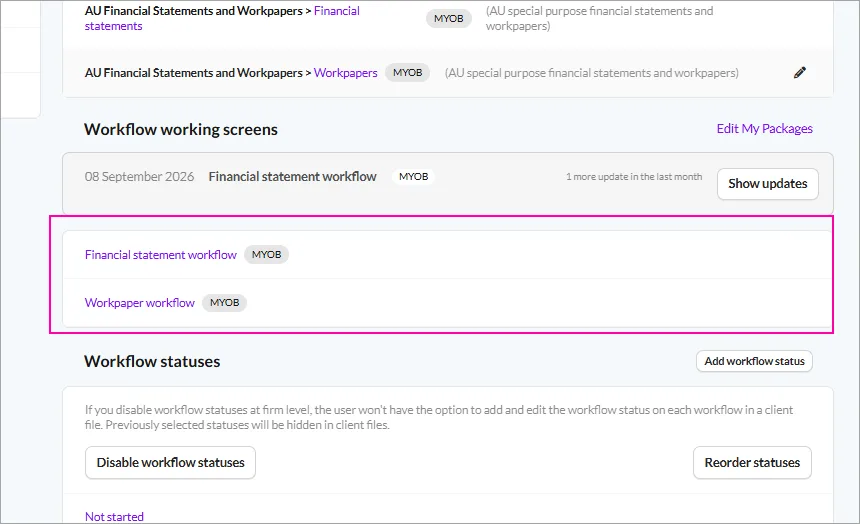
Open the workflow you want to update, such as Financial Statements or Workpapers.
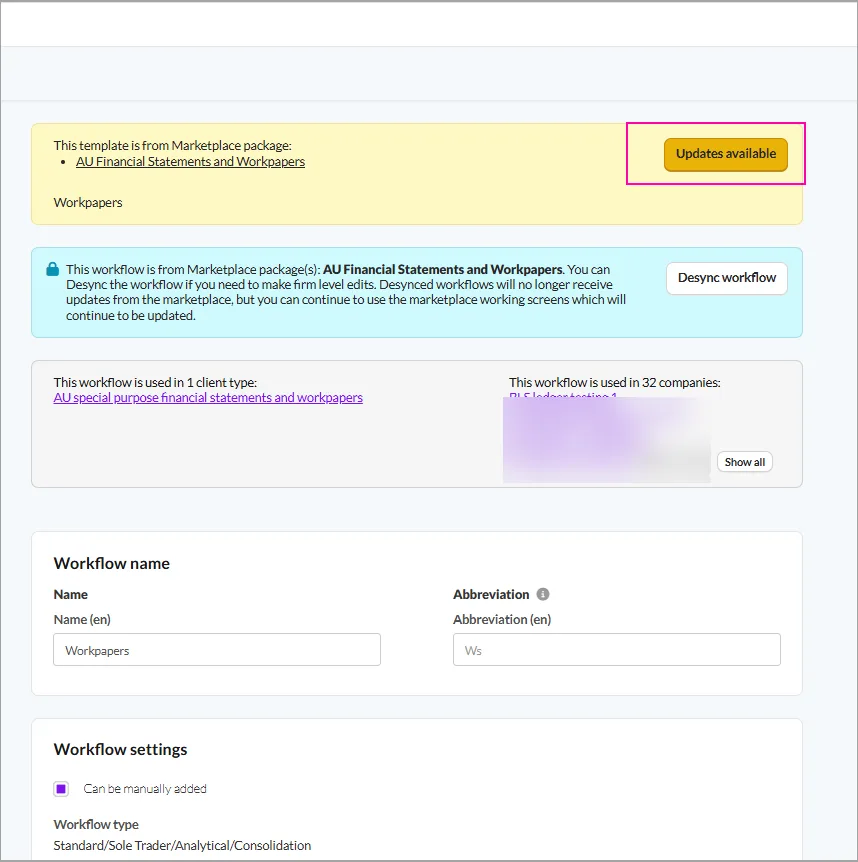
Select the yellow Updates available button.
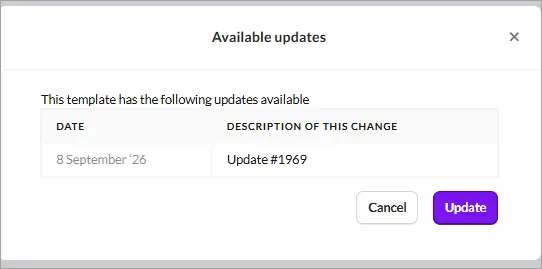
In the Available updates pop-up, select Update.
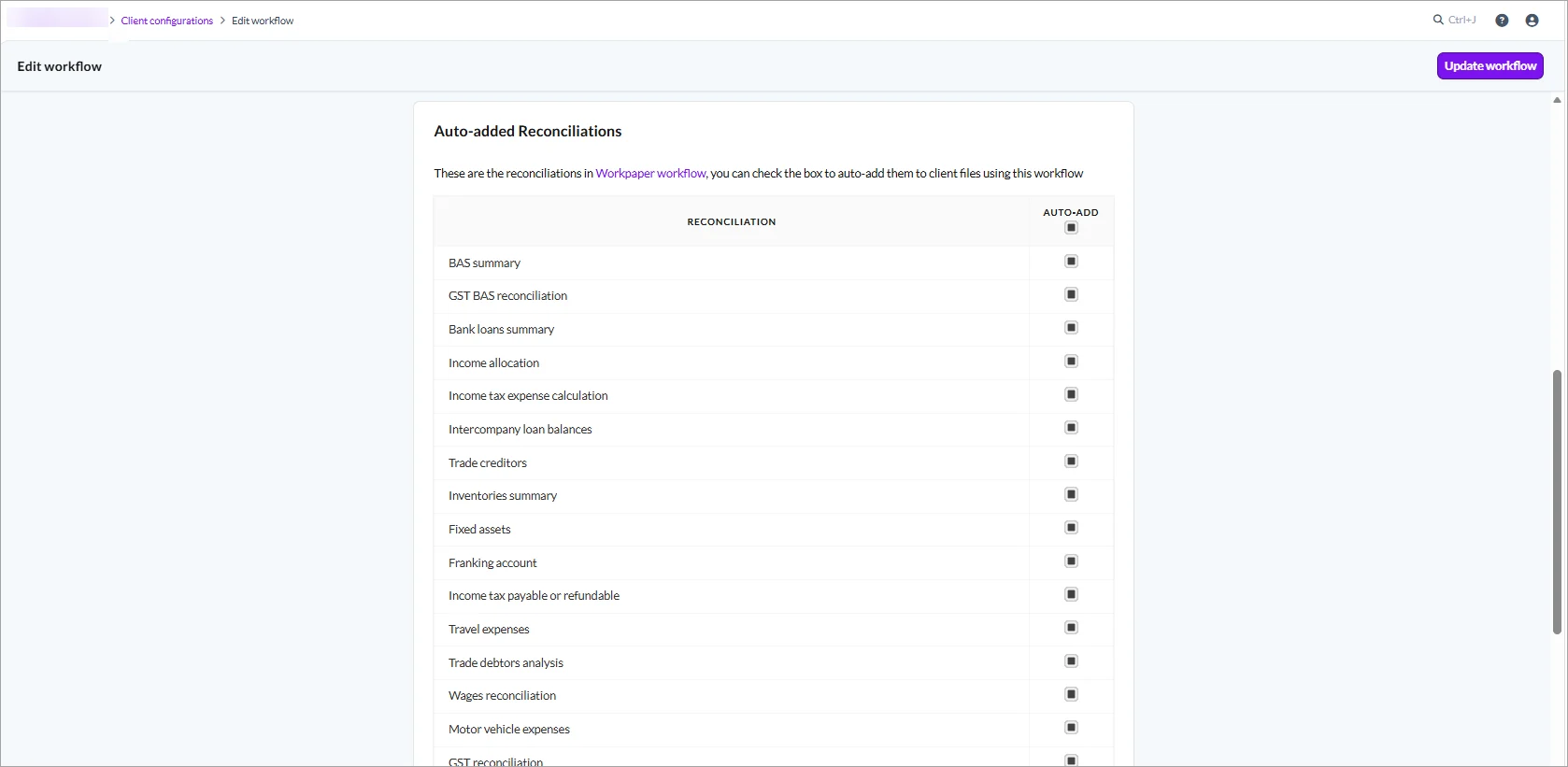
Scroll to the Auto-added Reconciliations section.
Check that Auto Add is turned on for all items.