The income allocation workpaper is used to accurately distribute income for beneficiaries and partners. This workpaper is available for Trust and Partnership entities in workpaper and the Financial Statement workflow.
Key points
To produce financial reports that show profit or loss allocated to partners in a partnership or beneficiaries in a trust, you need to setup the following in the income allocation workpaper
Complete this workpaper if the profit is distributed or partners or beneficiaries so the calculations are accureate in the income statements and tax expense calculation workpaper.
Partnership: You must allocate 100% of the profit to the partners
Trusts: Any amounts unallocated will be treated as Income Retained by trustees
The total amount allocated should reconcile to the Distribution from Profit account. This requires an Adjustment journal to be created in Client Accounting. The workpaper will show as unreconciled if there is a variance.
When you allocate a profit, the Income Allocation journal will debit the distribution from income account and credit each beneficiary’s/partner’s current account (and do the reverse when allocating a loss).
Map beneficiary accounts
Before using the Income allocation workpaper, make sure your client’s beneficiary accounts are mapped correctly.
Go to the Account mapping page, where you’ll find 20 stakeholder accounts available to map to. These are labelled stakeholder accounts, so they are relevant across all entity types.
Whether your client’s data has a single account for each beneficiary, or multiple accounts for things like opening balance, income distribution or loan accounts for each beneficiary, assign each beneficiary to a unique stakeholder account and map all related accounts there.
One stakeholder account per beneficiary is key to ensuring the correct accounts populate the Income allocation workpaper.
Prepare the workpaper
Open the Income allocation workpaper. Each stakeholder account that's been mapped to will have a row.
Enter each beneficiary's legal name in the Stakeholder # field they’ve been assigned to.
Click the hash symbol (#) to view all accounts mapped to that stakeholder account.
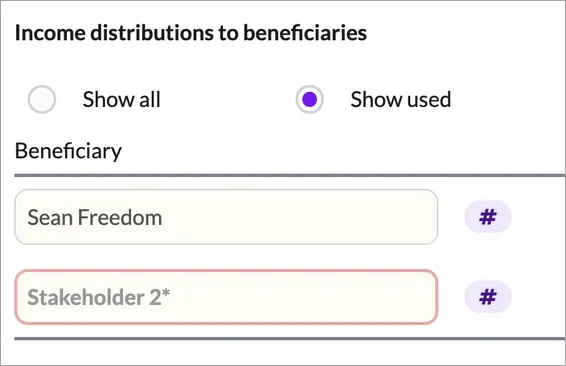
Select the distribution account and click Save. Select only one account for each beneficiary to ensure that the journal populates correctly. Repeat for each beneficiary.
When you’re ready to distribute income, the workpaper offers three flexible methods. The default is to distribute a percentage of net profit or loss, which you’ll see set at the top of the workpaper. The three options are:
Fixed amount allocation: For this option, enter the fixed amount next to each beneficiary in the Fixed amount field.
Percentage of net profit allocation: For this option, enter the percentage for each beneficiary in the Percentage of net profit field.
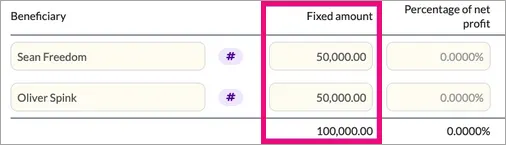
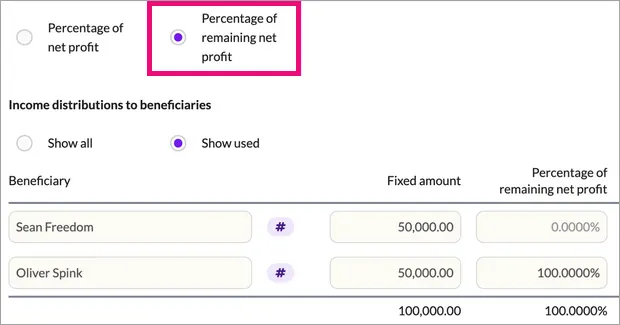
A combination of fixed amount and percentage:
For this option, select the Percentage of Remaining Net Profit option at the top of the workpaper.
Enter the fixed amount in the Fixed amount field next to the relevant beneficiary.
Enter the percentage in the Percentage of remaining net profit field next to the relevant beneficiary.
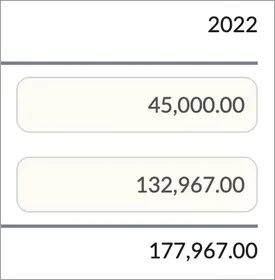
You’ll also see a column for the comparative year amounts. In the first year of preparation, enter the amounts if you want to show comparative amounts in the income statement. Comparative amounts will automatically flow through in subsequent years.


The workpaper automatically calculates the percentage amounts in the Amount column and the total distribution, including fixed amounts, in the Total Distribution column.
At the bottom of the workpaper, the Distribution summary table displays percentages and amounts to help with tax return preparation.
Roll forward from previous year
The following data will rollover if there is an income allocation workpaper in the previous period.
Key points
-
Make sure you roll over workpapers that has compartives. If you roll over a blank workpaper, then the compartives are ‘locked’ and you’ll need to reset them manually (See instructions at If you edit the prior year data after rolling over)
-
For the first comparative year, roll forward the trial balance and roll‑forward balances, then enter any comparative workpaper amounts in the current period. From the following year, the comparative amounts will come through when you roll forward the workpaper.
Comparative column auto‑fills
The comparative (prior year) column in the new year is automatically sourced from the prior year’s Total distribution column on the Income allocation workpaper.
The comparative amounts show as a read‑only last‑year column, and the current‑year fields stay editable.
Stakeholder information
Stakeholder names in the Entity Information will rollover into the Income allocation rows each year.
Linked stakeholder/partner accounts and any notes/attachments on the workpaper roll forward, so you don’t have to rebuild the structure every year.
Comparative distribution amounts when using Client Accounting in the first year
If you use Client Accounting in the first year, you’ll need to manually enter the comparative distribution amounts in the comparative column. From the following year, these amounts will roll over.
Income allocation in MYOB Business
MYOB Business includes an Income Allocation feature that can automatically calculate and post each partner’s share.
Key points
Income allocation in MYOB Business is only available for partnerships and unit trusts, so enter a manual adjustment for distributions to beneficiaries in a discretionary trust.
The income allocation calculation from MYOB Business is not synced or imported into Client Accounting, so current year allocations from MYOB Business will not show in Client Accounting workpapers or financial statements.
The amounts from the MYOB Business income allocation will be show in the following years opening balance of each partner’s or unit holder’s current account.
Income allocation in MYOB Business requires a Retained Earnings and a Current Year Earnings account for each partner or unit holder. These accounts need to be classified as Equity accounts.
For a unit trust, where the unit holder accounts are liabilities, it will be necessary to map the Equity accounts from MYOB Business to Liability accounts in Client Accounting.
To show the income allocation from MYOB Business in Client Accounting
To show income allocation from MYOB Business in the workpapers and financial reports, complete the workpaper and post the adjustment journal in Client Accounting.
Income Allocation is not configured in MYOB Business (recommended)
Make sure all adjustment journals, including the distribution journal, are entered in MYOB Business before starting the new year.Income Allocation is configured in MYOB Business
Don't post adjustment distribution journal from Client Accounting to MYOB Business, because this will create duplicate entries. Also don't mark the journal as posted in Client Accounting.
For a unit trust, if unit holder accounts are under Liabilities in Client Accounting, map each unit holder’s Retained earnings and Current year earnings accounts in MYOB Business to Liability accounts in Client Accounting.
Check that the amounts allocated to each partner or unit holder in MYOB Business match the amounts shown in the Income allocation workpaper in Client Accounting.
Posting an adjustment journal
You can post the adjustment journal for this distribution if it isn’t already posted.
Click Post adjustment, review the pre-populated accounts and amounts and click Add.