In Client Accounting, you can add detailed breakdowns to financial statement categories to provide more information on the amounts. This includes adding detail to Income Statement categories, as well as within Notes to the financial statements.
You can break down accounts in categories into separate lines, group them, and give them a relevant name. This makes the information easier for your clients to understand.
Key things to know
Adding details to account categories is available only in Notes to Financial statements and Income statements and is done at the client level, not at the Practice level
Locked periods are not impacted.
Use the Prepare window to add the details, and the Review window will show how it will be displayed.
Roll forward: Descriptions, layout, and groups will roll forward to the next period
Account category (Mapped account): The account code from the Client accounting chart of accounts
Imported account: The synced ledger or imported CSV account codes. Several imported accounts can map to the same mapped account category.
Zero-balance account: All accounts that have been mapped will appear in the mapped account picker, even if they have a zero balance.
Customising account categories
You can:
Add headings and subtotals for account codes
Rename mapped and original account codes
Re-group imported account codes assigned to the same mapped account
Display original accounts as a single line item
Use the account picker directly in Preparation view
Adding the details
Changing the name of the category
The category name is from the Client Accounting chart of accounts and not from the underlying ledger like MYOB Business.
You won't be able to combine 2 account categories into one. If you want to do that, you need to map them into one account code.
For example, you can't combine Shares and Managed Funds into one category if they belong to different account codes.
Go to Financial statements and open the Note from the left side panel. Make sure you're in the Prepare window.
Click into the field you want to enter a description. When the field turns yellow, enter the description.


Breakdown individual account group category
Click the purple hash # to open the account window that the category is made up of.
Select the account you want to have its own category and select Remove. Click Save.
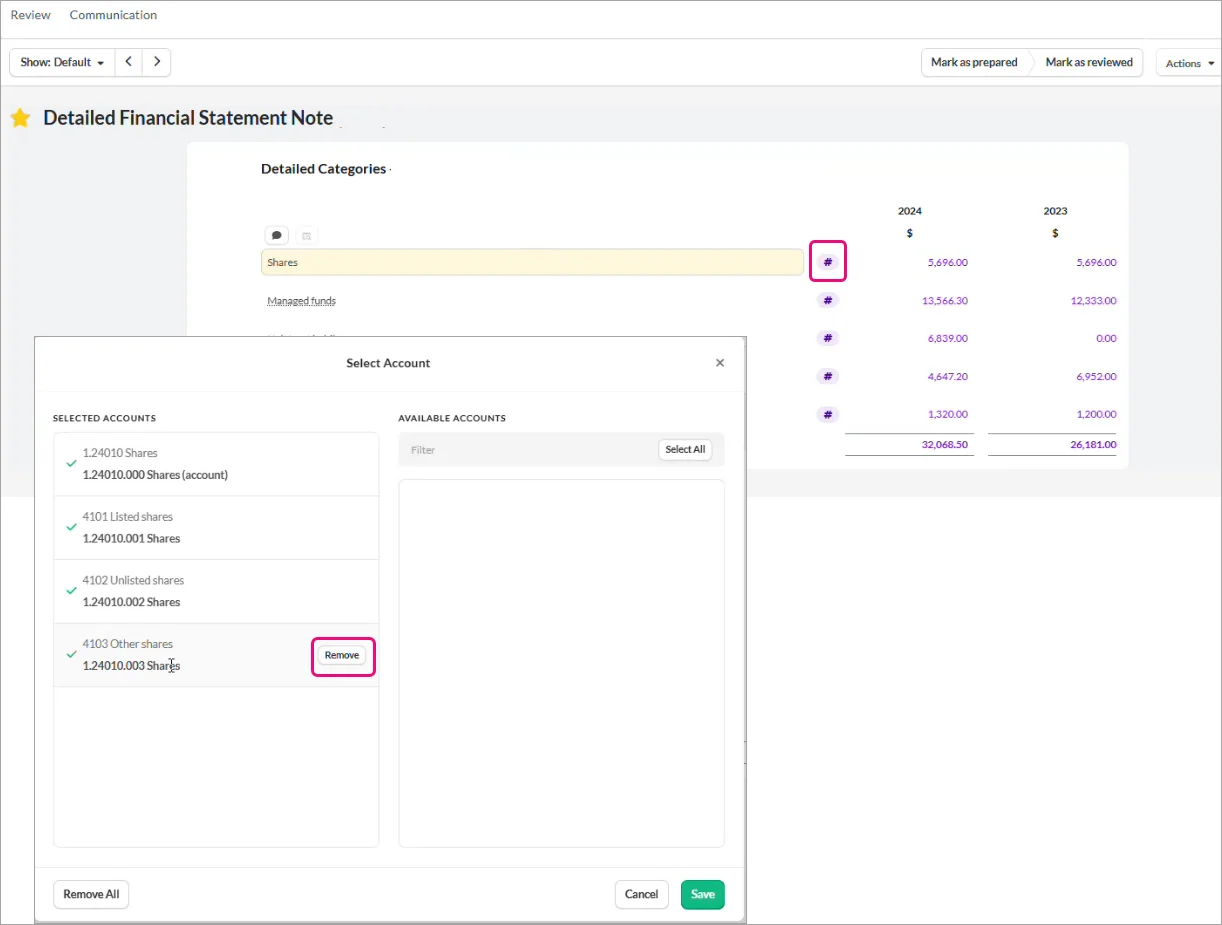
This will remove the account from the list and will show a separate category. You can change the name of this category if you want to.
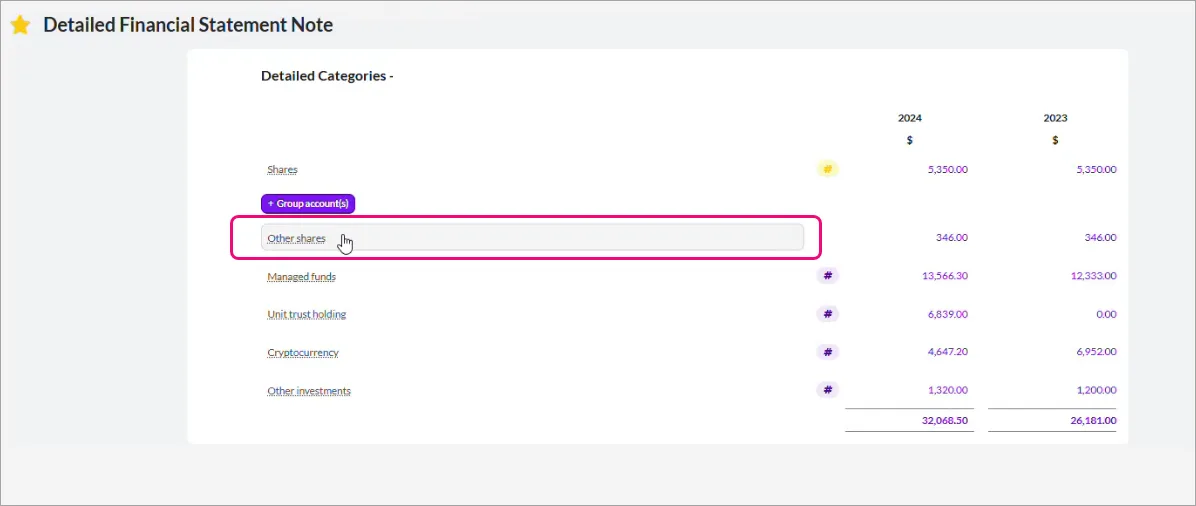
If you've separated multiple accounts from the account list, you can group them by selecting Group account. Only accounts that were previously separated from another account can be grouped.
You can view the breakdown in the Review window.
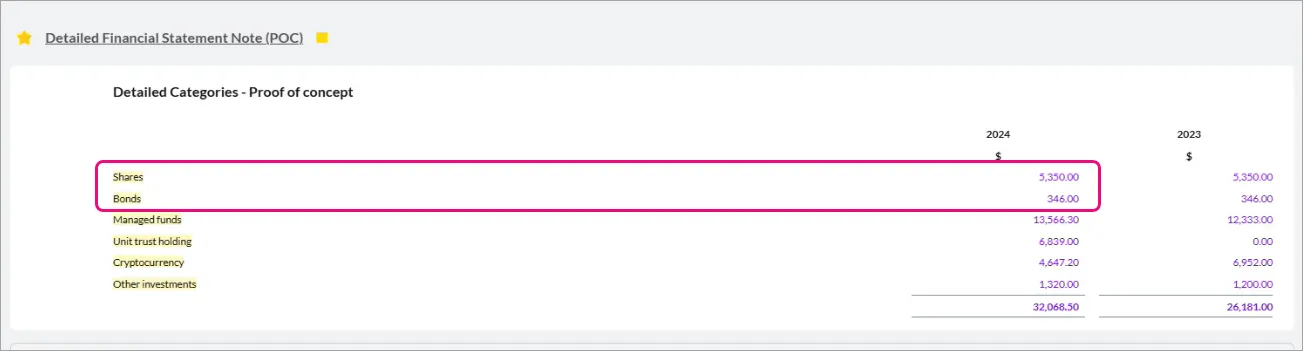


Breakdown all the accounts in the category
Breakdown all the accounts in the category
You also have an option to remove all accounts from an account group and show them as individual categories. You'll see the breakdown of the accounts (indented) and a sub-total.


You can view the breakdown in the Review window.
Reverting bold account category, indentation and subtotal
If you have one or more imported accounts mapped to the account category, the formatting will revert to the standard format, where all account categories, codes, and groups will show separately and are not indented.
To revert the format, select the yellow hash (#) and add one or more accounts.
If there are no accounts to choose from, you'll need to remove an account from a group to make it available.


Notes that you can add details to
List of notes
Name of the note | What are the changes? |
|---|---|
Cash and cash equivalents | Can add details to the notes Previously, all imported accounts displayed separately. Now it will be a single category group by default. |
Trade and other receivables | Can add details to the notes |
Inventories | Can add details to the notes, but only update descriptions. You can't split or break down accounts We've removed the trading inventories subheading |
Property, plant and equipment | Can add details to the notes |
Investment properties | Can add details to the notes |
Investments | Can add details to the notes |
Intangibles | Can add details to the notes, but only update descriptions. You can't split or break down accounts If Other intangibles were renamed, this will be reverted. |
Other assets | Can add details to the notes |
Bank overdraft | Can add details to the notes Previously, all imported accounts displayed separately. Now it will be a single category group by default. |
Trade and other payables | Can add details to the notes We've removed the client funds held in trust from Loans to associates, but this will show until it is remapped. |
Borrowings | Can add details to the notes We've split the Borrowing account codes, and needs to be remapped |
Provisions | Can add details to the notes |
Other liabilities | Can add details to the notes Previously, all imported accounts displayed separately. Now it will be a single category group by default. |
Stakeholder accounts | Can't add details to the notes |
Statutory information | Can't add details to the notes |