This Time & Expenses Settings Process Guide provides information about various settings that affect the way that Time and Expense capture can be managed in the GreatSoft Practice Management (PM) software.
The below System Options summary will assist in setting up the necessary validation rules for Timesheets and Disbursements.
Contact GreatSoft if you wish to review or customise any of the settings.
The detailed GreatSoft Practice Management User Guide, also available on the GreatSoft FTP site, offers guidance on any topic referred to in this guideline.
Timesheets and Disbursements System Options
Financial Periods and Timesheet Periods must be set up before capturing Time or Expenses. These are then automatically generated when a period balance forward is performed.
Access the System Options from the PM Dashboard Menu bar.

Consult the below table to set up the necessary validation rules for Timesheets and Disbursements.
To easily locate a specific System Option, type the relevant keyword in the Search field (1) and click on the binocular icon (2) and then on Find (3) (next/previous), until you find the desired option (4).
Select the suitable Timesheet Frequency per illustration (5).
When the System Option is selected, the Detail section offers a description of the item (6).
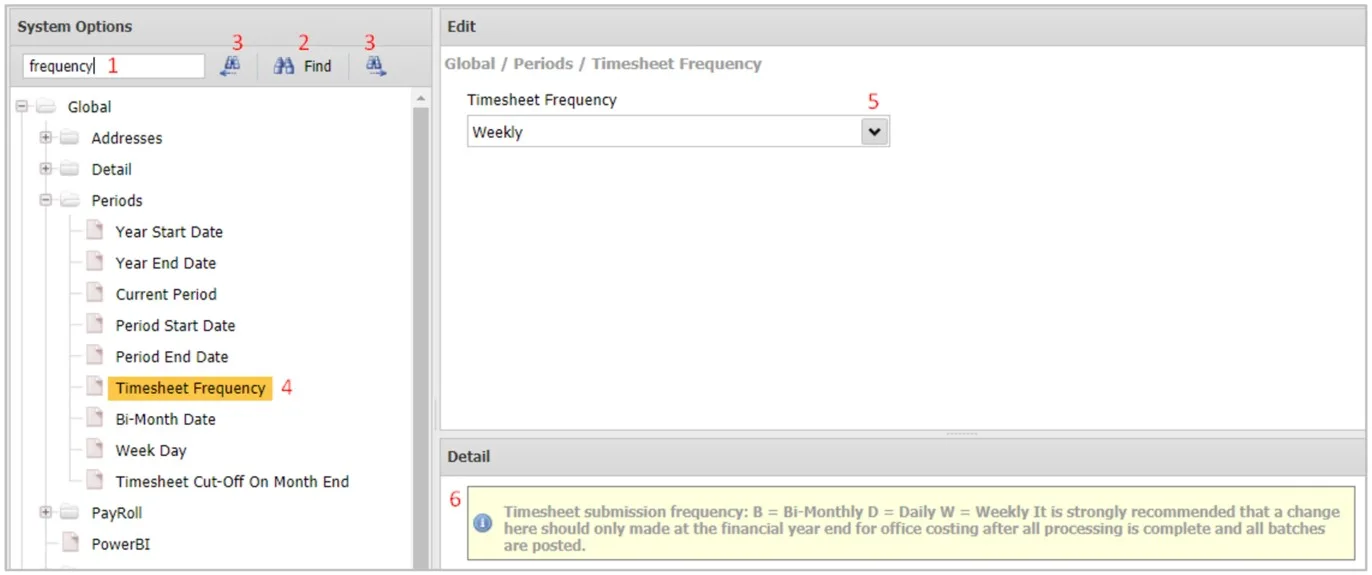
The next table summarises the System Option locations per specific System option that can be configured by the administrator, with a brief description of each.


System Option Location | System Option | Descriptions and Values |
|---|---|---|
Global | Periods | Timesheet Frequency | Select the Frequency of Timesheet Submission: Daily: A Timesheet is completed on a daily basis. Weekly: A Timesheet is completed on a weekly basis. Bi-Monthly: A Timesheet is completed twice a month. |
Global | Periods | Bi-Month Date | If there are two Timesheet periods per month, this will be the number of days (either 15 or 16 days is allowed) for the first Timesheet period. |
Global | Periods | Week Day | Specify the day on which week ends e.g. Sunday = 1, Monday = 2, Tuesday = 3, Wednesday = 4, Thursday = 5, Friday = 6, Saturday = 7. |
Global | Periods | Timesheet Cut-Off On Month End | For Weekly Timesheets, indicate if last Timesheet of the month must cut off on month end date, i.e. some Timesheets may have less than 7 days. |
Global | Options | Validate Terminated Tasks | Specify whether eCost will prevent the posting of Time to Terminated Tasks. |
Global | Options | Validate Task Open Date | Indicate whether the Task Open date must be validated on Posting Timesheets in eCost. |
Global | Options | Allow Timesheets across Offices | Indicate whether staff are allowed to process Timesheets/Disbusbursements to Tasks attached to another Office. |
Global | Options | Validate Std Time | Select the method of validation for Standard Hours: 0 = None, Std Hours will not be checked. 1 = Warn only if Total hours are less than Std Hours. 2 = Total Hours must exactly equal the Std Hours. 3 = Total Hours must be at least equal to Std Hours. |
Global | Other | Default Timesheet Rate | Select the System Wide Default Timesheet Rate that will be used for the firm from the lookup list. |
Global | Other | Travelling Code | Select the default Disbursement code to be used for Travelling Expenses from the lookup list. |
Global | Other | Non-chg Disb Allocation | Select the default Allocation code for non-Chargeable Disbursements. |
eCost | System | Allow users to override Disbursement Rates | Indicate if users are allowed to override Disbursement charge rates. The default is YES. |
eApprove | Application | Time/Expense Update to WIP | Select if the Time and Expense update to WIP is initiated by the Approver, or via a Stored Procedure. |
eApprove | Application | Allows users to select Time/Expense Approver | Indicate if users are allowed to change the Time/Expense Approver. |
eApprove | Timesheet | Display Charge rates on web timesheets | Determines whether the charge rates are visible on the popup message when hovering on time in web timesheets. |
eApprove | Timesheet | Maximum number of hours per day | Number of hours that is allowed to be captured on a single day. Default = 24. 24 is also the maximum allowed number of hours per day. |
eApprove | Timesheet | Number of previous periods to display on creation | Number of Previous periods to display when creating a new Timesheet/Expense. |
eApprove | Timesheet | Allow user to select an Approver | Indicate if users are allowed to select an Approver for web Timesheets and Disbursements. The default is NO. |
eApprove | Timesheet | Activate daily employee standard hours | Activate daily employee standard hours. Standard hours are determined by the System Options per Office, per Day, instead of by the Employee's Standard hours. The default is NO. |
eApprove | Timesheet | System wide employee standard hours - Monday to Sunday | System wide employee standard hours. The default = 8 for each day - Mon/Tues/Wed/Thurs/Fri/Sat/Sun. The system will use this when the eApprove | Timesheet | Activate daily employee standard hours System Option is enabled. |
eApprove | Timesheet | Timesheet activities by Employee Service Line | Filter Activities when capturing timesheets by Employee service line instead of Task service line. |
eApprove | Disbursement | Submit Directly to WIP | If [Yes], all Disbursements will be posted and updated directly into WIP when submitted by the Approver. This option is used when the eApprove | Application | Time/Expense Update to WIP is set to Approver Initiated. |
eApprove | Approvals | Load Allocated Approvers | List Allocated Approvers for Employee List in Approvals. Approval Relationship: Direct = Relationships are maintained manually. Service Line = Approve same Office/Service Line. SubService Line = Approve same Office/Sub-Service Line. |