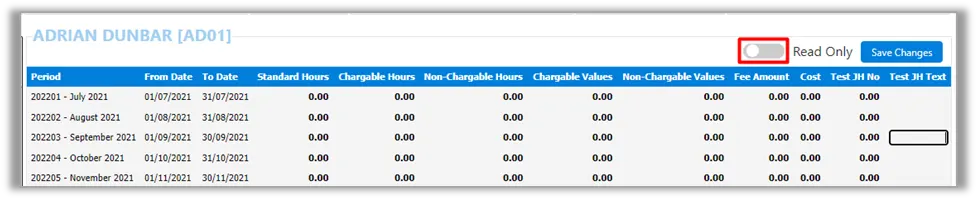
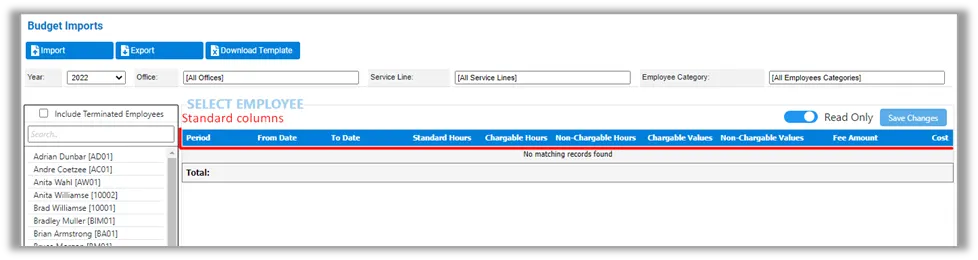
Implemented new functionality for users to have the ability to dynamically add (and remove) custom columns and data, directly on the Employee Budgets table through editing, and/or via Budget Imports.
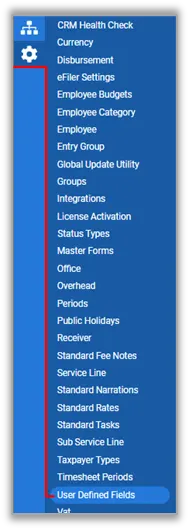
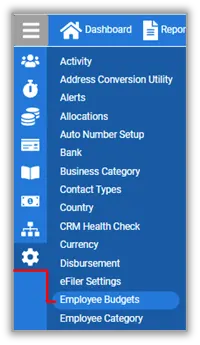
Custom columns are created and activated (or inactivated) by setting them up under CRM Maintenance | User Defined Fields (UDFs) under the new Employee Budget Category.
The system allows the 2 x data types, Text and Number.
For a custom column to be available and display on Employee Budget table, its UDF must be Active.
To remove a custom column from the Employee Budget table, inactivate the UDF.
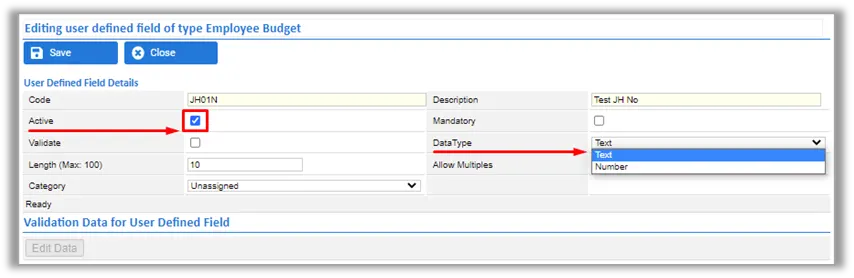
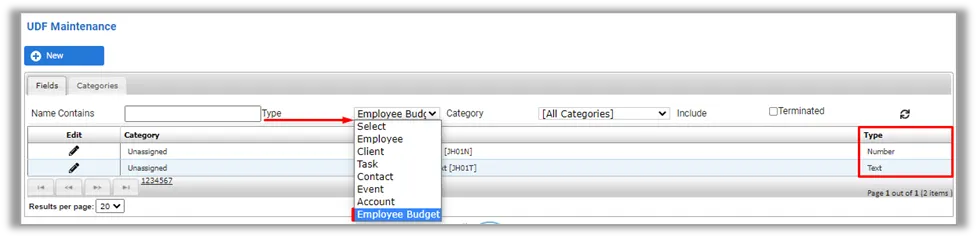
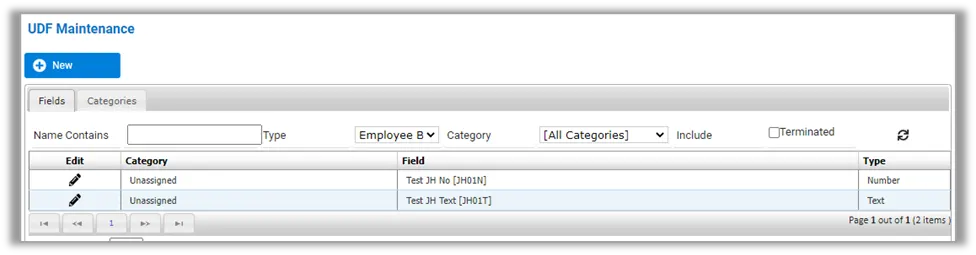
Custom columns appear alphabetically from left to right per UDF Code, starting after the Standard columns (to the right-hand side of the table).
Exporting, importing, editing and saving functionalities all work similar to the Standard column fields.

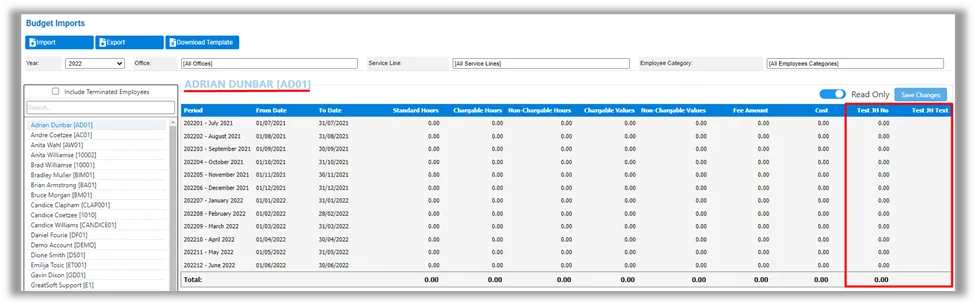
The system will ignore any custom column data during import, if such imported column does not match the currently used Employee Budget table’s columns (based upon the custom columns that are active in the Employee Budget UDF Category).
During an import, the custom columns can be positioned anywhere in the spreadsheet, as the system matches the available/active headings in the Employee Budget table to those in the spreadsheet. It is therefore important to ensure that headings are exact matches.
NOTE: Data of a custom column will be excluded from the import if the column heading in the spreadsheet doesn’t exactly match the set up Employee Budget UDF Description.Editing a custom Text type field directly on the Budget table: