A statement is a summary of a customer's invoices and payments and is typically sent on a regular basis, such as monthly. Statements help your customers keep track of their account and how much they owe you.
On the Customer statements page (accessible from the Sales menu) you can review, print and email customer statements for one or more customers.
There are two statement types:
Invoice statements list all unpaid invoices as at a specified date.
Activity statements list all invoices and payments within a specified date range and include a running account balance.
If you want to change the look of your statements, see Sales settings.
OK, let's take a closer look at producing customer statements.
To review, print or email a customer statement

In the Sales menu, choose Customer statements. The Customer Statements page appears.
Choose the Statement type.
Invoice statements list all invoices aged as at a specified date.
Activity statements list all invoices and payments within a specified date range and includes a running account balance.
Specify the statement period.
For Invoice statements:
Enter or choose the Statement date. This will include invoices on the statement which are outstanding as at the statement date.
To include only invoices recorded up to the statement date, select the option Only include invoices up to statement date.
For Activity statements, enter the statement date range in the From date and To date fields.
In the Customer field, choose a single customer or choose All. Both active and deactivated customers will be shown.
To include customers with a zero balance, select the option Show $0.00. This list of customers is filtered accordingly.
Select the customers you want to produce statements for, or click the topmost box to select all. The Download PDF and Email buttons appear.
Produce the statements.
If you want to preview, save or print the statements, click Download PDF and choose:
Use default template to produce statements on the default statement template
Choose template to choose which statement template to use, then click Download PDF.
The statements are downloaded as PDFs contained in a ZIP file. Learn more about setting up your sales templates.
If you want to email the statements:
Click Email.
If required, change the default email text.
You can only enter free text for default customer statement email messages, not email variables.
Choose the statement Template. Learn more about setting up your sales templates.
Click Send statements.
The statements are emailed as PDFs to your selected customers.
FAQs
Can I create a default customer statement email message?
You can customise the default email text of your customer statements by clicking the settings menu (⚙️) > Sales settings. Click the Email defaults tab and update your text in the Default statement email section.
For all the details see Set up default emails.
Why can't I see the Download PDF or Email buttons?
These buttons only show when you select one or more customers.
Can I edit the look or business details of my customer statements?
You can change the business details, payment details, logo and other details that appear in the header and footer of your customer statements. For all the details see Sales settings.
Most businesses send statements to customers who have outstanding balances at the end of a month. Statements will be generated using the statement form you choose at the time of emailing or printing, and you can personalise your statement form to suit your business needs.
Once you've set up AccountRight to send emails, you're good to go. This includes personalising your default email messages.
Got multiple contact details for a business? You can enter multiple addresses, including email addresses, in the customer card – see Adding a customer.
Here's how to print or email (or reprint or resend) statements one at a time or in a batch.
To print customer statements
Go to the Sales command centre and click Print/Email Statements. The Review Statements Before Delivery window appears.
Can't access the Sales command centre? You need a Sales role to access Sales functions. See Set up roles.
Click the To Be Printed tab.
In the Statement Type field, select the type of statement you want to print.
Invoice statements list all invoices aged as at a specified date.
Activity statements list all sales invoices and payments within a specified date range. Activity statements include a running account balance.
Specify the statement period.
If you selected Invoice as the statement type, enter an ageing date to display invoices outstanding as at that date.
If you want to include only invoices recorded up to the statement date, select the Only include invoices up to Statement Date option.If you selected Activity as the statement type, enter the statement date range in the From and To fields.
Type the number of statements you want to print per customer in the Print field.
Click Advanced Fiters if you want to:
filter the customer list
select a different statement form
include customers with zero balances, or
add finance charges to the amounts due.
Learn more about Advanced batch filters.
(Optional) Click the Balance column heading to sort the displayed list by customer balance owing. This helps if you want to print statements only for those customers who owe up to a certain value.
Click in the select column ( ) next to the customers you're printing statements for.
Click Print. If you need to reprint a statement, repeat the above steps.
To email customer statements
Go to the Sales command centre and click Print/Email Statements. The Review Statements Before Delivery window appears.
Click the To Be Emailed tab.
In the Statement Type field, select the type of statement you want to email.
Invoice statements list all invoices aged as at a specified date.
Activity statements list all sales invoices, payments and orders with a customer deposit for a specified date range. Activity statements include a running account balance.
Specify the statement period.
If you selected Invoice as the statement type, enter an ageing date to display invoices outstanding as at that date.
If you want to include only invoices recorded up to the statement date, select the Only include invoices up to Statement Date option.If you selected Activity as the statement type, enter the statement date range in the From and To fields.
Click Advanced Fiters if you want to:
filter the customer list
select a different statement form
include customers with zero balances, or
add finance charges to the amounts due.
Learn more about Advanced batch filters.
(Optional) Click the Balance column heading to sort the displayed list by customer balance owing. This helps if you want to email statements only to those customers who owe up to a certain value.
Click in the select column ( ) next to the customers to whom you want to email statements.
If you want to change a customer’s email address, select the customer’s name and then select another address from the Email Address list or type a different address in the Email Address field at the top of the window.
A message appears asking if you'd like to update the employee's card. Click Yes if you want to update it or No if this is a temporary change.Type the subject and message of the email or accept the default subject and message. If you want to change these defaults, click Email Defaults and make your changes.
Click Send Email. If you need to resend a statement, repeat the above steps.
If you use AccountRight to send emails, you can track the email delivery status.
To save statements to disk
To save statements to disk you'll need third-party software to "print" (save) the statements as PDF documents. Windows 10 has a built-in Print to PDF option which you can select when printing, or you can use a program like Adobe Acrobat or CutePDF to provide the ability to print (save) documents as PDFs.
Once you have the ability to print to PDF, when printing statements in AccountRight and you're prompted to choose a printer, choose the PDF printer from the list of printers. This saves the statements as PDF documents.
To preview statements
While there isn't a "print preview" function to see what your customer statements will contain, there are a few ways you can do it.
If you want to see (or change) the fields on your customer statements, view the statement form (Setup menu > Customise Forms > Statements > Invoice or Activity then open the statement form you use). Learn more about personalising your forms.
Here are 3 methods for viewing statement content:
Email a statement to yourself. Follow the steps above for emailing statements, select the customer and enter your email address in the To field. When the email arrives, view the attachment to see the statement.
Print (save) a statement to a PDF document. To save statements to disk you'll need third-party software to "print" (save) the statements as PDF documents. Windows 10 has a built-in Print to PDF option which you can select when printing, or you can use a program like Adobe Acrobat or CutePDF to provide the ability to print (save) documents as PDFs.
Once you have the ability to print to PDF, when printing statements in AccountRight and you're prompted to choose a printer, choose the PDF printer from the list of printers. This saves the statements as PDF documents.
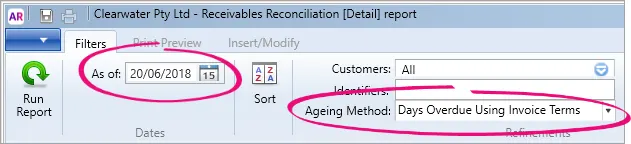
Run the Receivables Reconciliation [Detail] report. This report will show you what'll appear on your customers' statements. Go to the Reports menu > Index to Reports > Sales > Receivables Reconciliation [Detail].
![Go to the Reports menu > Index to Reports > Sales > Receivables Reconciliation [Detail]](https://images.ctfassets.net/aguk64kkrmhj/2YZ5gMitfowZYBhdR1mqcs/713f8c6d3a7d8c24ad88999c6d000449/report_option.png?fm=webp&q=75)
Change the As of date to the statement date and set the Ageing Method to Days Overdue Using Invoice Terms.
![Go to the Reports menu > Index to Reports > Sales > Receivables Reconciliation [Detail]](https://images.ctfassets.net/aguk64kkrmhj/2YZ5gMitfowZYBhdR1mqcs/713f8c6d3a7d8c24ad88999c6d000449/report_option.png?fm=avif&w=1248&h=891&q=75)

Adjust the displayed columns on the Review Statements Before Delivery window
-
Change the column width by clicking and dragging the edge of a column heading left or right.
-
Hide a column by right-clicking a column heading and choosing Hide This Column.
-
Re-display hidden columns by right-clicking a column heading and clicking Reset Layout (if this doesn't work, try closing and reopening the window).