If you're concerned that unauthorised transactions have been entered into your company file, or if you want to check what changes have been made to your MYOB Business file, you can run the Journal security audit report. This report lets you see what transactions have been made by users for a selected period.

Use the report options to show changes that only affect a particular transaction type or to show only certain actions. For example, you might want to show only spend money transactions that have been deleted by a particular user.
The Action column shows what change has been made to a transaction. These actions include:
Added — a new transaction was recorded.
Edited — an existing transaction was updated.
Deleted — a transaction was deleted.
Reversed — a transaction was reversed to cancel it out.
System — MYOB automatically created or adjusted a journal entry in the background.
Run the Journal security audit report
Go to the Reporting menu > Reports.
Click Journal security audit.
Filter the report as required:
• Choose the session period to view
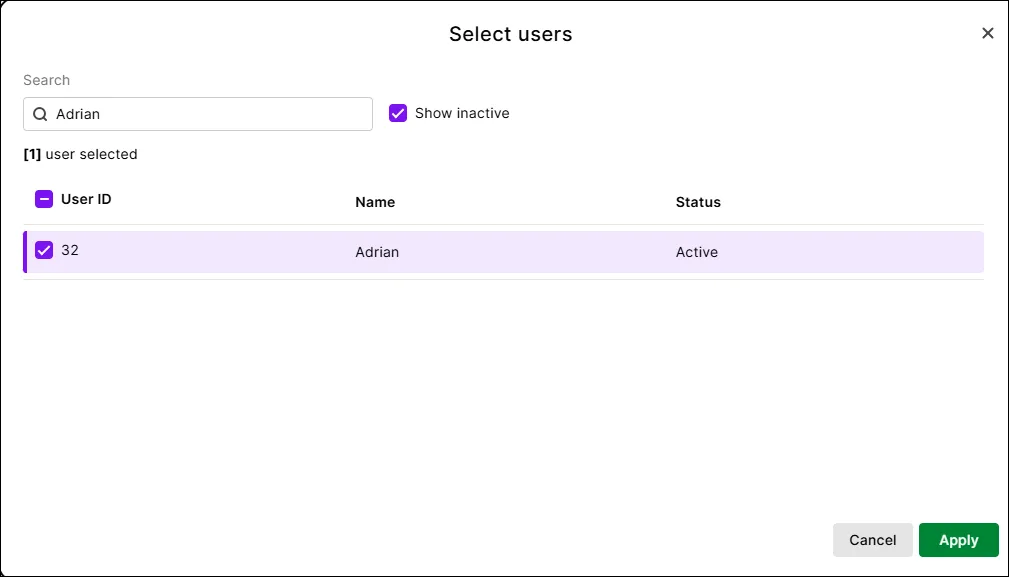
• Choose the transaction period you want to viewClick Report options for additional filters. For example, you can filter the report to show only certain transaction types or partcular users:
Click Apply to apply your report options.
Use the Customise option to hide columns or reorder them (click and hold your mouse on a column you want to move).
View details of a journal.
• Click the dropdown arrow next to each row to see a detailed journal entry describing the change or click Expand all to see the details of all entries.
• Click an ID No to see its details in a new browser tab.Click Export to download the report as an Excel file or PDF.

To prevent a user accessing the Journal security audit report (or any other reports), ensure they haven't been assigned either the Administrator or Accountant/Bookkeper roles and permissions:

If you're concerned that unauthorised transactions have been entered into your company file, or if you want to check what changes have been made to your company file, you can run the Audit reports.
There are several things you can do to protect your business information from being accessed or changed without authorisation. See Ways you can protect your AccountRight company file.
Check for unauthorised transactions
Use the Journal Security Audit report to see what transactions have been made by users for a selected period. This report replaces the Session Report that was available in AccountRight v19.
Go to the Reports menu and choose Accounts. The Reports window appears.
Choose Security and Audit and then Journal Security Audit.
Choose your filtering options. For example, you can show changes made in a specific session (eg on a particular day) or see changes to transactions that have dates within a specific period.
Click Display.
Check for unauthorised access or password changes
Use the Session Security Audit report to get a list of all users who have signed in to the file successfully or unsuccessfully, and if company file user account passwords have been changed.
Go to the Reports menu and choose Accounts. The Reports window appears.
Choose Security and Audit and then Session Security Audit.
Choose the period you want to review.
Click Display.
To prevent a user accessing security reports, you need to deselect the Accounts reports role for them:

For more information on managing user access, see Manage users.