From 17 June 2026:
-
AccountRight PC Edition no longer supports offline company files. Online files continue to work in PC Edition or a web browser.
-
AccountRight Server Edition is the only way to access offline company files. If you're hosting a file on a network, you need Server Edition installed on every workstation that accesses it.
-
Server Edition is built on older technology that's no longer being maintained. It won't receive bug fixes, security updates or new features, and may stop working entirely. We recommend moving your files online as soon as practical.
-
If you use both offline and online files, you can have both PC Edition and Server Edition installed on the same computer.
To open a company file, it needs to be in an AccountRight library. The libraries available depend on what AccountRight installer you've used:
AccountRight PC Edition: Online - for company files stored in the cloud
Server Edition:
My Library - for company files stored on your computer
Network Library - for company files stored on another computer in a local network
Getting an error about the "AccountRight Library Service"? Your help is here.
Where is my AccountRight library?
The company files in a library are stored in a specific location.
Here are the details:
This library... | is located here... |
|---|---|
Online | The online library is in the cloud. Learn more about working online. The online library also displays additional information, such as the version number your company file is compatible with and its status. |
My Library Offline files – Server Edition only | If you've installed the AccountRight Server Edition, the default AccountRight library location is a folder called My AccountRight Files in C:\Users\Public\Documents\MYOB. |
Network Libraries Network files – Server Edition only | A network library is like a shortcut to the My Library folder on another computer—typically the server. This lets you share a company file across multiple computers in a local network. If you're hosting a file on a network, you need Server Edition installed on every workstation that accesses it. Company files in a network library will appear in My Library on the host computer (which will need AccountRight Server Edition installed), but will appear under Network Library on other computers with Server Edition installed. See To add a network library below for instructions. Note that you can't store or share company files from a NAS drive. |
To rename an AccountRight company file
AccountRight company files are stored in the AccountRight library folder on your computer, or the network computer that hosts the file. If you want to rename a company file that isn't stored online, you can do this through File Explorer on your PC. If your company file is online, there's a different way to rename it.
If your company file is ONLINE
Open your online company file.
Go to the Setup menu and choose Company Information.
Change the Company Name.
Go to the Help menu and choose Confirm Company File.
Choose to Confirm Online then click Next.
Close then reopen AccountRight.
On the Welcome window, right-click your company file (listed with the old name) and choose Remove from list.
Click Open a company file and sign in to view your online files. You'll see your online company file has been renamed.
If your company file is OFFLINE
Open your company file.
Go to the Setup menu and choose Company Information.
Change the Company Name.
Close AccountRight.
On the computer where the company file is stored, press the Windows and E keys together to open File Explorer.
Go to the Documents > MYOB > My AccountRight files folder (or the folder where your library is located).
Right-click the company file and choose Rename.
Change the name as required.
Start AccountRight.
On the Welcome window, right-click your company file (listed with the old name) and choose Remove from list.
Click Open a company file and open your renamed company file.
Need to change your business name? See Changing your business name and contact details.
Changing or updating a library
Offline files, Server Edition only
To change the location of My Library
You can change the location of the My AccountRight Files folder (see above for the default locations) if you'd like to store your company files in another location on your computer. You can only change the location to a different local drive, not a network drive.
Complete these steps on the computer where the company files are stored:
Click the Windows Start button and type 'set library'.
Click Set Library Location.
Click Set Library Location SE.

Click Browse and navigate to the folder you want to use as your library.
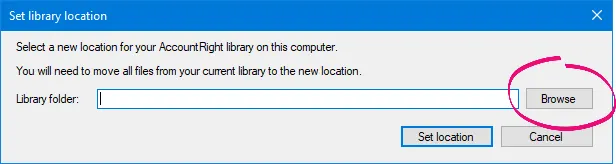
Select the folder then click OK. The Set library location window reappears.
Click Set Location. A message appears reminding you that the new library location must be on a local drive.
Click OK.
If you haven’t already done so, add your company files to the new library location as shown below.


To add a network library
A network library gives a computer access to My Library located on another computer in the network (typically the server). To open a file stored in a network library, or to save a file to a network library, the library must be added to your network library list.
Note that you can't connect to company files stored on a NAS drive.
Before you can add a network library:
check that AccountRight Server Edition is installed on the computer where the company file is stored (you can download it here - if you have an AccountRight subscription) and on every workstation that accesses it.
find the computer’s network address. This could be the computer name you see in Windows when browsing your network (e.g. John’s Computer), or the computer’s IP address (e.g. 192.168.0.5).
Find the computer name
You can find a computer’s name by viewing the System Properties window (In Windows 7 right-click the Computer item in the Start menu, and choose Properties. In Windows 10, right-click the Start button and choose System), or by opening the System control panel.
To add a network library
Start AccountRight and click Open a company file. The Library Browser window appears.
Click Network Libraries.
Click Add a network library. The Add a network library window appears.
Enter a name for the computer the library is on. For example,
John’s library.Enter the IP address of the computer, or the name of the computer where the library is. For example,
192.168.0.5orJohn’s computer.If you can’t use the default port number for this connection, click Advanced and enter the port number you want to use.
Click OK. The library now appears in the list.
Continue to open or save the file as required.
To remove a network library, right-click the network library to be removed and choose Remove from List.

To add a company file to a library
Here's how you can add an offline company file to My Library or a Network Library. If you want to put a company file online, see Put your company file online.
Start AccountRight and click Open a company file. The Library Browser window appears.
Click a library option on the left, then click Add a company file to this library.
Navigate to where the company file is located. Company files will have a .MYOX file extension, such as MyCompanyFile.MYOX. If you can't find a company file, see the FAQs below for help.
Click the company file then click Open. The file will be copied to the AccountRight library you select.
Need to add an AccountRight v19 (.myo) company file to your library? You'll need to send the file to us to move it to the latest version.
To add library subfolders

As described above in Where is my AccountRight library?, a folder called My AccountRight Files is automatically created on your computer when you install AccountRight. But if you have lots of company files (for example, because you are a bookkeeper), you can add subfolders to the library using Windows Explorer to help manage your files.

Press the Windows and E keys together to open the File Explorer window.
Navigate to the My AccountRight Files folder (or wherever you want to add a subfolder).
Double-click to open the folder.
Right-click in the right-hand panel and choose New > Folder.
Name the new folder as required.
Here's a demo:
To delete an AccountRight company file from your library
AccountRight company files are stored in the AccountRight library folder on your computer, or the network computer that hosts the file. If you want to permanently delete a file from your library you need to delete it from this location.
Press the Windows and E keys together to open Windows Explorer (Windows 7) or File Explorer (Windows 10).
Go to the Documents > MYOB > My AccountRight files folder (or the folder where your library is located). If you can't find your file, see the FAQs below for help.
Right-click the file and choose Delete.
See it in action: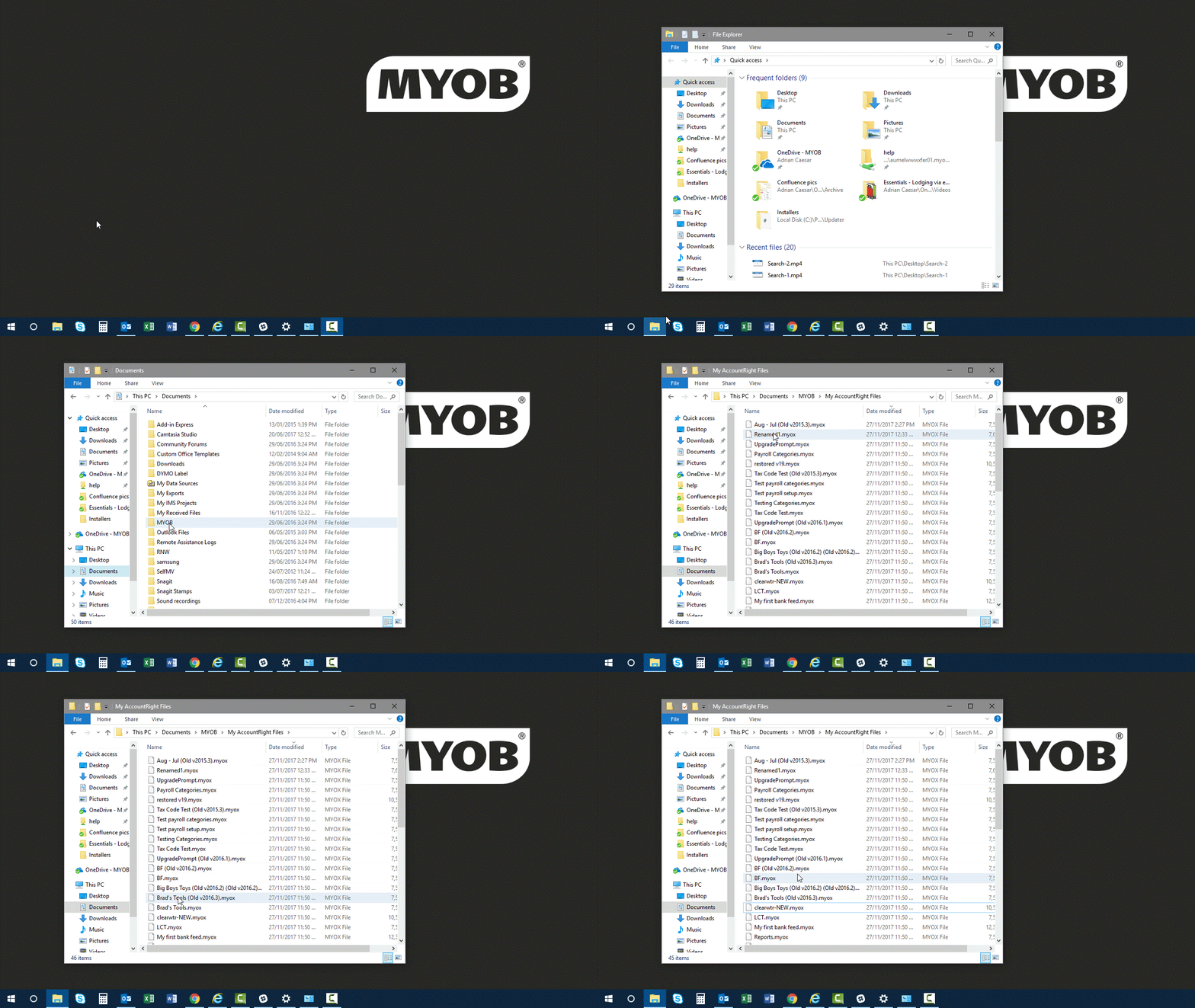
If the file is still showing on AccountRight's Welcome window, right-click the file and choose Remove from list.


FAQs
How do I find company files on my computer?
The easiest way to find the location of your company file is to run the Company Data Auditor.
Go to the Accounts command centre and click Company Data Auditor. The Company File Overview window appears, showing you the location of your file and other information:


If you can't access your company file in AccountRight, you can also find its location using windows search.
Simultaneously press the Windows and E keys on your keyboard (the Windows key is between the Ctrl and Alt keys).
In the left panel, click Local Disk (C:).

In the search box (in the top-right corner) type *.myox. The asterisk just tells Windows you're looking for everything that ends in ".myox" (the file extension for AccountRight company files). If your company file ends with ".myo" it's a classic (v19) AccountRight company file and will need to be upgraded.

All AccountRight company files on your Local Disk (C:) drive will be dipslayed. The file location will also be displayed.


Using Windows 10? Learn more about your searching options.
How do I add an AccountRight v19 (.myo) company file to a library?
To use a classic (v19) AccountRight company file with the new AccountRight, you'll need to send the file to us to move it to the latest version.
Can I create a shortcut to open my company file?
No, you can't create a shortcut to open a company file. This is because a shortcut would be associated with a specific AccountRight version, so each time a new AccountRight version is released the shortcut would need updating.
How do I remove an online company file?
If your AccountRight subscription has ended or you no longer want online access, you can remove your file from being online.
To move your file offline:
Take a backup of your online file. See Back up your company file for instructions.
Restore the backup to the AccountRight library on your computer. See Restore your company file for instructions.
If you later want to move this company file back online (and you still have an AccountRight subscription), take a backup of the company file and restore it online.
If you want to remove your company file from being online permanently, contact us and we'll remove the file from the cloud.