From 17 June 2026:
-
AccountRight PC Edition will no longer support offline company files. Online files will continue to work in PC Edition or a web browser.
-
AccountRight Server Edition will be the only way to access offline company files. If you're hosting a file on a network, you'll need Server Edition installed on every workstation that accesses it.
-
Server Edition is built on older technology that's no longer being maintained. It won't receive bug fixes, security updates or new features, and may stop working entirely. We recommend moving your files online as soon as practical.
-
If you use both offline and online files, you can have both PC Edition and Server Edition installed on the same computer.
AccountRight PC Edition can only access online company files. This means if you're using PC Edition on any of the workstations in your AccountRight network, you'll need to change it to AccountRight Server Edition.
Install AccountRight Server Edition on each workstation
First, download the latest AccountRight Server Edition. Once you've saved the installer to the workstation, double-click it to install AccountRight. You will need administrator permission on the workstation to complete the installation.
You can retain AccountRight PC Edition on the computer if you need to access online company files. Otherwise you can uninstall it.
Access the company files stored on the server
Once you’ve installed AccountRight Server Edition on each workstation, you can access the company files stored on the network server by adding a network library.
Start AccountRight on the workstation and click Open in the Welcome window.
Click Network Libraries, and then Add a network library.
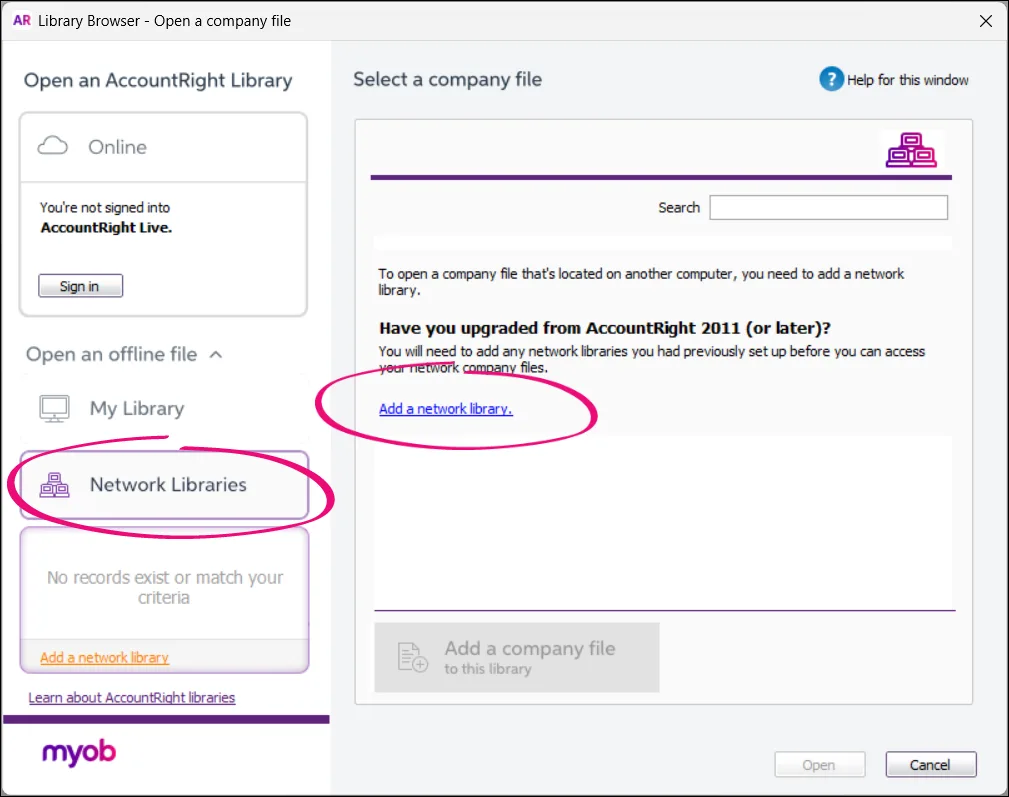
Enter the AccountRight server’s name or IP address, and give the library a nickname (this is handy if you have several servers). If you don’t know the server’s name, go to the Windows control panel on the server and select the System option.

Once the network library is set up, you can see and open all company files that are on the server.
Learn more about AccountRight libraries and opening company files.
Copy customised templates
If you use personalised letters or have customised Microsoft Excel templates, you will need to copy these templates from one location to another on each workstation. This ensures you will have access to these templates in AccountRight Server Edition on each workstation.
For help finding and copying files on your computer, check your Windows help (or Google it). When copying the folders below to their new location, if you're prompted to replace the existing folder – choose Yes.
If you use personalised letters:
Copy the 'Letters' folder from here | and paste it here |
|---|---|
C:\Users\<user.name>\Documents\MYOB\AccountRight\Current | C:\Users\Public\Documents\MYOB\AccountRight\20xx.x |
If you have customised Microsoft Excel templates:
Copy the 'Spreadsheet' folder from here | and paste it here |
|---|---|
C:\Users\<user.name>\Documents\MYOB\AccountRight\Current\Reports | C:\Users\Public\Documents\MYOB\AccountRight\20xx.x\Reports |