AccountRight Server Edition only
From 17 June 2026:
-
AccountRight PC Edition no longer supports offline company files. Online files continue to work in PC Edition or a web browser.
-
AccountRight Server Edition is the only way to access offline company files. If you're hosting a file on a network, you need Server Edition installed on every workstation that accesses it.
-
Server Edition is built on older technology that's no longer being maintained. It won't receive bug fixes, security updates or new features, and may stop working entirely. We recommend moving your files online as soon as practical.
-
If you use both offline and online files, you can have both PC Edition and Server Edition installed on the same computer.
You can create an offline backup your company file to save a copy of the file for record retention or to refer to the data at any time. The backup contains a snapshot of your company file as at the point you create the backup.
You might create an offline backup at key times, like EOFY, to create a handy snapshot of your data that you can retain or refer to later.
An offline backup is a compressed ZIP file which you should save in a safe location, like an external hard drive, another computer or online.
More about backing up and restoring company files
Create an offline backup
Go to the File menu and choose Backup.
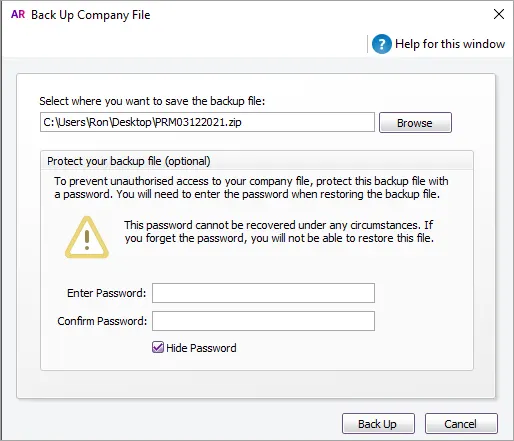
A default filename of MYOBmmddyyyy.zip is assigned, but you can change this if you like.
mmddyyyy is the month, day and year
.zip is the file extension and cannot be changed.
Click Browse and select where you want to save the backup file. If you want to save the backup on a removable USB drive, we recommend saving it to your computer first, then copying it to the USB drive.
If you want to protect the backup from unauthorised use, enter and confirm a password. This password will need to be entered when restoring the offline backup file.
Click Back Up.

FAQs
Can I create or restore offline backups if I use AccountRight online?
AccountRight PC Edition only
If your company file is online, you're using the latest version of AccountRight PC Edition. This version can't create or open offline files or backups.
You can still open an offline backup created in an older version, but you'll need to install AccountRight v2026.4 to do it. This is the last version that works with offline files.
To open an offline backup in AccountRight v2026.4
Close AccountRight.
Right-click this download link and choose Save link as or Save target as to save the AccountRight 2026.4 installation file to your Desktop.
Double-click the downloaded file on your Desktop and follow the prompts to install AccountRight. AccountRight v2026.4 will start automatically when the installation is complete.
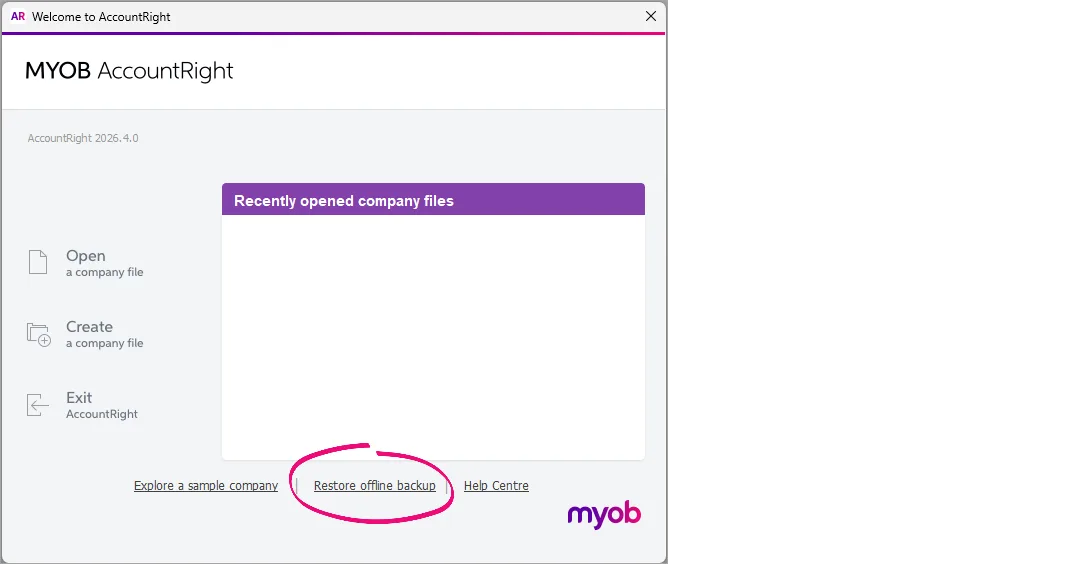
On the Welcome screen, click Restore Offline Backup.
Click Browse to select the offline backup file to open.
Choose to restore the backup in a library on my computer.
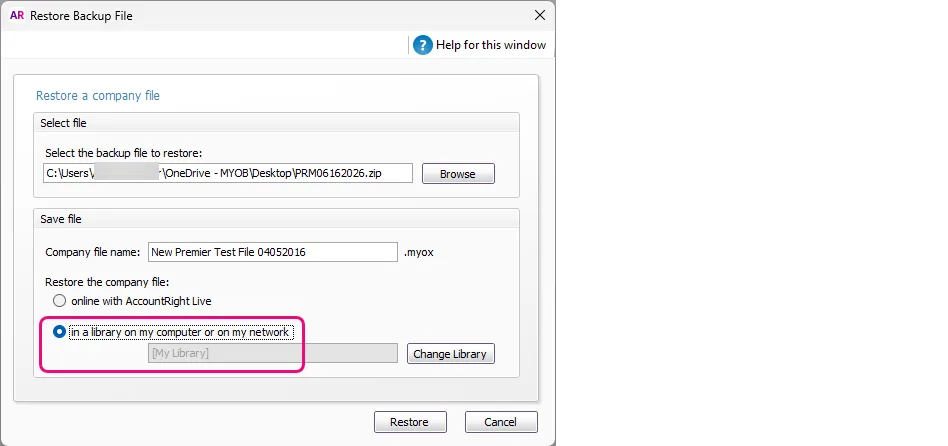
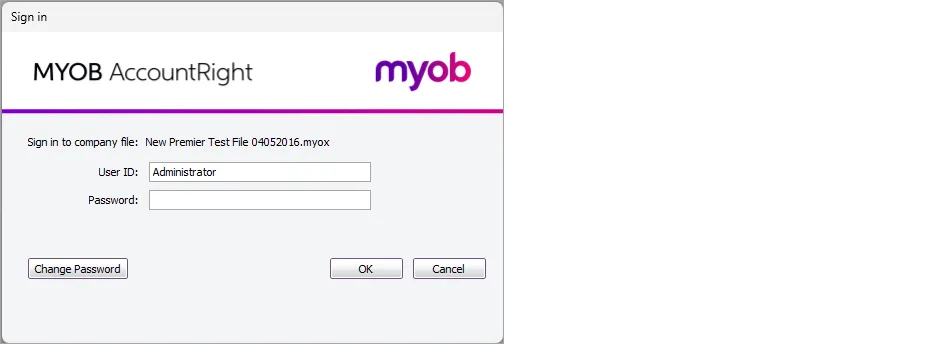
If the backup is password protected, enter the password.
Sign in to the restored offline company file.


Important:
Don't make any changes when viewing the offline backup – this isn't your current (working) company file.
When you close and re-open AccountRight, it will open the latest AccountRight version. If you need to re-open an offline backup, you'll need to repeat the steps above to download v2026.4 again.